



Organization roles and program roles are separate. Only organization Owners and Admins carry over into programs: they can open any program’s sessions without a program role. Everyone else needs a role in the program to see its sessions.
Organization roles
| Role | What it allows |
|---|---|
| Member | The default role for participants. Signs in to Coherence and runs the programs they’re added to, plus any program visible to the whole organization. No Console or Liveline access. |
| Specialist | Liveline access across the organization. Needs a program role to list or open a program’s sessions. |
| Admin | Manages organization settings, members, invitations and API keys, and has Liveline access. Can open any program’s sessions without a program role. Can’t run activities in a private program, or subscribe to it, without a program role. |
| Owner | Everything an admin can do. The person who creates the organization is its owner. |
Program roles
A program role decides what someone can do inside one program. If someone has more than one, the highest role wins.
| Program role | What it allows |
|---|---|
| Participant | An invitation to a private program. It makes the program visible to the person, who joins by subscribing. |
| Specialist | Sees everyone in the program and their session recordings, and joins live streams in Liveline. |
| Admin | Everything a specialist can do, plus managing the program. Also gets Console access, even as an organization Member. |
A typical setup: participants are organization Members with the program role Participant. The people running the study are organization Specialists or Admins with the program role Specialist or Admin. Organization owners and admins can open every program without being listed on its team.
Roles and subscriptions
Roles answer “what can you do here?” Subscriptions answer “have you joined?” Taking part in a program isn’t a role: a person joins by subscribing, which adds the program to their Library in Coherence. On the program page, Subscribers lists the people who have joined, and Program team lists its admins and specialists.
You can subscribe to any program you can see: one that’s visible to your whole organization, a private one you were invited to as a Participant, or one listed under Programs › Find in Coherence.
Set roles when you invite
The easiest time to set roles is when you invite someone. The Invite Members dialog sets the organization role and the program access, with a program role for each program, in one step.
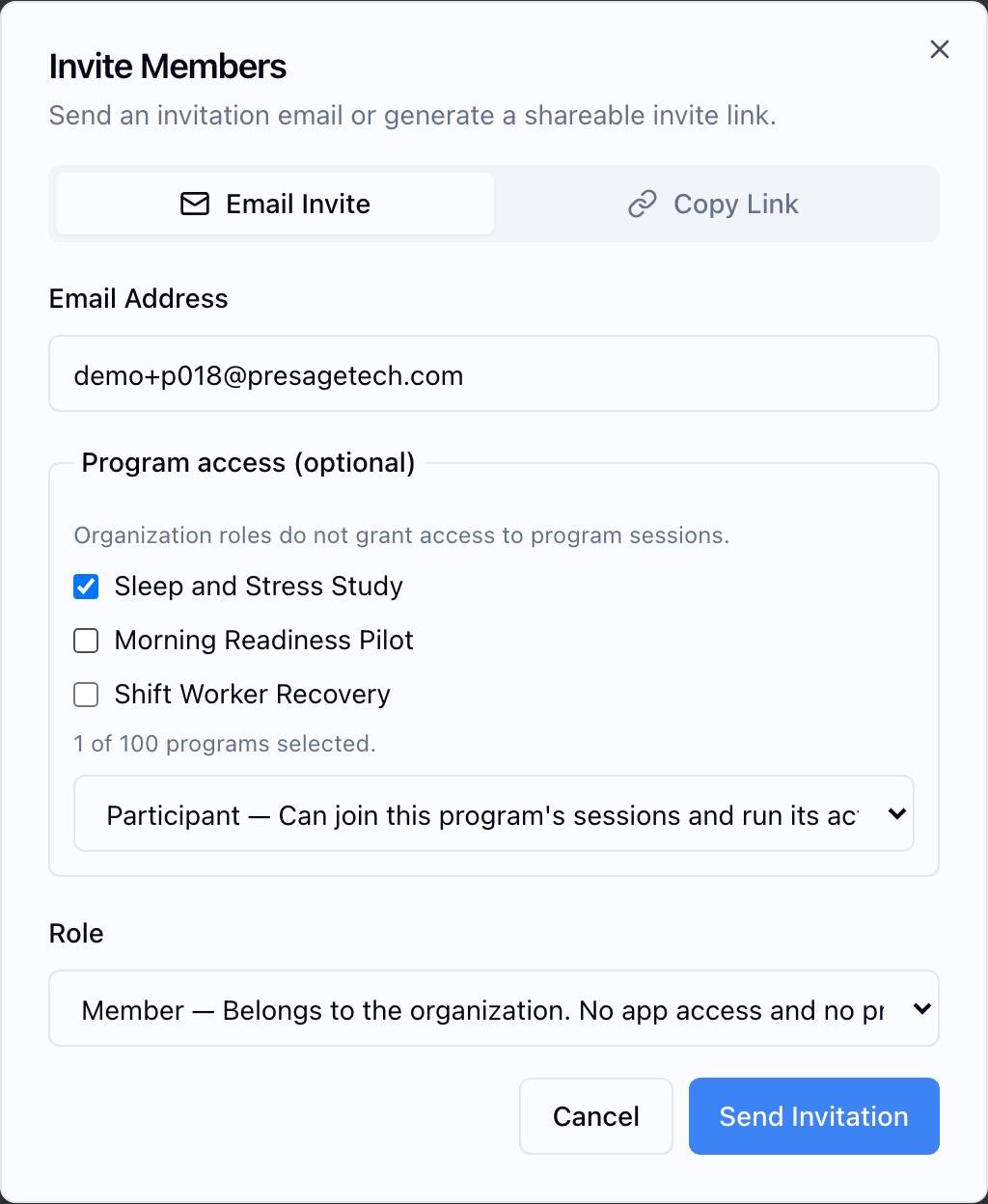
Change an organization role
-
Open Members
In the Console sidebar, click Members. Search by name or email to find the person.
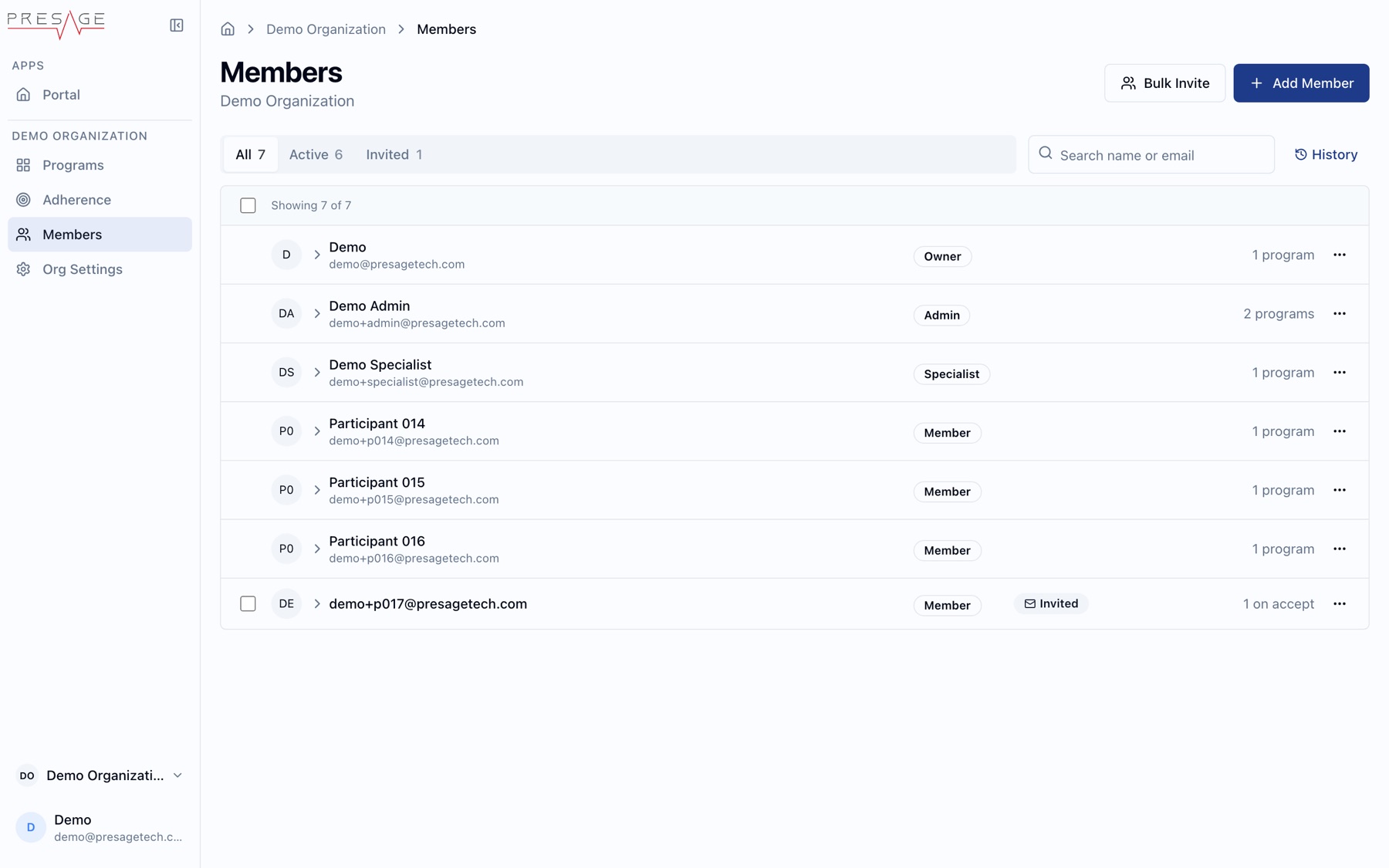
Members -
Open the row menu
Click … on their row and choose a new role, or remove them from the organization. See Members.
Change a program role
-
Open the program
In the Console, go to Programs and open the program. See Programs.
-
Pick the tab
Open Subscribers for participants or Program team for admins and specialists. To add someone new, click Add people. They must already be in your organization.
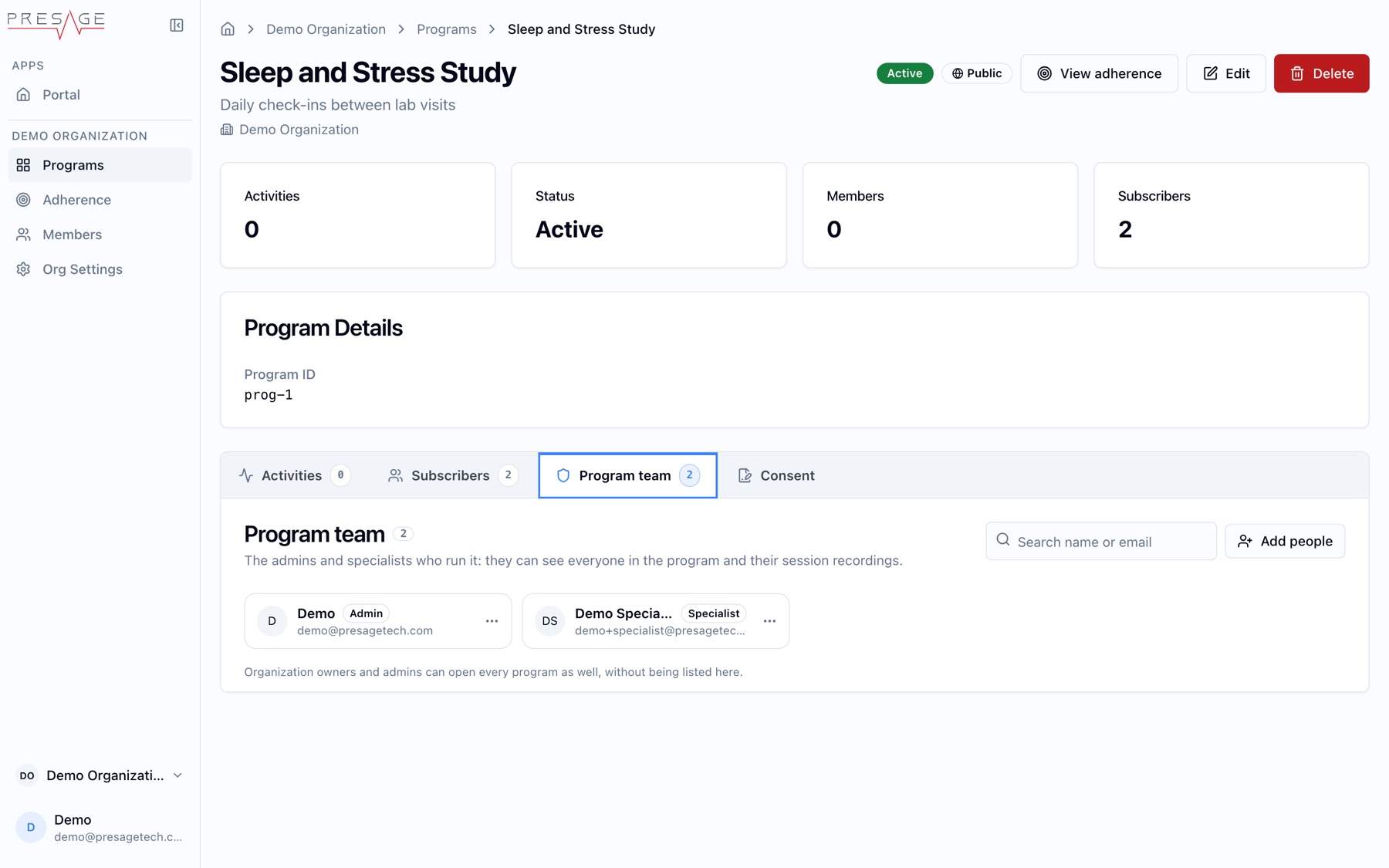
Program › Program team -
Change the role
Open the row menu and choose Make Admin, Make Specialist or Make Participant.