



Overview
A program groups the activities your participants will run, such as a morning check-in or a study protocol. Each program has its own participants and program team.
Guide
-
Open Programs
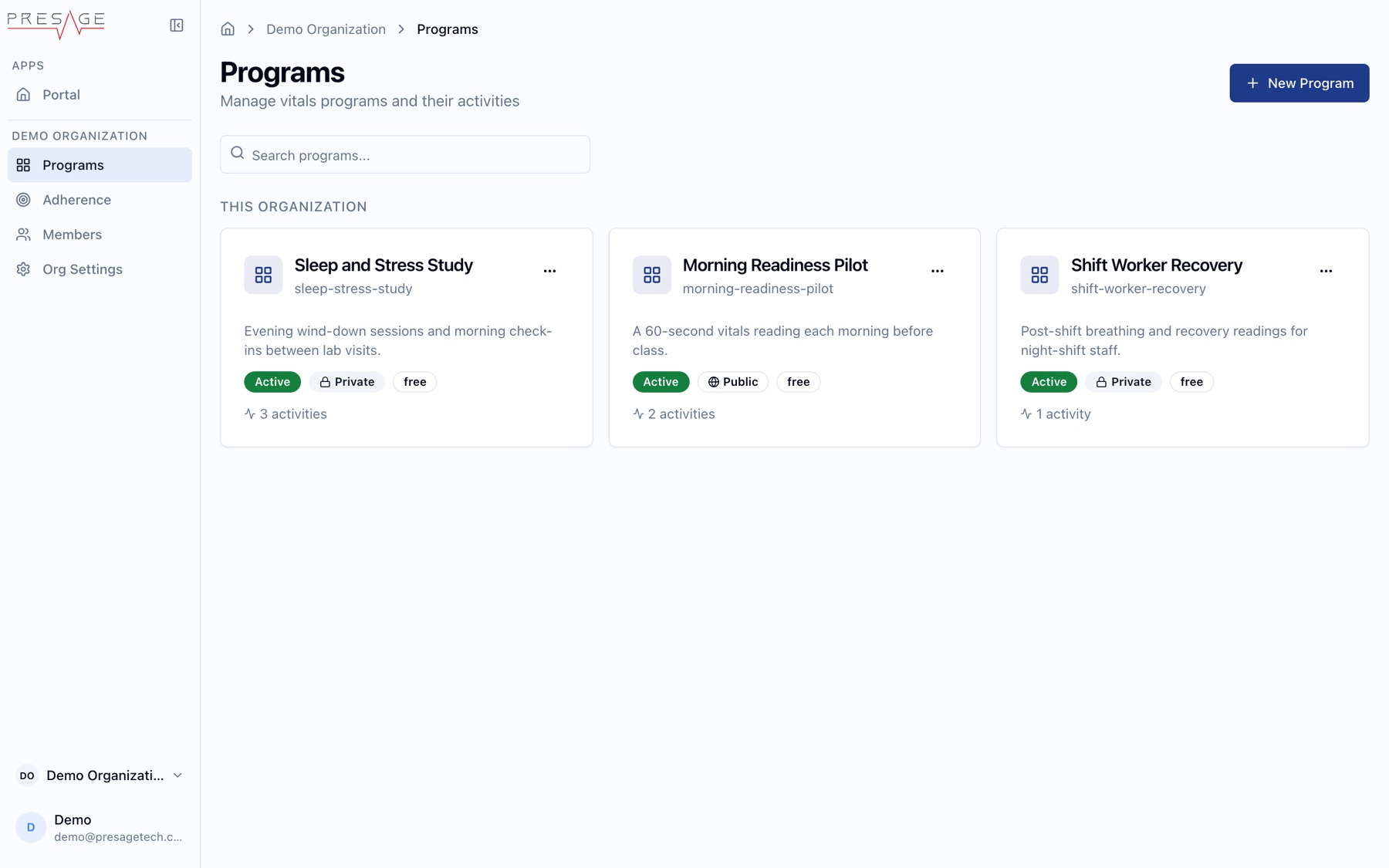
In the Console sidebar, click Programs, then New Program.
Programs -
Describe the program
Enter a Program Name and Short Description, both required. Add a Long Description if participants need more context.
 AppsPortalDemo OrganizationProgramsMembersOrg SettingsDemo Organization ▾Demo
demo@presagetech.comDemo Organization › Programs › DetailsCreate Program
Build a new program
Program Details
Basic information about your program
Program Name *Morning Check-inShort Description *A quick daily check-in routineLong DescriptionDetailed description of the program...OrganizationDemo OrganizationVisibility
Program VisibilityOnly explicitly added members can see this programCreate Program -
Set visibility
Programs are private by default: only people you add can see them. Turn on Program Visibility to show the program to everyone in your organization.
-
Save
Click Create program and add activities, or Save Draft to finish later.
-
Add activities and people
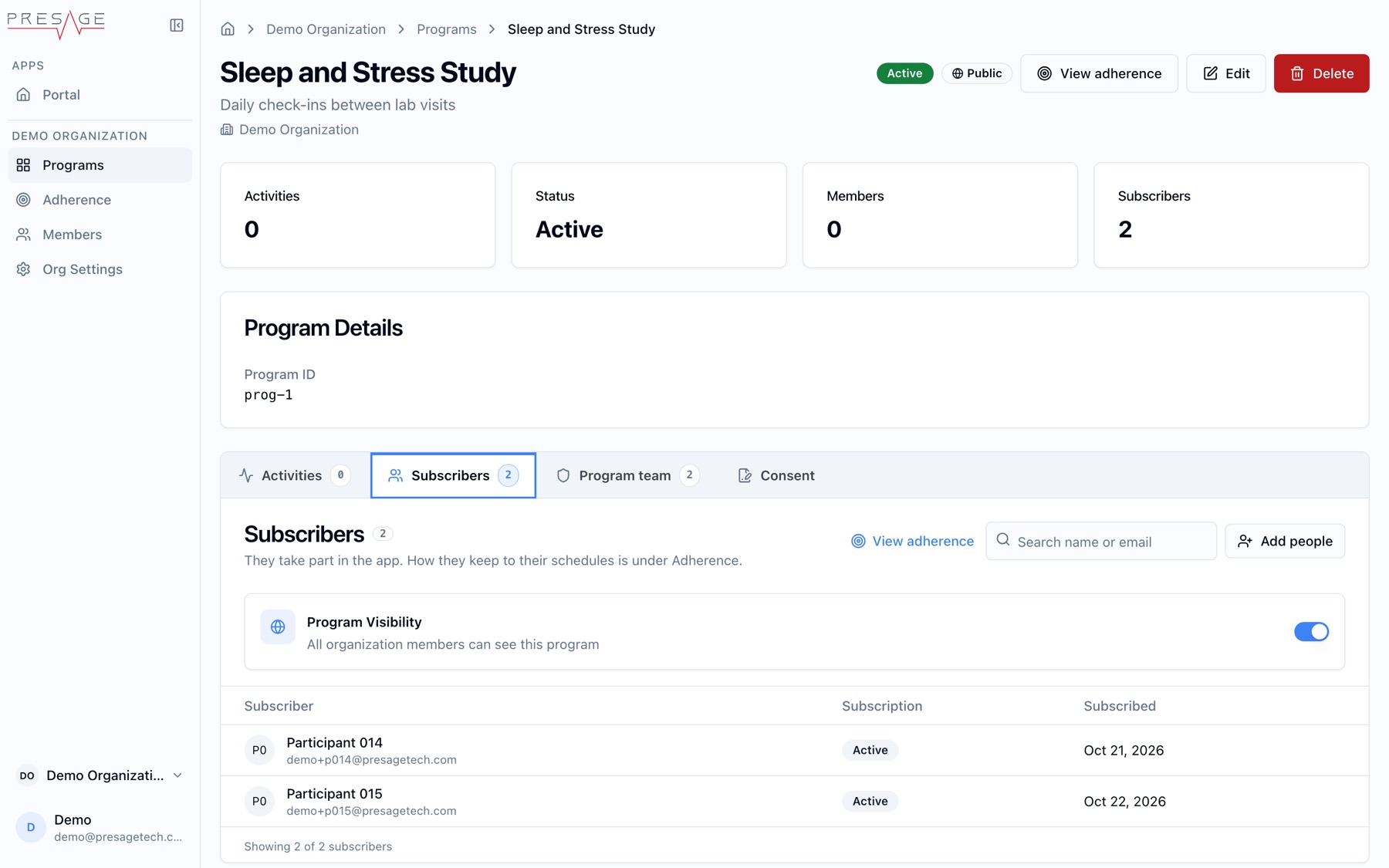
On the program page, click Add activity, then add people under Subscribers and Program team.
Program page › Subscribers
Programs list
The Programs page lists every program in the organization. Search by name, or open a card.
- Card: name, program ID, short description, status (Active), visibility (Private) and the number of activities.
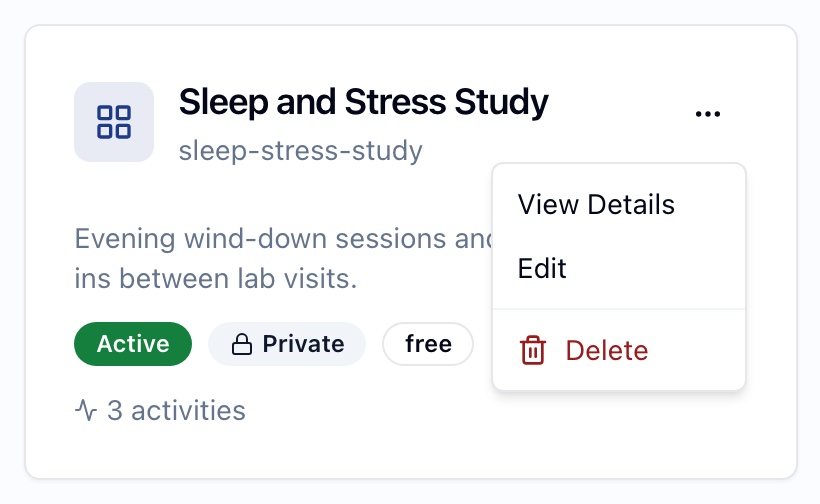
- Card menu (…): View Details, Edit, Delete.
Create Program
| Field | What it does |
|---|---|
| Program Name | Required. Shown to participants. |
| Short Description | Required. One line shown with the program name. |
| Long Description | Optional detail about the program. |
| Program Visibility | Off by default: “Only explicitly added members can see this program”. When on: “All organization members can see this program”. |
The list page’s empty state button is changing from “Create Program” to New Program, so every button matches.
Program page
Open a program from the Programs list to manage it.
- Header: the program's status and visibility, with Edit and Delete.
- Program Details: the Program ID.
- Activities tab: each activity with its length, category and step count. Click Add activity to create one, or Edit or Remove on an existing one.
- Subscribers tab: the participants, and the Program Visibility switch.
- Program team tab: the admins and specialists who run the program. See Roles and permissions.
FAQ
I created a program with AI and can't find it
Programs created through the Coherence MCP server are private, like any new program. Invite the people who should take part. If everyone in your organization should see it, turn on Program Visibility, or ask your AI assistant to.
Why can't I run activities in a program I can see?
Admins can view every program, but running its activities needs a program role or subscription. Add yourself under the program’s Members.