



Download
| Phone | Where to get it |
|---|---|
| iPhone and iPad | App Store: “Coherence by Presage Tech” |
| Android | Google Play |


For supported devices and camera requirements, see System requirements.
Sign in
-
Open Coherence
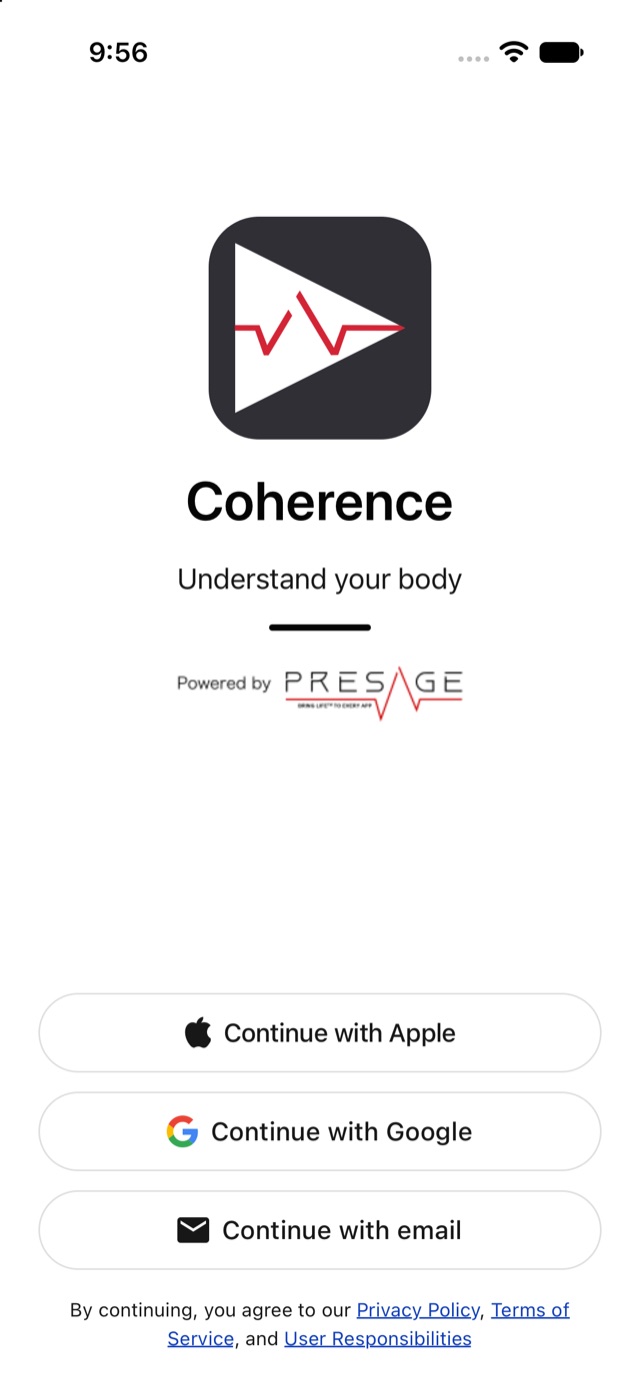
The first screen offers three ways in.
Sign in -
Choose how to sign in
Tap Continue with Apple, Continue with Google or Continue with email. If you were invited, use the address the invitation was sent to.
With Apple, if Apple offers Share My Email, choose it so Coherence can match your invitation.
-
Allow notifications
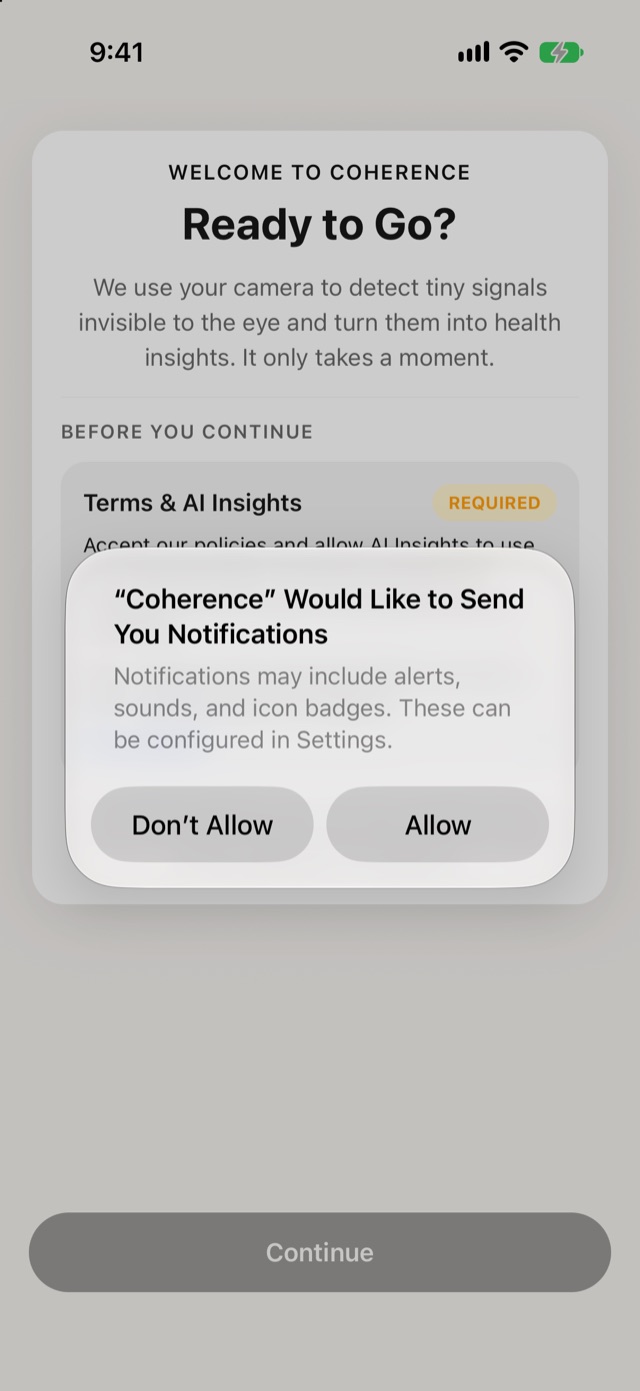
Coherence asks to send you notifications, so it can remind you when an activity is due. Tap Allow. You can change this later in Settings.
Notifications
Signing in means you agree to Presage’s Privacy Policy and Terms of Service. They’re also linked at the bottom of the sign-in screen.