---
title: "Roles and permissions"
description: "Access works in two layers: a role in the organization, and a role in each program."
---
> eSSESSMENT docs. Web page: https://presagetech.com/docs/essessment/roles
> Index of all pages: https://presagetech.com/docs/essessment/llms.txt
# Roles and permissions
Organization roles and program roles are separate. Only organization Owners and Admins carry over into programs: they can open any program's sessions without a program role. Everyone else needs a role in the program to see its sessions.
## Organization roles
| Role | What it allows |
| --- | --- |
| Member | The default role for participants. Signs in to Coherence and runs the programs they're added to, plus any program visible to the whole organization. No Console or Liveline access. |
| Specialist | Liveline access across the organization. Needs a program role to list or open a program's sessions. |
| Admin | Manages organization settings, members, invitations and API keys, and has Liveline access. Can open any program's sessions without a program role. Can't run activities in a private program, or subscribe to it, without a program role. |
| Owner | Everything an admin can do. The person who creates the organization is its owner. |
## Program roles
A program role decides what someone can do inside one program. If someone has more than one, the highest role wins.
| Program role | What it allows |
| --- | --- |
| Participant | An invitation to a private program. It makes the program visible to the person, who joins by subscribing. |
| Specialist | Sees everyone in the program and their session recordings, and joins live streams in Liveline. |
| Admin | Everything a specialist can do, plus managing the program. Also gets Console access, even as an organization Member. |
A typical setup: participants are organization **Members** with the program role **Participant**. The people running the study are organization **Specialists** or **Admins** with the program role **Specialist** or **Admin**. Organization owners and admins can open every program without being listed on its team.
## Roles and subscriptions
Roles answer "what can you do here?" Subscriptions answer "have you joined?" Taking part in a program isn't a role: a person joins by subscribing, which adds the program to their Library in Coherence. On the program page, **Subscribers** lists the people who have joined, and **Program team** lists its admins and specialists.
You can subscribe to any program you can see: one that's visible to your whole organization, a private one you were invited to as a Participant, or one listed under **Programs › Find** in Coherence.
## Set roles when you invite
The easiest time to set roles is when you invite someone. The [Invite Members](https://presagetech.com/docs/essessment/invite) dialog sets the organization role and the program access, with a program role for each program, in one step.
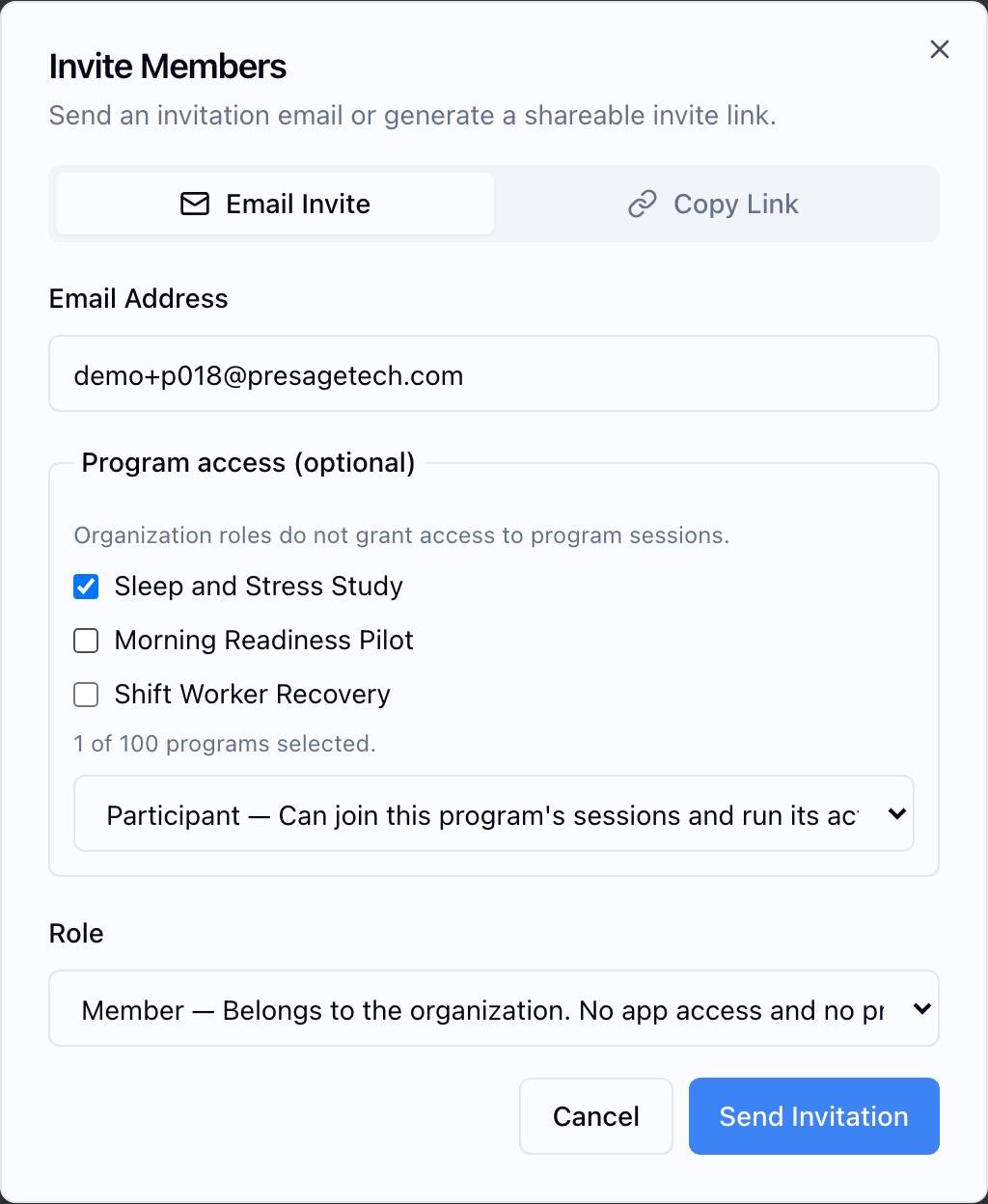
Role and program access are set together when you invite someone
## Change an organization role
#### Open Members
In the Console sidebar, click **Members**. Search by name or email to find the person.
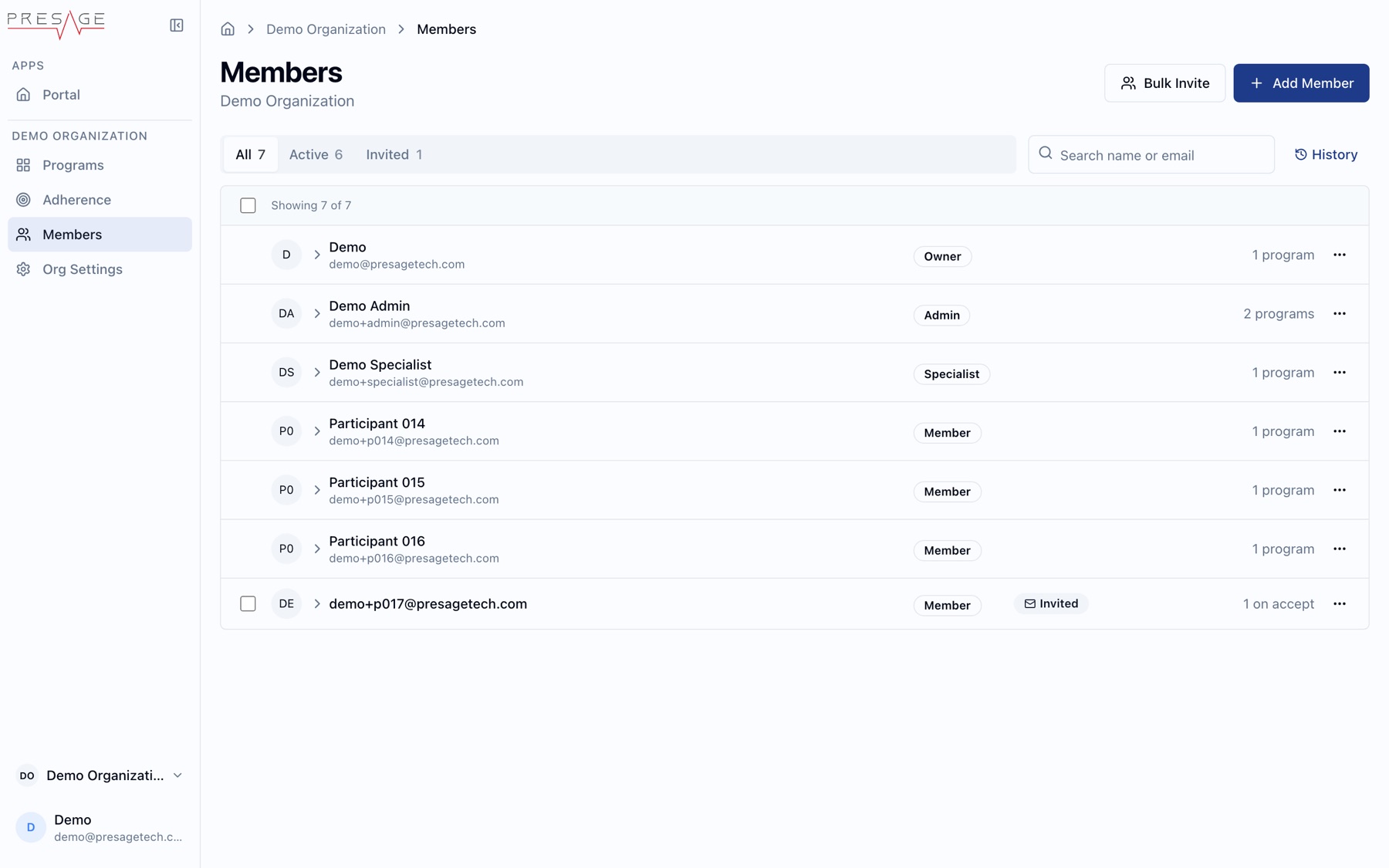
Members
#### Open the row menu
Click **…** on their row and choose a new role, or remove them from the organization. See [Members](https://presagetech.com/docs/essessment/members).
## Change a program role
#### Open the program
In the Console, go to **Programs** and open the program. See [Programs](https://presagetech.com/docs/essessment/programs).
#### Pick the tab
Open **Subscribers** for participants or **Program team** for admins and specialists. To add someone new, click **Add people**. They must already be in your organization.
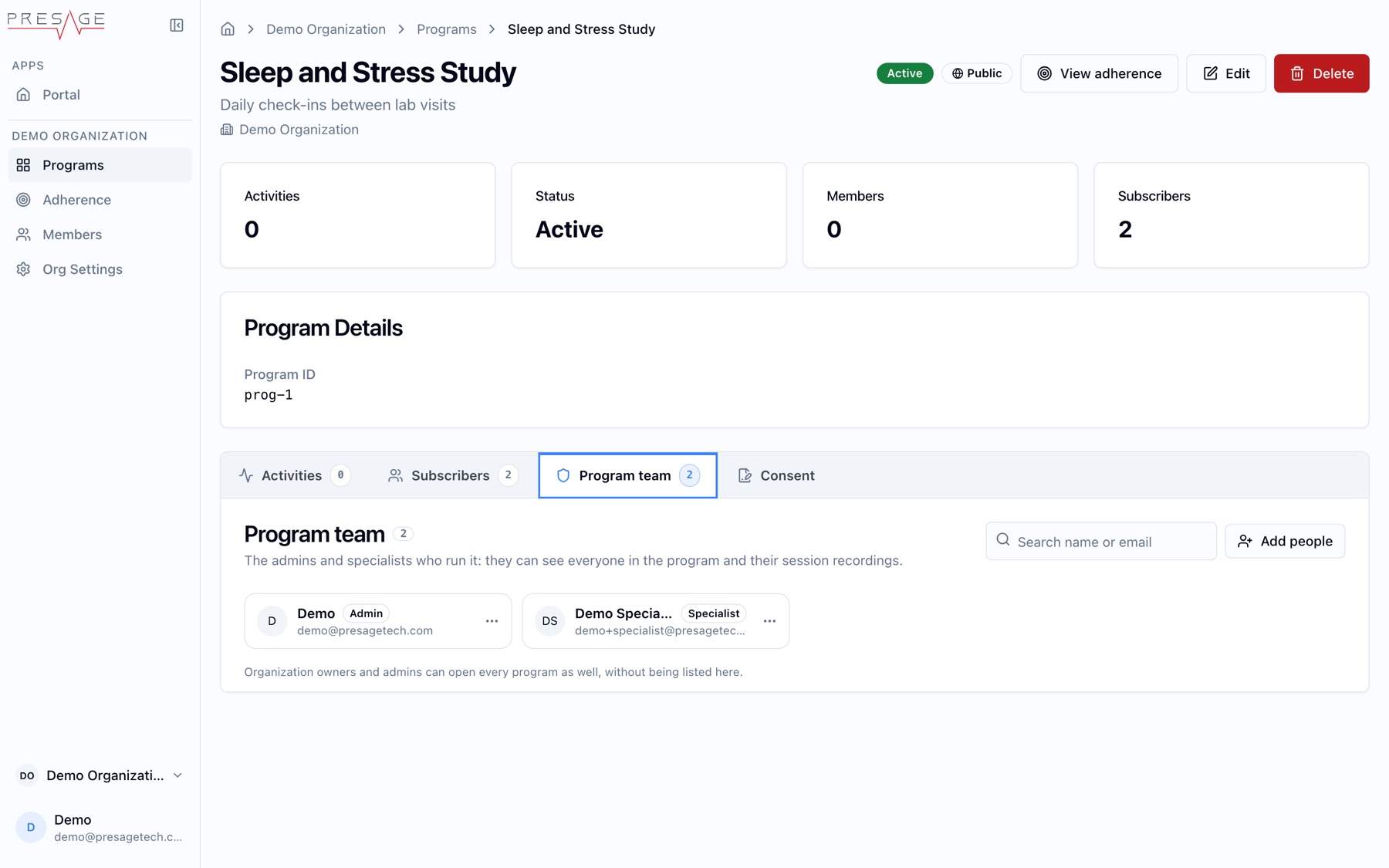
Program › Program team
#### Change the role
Open the row menu and choose **Make Admin**, **Make Specialist** or **Make Participant**.