



Guide
-
Go to Presage Portal
Open
coherence.presagetech.comand click Create an account.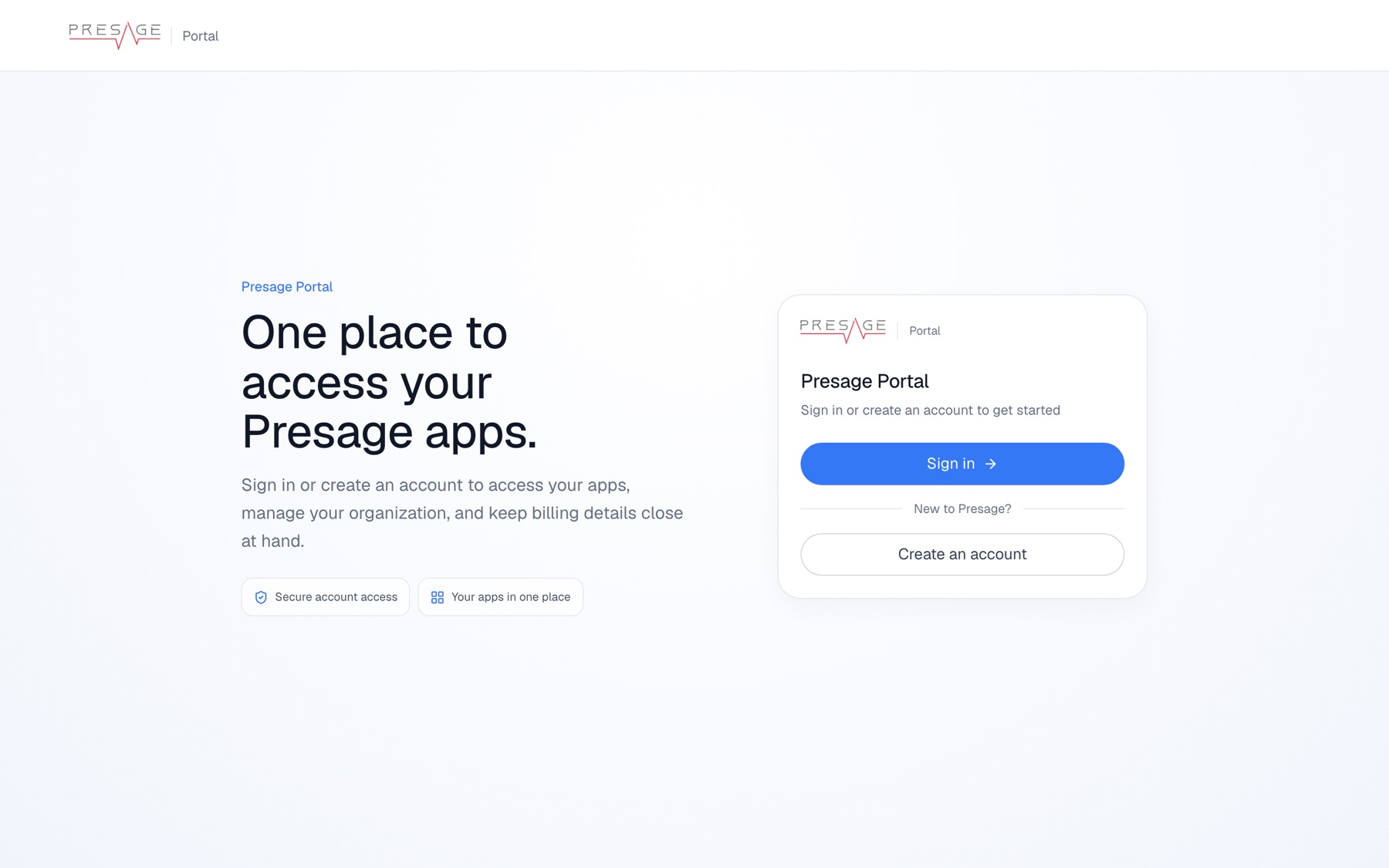
Presage Portal -
Sign up
Enter your Email address, a Password and Confirm password, then click Sign up. Or use Continue with Apple or Sign in with Google.
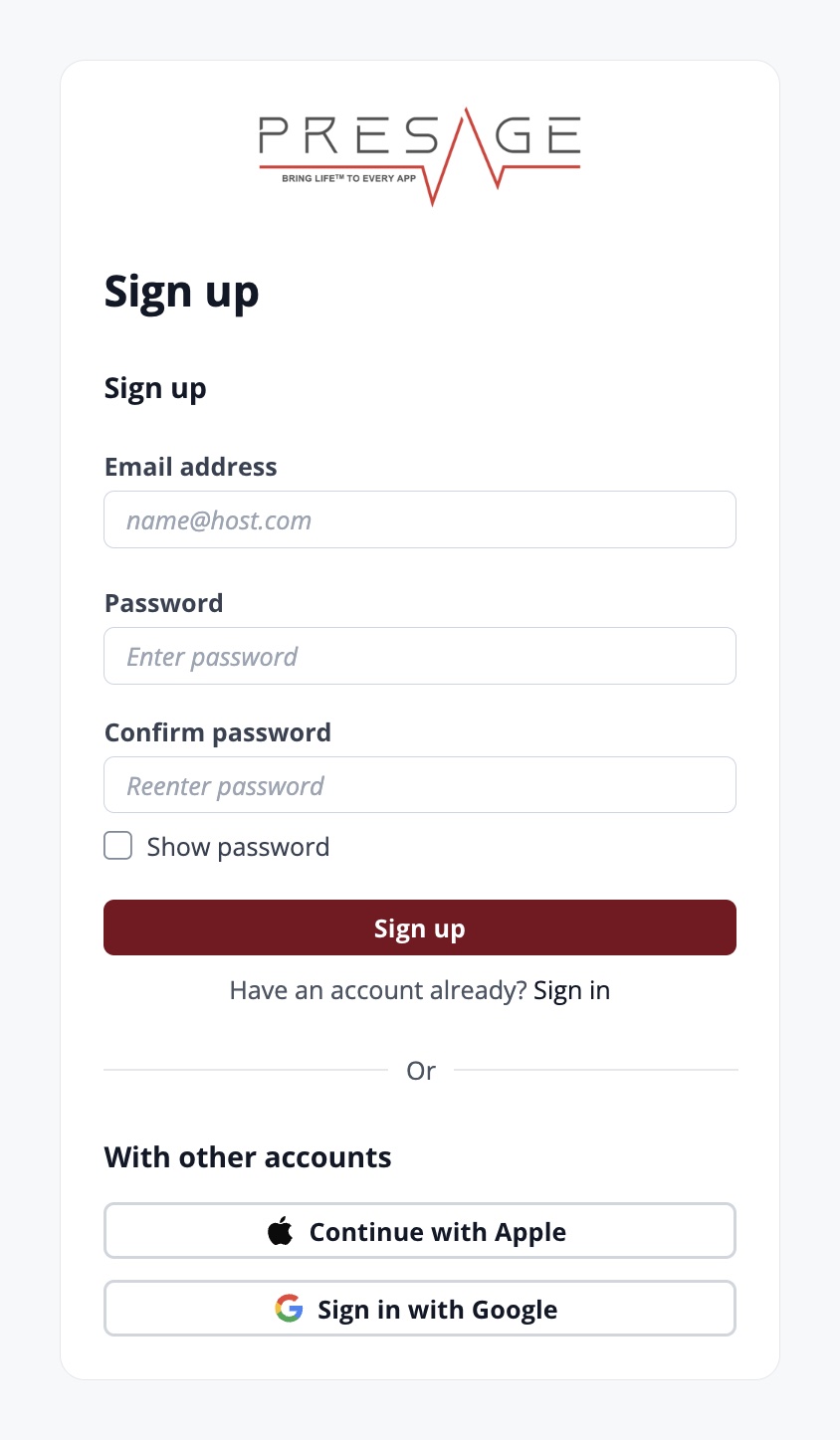
Sign up -
Verify your email
If you signed up with an email and password, enter the code we email you. Apple and Google accounts skip this step.
-
Add a passkey or authenticator app (optional)
You can add a passkey to sign in with your device’s biometrics, or set up an authenticator app for one-time sign-in codes. You can also add either one later under Account security.
-
Accept the policies
Check Terms of Service, Privacy Policy and Your Responsibilities, then click Accept. Each name links to the full document.
Please review and accept our current policies to continue.
- Terms of Service
- Privacy Policy
- Your Responsibilities
By checking these boxes and clicking Accept below, you accept and represent that you've read and understand the Terms of Service, privacy policy and Your Responsibilities.
AcceptAccept the current policies -
Click Create organization
You land on Your Apps in Presage Portal. On the Create an organization card, click Create organization.
-
Create your organization
Enter an Organization name. Contact email is optional and defaults to your account email. Click Create organization. You become the organization’s owner.
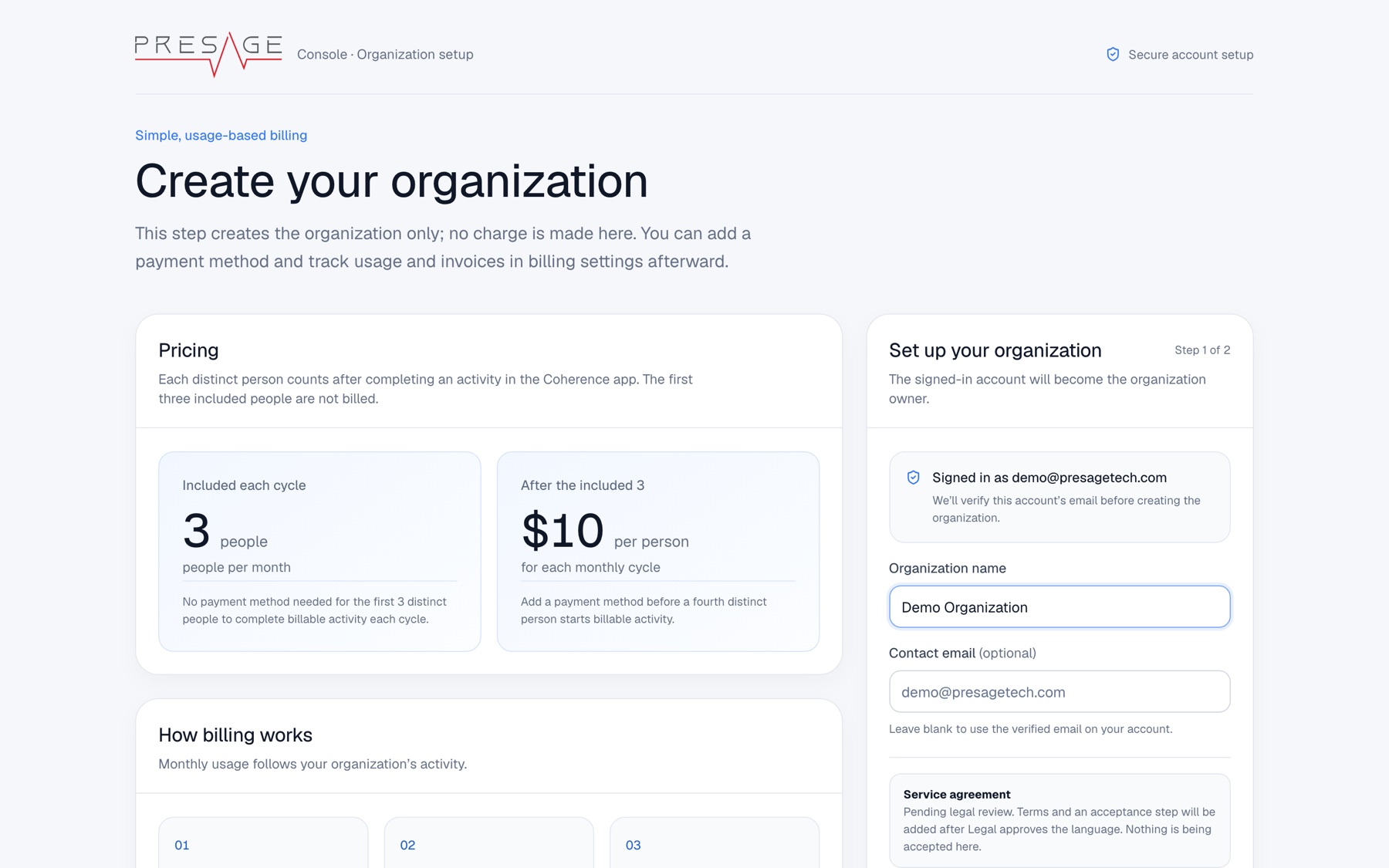
Create your organization -
Set up billing, or skip it
You land on Billing. You don’t need a payment method yet: the first 3 people each month are included.
What is an organization?
An organization is your team’s account. It owns your programs, members and billing. You don’t need to be a company to create one: anyone can create an organization and name it anything. One person can belong to several organizations and switch between them from the organization name at the bottom of the sidebar.