



People join your organization first. You can’t add someone to a program until they’re a member of your organization, so pick their programs when you invite them.
Guide
-
Open Members
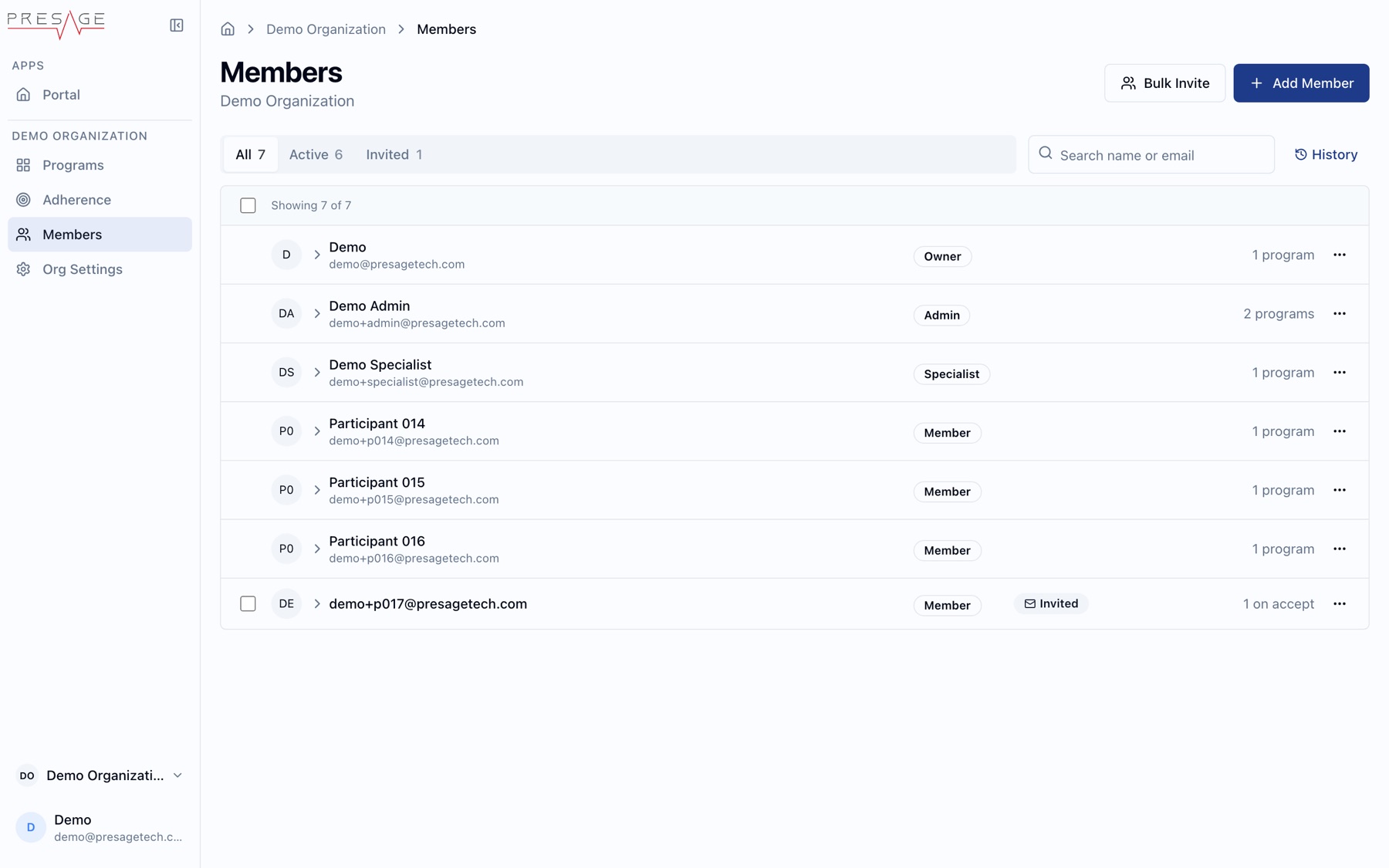
In the Console sidebar, click Members, then Add Member. The Invite Members dialog opens.
Members › Add Member -
Choose how to invite
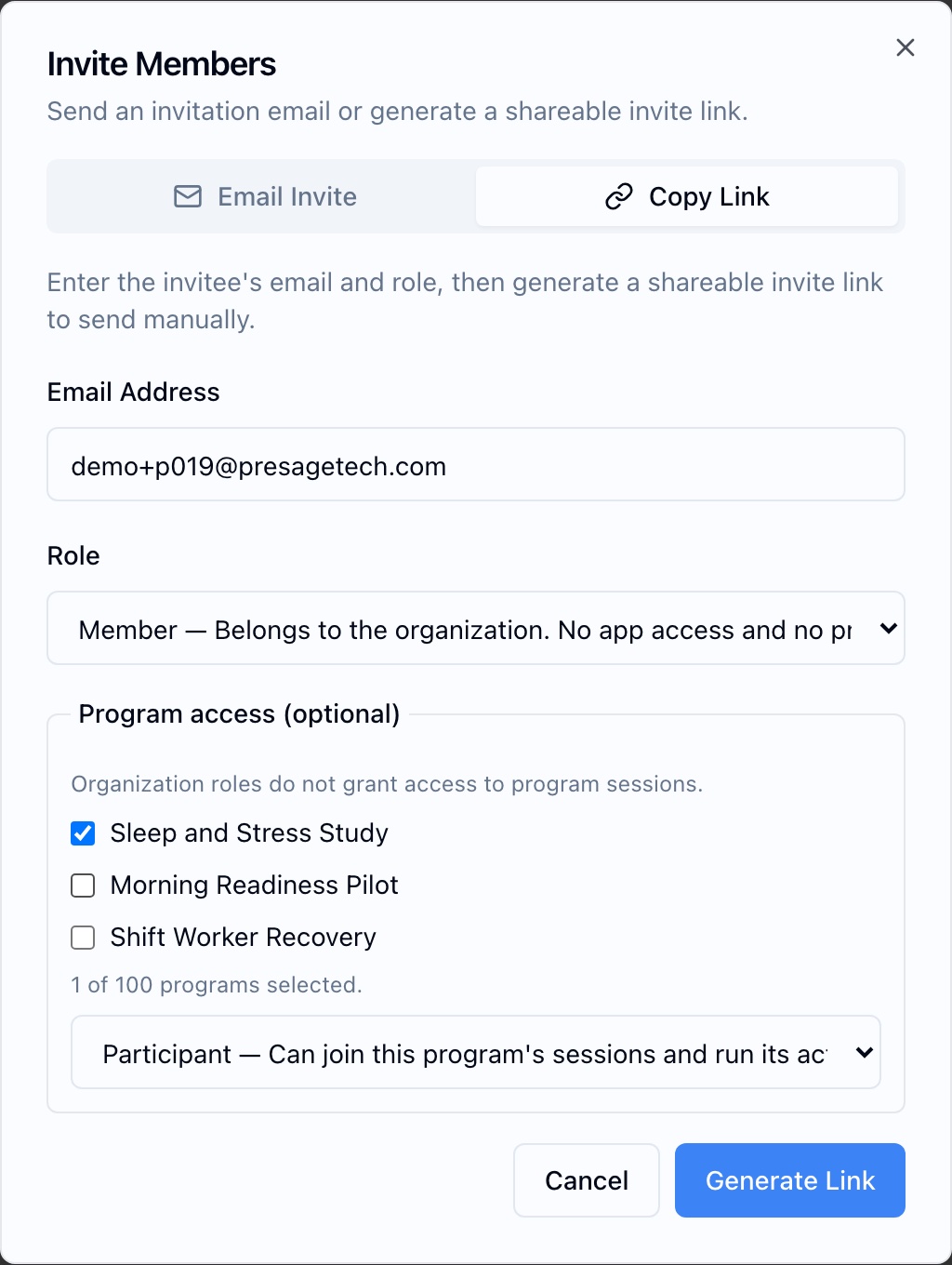
Email Invite sends an email for you. Copy Link generates a link you can share yourself, and also sends the invitee an invitation email.
Copy Link -
Enter the email address
Use the address the person will sign in with.
-
Pick programs
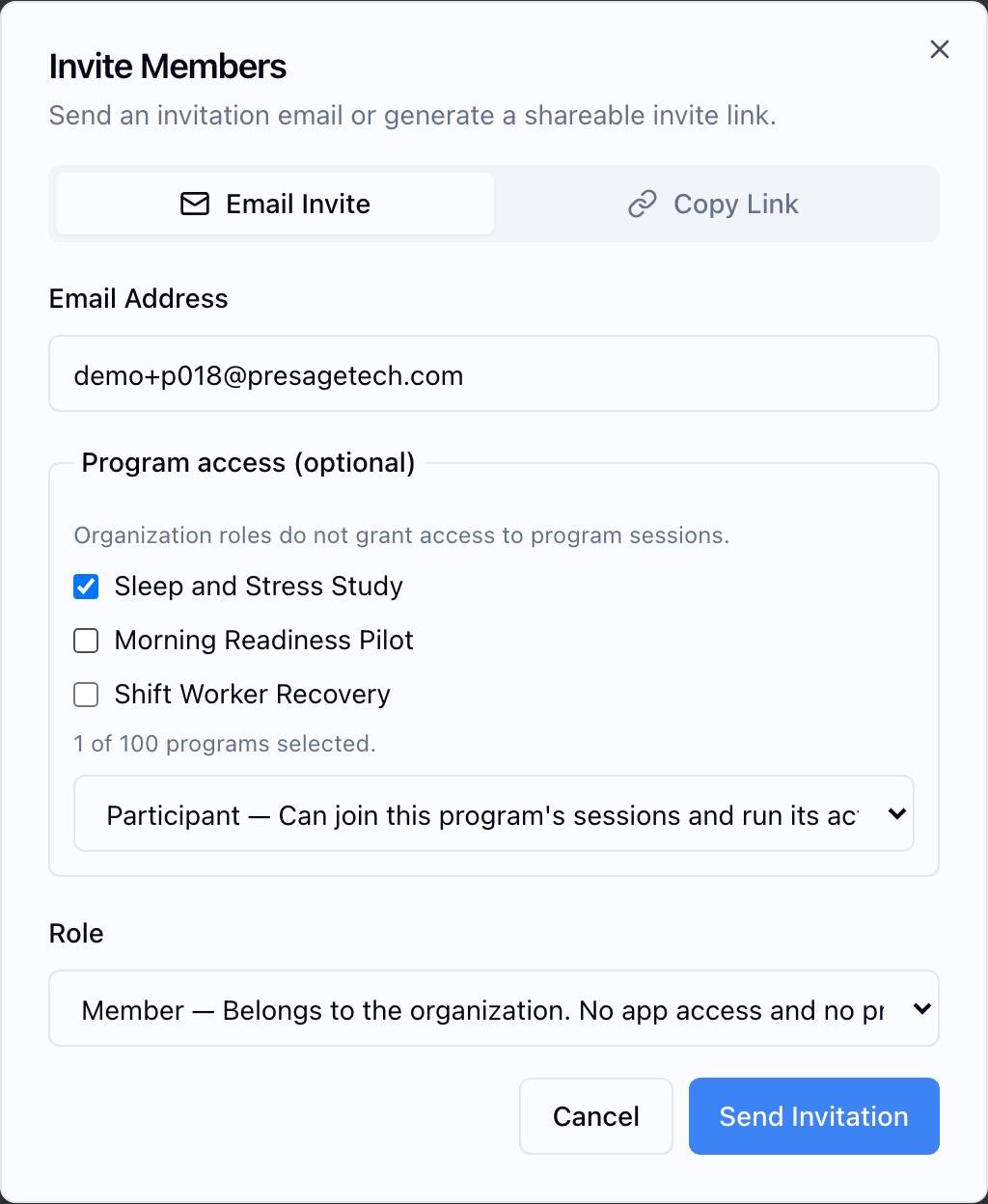
Under Program access (optional), check each program they should join and pick their program role, usually Participant. Organization roles alone don’t grant access to program sessions.
Program access and Role -
Pick a role
Most participants are Member. See Roles and permissions.
-
Send
Click Send Invitation or Generate Link.
Bulk invite
Click Bulk Invite on the Members page to invite many people at once. Bulk invites only add people to the organization. They don’t pick programs, so tell invitees what to do next:
- Join the organization from the invitation.
- In Coherence, open Programs › Find and tap Add to Library on an available program.
A private program only shows in Find once an admin gives the person access. See Programs.
Track invitations
On the Members page, the Invited filter lists invitations that haven’t been accepted yet. Use the row menu (…) to manage one.
What the invitee sees
-
The email
Subject: “You’re invited to join organization on Presage”. It has a View invitation button and App Store and Google Play links. Invitations expire on the date shown in the email.
-
Open in Coherence
On a phone, they tap Get Coherence or Open in Coherence. On a computer, they click Sign in to accept.
-
Sign in
They create an account or sign in with the invited email, using a password, Apple or Google.
-
Join
In Coherence they tap Join. Joining also adds the invited programs to their Library.
If they sign in with a different email, they see “This invitation belongs to a different account” and can sign out and use the invited account.