

Guide
-
Get the room code
Your specialist gives you a room code or a link. If the session is part of an activity, Coherence takes you there for you.
-
Join
On the Scan tab, tap Join a session. Enter the Room code or Liveline link, or scan its QR code, then tap Join room.
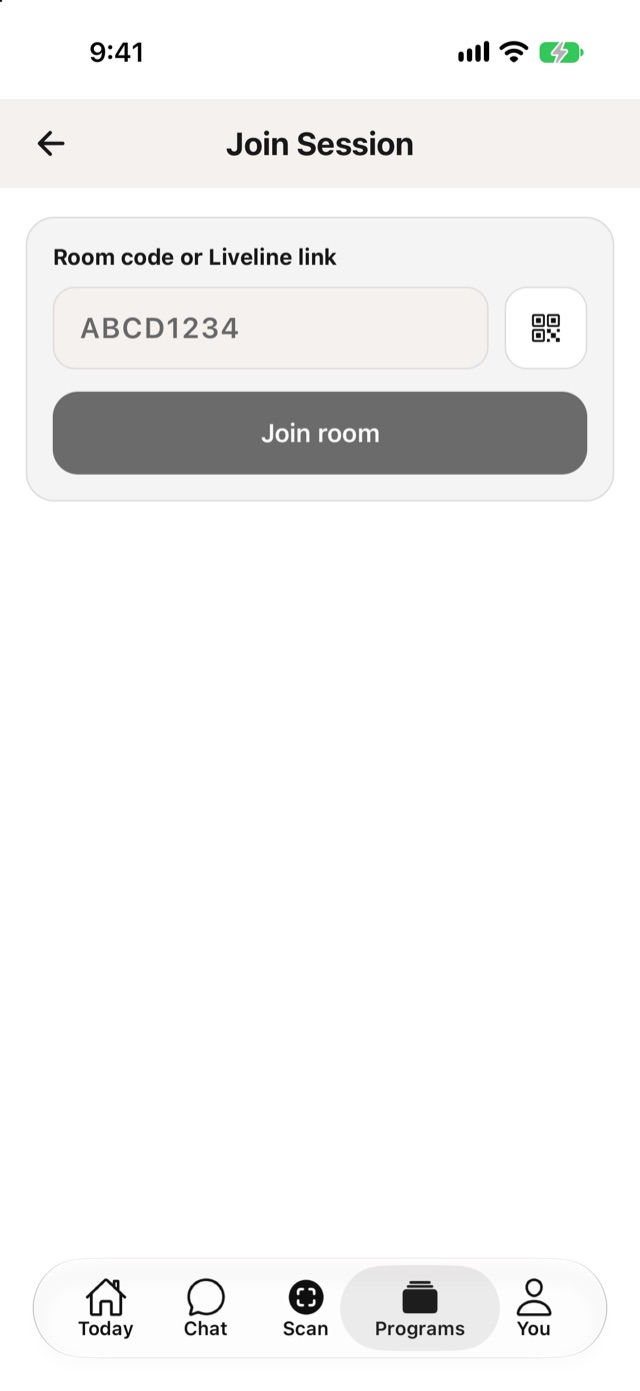
Join Session -
Agree to recording, if asked
If the session is recorded, Coherence explains what’s recorded and who controls it. Tap Agree and start to continue, or Cancel.
If you see “This session has ended”, ask your specialist for a new room code.
For supported devices and camera requirements, see System requirements.