---
title: "Invite people"
description: "Add participants and teammates by email or link, and give them program access in the same step."
---
> eSSESSMENT docs. Web page: https://presagetech.com/docs/essessment/invite
> Index of all pages: https://presagetech.com/docs/essessment/llms.txt
# Invite people
People join your organization first. You can't add someone to a program until they're a member of your organization, so pick their programs when you invite them.
## Guide
#### Open Members
In the Console sidebar, click **Members**, then **Add Member**. The **Invite Members** dialog opens.
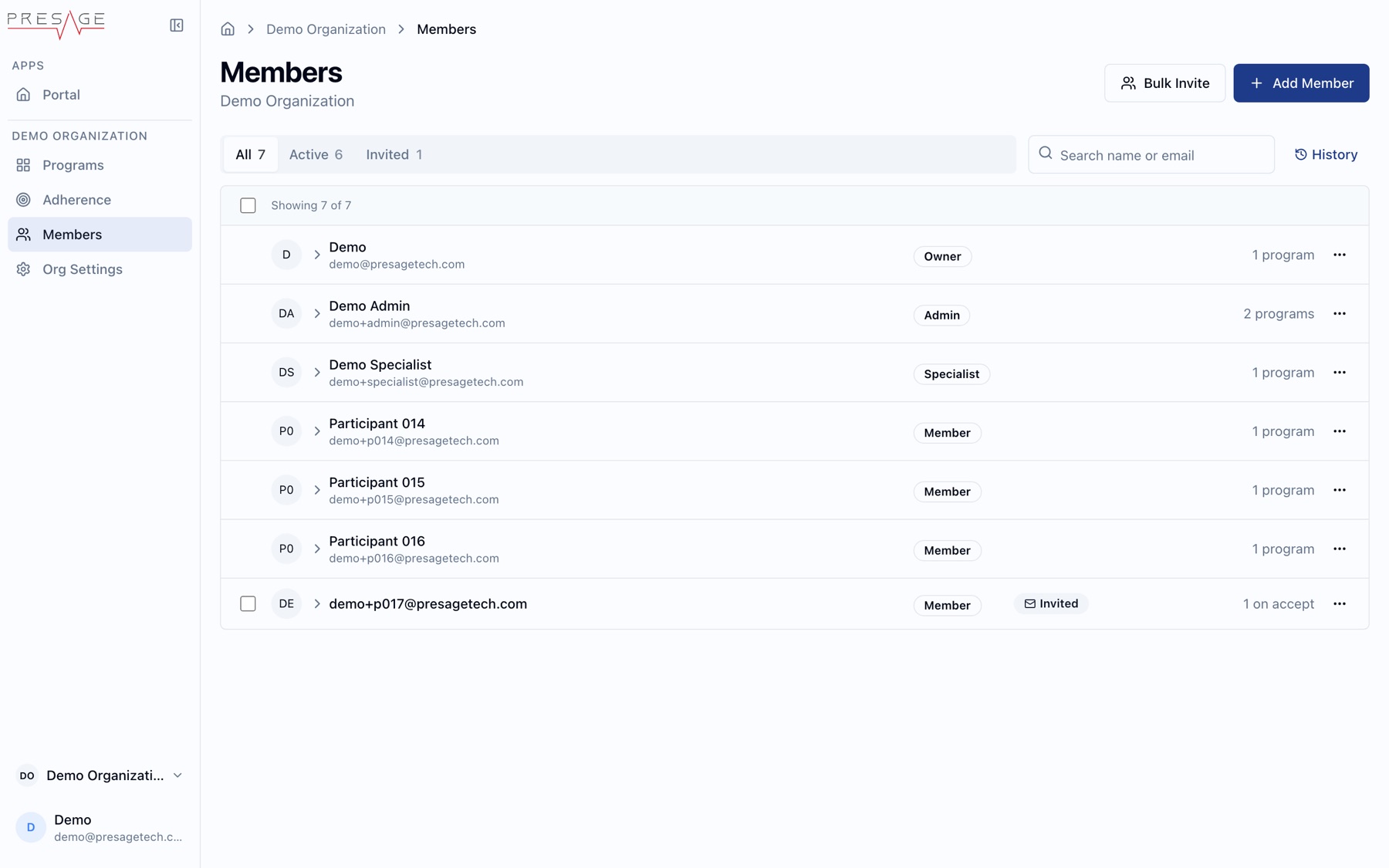
Members › Add Member
#### Choose how to invite
**Email Invite** sends an email for you. **Copy Link** generates a link you can share yourself, and also sends the invitee an invitation email.
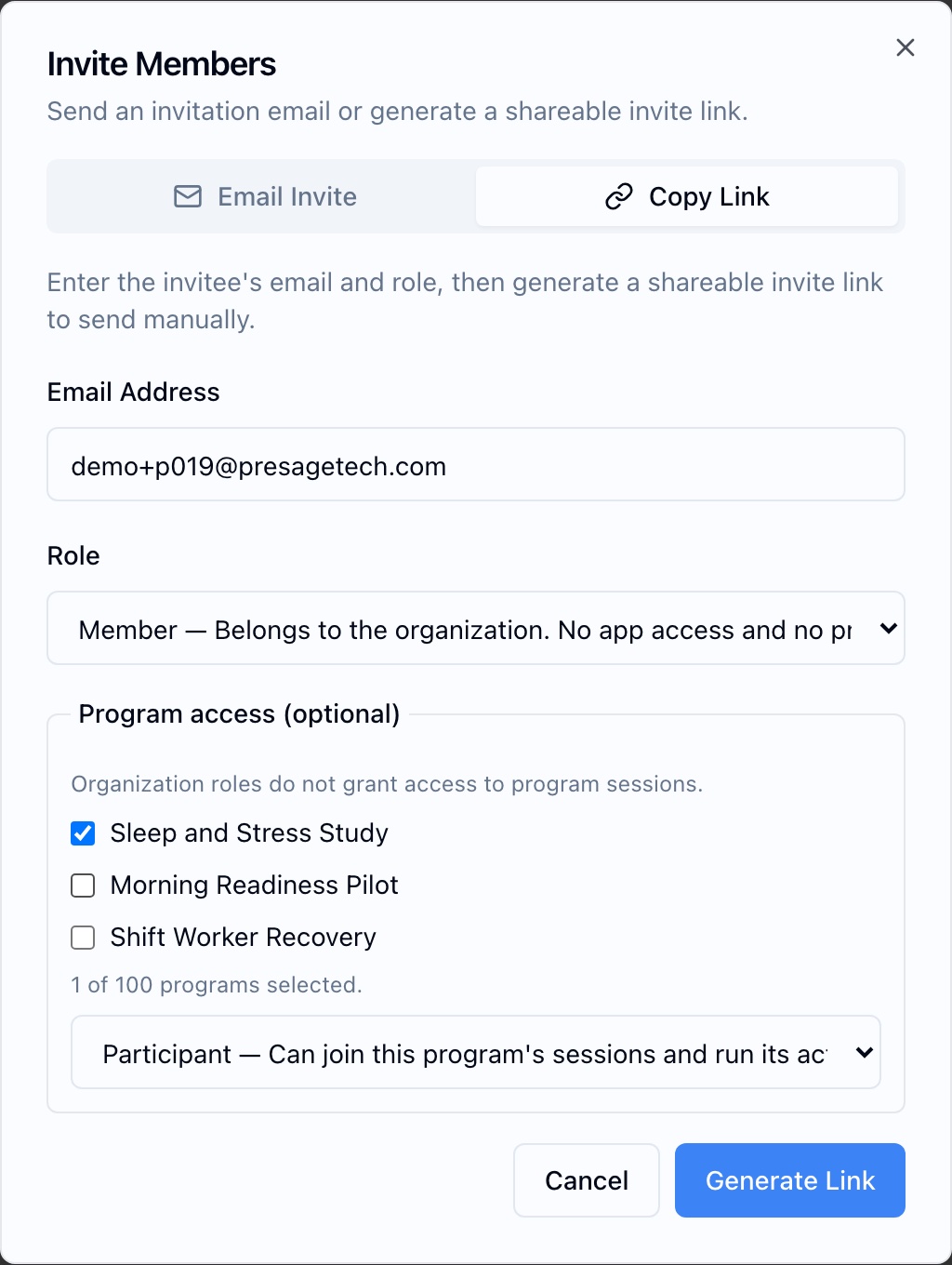
Copy Link
#### Enter the email address
Use the address the person will sign in with.
#### Pick programs
Under **Program access (optional)**, check each program they should join and pick their program role, usually **Participant**. Organization roles alone don't grant access to program sessions.
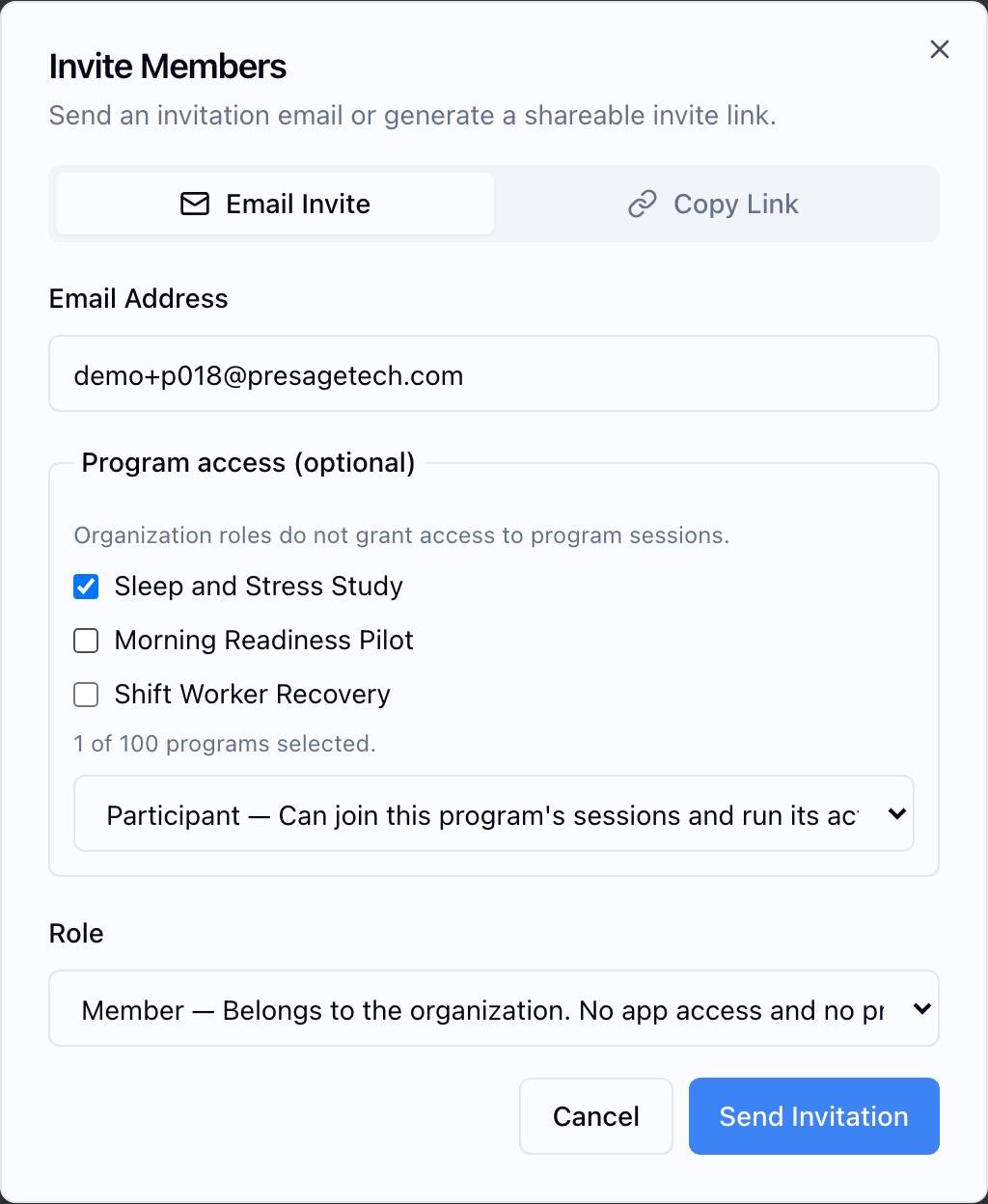
Program access and Role
#### Pick a role
Most participants are **Member**. See [Roles and permissions](https://presagetech.com/docs/essessment/roles).
#### Send
Click **Send Invitation** or **Generate Link**.
## Bulk invite
Click **Bulk Invite** on the Members page to invite many people at once. Bulk invites only add people to the organization. They don't pick programs, so tell invitees what to do next:
1. Join the organization from the invitation.
1. In Coherence, open **Programs › Find** and tap **Add to Library** on an available program.
A private program only shows in **Find** once an admin gives the person access. See [Programs](https://presagetech.com/docs/essessment/programs).
## Track invitations
On the Members page, the **Invited** filter lists invitations that haven't been accepted yet. Use the row menu (…) to manage one.
## What the invitee sees
#### The email
Subject: "You're invited to join *organization* on Presage". It has a **View invitation** button and App Store and Google Play links. Invitations expire on the date shown in the email.
#### Open in Coherence
On a phone, they tap **Get Coherence** or **Open in Coherence**. On a computer, they click **Sign in to accept**.
#### Sign in
They create an account or sign in with the invited email, using a password, Apple or Google.
#### Join
In Coherence they tap **Join**. Joining also adds the invited programs to their Library.
If they sign in with a different email, they see "This invitation belongs to a different account" and can sign out and use the invited account.