---
title: "Create your account"
description: "Sign up, accept the policies, and create the organization your programs will live in."
---

> eSSESSMENT docs. Web page: https://presagetech.com/docs/essessment/create-account
> Index of all pages: https://presagetech.com/docs/essessment/llms.txt

# Create your account

## Guide

<ol class="guide">
<li>

#### Go to Presage Portal

Open [`coherence.presagetech.com`](https://coherence.presagetech.com/) and click **Create an account**.

<figure class="shot narrow">

![Presage Portal sign in](https://presagetech.com/docs/essessment/assets/signin-v3.jpg)

<figcaption>Presage Portal</figcaption>
</figure>

</li>
<li>

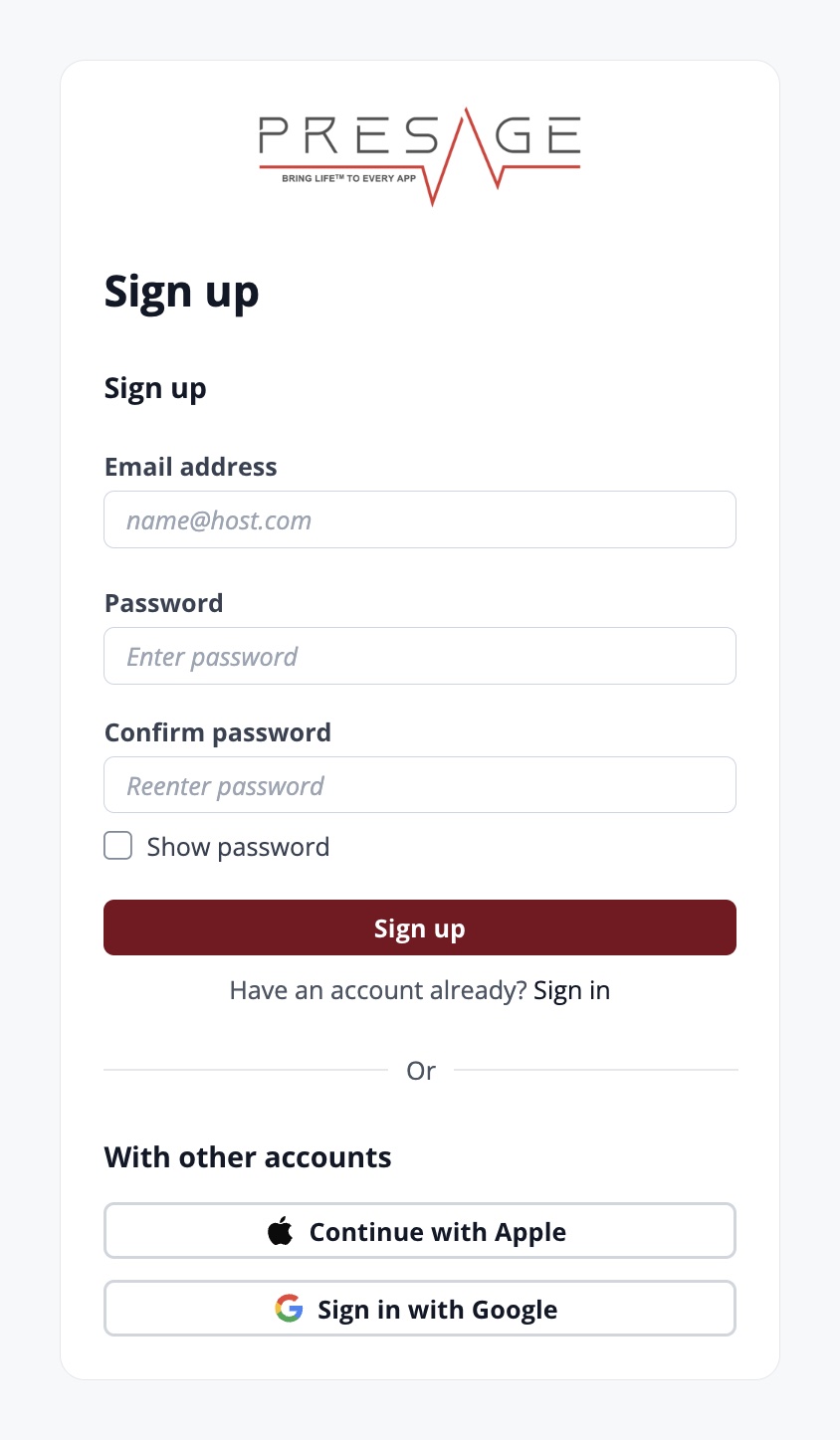
#### Sign up

Enter your **Email address**, a **Password** and **Confirm password**, then click **Sign up**. Or use **Continue with Apple** or **Sign in with Google**.

<figure class="shot narrow"><img src="https://presagetech.com/docs/essessment/assets/signup-v2.jpg" style="max-width:300px" alt="Presage sign-up form with email, password, and Apple and Google options" loading="lazy"><figcaption>Sign up</figcaption></figure>

</li>
<li>

#### Verify your email

If you signed up with an email and password, enter the code we email you. Apple and Google accounts skip this step.

</li>
<li>

#### Add a passkey or authenticator app (optional)

You can add a passkey to sign in with your device's biometrics, or set up an authenticator app for one-time sign-in codes. You can also add either one later under [Account security](https://presagetech.com/docs/essessment/account-security).

</li>
<li>

#### Accept the policies

Check **Terms of Service**, **Privacy Policy** and **Your Responsibilities**, then click **Accept**. Each name links to the full document.

<figure class="shot narrow"><div class="mock-policy" role="img" aria-label="Policy acceptance dialog with three checkboxes"><p class="mp-t">Please review and accept our current policies to continue.</p><ul><li><span class="mp-box"></span><span class="mp-l">Terms of Service</span></li><li><span class="mp-box"></span><span class="mp-l">Privacy Policy</span></li><li><span class="mp-box"></span><span class="mp-l">Your Responsibilities</span></li></ul><p class="mp-f">By checking these boxes and clicking Accept below, you accept and represent that you've read and understand the Terms of Service, privacy policy and Your Responsibilities.</p><div class="mp-a"><span>Accept</span></div></div><figcaption>Accept the current policies</figcaption></figure>

</li>
<li>

#### Click Create organization

You land on **Your Apps** in Presage Portal. On the **Create an organization** card, click **Create organization**.

</li>
<li>

#### Create your organization

Enter an **Organization name**. **Contact email** is optional and defaults to your account email. Click **Create organization**. You become the organization's owner.

<figure class="shot">

![Create your organization page with pricing and the organization form](https://presagetech.com/docs/essessment/assets/org-create.jpg)

<figcaption>Create your organization</figcaption>
</figure>

</li>
<li>

#### Set up billing, or skip it

You land on [Billing](https://presagetech.com/docs/essessment/billing). You don't need a payment method yet: the first 3 people each month are included.

</li>
</ol>

## What is an organization?

An organization is your team's account. It owns your programs, members and billing. You don't need to be a company to create one: anyone can create an organization and name it anything. One person can belong to several organizations and switch between them from the organization name at the bottom of the sidebar.

## Next steps

<div class="cards"> <a href="https://presagetech.com/docs/essessment/quickstart"><b>Quickstart</b><span>Build and run your first program.</span></a> <a href="https://presagetech.com/docs/essessment/billing"><b>Billing</b><span>How pricing works and how to add a card.</span></a> </div>
