---
title: "Get the app and sign in"
description: "Download Coherence on your phone and sign in with the email your invitation was sent to."
---
> eSSESSMENT docs. Web page: https://presagetech.com/docs/essessment/app-get-the-app
> Index of all pages: https://presagetech.com/docs/essessment/llms.txt
# Get the app and sign in
## Download
| Phone | Where to get it |
| --- | --- |
| iPhone and iPad | [App Store](https://apps.apple.com/us/app/coherence-by-presage-tech/id6758461062): "Coherence by Presage Tech" |
| Android | [Google Play](https://play.google.com/store/apps/details?id=com.presagetech.app) |
For supported devices and camera requirements, see [System requirements](https://presagetech.com/docs/essessment/app-requirements).
## Sign in
#### Open Coherence
The first screen offers three ways in.
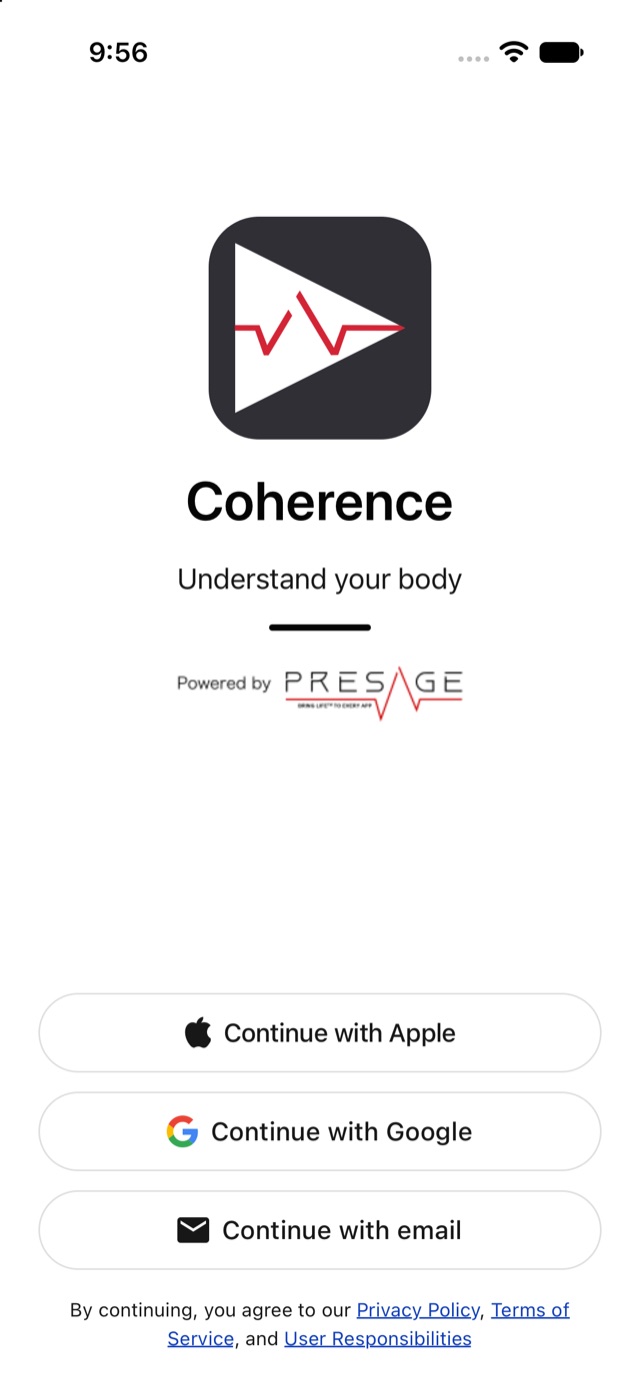
Sign in
#### Choose how to sign in
Tap **Continue with Apple**, **Continue with Google** or **Continue with email**. If you were invited, use the address the invitation was sent to.
With Apple, if Apple offers **Share My Email**, choose it so Coherence can match your invitation.
#### Allow notifications
Coherence asks to send you notifications, so it can remind you when an activity is due. Tap **Allow**. You can change this later in [Settings](https://presagetech.com/docs/essessment/app-settings).
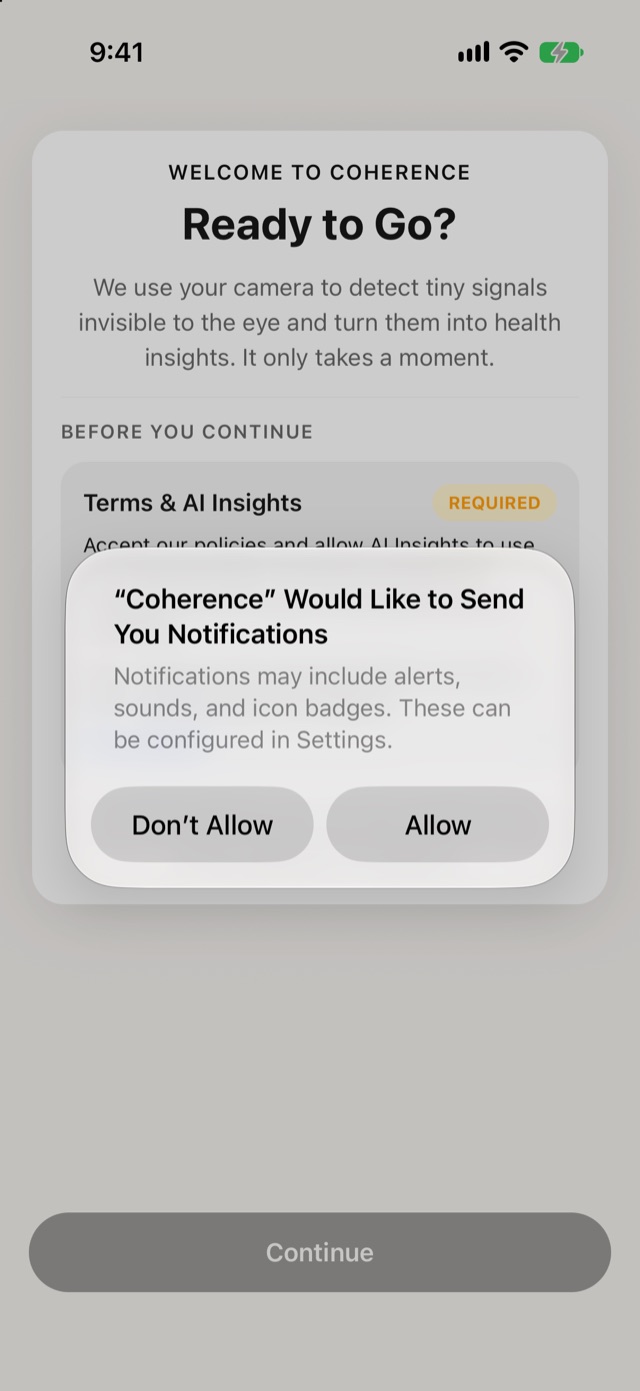
Notifications
Signing in means you agree to Presage's [Privacy Policy](https://coherence.presagetech.com/legal/privacy/2026-11-02/) and [Terms of Service](https://coherence.presagetech.com/legal/tos/2026-11-02/). They're also linked at the bottom of the sign-in screen.