---
title: "Step types"
description: "Every step you can add to an activity, what participants see, and how to set it up."
---
> eSSESSMENT docs. Web page: https://presagetech.com/docs/essessment/step-types
> Index of all pages: https://presagetech.com/docs/essessment/llms.txt
# Step types
## Step Library
Click a step in the Step library to add it, or drag it into the flow.
| Step | Use it to | Vitals |
| --- | --- | --- |
| [Question](https://presagetech.com/docs/essessment/step-types#question) | Collect answers or agreements, without the camera. | No |
| [Overview](https://presagetech.com/docs/essessment/step-types#overview) | Introduce the activity and set expectations. | No |
| [Instruction](https://presagetech.com/docs/essessment/step-types#instruction) | Give participants guidance before the next step. | No |
| [Capture](https://presagetech.com/docs/essessment/step-types#capture) | Take a camera-based vitals reading. See [Capture step](https://presagetech.com/docs/essessment/capture-step). | Always |
| [Breathing exercise](https://presagetech.com/docs/essessment/step-types#breathing-exercise) | Guide participants through a breathing pacer. | Always |
| [Stream](https://presagetech.com/docs/essessment/step-types#stream) | Stream video and vitals live to a specialist in Liveline. | Always |
| [Summary](https://presagetech.com/docs/essessment/step-types#summary) | Show results and completion actions. | No |
Capture, Breathing exercise and Stream always collect vitals from the camera. To run a program without vitals, build it from Question, Overview, Instruction and Summary steps.
## Question
Ask one or more questions on their own screen, with no camera. Use it for surveys, check-in items, or an agreement participants must accept before they continue.
Question label and Question or agreement text: the short name and the full wording.
Response type:Yes/No, Text, Scale, Number, Choice or Slider.
Display as (Yes/No only): Two buttons or a Checkbox with your own Checkbox label, such as "I agree".
Answer requirement:Optional or Required answer. Yes/No can also require Must answer Yes to continue (buttons) or Must be checked to continue (checkbox).
Add repeating group: repeat a set of questions.
Show this question:Always show, or Show only if... an earlier answer meets a condition, so follow-ups appear only when they apply. Pick the earlier question, a comparison such as equals, is one of, is greater than or is between, and a value. Text questions can't be used as the trigger.
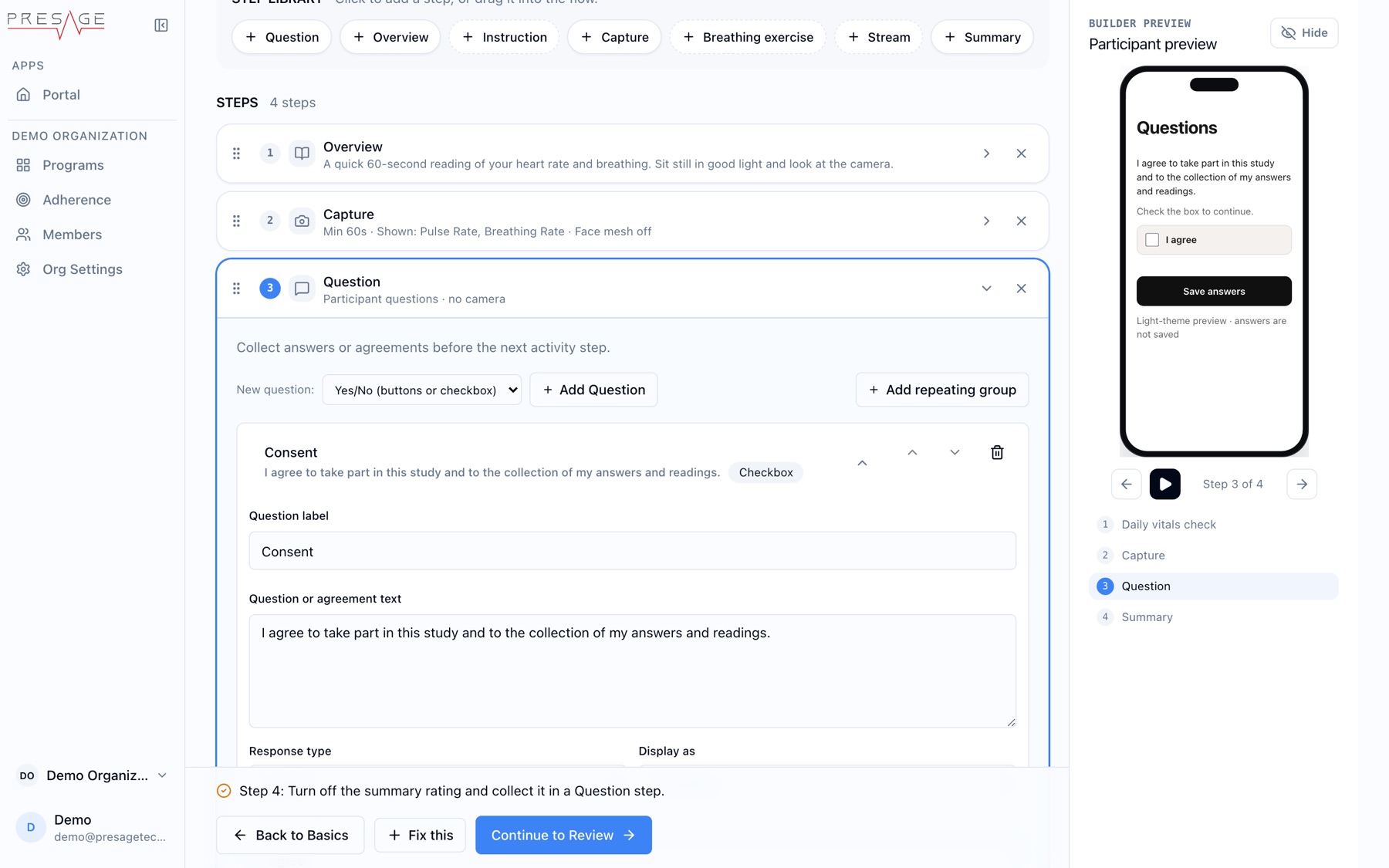
An agreement that must be checked to continue
See [Consent](https://presagetech.com/docs/essessment/consent) before using a Question step to collect consent.
## Repeat Rule
Most steps have a **Repeat Rule** that controls how often the step appears: **Always**, **Once per Session** or **Once per Activity**.
## Overview
The first screen of an activity. It sets expectations with a title, a short message and a list of what's coming.
Title and Message: for example "Calm Under Pressure" and "Three short rounds. About 5 minutes."
Instructions: click Add Instruction for each item. Each has a label and an icon name, such as leaf-outline.
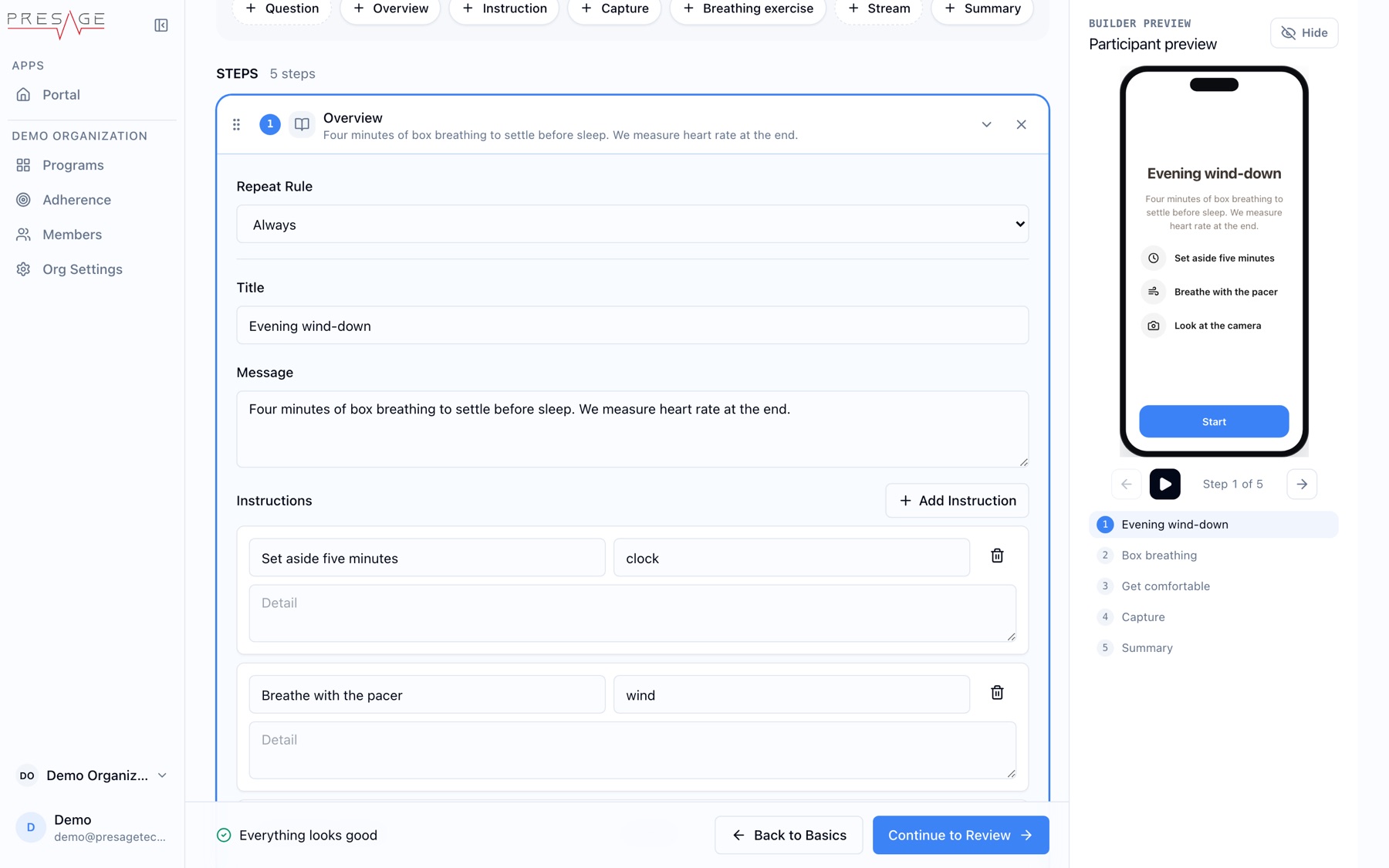
Overview step
## Instruction
A single screen of guidance, such as how to do a task before a reading.
Title and Message: what to do.
Continue Button Label: for example "I'm ready".
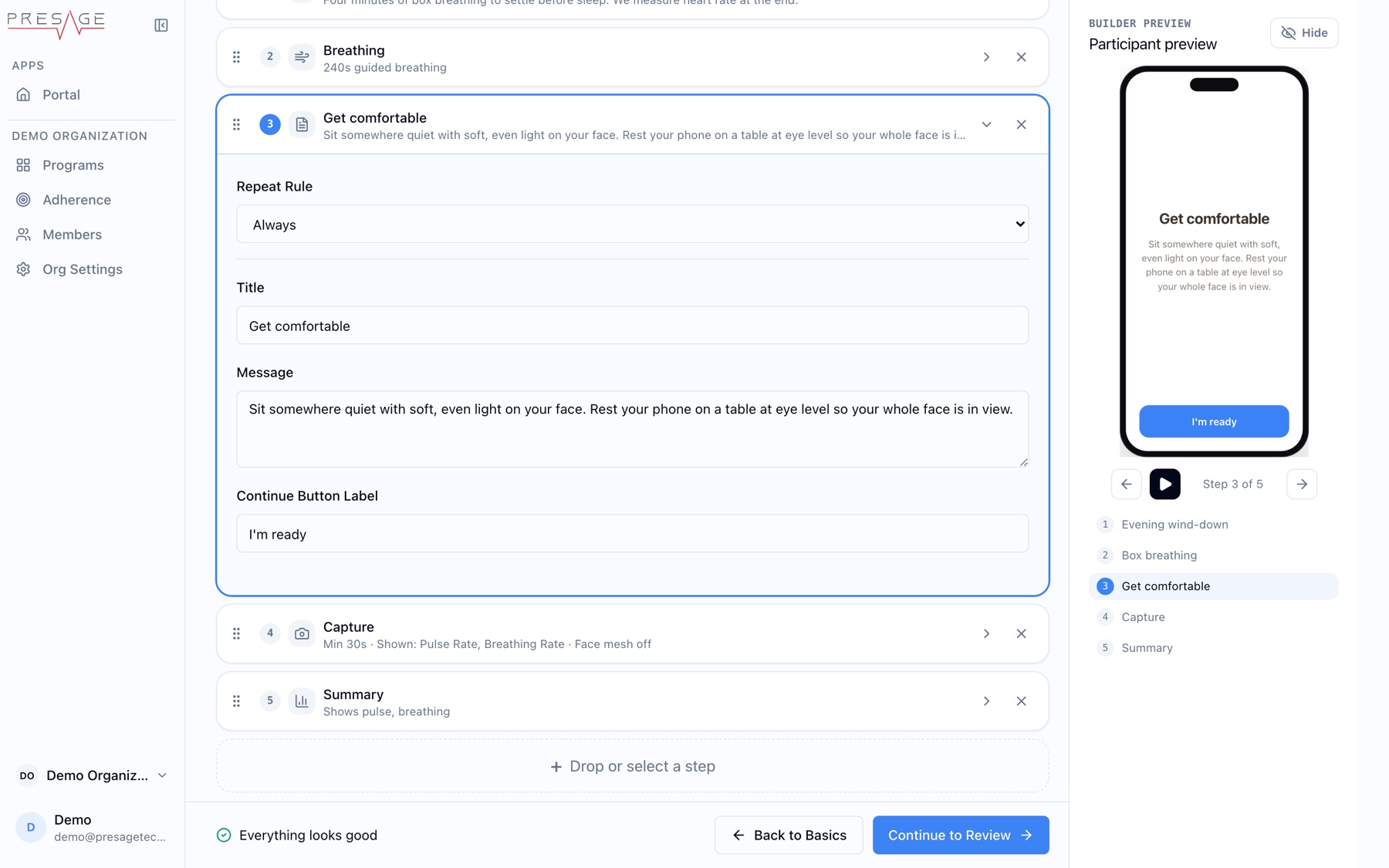
Instruction step
## Breathing exercise
A paced breathing guide. The camera measures vitals the whole time. The pacer uses the activity's button color.
Breathing Pattern:Inhale, Hold after Inhale, Exhale and Hold after Exhale, in seconds. Box breathing is 4, 4, 4, 4.
Duration (seconds): how long the exercise lasts. Defaults to 180.
Visual Mode:Guide (paced breathing) or Belly (free pace).
Visual style:Orb, Ripple or Tide (a rising wave).
Show camera thumbnail by default and Show live vitals by default: both are off unless you turn them on. Participants can show or hide them during the exercise.
Results: later steps can show this step's results. The builder manages the output name; Advanced output override lets you change it.
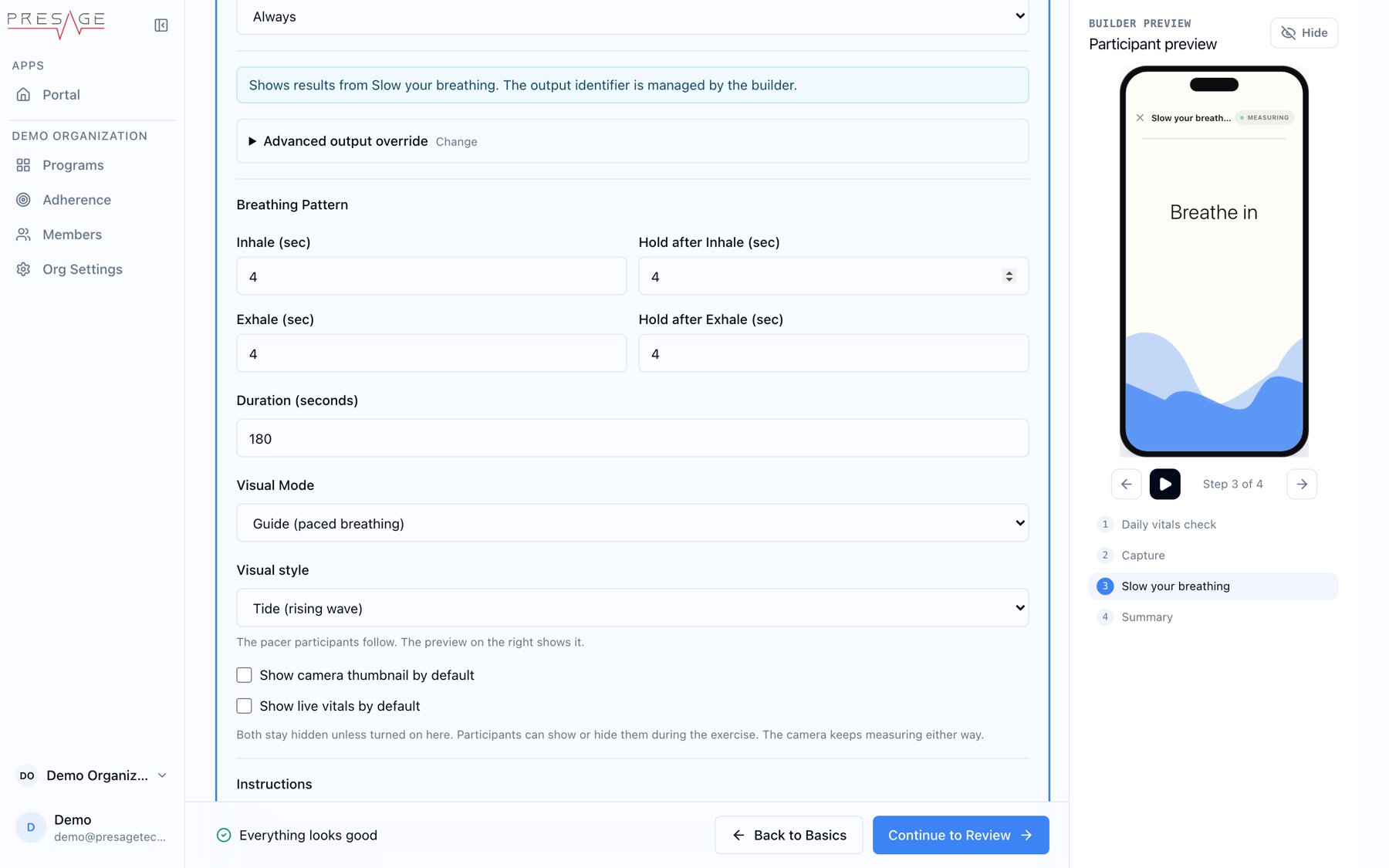
Breathing exercise with the Tide style
## Capture
A camera reading of pulse, breathing and related signals, with optional prompts, videos and questions during the reading. It always collects vitals. It has its own page: [Capture step](https://presagetech.com/docs/essessment/capture-step).
## Stream
A live session between the participant and a specialist. Coherence shows the participant a room code. The specialist enters it in [Liveline](https://presagetech.com/docs/essessment/run-session) and sees the participant's video and vitals in real time.
Save recording to cloud: records the live session so it can be replayed in Playback.
Min Duration and Max Duration (seconds): defaults are 30 and 3600.
Metrics and Mesh Mode: which vitals cards and face mesh the participant sees.
Self-view: let the participant hide their own feed, or start with it hidden.
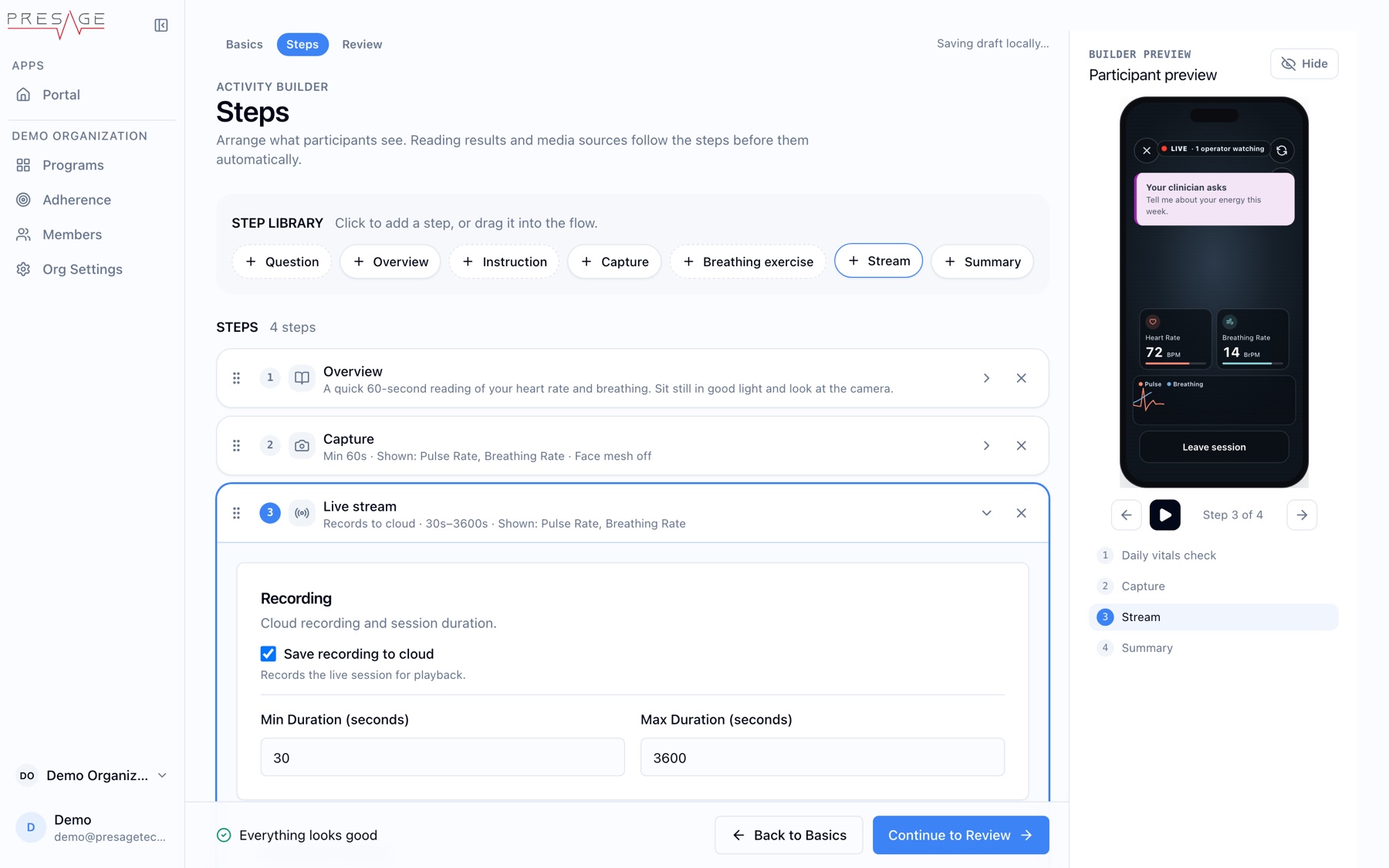
Stream step
Audio is off at launch. A Stream shares the participant's video and vitals without sound.
## Summary
The last screen. It shows results from earlier readings and can ask for a rating.
Title and Subtitle: optional, for example "Your Pressure Profile".
Aggregator: which readings to combine, for example All.
Measures to Display: which results to show, such as pulse and breathing.