# eSSESSMENT documentation
> eSSESSMENT docs: build programs of check-ins in the eSSESSMENT Console, participants complete them in the Coherence app on iPhone or Android, and your team joins live or reviews sessions in Liveline. Every page is Markdown. eSSESSMENT and Coherence are for general wellness and research, not for diagnosis or medical use.
## Overview
Source: https://presagetech.com/docs/essessment
---
title: "Overview"
description: "What eSSESSMENT is, who it is for, and how its parts fit together."
---
# Overview
For program builders
Build a check‑in, run it on your participants' phones.
See their responses and physiology, live or review later.
## What is eSSESSMENT?
eSSESSMENT is Presage's platform for structured check-ins with a cohort of participants. You build a program in the Console, your participants run it in the Coherence app on their phone, and you see the results. A program can mix questions, short instructions, guided breathing, or a camera-based reading of pulse and breathing, from an ordinary phone camera.
## The suite
#### Set up
[Create an account and an organization](https://presagetech.com/docs/essessment/create-account). Anyone can create one.
#### Build
Create a [program](https://presagetech.com/docs/essessment/programs) in the Console and add one or more [activities](https://presagetech.com/docs/essessment/activity-builder). Each activity is an ordered set of steps.
#### Invite
[Invite participants](https://presagetech.com/docs/essessment/invite) by email or link and give them access to the program.
#### Run
Participants open [Coherence](https://presagetech.com/docs/essessment/coherence-app) and complete the activity on their own. If the activity has a Stream step, a specialist joins them live in [Liveline](https://presagetech.com/docs/essessment/run-session).
#### Review
Replay recorded sessions and their vitals in [Playback](https://presagetech.com/docs/essessment/playback).
## Who uses it
- **Health research teams:** researchers and healthcare organizations launching remote health studies and clinical trials, collecting patient-reported outcomes, or testing new participant check-in protocols without building a custom app.
- **Academic and clinical researchers:** teams running ecological momentary assessments (EMA), experience sampling, and daily diary studies with adult cohorts who want physiological data between lab visits without shipping wearables.
- **Psychophysiology, HRV and breathwork labs:** labs that compare heart rate, breathing rate and HRV before and after paced breathing.
- **Strength coaches, athletic trainers and gym trainers:** staff who work with adult athletes and run daily readiness check-ins and wellness questionnaires without chest straps or smart rings.
- **Wellness programs and coaching teams:** organizations and club coaches working with adults who check in with participants between sessions to track engagement, stress and recovery.
## Next steps
## Create your account
Source: https://presagetech.com/docs/essessment/create-account
---
title: "Create your account"
description: "Sign up, accept the policies, and create the organization your programs will live in."
---
# Create your account
## Guide
#### Go to Presage Portal
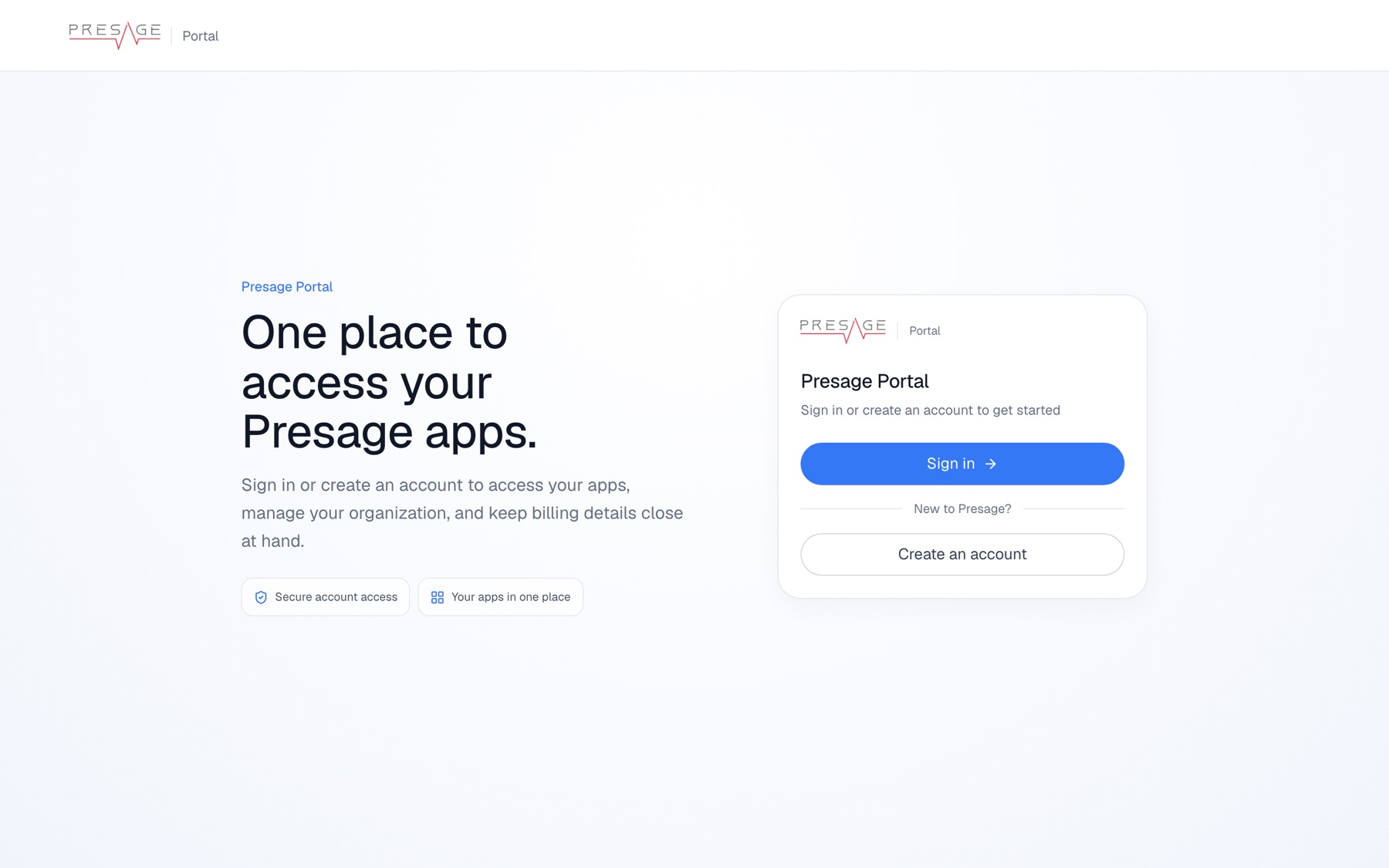
Open [`coherence.presagetech.com`](https://coherence.presagetech.com/) and click **Create an account**.
Presage Portal
#### Sign up
Enter your **Email address**, a **Password** and **Confirm password**, then click **Sign up**. Or use **Continue with Apple** or **Sign in with Google**.
Sign up
#### Verify your email
If you signed up with an email and password, enter the code we email you. Apple and Google accounts skip this step.
#### Add a passkey or authenticator app (optional)
You can add a passkey to sign in with your device's biometrics, or set up an authenticator app for one-time sign-in codes. You can also add either one later under [Account security](https://presagetech.com/docs/essessment/account-security).
#### Accept the policies
Check **Terms of Service**, **Privacy Policy** and **Your Responsibilities**, then click **Accept**. Each name links to the full document.
Please review and accept our current policies to continue.
Terms of Service
Privacy Policy
Your Responsibilities
By checking these boxes and clicking Accept below, you accept and represent that you've read and understand the Terms of Service, privacy policy and Your Responsibilities.
Accept
Accept the current policies
#### Click Create organization
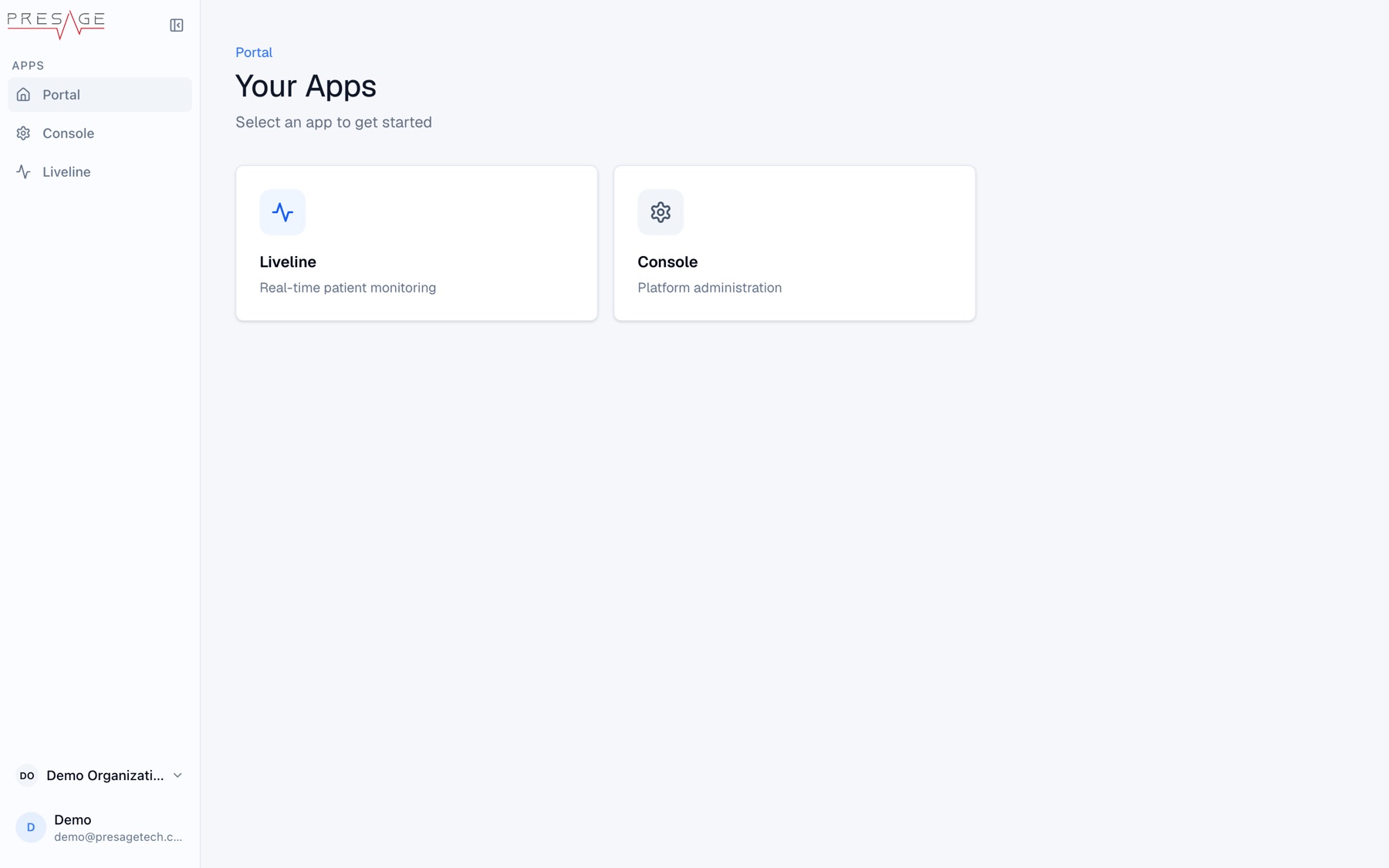
You land on **Your Apps** in Presage Portal. On the **Create an organization** card, click **Create organization**.
#### Create your organization
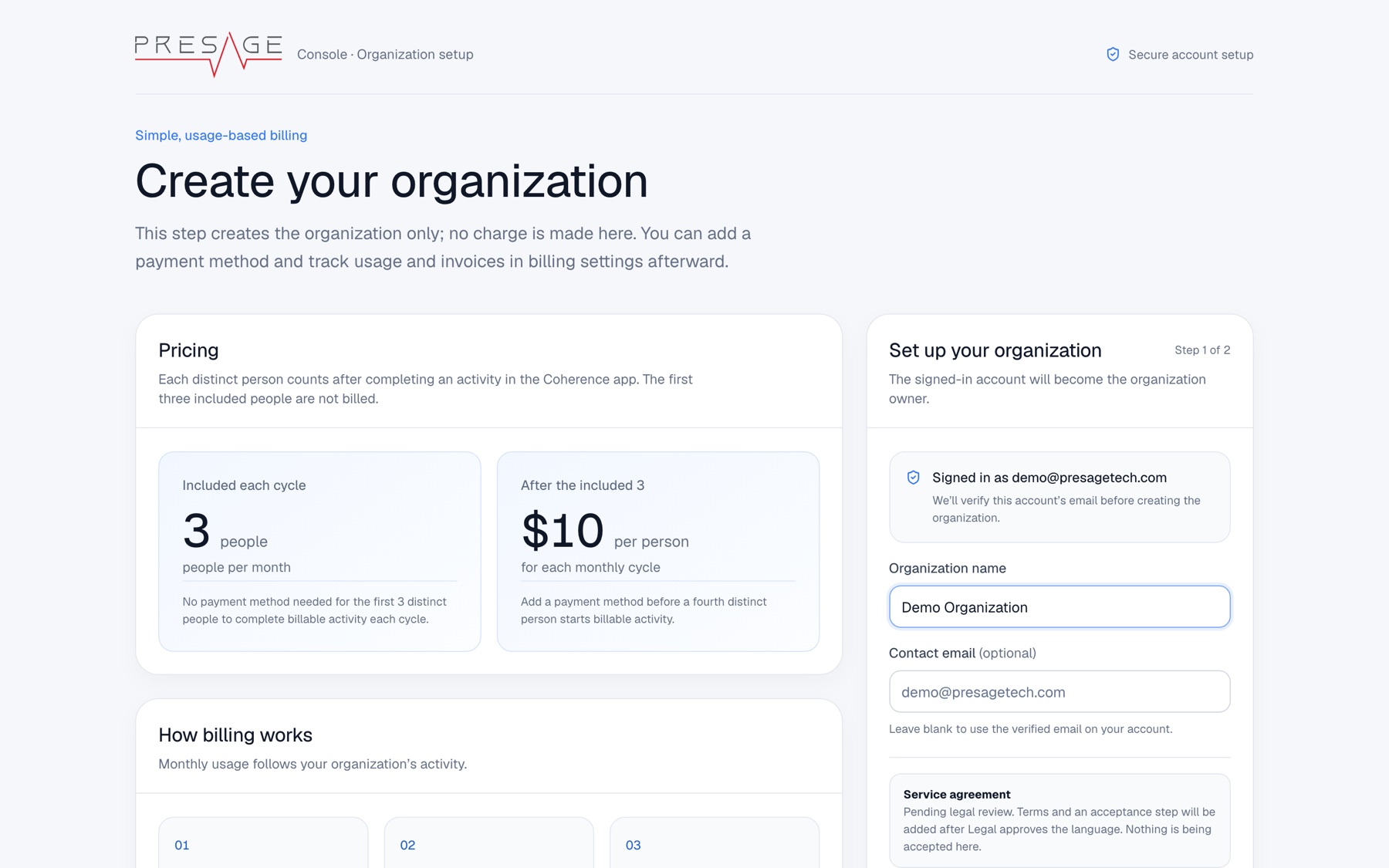
Enter an **Organization name**. **Contact email** is optional and defaults to your account email. Click **Create organization**. You become the organization's owner.
Create your organization
#### Set up billing, or skip it
You land on [Billing](https://presagetech.com/docs/essessment/billing). You don't need a payment method yet: the first 3 people each month are included.
## What is an organization?
An organization is your team's account. It owns your programs, members and billing. You don't need to be a company to create one: anyone can create an organization and name it anything. One person can belong to several organizations and switch between them from the organization name at the bottom of the sidebar.
## Next steps
## Quickstart
Source: https://presagetech.com/docs/essessment/quickstart
---
title: "Quickstart"
description: "Build a program, add an activity, and run it yourself in about 10 minutes."
---
# Quickstart
## What you need before you start
An account and an organization. See Create your account. The person who creates the organization is its owner.
#### Open the Console
Sign in at [`coherence.presagetech.com`](https://coherence.presagetech.com/) and choose **Console** on the Your Apps page.
Your Apps
#### Create a program
Go to **Programs** and click **New Program**. Enter a **Program Name** and **Short Description**, then click **Create program and add activities**.
Apps
Portal
Demo Organization
Programs
Members
Org Settings
Demo Organization ▾
Demo demo@presagetech.com
Demo Organization › Programs › Details
Create Program
Build a new program
Program Details
Basic information about your program
Program Name *
Morning Check-in
Short Description *
A quick daily check-in routine
Long Description
Detailed description of the program...
Organization
Demo Organization
Visibility
Program Visibility
Only explicitly added members can see this program
CancelSave DraftCreate program and add activities
Create Program
#### Decide who can see it
New programs are private: only people you add to the program can see it in Coherence. Turn on **Program Visibility** to show it to everyone in your organization, who can then add it to their Library themselves. You can change this any time from the program's **Subscribers** tab. For this quickstart, leave it private and add yourself in step 8. See [Programs](https://presagetech.com/docs/essessment/programs).
#### Add an activity
On the program page, click **Add activity** and pick any template. This guide uses **Daily vitals check** as the example. Click **Continue**.
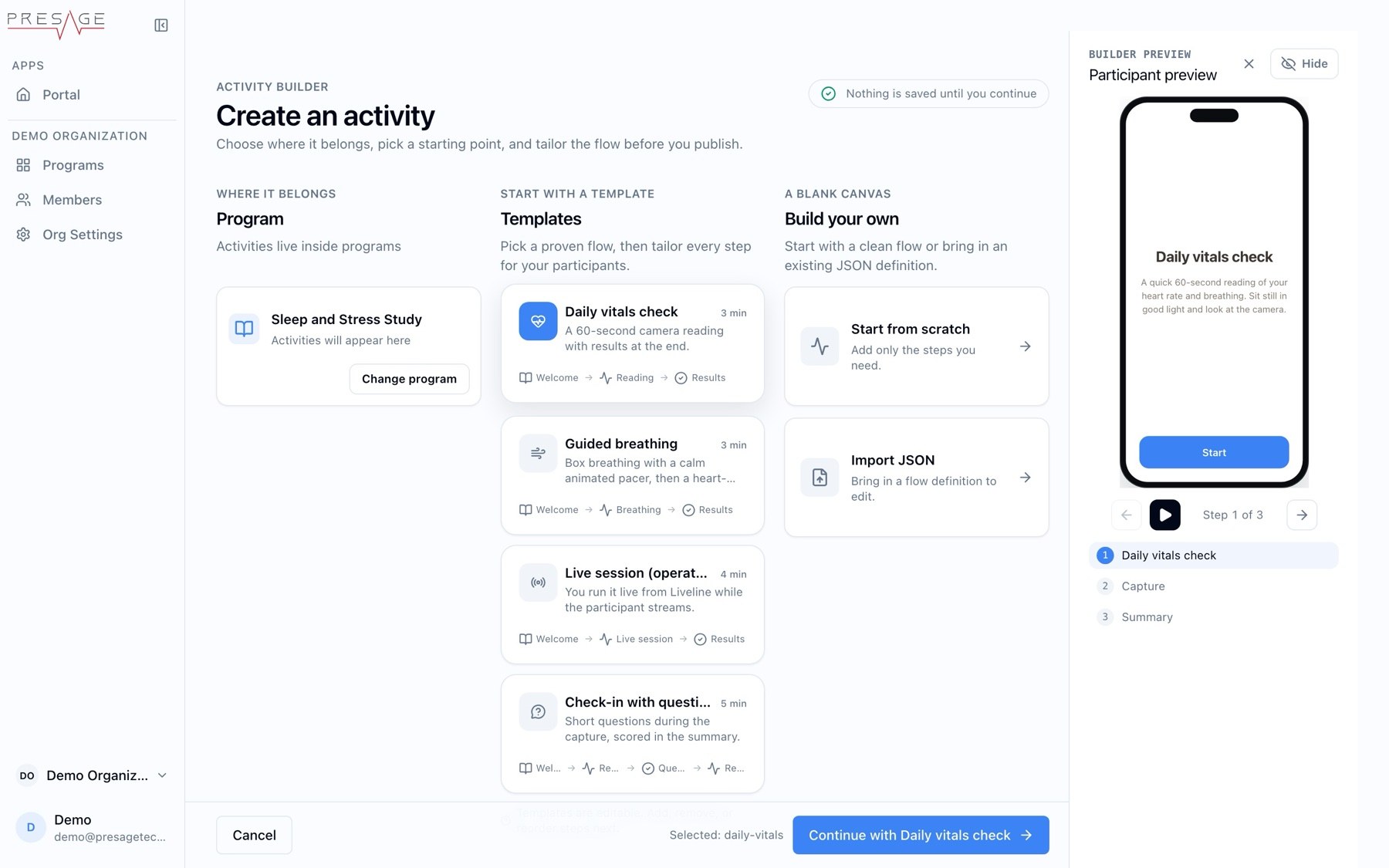
Create an activity
#### Fill in the basics
Give the activity a **Name** and **Description** participants will see, then click **Continue to Steps**.
#### Check the steps
The Daily vitals check template adds an **Overview**, a 60-second **Capture** that collects vitals, and a **Summary**. Click a step to open its settings.
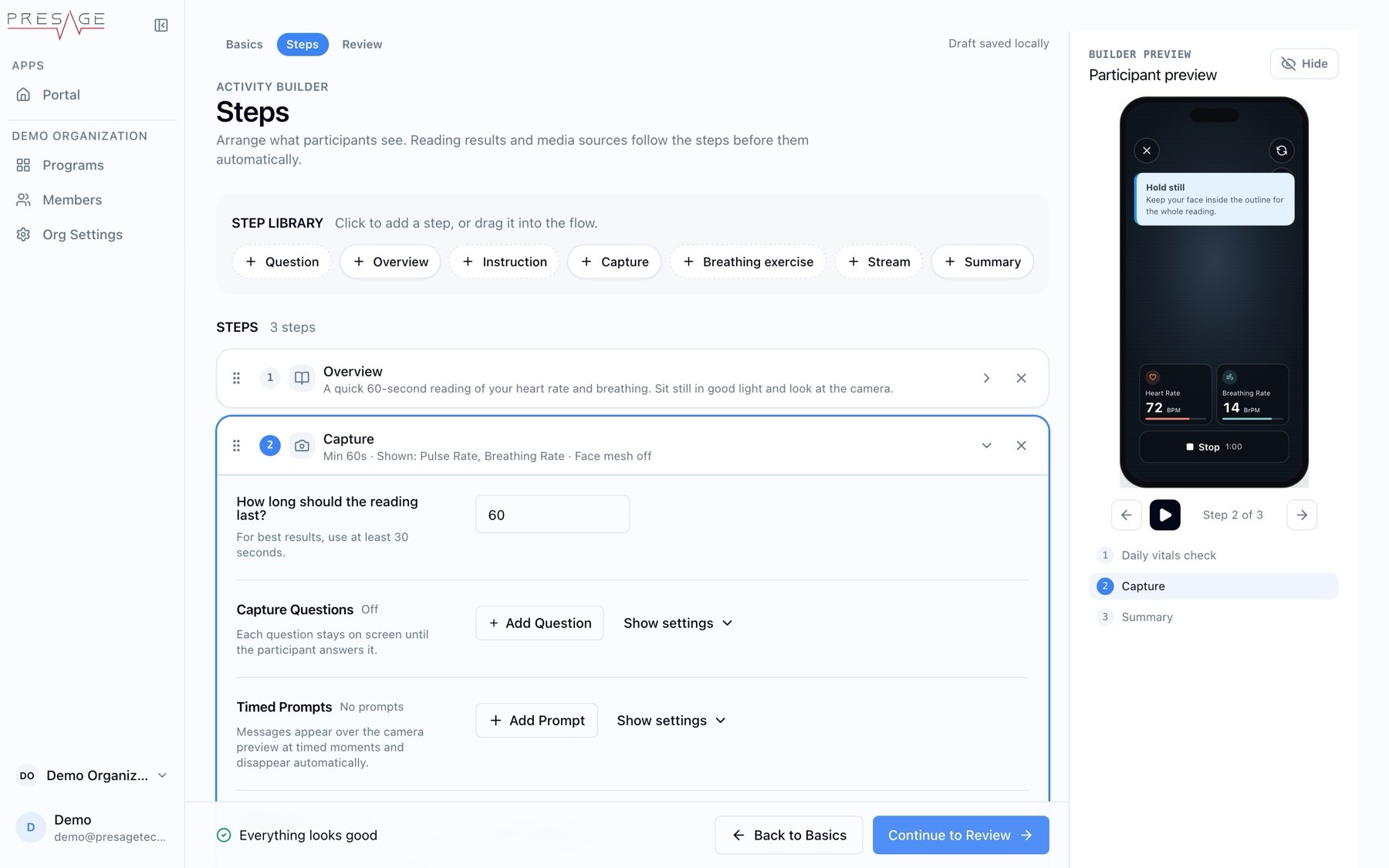
Steps
#### Publish
Click **Continue to Review**, then **Publish activity**. Then go back to the program and save the program as well.
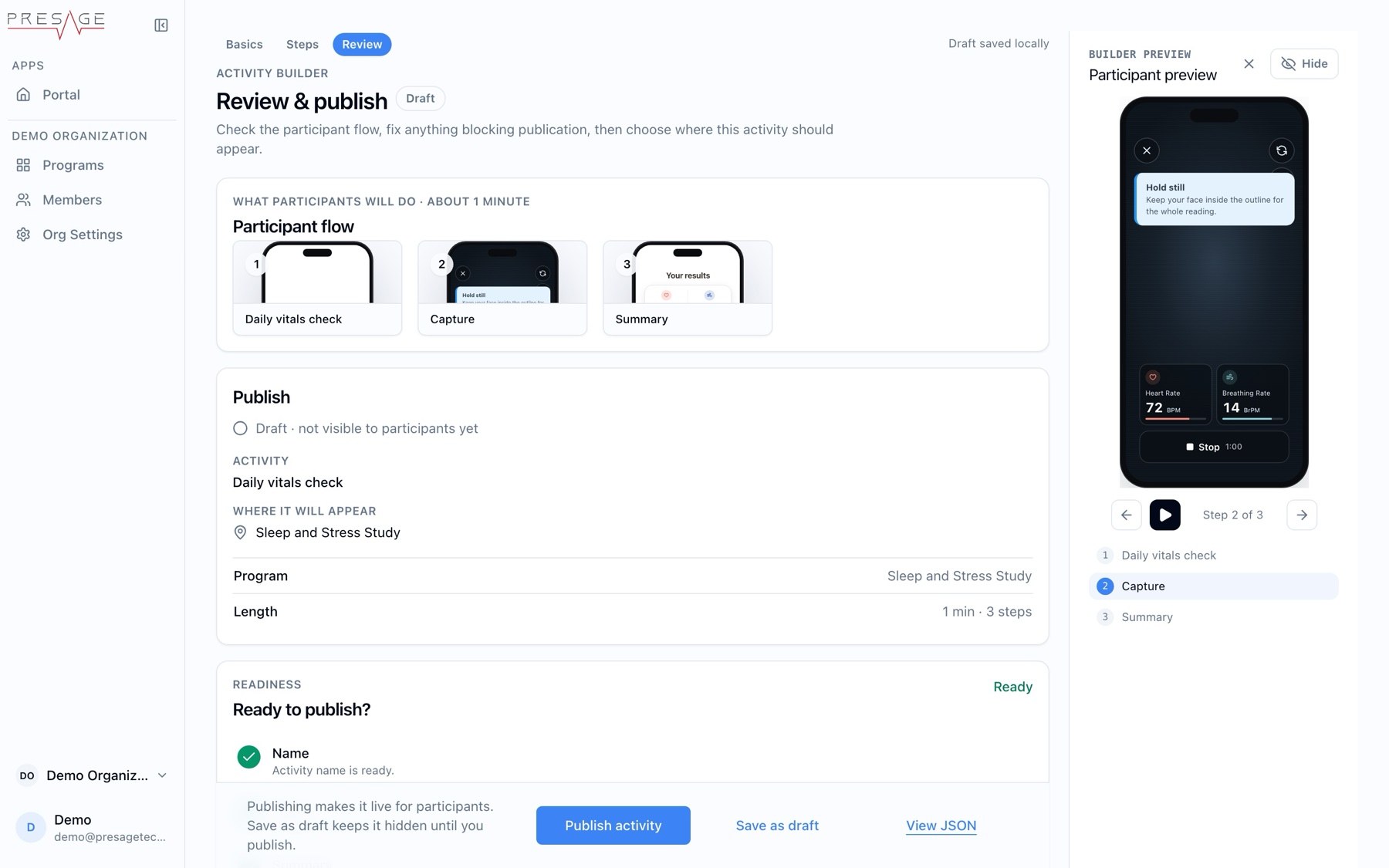
Review & publish
#### Invite yourself as a participant
To test your new program, invite your own email to the organization and the program. See [Invite people](https://presagetech.com/docs/essessment/invite).
#### Run it
Open Coherence on your phone and sign in with the same email. Join the program, add it to your **Library**, and start the activity.
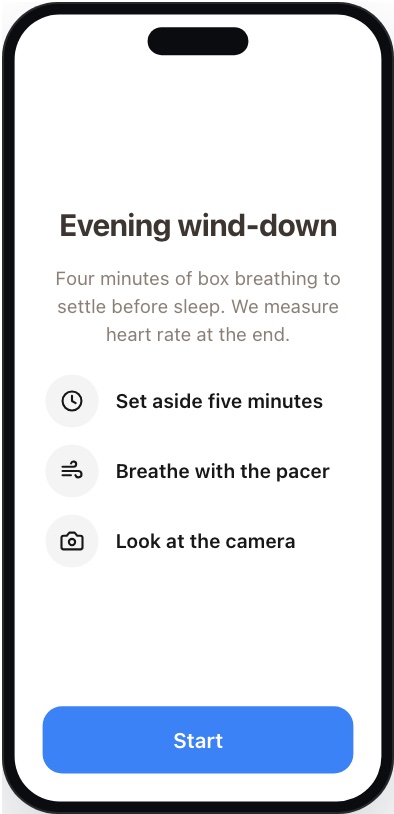
Activity start screen (builder preview)
## Roles and permissions
Source: https://presagetech.com/docs/essessment/roles
---
title: "Roles and permissions"
description: "Access works in two layers: a role in the organization, and a role in each program."
---
# Roles and permissions
Organization roles and program roles are separate. Only organization Owners and Admins carry over into programs: they can open any program's sessions without a program role. Everyone else needs a role in the program to see its sessions.
## Organization roles
| Role | What it allows |
| --- | --- |
| Member | The default role for participants. Signs in to Coherence and runs the programs they're added to, plus any program visible to the whole organization. No Console or Liveline access. |
| Specialist | Liveline access across the organization. Needs a program role to list or open a program's sessions. |
| Admin | Manages organization settings, members, invitations and API keys, and has Liveline access. Can open any program's sessions without a program role. Can't run activities in a private program, or subscribe to it, without a program role. |
| Owner | Everything an admin can do. The person who creates the organization is its owner. |
## Program roles
A program role decides what someone can do inside one program. If someone has more than one, the highest role wins.
| Program role | What it allows |
| --- | --- |
| Participant | An invitation to a private program. It makes the program visible to the person, who joins by subscribing. |
| Specialist | Sees everyone in the program and their session recordings, and joins live streams in Liveline. |
| Admin | Everything a specialist can do, plus managing the program. Also gets Console access, even as an organization Member. |
A typical setup: participants are organization **Members** with the program role **Participant**. The people running the study are organization **Specialists** or **Admins** with the program role **Specialist** or **Admin**. Organization owners and admins can open every program without being listed on its team.
## Roles and subscriptions
Roles answer "what can you do here?" Subscriptions answer "have you joined?" Taking part in a program isn't a role: a person joins by subscribing, which adds the program to their Library in Coherence. On the program page, **Subscribers** lists the people who have joined, and **Program team** lists its admins and specialists.
You can subscribe to any program you can see: one that's visible to your whole organization, a private one you were invited to as a Participant, or one listed under **Programs › Find** in Coherence.
## Set roles when you invite
The easiest time to set roles is when you invite someone. The [Invite Members](https://presagetech.com/docs/essessment/invite) dialog sets the organization role and the program access, with a program role for each program, in one step.
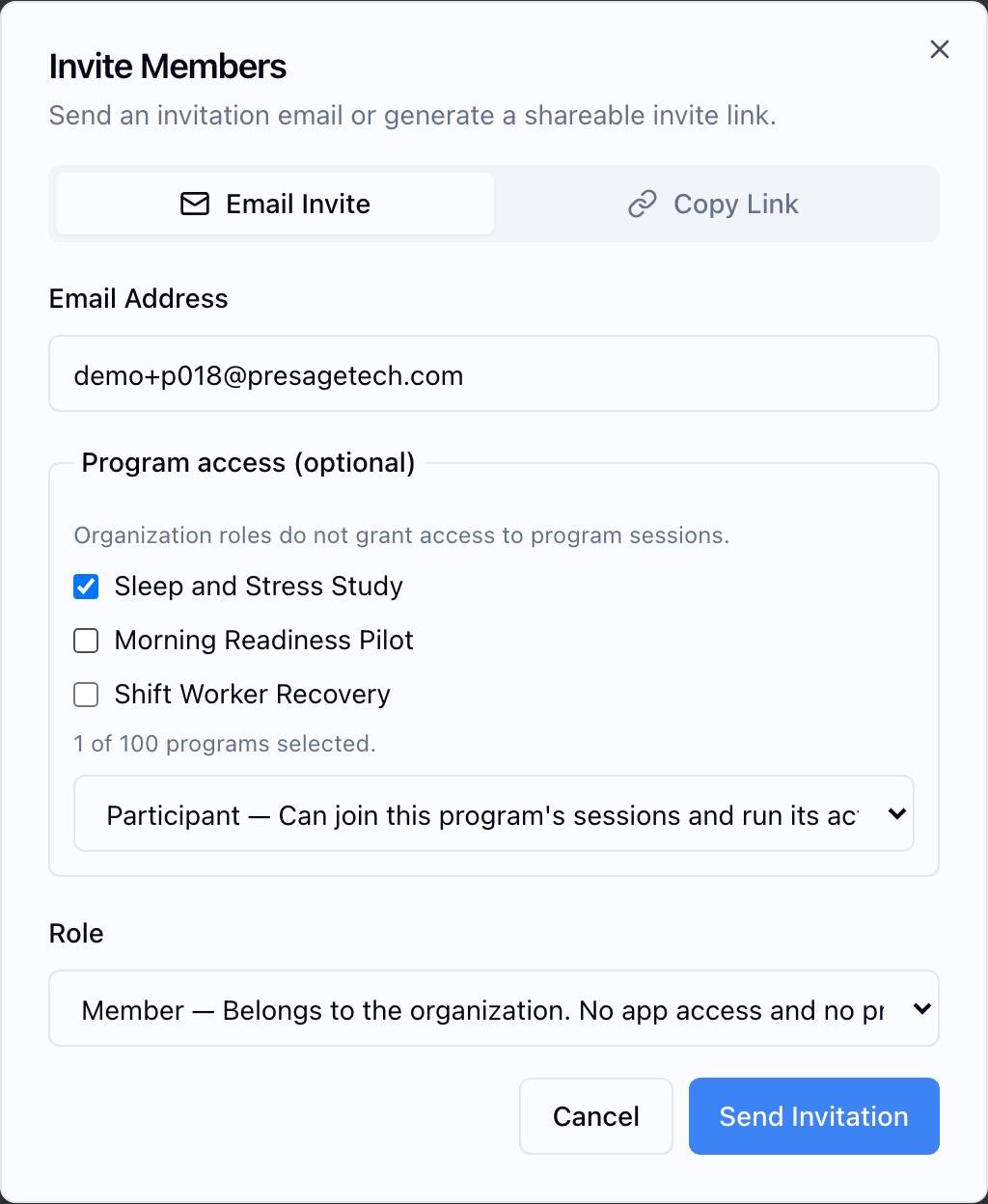
Role and program access are set together when you invite someone
## Change an organization role
#### Open Members
In the Console sidebar, click **Members**. Search by name or email to find the person.
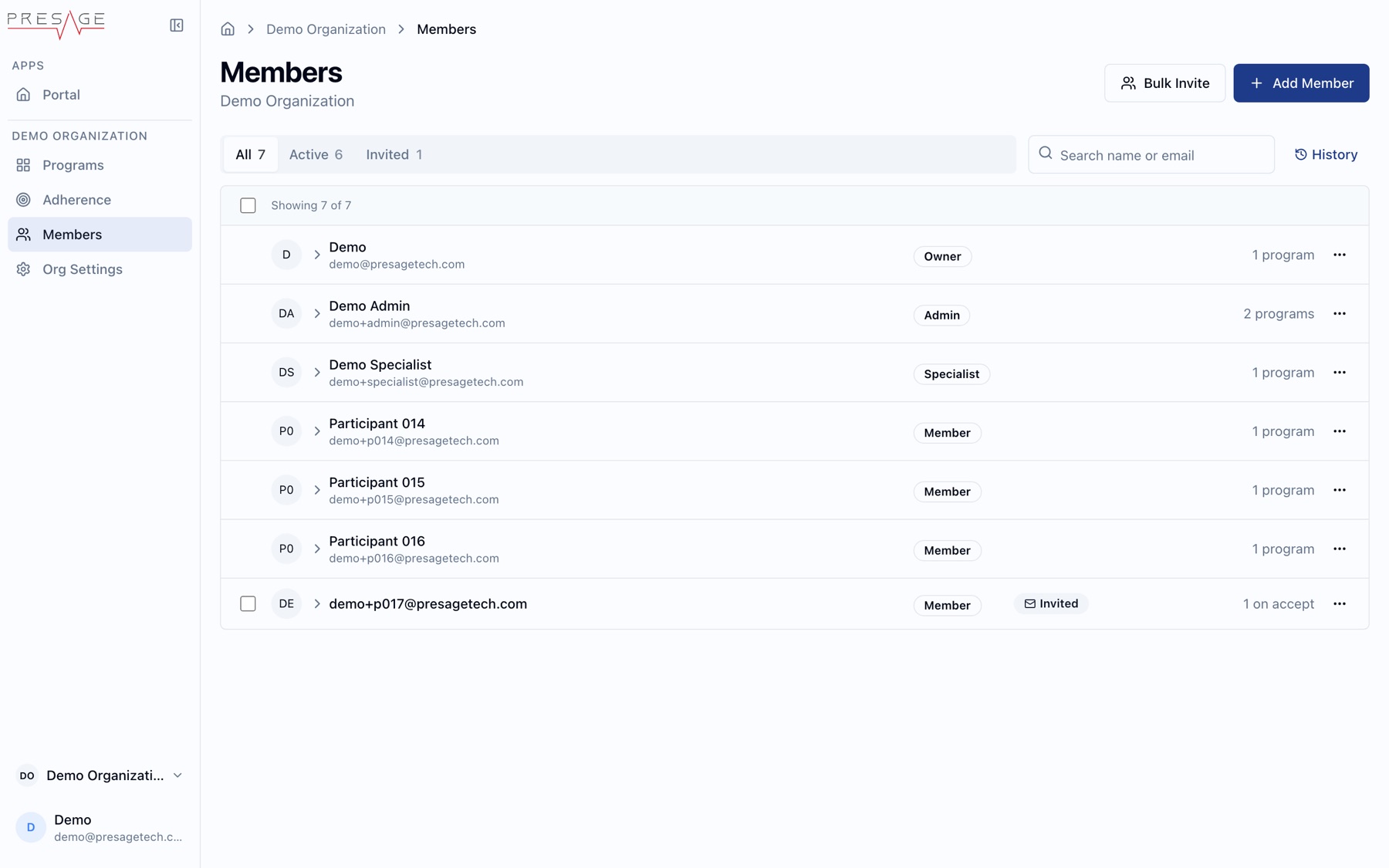
Members
#### Open the row menu
Click **…** on their row and choose a new role, or remove them from the organization. See [Members](https://presagetech.com/docs/essessment/members).
## Change a program role
#### Open the program
In the Console, go to **Programs** and open the program. See [Programs](https://presagetech.com/docs/essessment/programs).
#### Pick the tab
Open **Subscribers** for participants or **Program team** for admins and specialists. To add someone new, click **Add people**. They must already be in your organization.
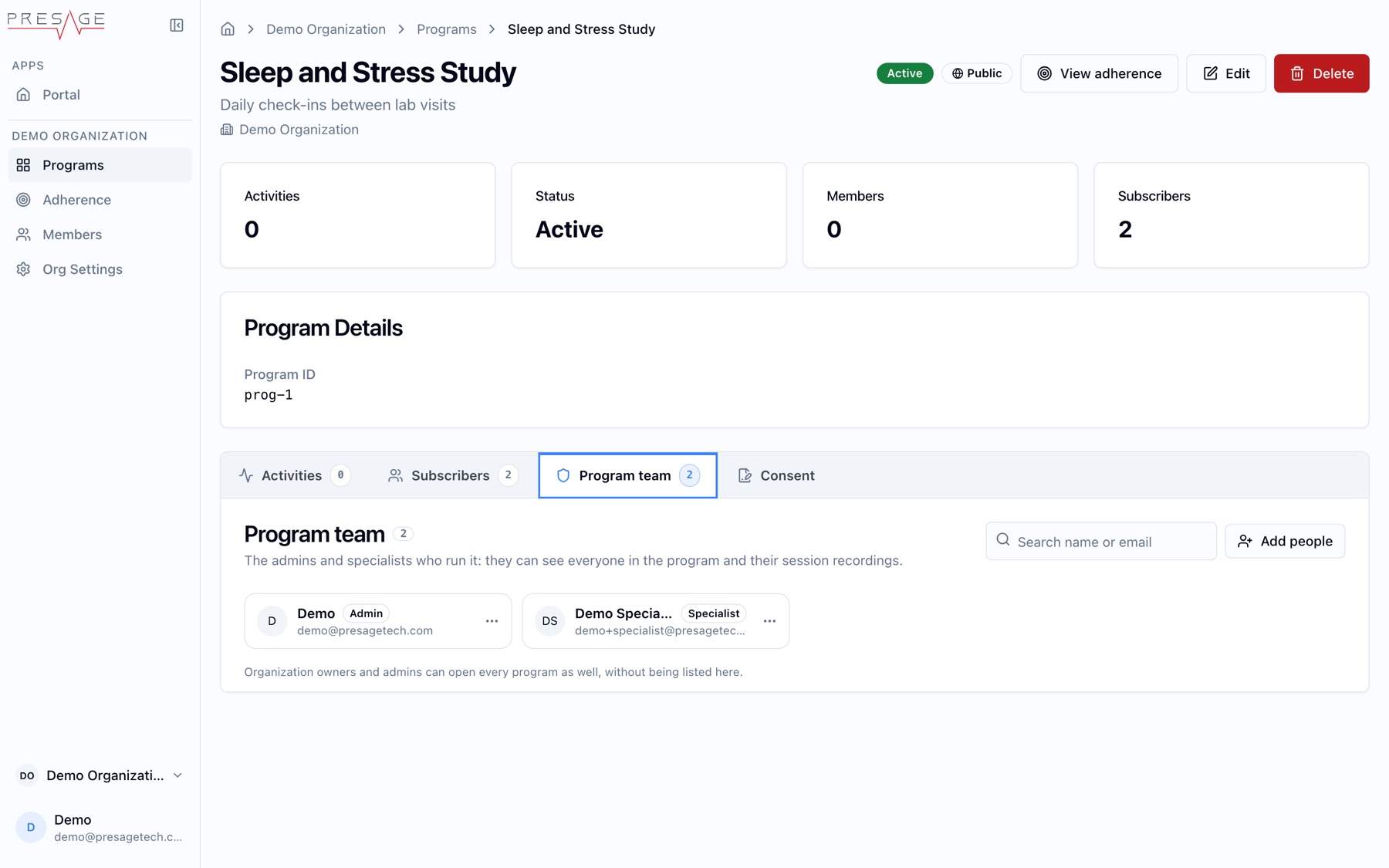
Program › Program team
#### Change the role
Open the row menu and choose **Make Admin**, **Make Specialist** or **Make Participant**.
## Key concepts
Source: https://presagetech.com/docs/essessment/concepts
---
title: "Key concepts"
description: "The words used throughout the Console, Liveline and these docs."
---
# Key concepts
| Term | Meaning |
| --- | --- |
| Organization | Your team's account. It owns programs, members, settings and billing. Anyone can create one. |
| Program | Where your protocol lives: a container for one or more activities and the people who take part. |
| Activity | What a participant runs: an ordered set of steps, with a schedule and completion behavior. |
| Step | One screen or task inside an activity, such as an Overview, a Capture (which always collects vitals) or a Summary. |
| Capture | A camera-based reading of pulse, breathing and other signals. It always records vitals. |
| Participant | A person who runs a program's activities in Coherence. |
| Subscriber | A participant in a program. Participants subscribe by adding the program to their Library in Coherence. |
| Program team | The admins and specialists who run a program. |
| Library | The programs a participant has added in Coherence. |
| Run | One completion of an activity. |
| Session | A recorded or live sitting, reviewed in Liveline Playback. |
| Specialist | The person who joins a participant's live stream from Liveline. |
| Room code | The code a participant sees in a Stream step. A specialist enters it in Liveline to join. |
## Programs
Source: https://presagetech.com/docs/essessment/programs
---
title: "Programs"
description: "A program holds your protocol: the activities participants run, and the people who run them."
---
# Programs
## Overview
A program groups the activities your participants will run, such as a morning check-in or a study protocol. Each program has its own participants and program team.
## Guide
#### Open Programs
In the Console sidebar, click **Programs**, then **New Program**.
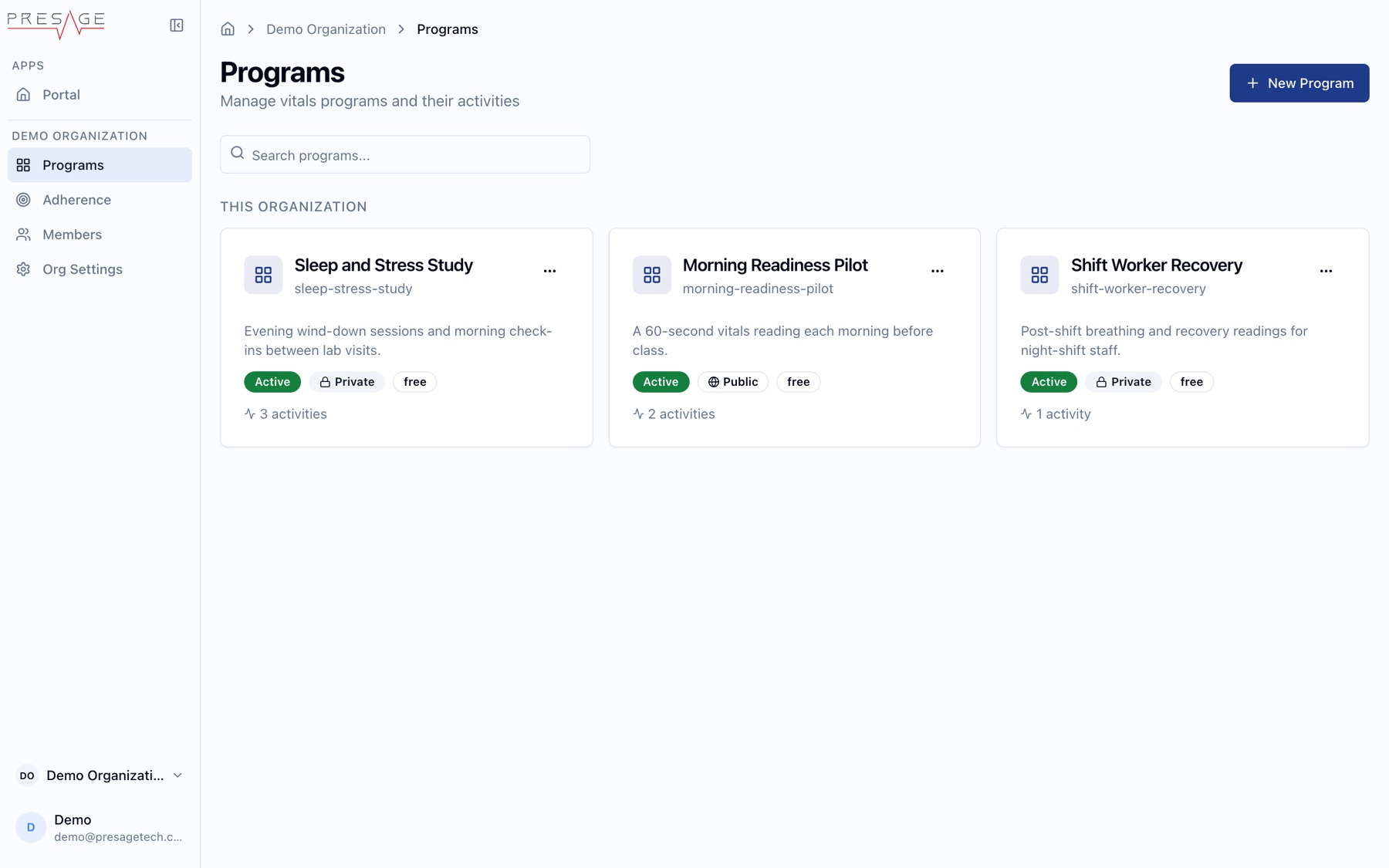
Programs
#### Describe the program
Enter a **Program Name** and **Short Description**, both required. Add a **Long Description** if participants need more context.
Apps
Portal
Demo Organization
Programs
Members
Org Settings
Demo Organization ▾
Demo demo@presagetech.com
Demo Organization › Programs › Details
Create Program
Build a new program
Program Details
Basic information about your program
Program Name *
Morning Check-in
Short Description *
A quick daily check-in routine
Long Description
Detailed description of the program...
Organization
Demo Organization
Visibility
Program Visibility
Only explicitly added members can see this program
CancelSave DraftCreate program and add activities
Create Program
#### Set visibility
Programs are private by default: only people you add can see them. Turn on **Program Visibility** to show the program to everyone in your organization.
#### Save
Click **Create program and add activities**, or **Save Draft** to finish later.
#### Add activities and people
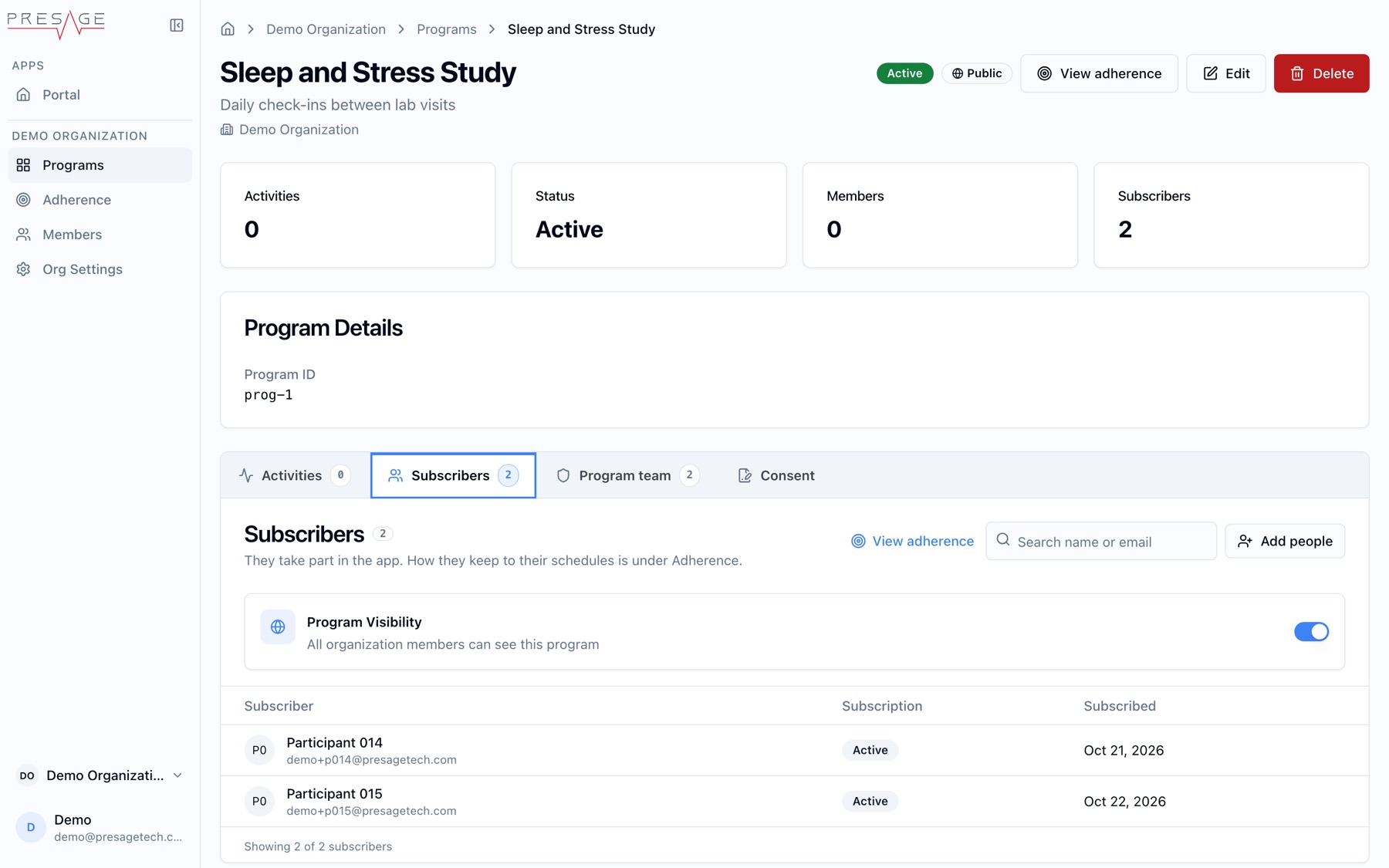
On the program page, click **Add activity**, then add people under **Subscribers** and **Program team**.
Program page › Subscribers
## Programs list
The Programs page lists every program in the organization. Search by name, or open a card.
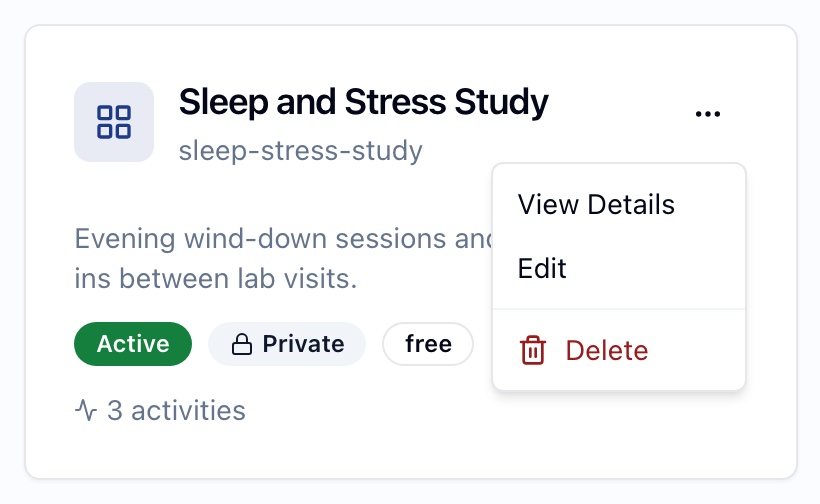
Card: name, program ID, short description, status (Active), visibility (Private) and the number of activities.
Card menu (…):View Details, Edit, Delete.
Card menu
## Create Program
| Field | What it does |
| --- | --- |
| Program Name | Required. Shown to participants. |
| Short Description | Required. One line shown with the program name. |
| Long Description | Optional detail about the program. |
| Program Visibility | Off by default: "Only explicitly added members can see this program". When on: "All organization members can see this program". |
The list page's empty state button is changing from "Create Program" to **New Program**, so every button matches.
## Program page
Open a program from the Programs list to manage it.
Header: the program's status and visibility, with Edit and Delete.
Program Details: the Program ID.
Activities tab: each activity with its length, category and step count. Click Add activity to create one, or Edit or Remove on an existing one.
Subscribers tab: the participants, and the Program Visibility switch.
Program team tab: the admins and specialists who run the program. See Roles and permissions.
## FAQ
I created a program with AI and can't find it
Programs created through the Coherence MCP server are private, like any new program. Invite the people who should take part. If everyone in your organization should see it, turn on **Program Visibility**, or ask your AI assistant to.
Why can't I run activities in a program I can see?
Admins can view every program, but running its activities needs a program role or subscription. Add yourself under the program's **Members**.
## Activity Builder
Source: https://presagetech.com/docs/essessment/activity-builder
---
title: "Activity Builder"
description: "Build the flow participants run in Coherence, such as an intro, guided breathing, a camera reading, questions and a results screen."
---
# Activity Builder
## Overview
An activity is your protocol: the steps a participant goes through in Coherence. The Activity Builder is where you design it step by step. You arrange steps, set each one up, and see a live phone preview of what participants will see. When everything checks out, you publish it to the program.
## Guide
#### Open the builder
From a program page, click **Add activity**, or **Edit** on an existing activity.
#### Pick a starting point
Confirm the **Program** the activity belongs to. Then pick a template, **Start from scratch**, or **Import JSON** to bring in a flow definition, for example one from Presage support.

Create an activity
#### Read the builder guide
A short **Builder guide** with four tips opens the first time. Click **Next**, or **Skip tour**.
#### Fill in Basics
Set the **Name** and **Description** participants see, pick what happens **When it ends**, choose a **Button color**, and decide whether to ask for feedback.
Apps
Portal
Demo Organization
Programs
Members
Org Settings
Demo Organization ▾
Demo demo@presagetech.com
BasicsStepsReview
Saving draft locally…
Activity builder · Step 1 of 3
Basics
Give participants the context they need before they begin. You can change these details later.
Details
Name
Daily vitals check
Description
A quick 60-second reading of your heart rate and breathing. Sit still in good light and look at the camera.
When it ends
Return to the Home tab ▾
Appearance
Button color
#3B82F6
Feedback
Choose whether participants can leave feedback after completing the activity.
☑ Ask for feedback at the end
← BackContinue to Steps →
Builder preview
Participant preview
Daily vitals check
A quick 60-second reading of your heart rate and breathing. Sit still in good light and look at the camera.
Continue
Step 1 of 1
1Daily vitals check
Basics, with the participant preview on the right
#### Add steps
Click **Continue to Steps**. Click a step in the **Step library** or drag it into the flow. Click a step to expand its settings, and drag the handle to reorder.

Steps: the Capture step expanded
#### Review and publish
Click **Continue to Review**, fix anything under **Readiness**, then click **Publish activity**. Or click **Save as draft** to keep it hidden from participants.

Review & publish
#### Try it yourself
Run the activity in Coherence before you invite participants.
A reading as participants see it (iPhone)
## Workflow
The builder has three stages, shown as tabs at the top: **Basics**, **Steps** and **Review**. Click a tab to jump to a stage, or use the buttons at the bottom: **Continue to Steps** and **Continue to Review** to move forward, **Back to Basics** to go back. The activity needs a name before you can leave Basics.
### Basics
What the activity is: **Details** (name, description, what happens at the end), **Appearance**, **Feedback**, and **Schedule and advanced settings**.
### Steps
The participant flow: the **Step library** on top, and your steps below in one column that expand in place.
### Review & publish
The participant flow, where the activity will appear, the readiness check, and the publish controls.
The top right shows whether your draft is saved, for example "Draft saved locally". The phone preview on the right follows you through every stage.
## Basics
The top of the page shows the activity's state, such as **Published · v0**, and its ID. "Published configuration · changes remain local until saved" means nothing changes for participants until you save.
Preview: open the participant preview.
Duplicate: copy this activity as a starting point for a new one.
Save: save changes to the published activity.
Back: return to the program.
Section tabs: jump to Basics, Steps or Review. Use ↑↓ to move between steps.
### Details
Name: participants see this on their program page.
Description: a sentence or two on what the activity involves.
When it ends:Return to the Home tab in Coherence, Start a new chat with results (an AI chat in Coherence about the activity they just finished), or Show the activity results.
Appearance › Button color: colors the buttons and the breathing pacer.
Feedback › Ask for feedback at the end: participants rate the activity from 1 to 5 stars ("How was your experience?").
Schedule and advanced settings: scheduling, reminders, category and completion settings. See Appearance and advanced settings below.
**How is it run?** and **Cloud recordings** are hidden for launch. Cloud recording shows only for activities with a Stream step.
### Participant preview
The phone on the right shows a simulation of the selected step, built from the same elements as the app, so you can check the flow before you publish. Use the arrows to move through steps, the play button to run through the flow, and **Hide** to make more room.
## Steps
The Steps stage shows the **Step library** at the top and your steps below it in a single column. Click a step to expand its settings in place, and click it again to collapse it. Results from readings flow automatically to the steps that follow them, so a Summary after a Capture shows that Capture's readings.
The status bar at the bottom shows **Everything looks good** when the flow is valid. See [Step types](https://presagetech.com/docs/essessment/step-types) and [Capture step](https://presagetech.com/docs/essessment/capture-step) for each step's settings.
## Review & publish
Review & publish shows, from top to bottom:
Participant flow: every step as a phone thumbnail, with an estimated length such as "about 4 minutes".
Publish: the activity's status (for example "Draft · not visible to participants yet"), where it will appear (its program, with Change), and its length.
Readiness: the checklist below. A failing item has a Fix button.
Action bar:Publish activity, Save as draft and View JSON. When you edit an activity that's already published, Publish activity reads Save changes.
Once published, the activity is live for the program's participants, based on the program's visibility.
### Readiness checklist
"Ready to publish?" lists every check. A green tick passes, an empty circle doesn't apply to this activity, and a red mark blocks publishing.
| Check | Passes when |
| --- | --- |
| Name | The activity has a name. |
| Steps | The activity has at least one step. |
| Summary | Participants will see a summary at the end. |
| Summary reading | The summary has a reading before it. |
| Summary measures | The summary has measures to show. |
| HRV reading | Applies only when HRV is turned on for a reading. |
| Live stream | Applies only to activities with a Stream step. |
| Summary configuration | Summary sources and actions are valid. |
| Media analysis | Applies only when there is a Media review step. |
| Question steps | Applies only when there are standalone questions. |
| Capture Questions | Applies only when Capture Questions are on. |
| Imported activity validation | The activity's saved settings are valid, for example colors in hex format. |
| Program | The activity is attached to a program. |
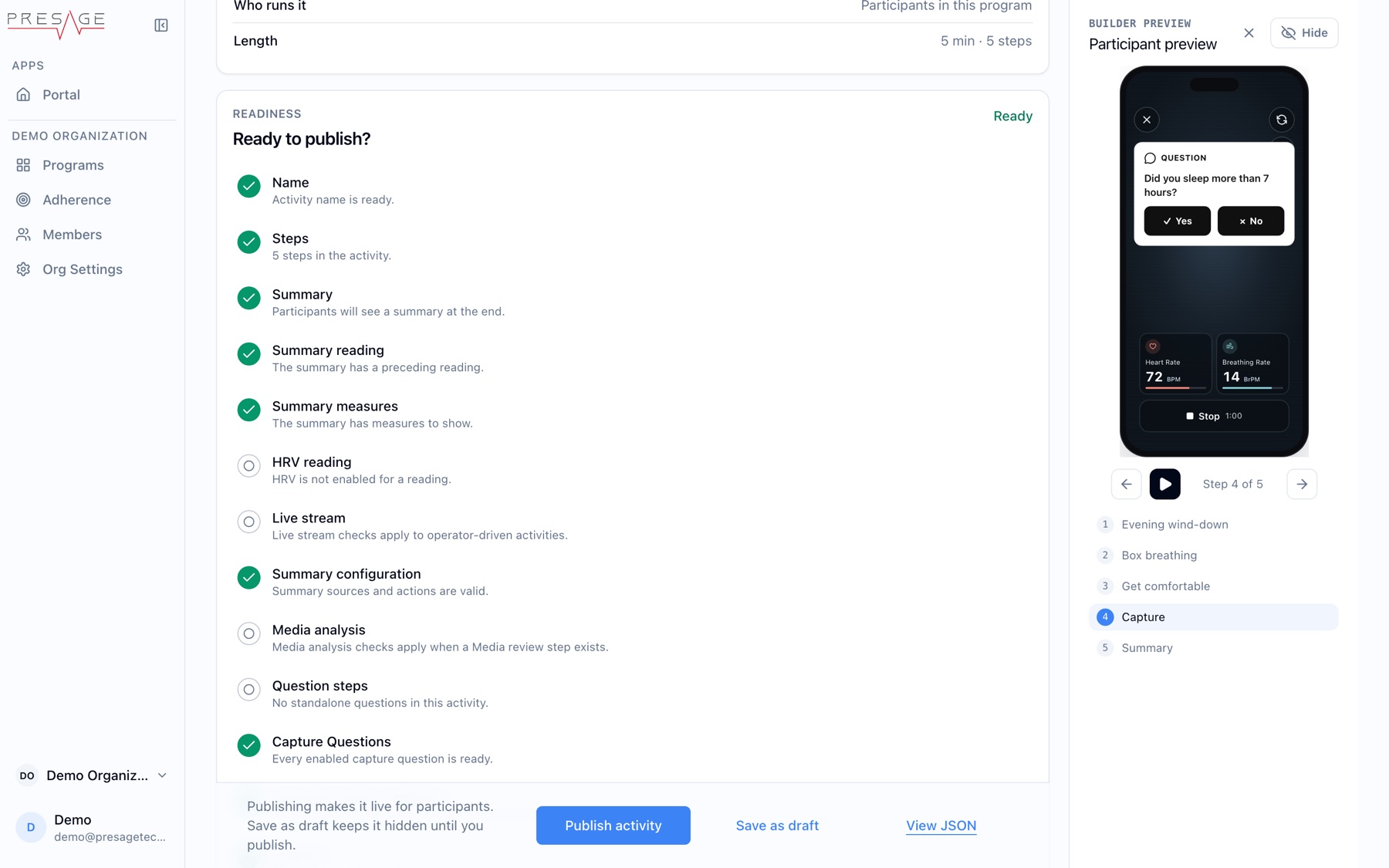
A blocking item stops Save changes. You can still save a draft.
### Publish controls
Publish activity: makes it live for participants. Disabled while anything is blocking.
Save as draft: saves without showing it to participants.
View JSON: shows the full configuration. See Import and export below.
## Start from a template
Begin a new activity from a ready-made flow and adjust it.
When you add an activity, you can start from scratch or pick a template. Templates fill in the steps and settings for common activities.
| Template | Good for |
| --- | --- |
| Daily vitals check | A 60-second camera reading with results at the end. Welcome, Reading, Results. About 3 minutes. |
| Guided breathing | Box breathing with a calm animated pacer, then a heart-rate result. About 3 minutes. |
| Live session (operator-led) | A specialist joins it live from Liveline while the participant streams. About 4 minutes. |
| Check-in with questions | Short questions during the capture, scored in the summary. About 5 minutes. |
| Start from scratch | Add only the steps you need. |
| Import JSON | Bring in a flow definition to edit. |
Templates are editable. Add, remove or reorder steps next.

Create an activity
## Schedules and reminders
Set when participants are due to do an activity, and remind them when it's time.
### Where to find it
In the Activity Builder, open **Basics › Schedule and advanced settings** and go to **Schedule**. The top line summarizes the current setting, for example "Due every day, once any time of day."
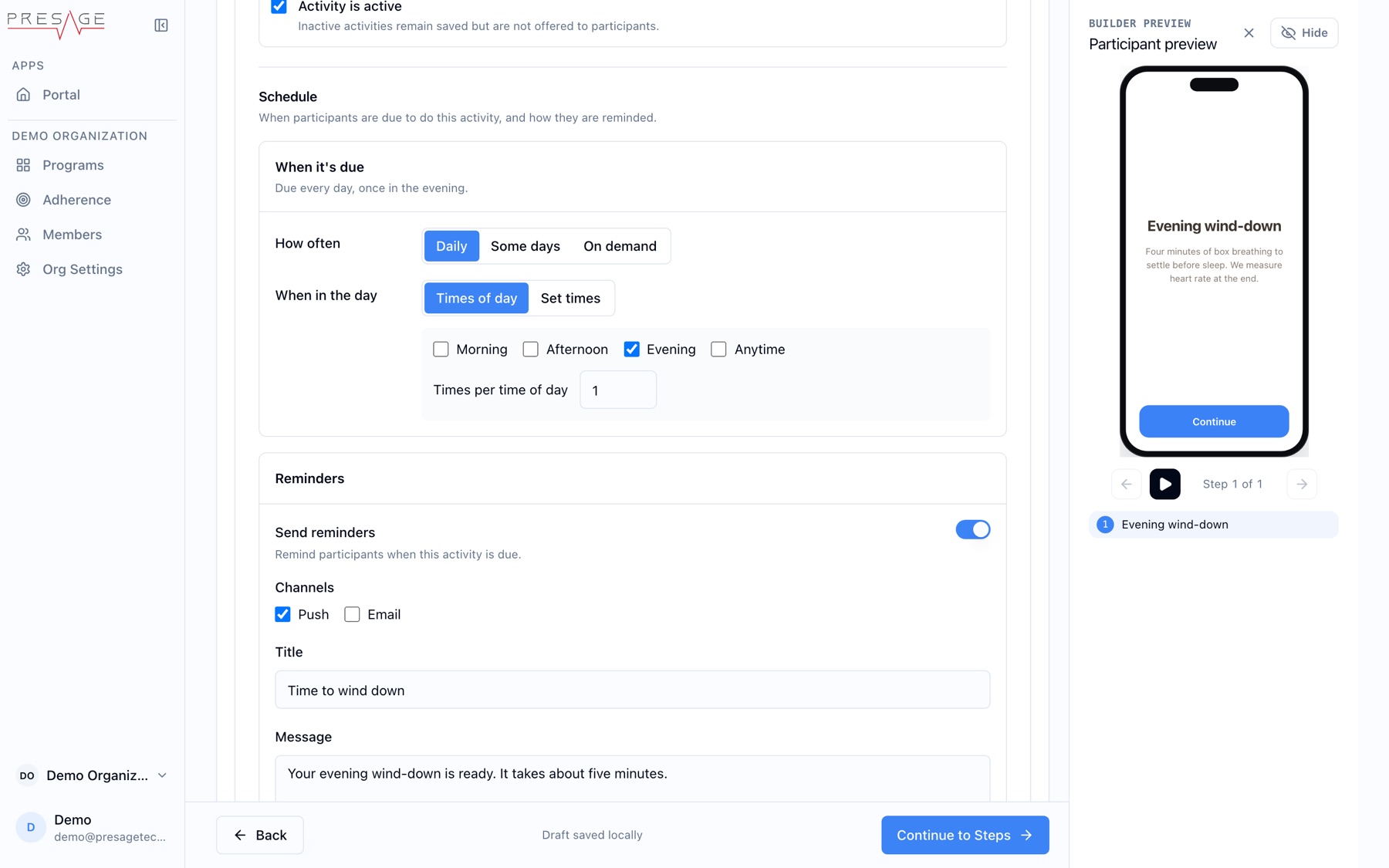
Basics › Schedule and advanced settings › Schedule
### Settings
How often:Daily, Some days, or On demand (no due dates).
When in the day:Times of day or Set times. The times of day are Morning (6 am to 12 pm), Afternoon (12 pm to 6 pm), Evening (6 pm to 10 pm) and Anytime.
Times per time of day: how many runs are due in each chosen part of the day.
Session length:Minimum collection (seconds) and Duration (minutes).
### Reminders
Turn on **Send reminders** to remind participants when the activity is due. Choose **Push** or **Email**, and set a **Reminder title** and **Reminder message**. Reminders are sent at the scheduled times.
The **Participants can change this schedule** option is marked **Coming soon**, so participants can't change their own schedule yet.
## Appearance and advanced settings
Button color, activity metadata, defaults, and what happens when the activity ends.
### Appearance
Choose a **Button color** from the swatches or enter your own. It colors buttons and the breathing pacer. The Coherence app keeps its own paper background.
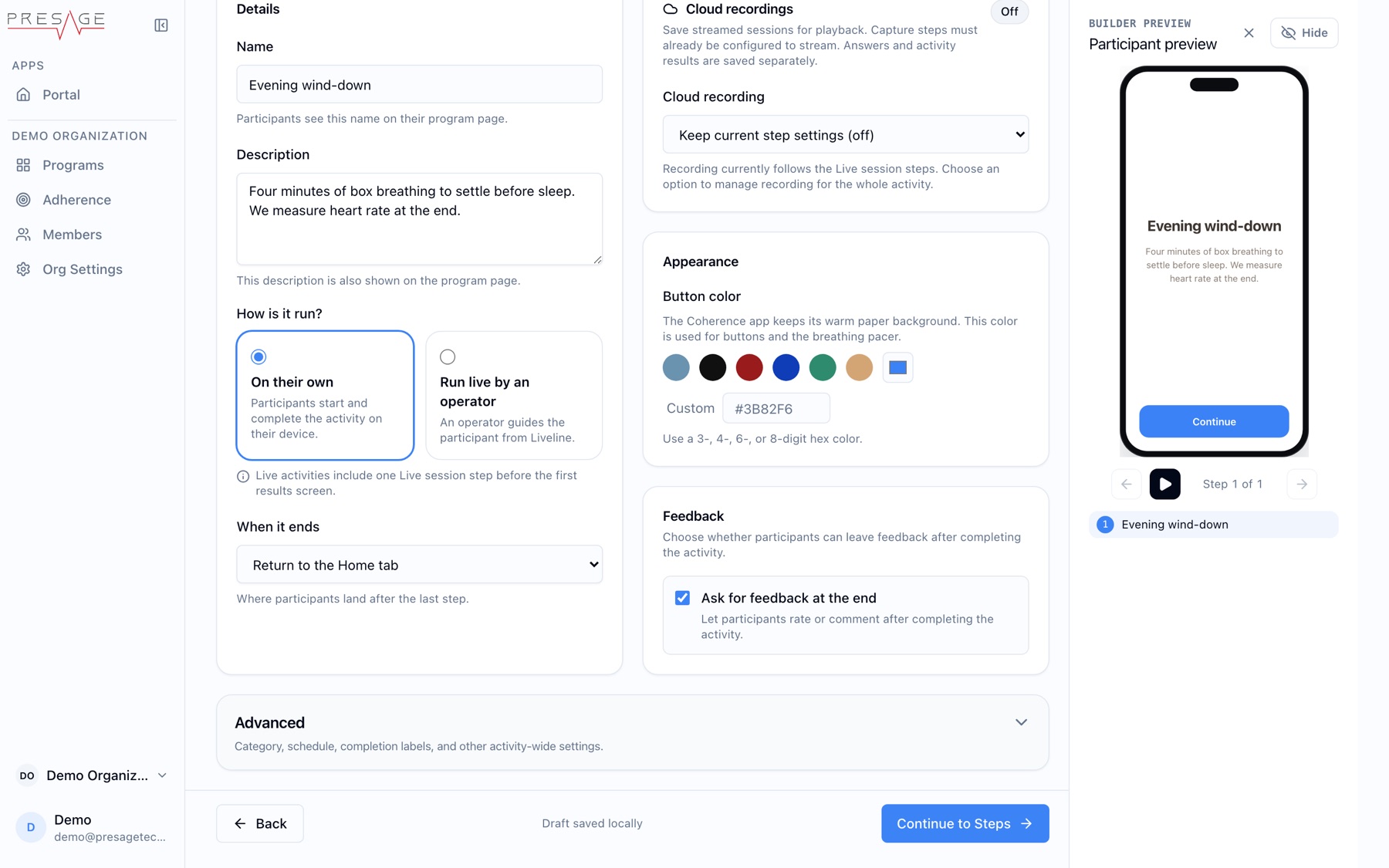
Appearance
### Activity metadata
Category label: Wellness, Assessment, Stress, Fitness, Training or Analysis. Live and media steps set their own category when you save.
Tags: comma-separated, for example breathing, stress, recovery.
Icon name and Icon library: the activity's icon.
Primary, Secondary and Background color: hex values such as #3B82F6. Use 3, 4, 6 or 8 hex digits after #, or the activity won't pass validation.
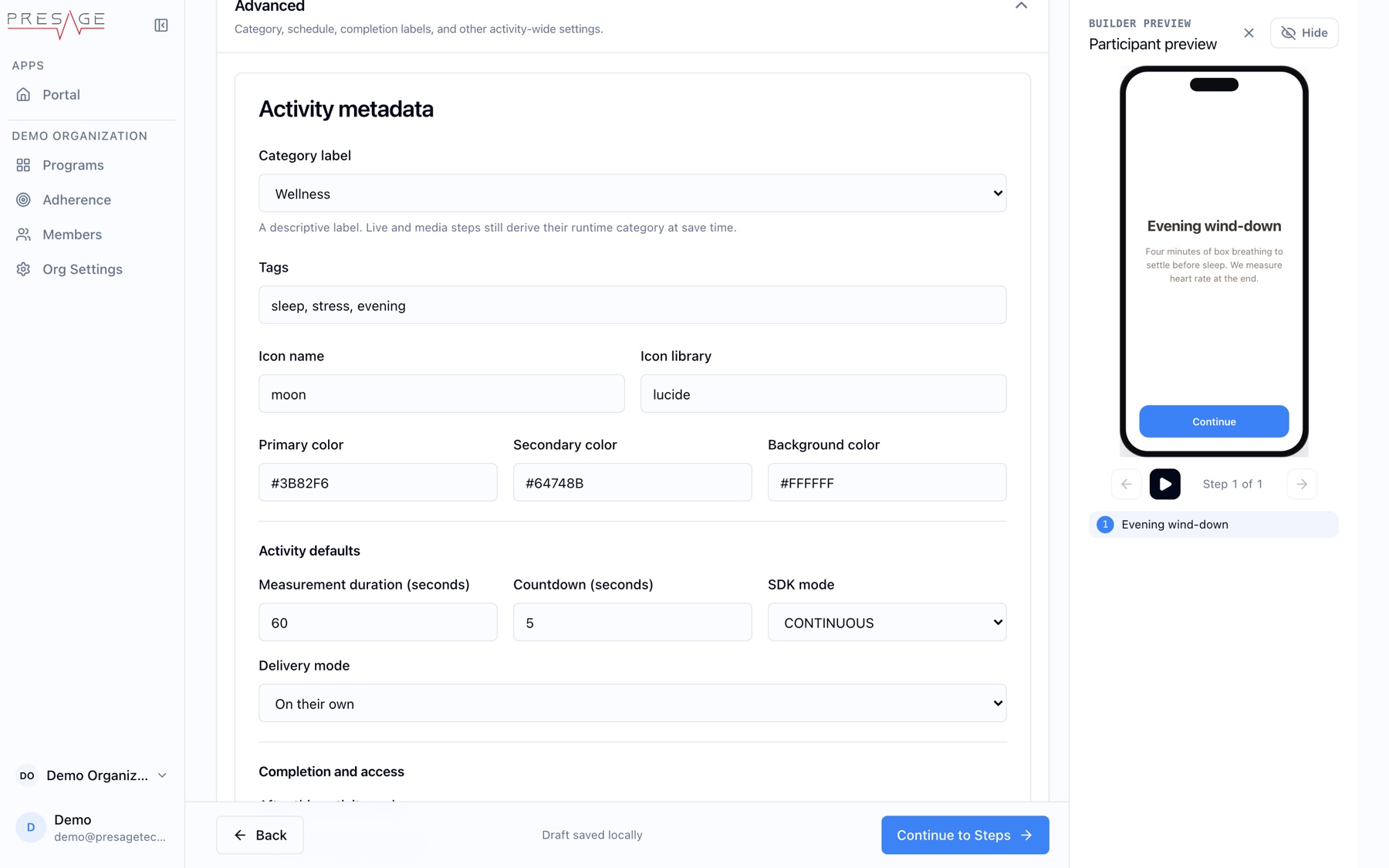
Activity metadata and defaults
### Activity defaults
Measurement duration and Countdown: in seconds.
SDK mode: CONTINUOUS, SINGLE or SPOT.
Delivery mode: On their own, or Run live by an operator.
### Completion and access
After this activity ends: same options as When it ends in Basics.
Show activity dashboard: include this activity in the participant dashboard.
Ask for feedback at the end: participants rate the activity from 1 to 5 stars after they finish.
Activity is active: inactive activities stay saved but aren't offered to participants.
Completion labels: set the completion title and both subtitles together to replace the defaults. Saving needs all three or none.
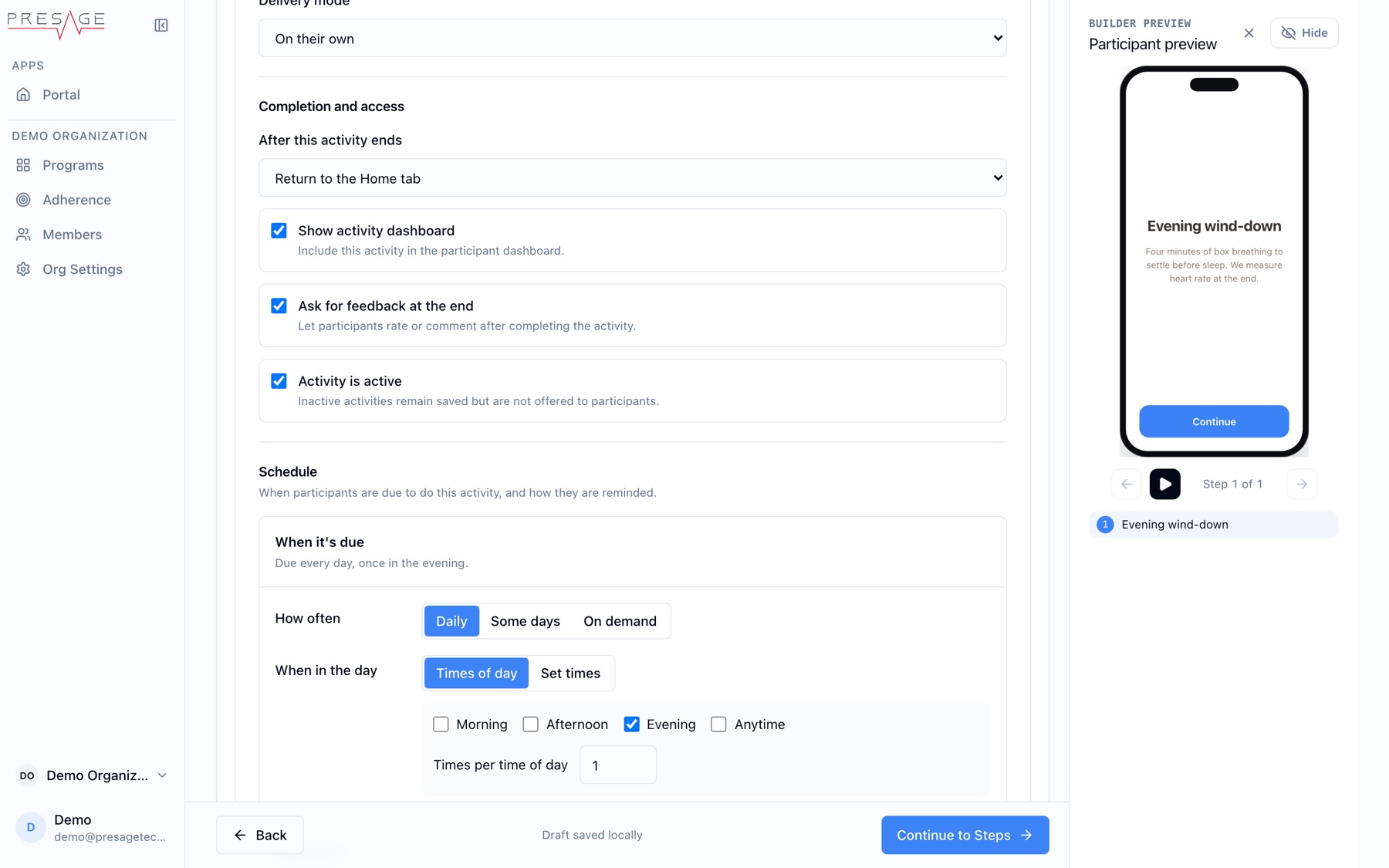
Completion and access
## Import and export (JSON)
Copy an activity's full configuration, or bring one in.
### Export
On the Review stage, click **View JSON** to see the activity's full configuration.
### Import
When you create an activity, choose **Import JSON** under **Build your own** to start from a flow definition, for example one Presage support sent you.
## FAQ
Why is Publish activity greyed out?
Either there's a blocking item under Readiness, or nothing has changed since the last save. The bar at the bottom of every stage names what to fix, with a **Fix this** button.
Do participants see my edits while I work?
No. Drafts stay private to your team until you publish.
How long will my activity take?
Review shows an estimate at the top of the participant flow, for example "About 4 minutes".
I see "Imported activity validation" errors. What do I fix?
A saved setting is in the wrong format. The most common cause is a color that isn't a hex value like `#3B82F6`. Check the colors in [Schedule and advanced settings › Activity metadata](https://presagetech.com/docs/essessment/activity-builder#activity-metadata).
## Step types
Source: https://presagetech.com/docs/essessment/step-types
---
title: "Step types"
description: "Every step you can add to an activity, what participants see, and how to set it up."
---
# Step types
## Step Library
Click a step in the Step library to add it, or drag it into the flow.
| Step | Use it to | Vitals |
| --- | --- | --- |
| [Question](https://presagetech.com/docs/essessment/step-types#question) | Collect answers or agreements, without the camera. | No |
| [Overview](https://presagetech.com/docs/essessment/step-types#overview) | Introduce the activity and set expectations. | No |
| [Instruction](https://presagetech.com/docs/essessment/step-types#instruction) | Give participants guidance before the next step. | No |
| [Capture](https://presagetech.com/docs/essessment/step-types#capture) | Take a camera-based vitals reading. See [Capture step](https://presagetech.com/docs/essessment/capture-step). | Always |
| [Breathing exercise](https://presagetech.com/docs/essessment/step-types#breathing-exercise) | Guide participants through a breathing pacer. | Always |
| [Stream](https://presagetech.com/docs/essessment/step-types#stream) | Stream video and vitals live to a specialist in Liveline. | Always |
| [Summary](https://presagetech.com/docs/essessment/step-types#summary) | Show results and completion actions. | No |
Capture, Breathing exercise and Stream always collect vitals from the camera. To run a program without vitals, build it from Question, Overview, Instruction and Summary steps.
## Question
Ask one or more questions on their own screen, with no camera. Use it for surveys, check-in items, or an agreement participants must accept before they continue.
Question label and Question or agreement text: the short name and the full wording.
Response type:Yes/No, Text, Scale, Number, Choice or Slider.
Display as (Yes/No only): Two buttons or a Checkbox with your own Checkbox label, such as "I agree".
Answer requirement:Optional or Required answer. Yes/No can also require Must answer Yes to continue (buttons) or Must be checked to continue (checkbox).
Add repeating group: repeat a set of questions.
Show this question:Always show, or Show only if... an earlier answer meets a condition, so follow-ups appear only when they apply. Pick the earlier question, a comparison such as equals, is one of, is greater than or is between, and a value. Text questions can't be used as the trigger.
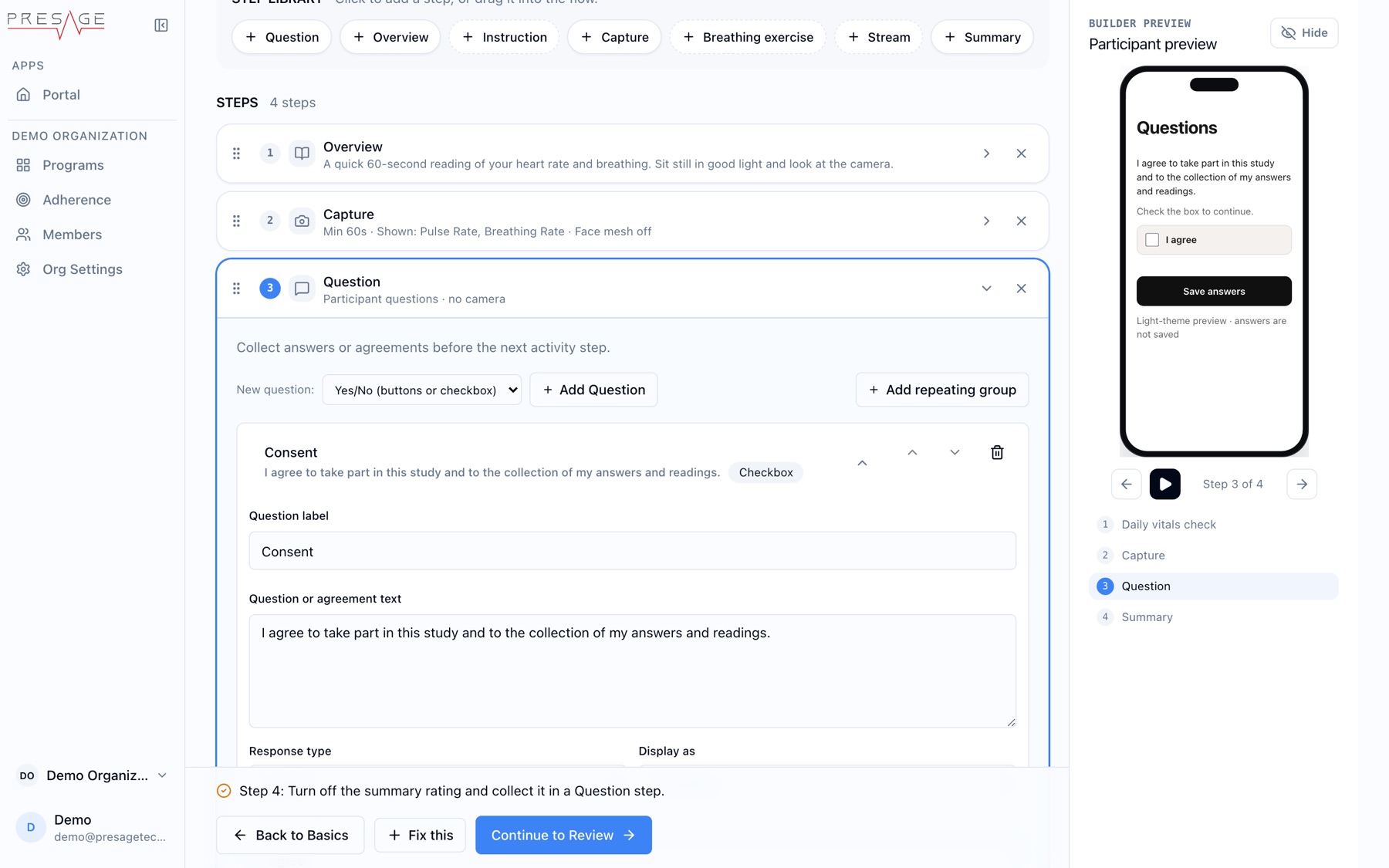
An agreement that must be checked to continue
See [Consent](https://presagetech.com/docs/essessment/consent) before using a Question step to collect consent.
## Repeat Rule
Most steps have a **Repeat Rule** that controls how often the step appears: **Always**, **Once per Session** or **Once per Activity**.
## Overview
The first screen of an activity. It sets expectations with a title, a short message and a list of what's coming.
Title and Message: for example "Calm Under Pressure" and "Three short rounds. About 5 minutes."
Instructions: click Add Instruction for each item. Each has a label and an icon name, such as leaf-outline.
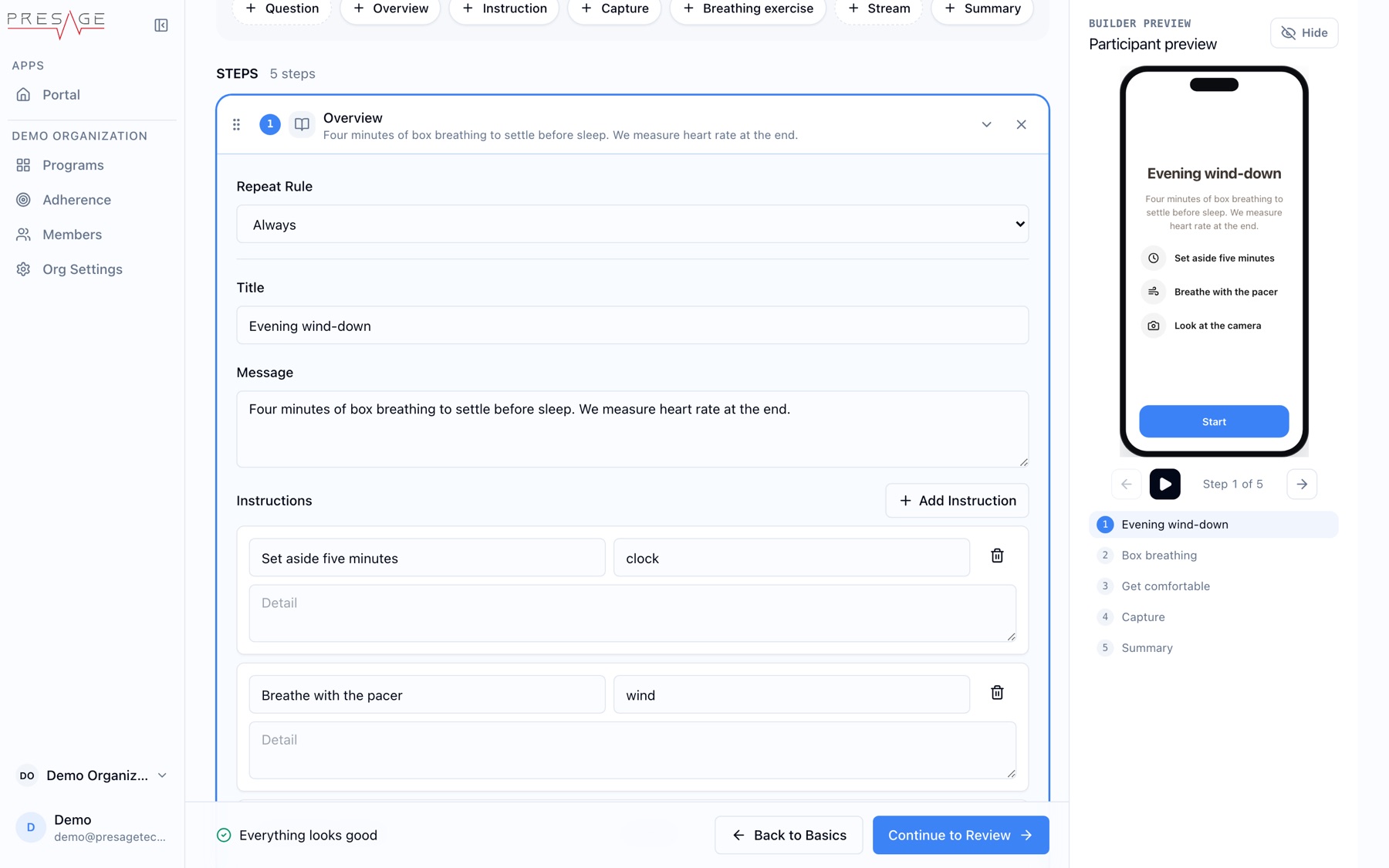
Overview step
## Instruction
A single screen of guidance, such as how to do a task before a reading.
Title and Message: what to do.
Continue Button Label: for example "I'm ready".
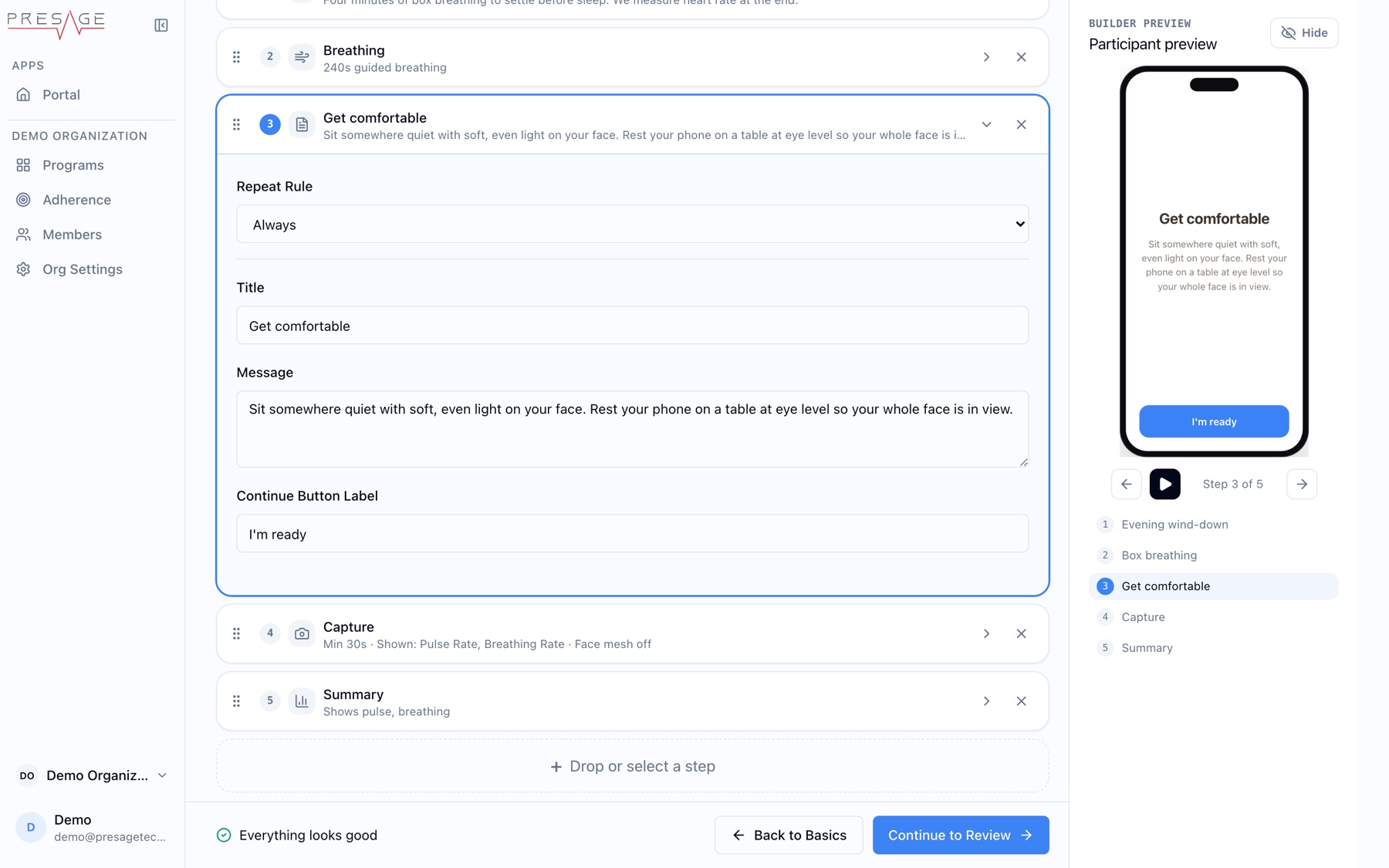
Instruction step
## Breathing exercise
A paced breathing guide. The camera measures vitals the whole time. The pacer uses the activity's button color.
Breathing Pattern:Inhale, Hold after Inhale, Exhale and Hold after Exhale, in seconds. Box breathing is 4, 4, 4, 4.
Duration (seconds): how long the exercise lasts. Defaults to 180.
Visual Mode:Guide (paced breathing) or Belly (free pace).
Visual style:Orb, Ripple or Tide (a rising wave).
Show camera thumbnail by default and Show live vitals by default: both are off unless you turn them on. Participants can show or hide them during the exercise.
Results: later steps can show this step's results. The builder manages the output name; Advanced output override lets you change it.
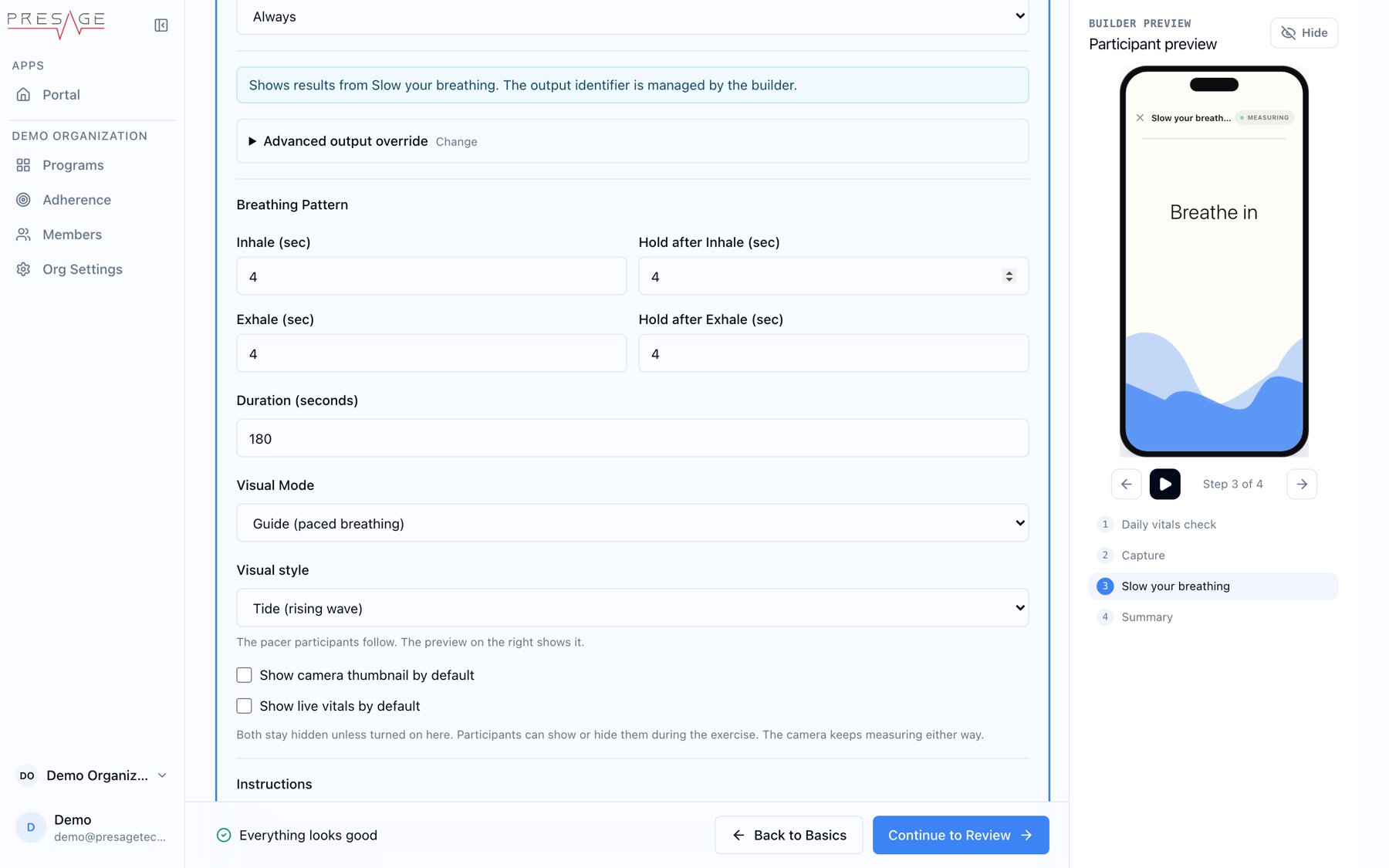
Breathing exercise with the Tide style
## Capture
A camera reading of pulse, breathing and related signals, with optional prompts, videos and questions during the reading. It always collects vitals. It has its own page: [Capture step](https://presagetech.com/docs/essessment/capture-step).
## Stream
A live session between the participant and a specialist. Coherence shows the participant a room code. The specialist enters it in [Liveline](https://presagetech.com/docs/essessment/run-session) and sees the participant's video and vitals in real time.
Save recording to cloud: records the live session so it can be replayed in Playback.
Min Duration and Max Duration (seconds): defaults are 30 and 3600.
Metrics and Mesh Mode: which vitals cards and face mesh the participant sees.
Self-view: let the participant hide their own feed, or start with it hidden.
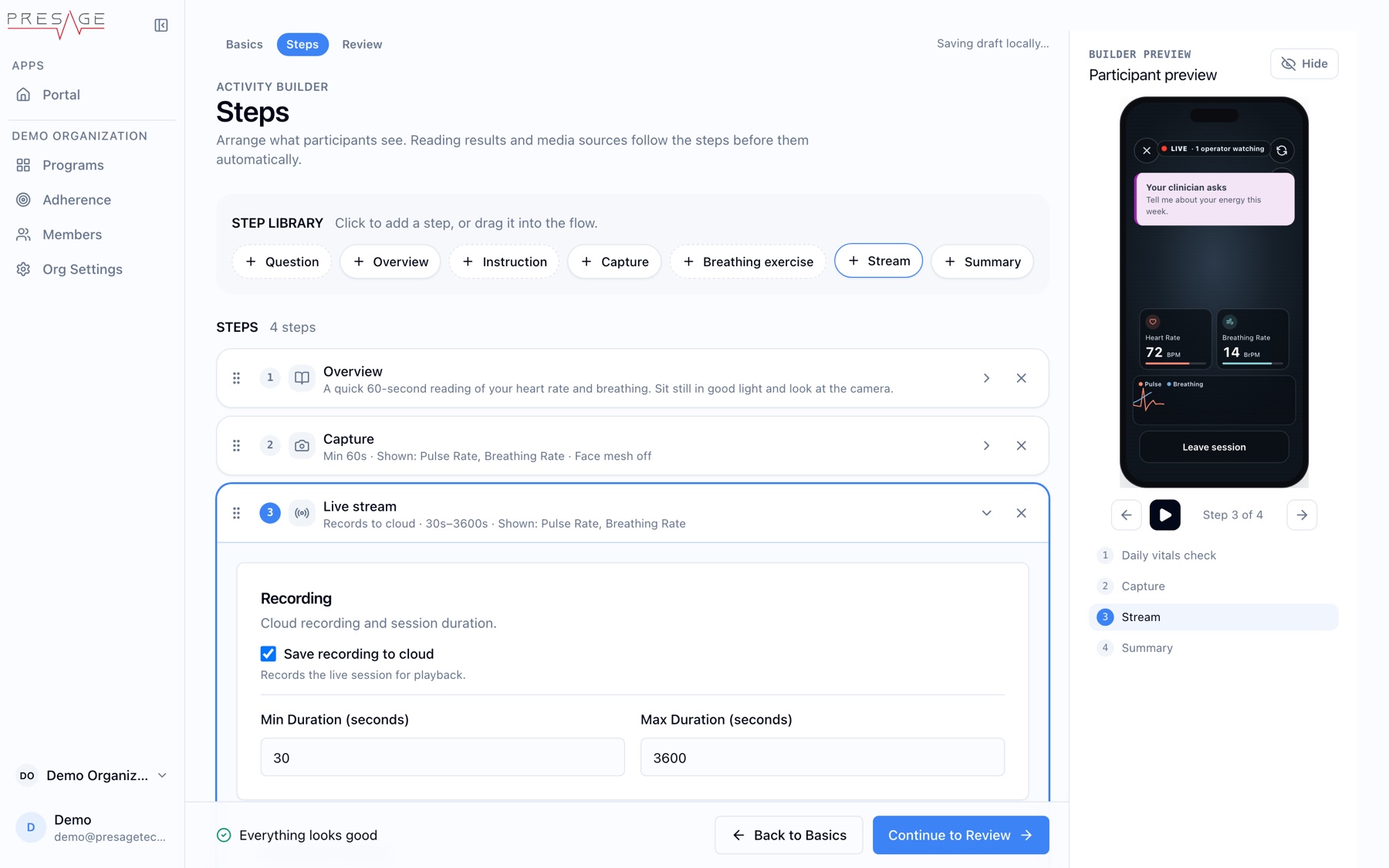
Stream step
Audio is off at launch. A Stream shares the participant's video and vitals without sound.
## Summary
The last screen. It shows results from earlier readings and can ask for a rating.
Title and Subtitle: optional, for example "Your Pressure Profile".
Aggregator: which readings to combine, for example All.
Measures to Display: which results to show, such as pulse and breathing.
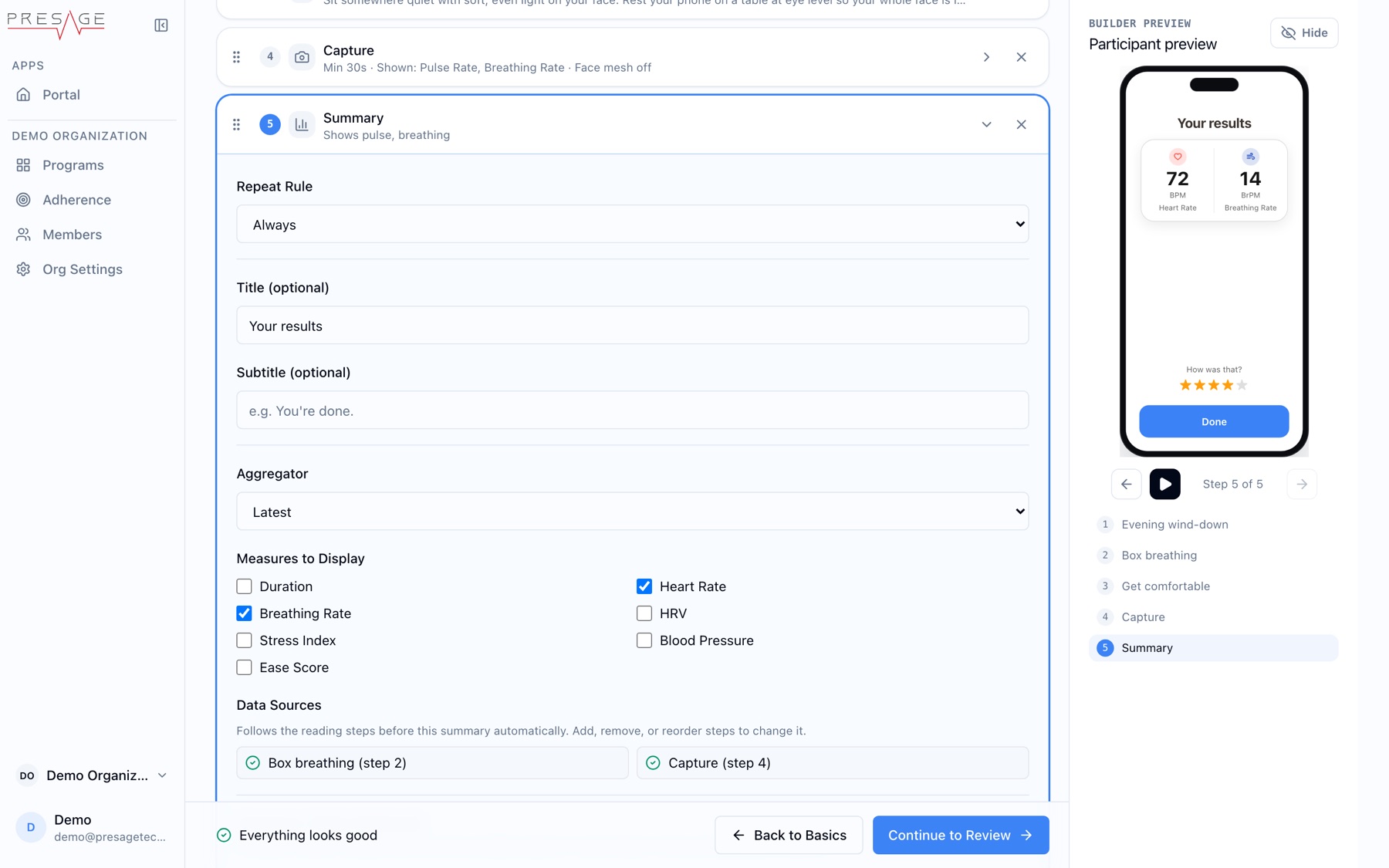
Summary step
## Capture step
Source: https://presagetech.com/docs/essessment/capture-step
---
title: "Capture step"
description: "Set up a camera reading of vitals: how long it lasts, what participants see, and what happens during it."
---
# Capture step
## Overview
A Capture always collects vitals. It uses the device's front camera to read pulse, breathing and related signals, and records every vital no matter which cards you choose to show participants. You can show timed messages, play videos, and ask questions while the reading runs.
A Capture doesn't save video. To keep participants unaware of their readings, for example to protect a study's integrity, turn off every card in **Metrics to Display**.

What participants see (iPhone)
## Reading length
Set **How long should the reading last?** in seconds. For best results, use at least 30 seconds. HRV needs a reading of at least 60 seconds.
## Timed Prompts
Short messages shown over the camera view. Each one disappears on its own after its duration, so participants can't keep it on screen or dismiss it early.
Show at: seconds into the reading.
On-screen duration: seconds it stays up. Defaults to 5. Give longer messages more time.
Title (optional) and Message.
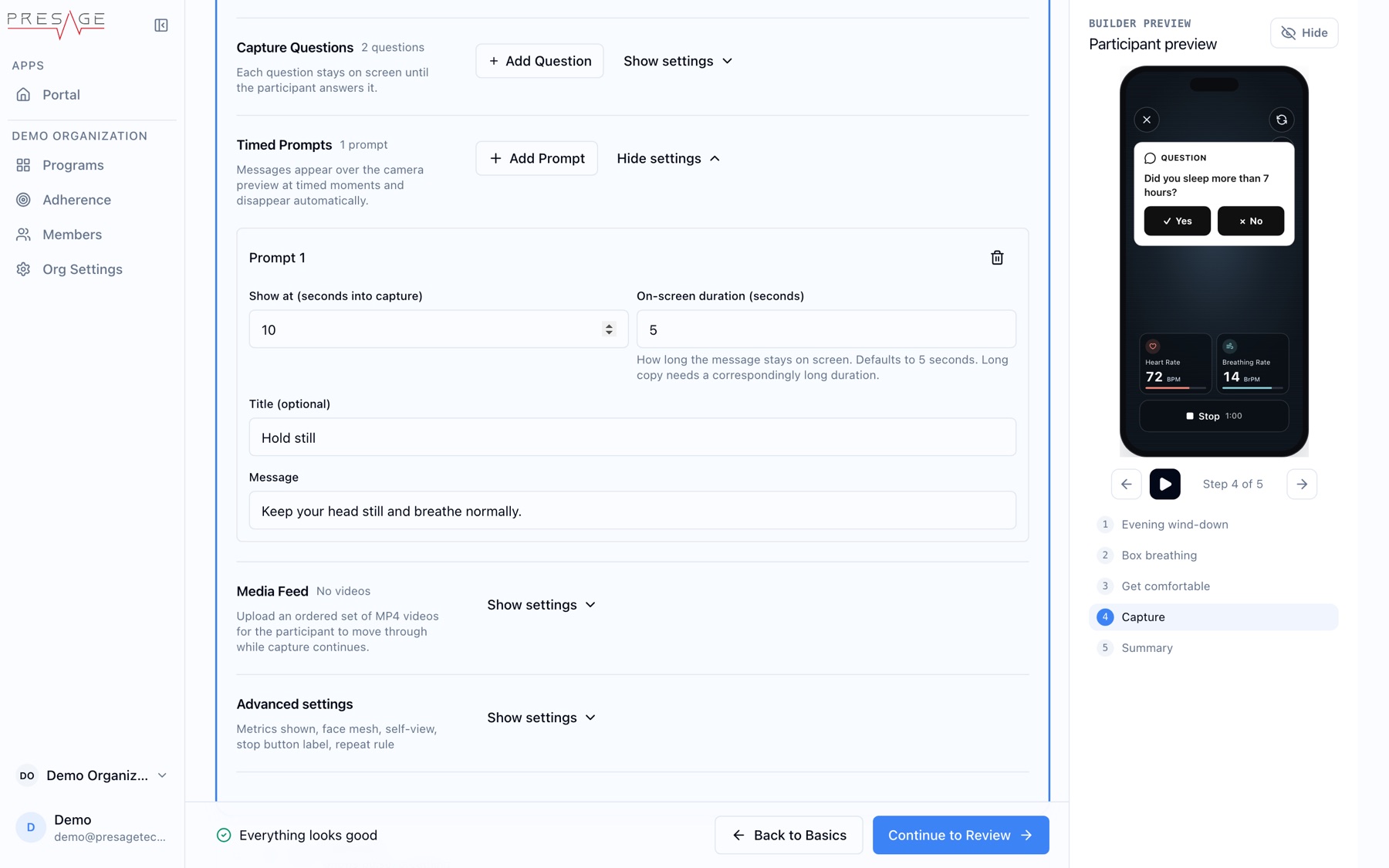
Timed Prompts
## Media Feed
Videos that play in order while the reading continues, for example a stimulus clip.
| Limit | Value |
| --- | --- |
| Files | 1 to 25 MP4 videos |
| Video codec | H.264 |
| Audio | AAC, or no audio |
| Size | Up to 250 MiB each |
| Length | Up to 5 minutes each |
## Capture Questions
Quick questions asked during the reading. Each one stays on screen until the participant answers it, so these settings control when questions appear, not how long they last.
#### Turn it on
Check **Enabled**.
#### Add questions
Choose a type under **New question** and click **Add Question**.
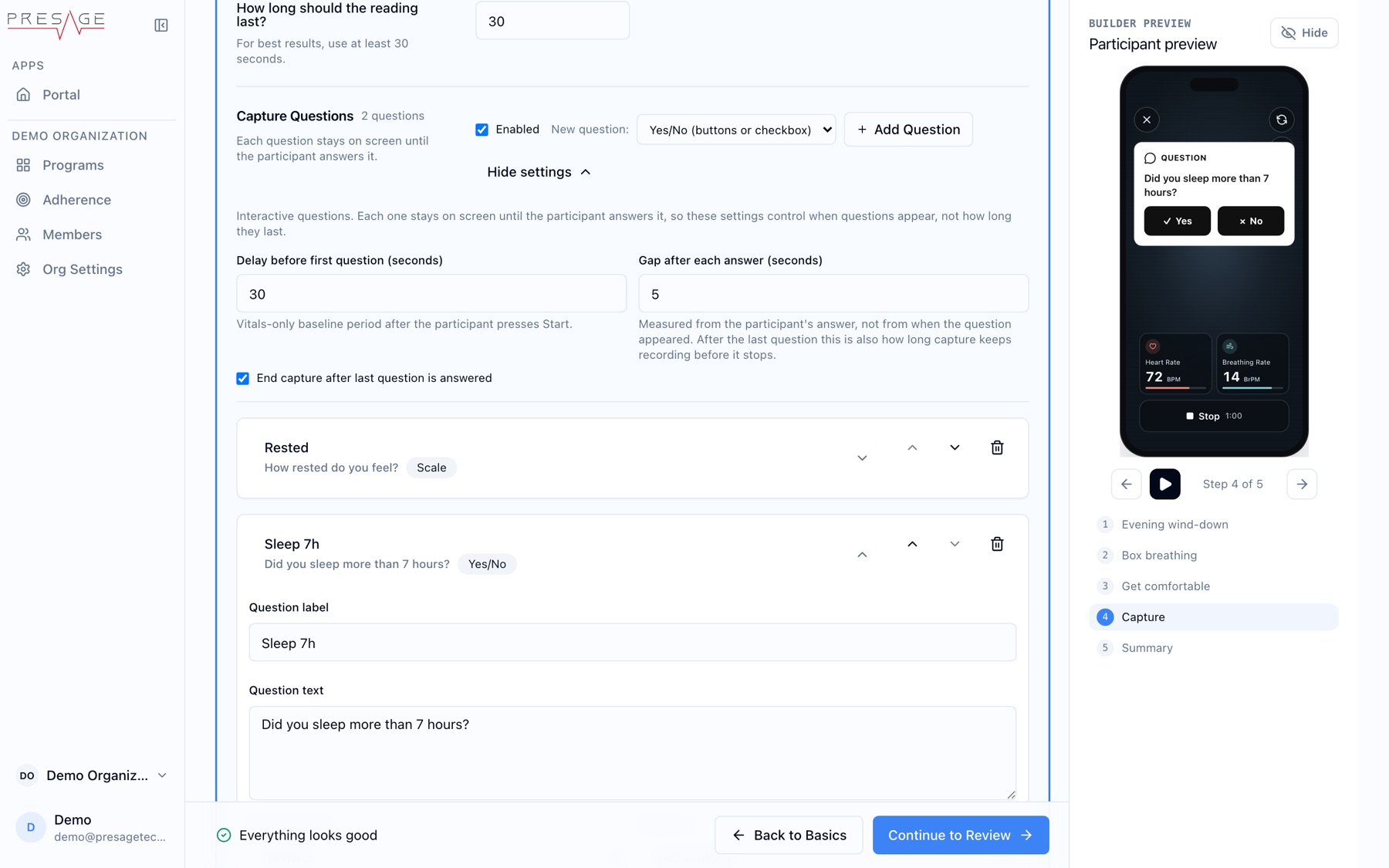
Capture Questions
#### Set timing
**Delay before first question** gives a vitals-only baseline after Start. **Gap after each answer** is measured from the answer.
#### Choose how it ends
**End capture after last question is answered** stops the reading after the final gap.
| Question type | Participant does |
| --- | --- |
| Yes/No | Taps one of two buttons |
| Text | Types an answer |
| Scale | Taps a number |
| Number | Enters a number |
| Choice | Picks from a list |
| Slider | Drags along a track |
## Advanced settings
Metrics to Display: the cards participants see: Pulse Rate, Breathing Rate, HRV, EDA, Pulse Trace, Breathing Trace, Expressions, Talking, Blinking. See Metrics.
Face Mesh Visualization: Combined (dots and lines), Dots, Lines, or Off.
Self-View: let participants hide their own camera feed, or start with it hidden. This only changes the display. The camera keeps running and readings are the same.
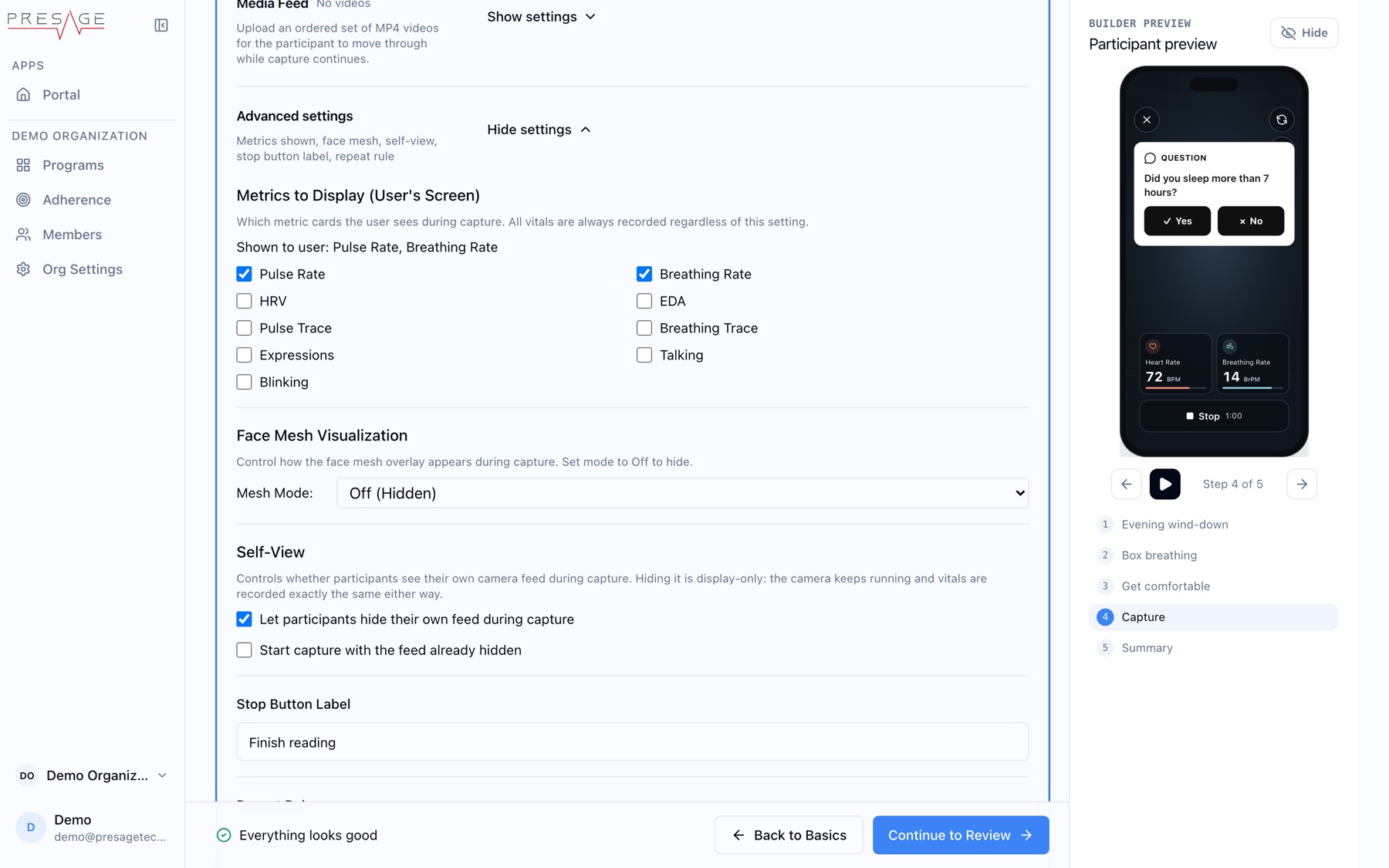
Advanced settings
Cloud recording applies only to [Stream](https://presagetech.com/docs/essessment/step-types) steps. A Capture doesn't save a recording.
## Tips for good readings
- Face the camera in even light, with your face inside the outline.
- Stay still and avoid talking unless the step asks for it.
## Build with AI
Source: https://presagetech.com/docs/essessment/mcp
---
title: "Build with AI"
description: "Describe the program or activity you want, and your AI assistant builds it in your organization through the Coherence MCP server."
---
# Build with AI
## Before you start
You need a Presage account and an organization. The assistant builds programs inside an organization, so [create your account and organization](https://presagetech.com/docs/essessment/create-account) first.
## What you can do
- Browse your programs and activities.
- Create and update programs and activities, if your role allows it.
Programs created this way are private, like any new program. Invite the people who should take part. If everyone in your organization should see it, ask the assistant to "make the program visible to everyone in my organization", or turn on **Program Visibility** yourself.
You can't start measurements from an AI assistant yet.
## Which AI tools work
Coherence is an MCP server, so it works with any AI assistant that supports MCP connectors. In Claude, it's listed in the Claude directory as a ready-made connector.
For other AI tools, add `https://coherence.presagetech.com/mcp` as a remote MCP server, then sign in with your Presage account when asked.
## Connect in Claude
#### Add the connector
Open [Coherence by Presage Tech](https://claude.ai/directory/coherence-by-presage-tech) in the Claude directory and connect it.
#### Sign in
Approve access with your Presage account.
#### Name your organization
Say which organization to build in, for example "in Demo Organization". This matters most if you belong to more than one.
## Example prompts
CreateIn Demo Organization, create a 3‑minute morning check-in for the Track Team program: box breathing for 2 minutes, a 45‑second reading, then a summary of pulse and breathing.
ReviewIn Demo Organization, list the activities in the Study A program and how many steps each has.
EditIn Demo Organization, add a Capture Question to the evening check-in asking "How rested do you feel?" on a 1 to 5 scale.
## Build from a file
Attach your protocol, survey or question list (PDF, Word or a spreadsheet) and ask the assistant to build from it. Review the result in the [Activity Builder](https://presagetech.com/docs/essessment/activity-builder) before you invite anyone.
PDFSleep-study-protocol.pdf12 pages
In Demo Organization, build a program from the attached protocol. One activity per study visit.
Week 2 check-in: questions and a breathing exercise
Final visit: questionnaire, reading and summary
- "In Demo Organization, build a program from the attached study protocol. Use one activity per study visit."
- "Turn the attached questionnaire into a Question step in the Evening check-in activity."
## Invite people
Source: https://presagetech.com/docs/essessment/invite
---
title: "Invite people"
description: "Add participants and teammates by email or link, and give them program access in the same step."
---
# Invite people
People join your organization first. You can't add someone to a program until they're a member of your organization, so pick their programs when you invite them.
## Guide
#### Open Members
In the Console sidebar, click **Members**, then **Add Member**. The **Invite Members** dialog opens.

Members › Add Member
#### Choose how to invite
**Email Invite** sends an email for you. **Copy Link** generates a link you can share yourself, and also sends the invitee an invitation email.
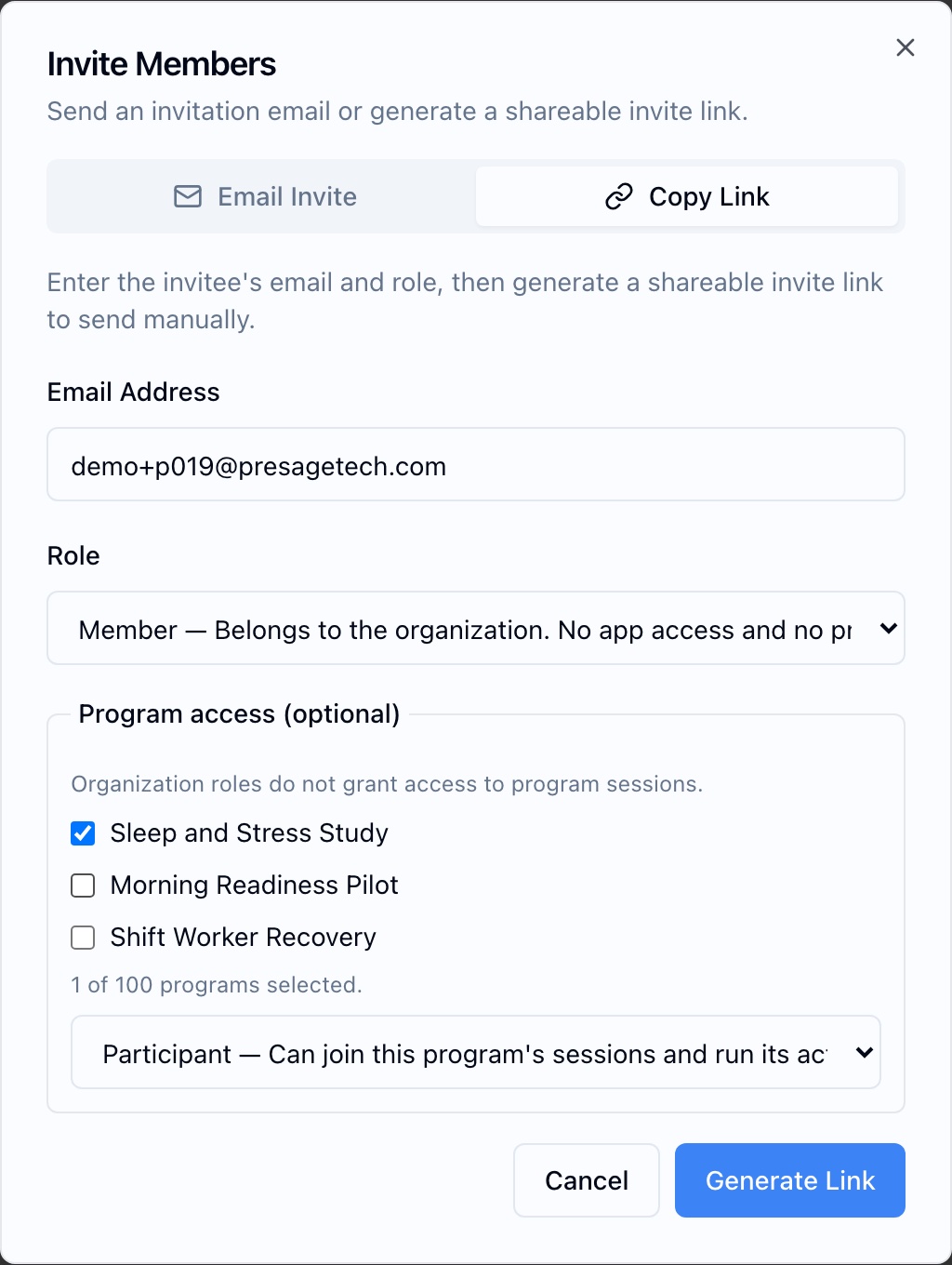
Copy Link
#### Enter the email address
Use the address the person will sign in with.
#### Pick programs
Under **Program access (optional)**, check each program they should join and pick their program role, usually **Participant**. Organization roles alone don't grant access to program sessions.

Program access and Role
#### Pick a role
Most participants are **Member**. See [Roles and permissions](https://presagetech.com/docs/essessment/roles).
#### Send
Click **Send Invitation** or **Generate Link**.
## Bulk invite
Click **Bulk Invite** on the Members page to invite many people at once. Bulk invites only add people to the organization. They don't pick programs, so tell invitees what to do next:
1. Join the organization from the invitation.
1. In Coherence, open **Programs › Find** and tap **Add to Library** on an available program.
A private program only shows in **Find** once an admin gives the person access. See [Programs](https://presagetech.com/docs/essessment/programs).
## Track invitations
On the Members page, the **Invited** filter lists invitations that haven't been accepted yet. Use the row menu (…) to manage one.
## What the invitee sees
#### The email
Subject: "You're invited to join *organization* on Presage". It has a **View invitation** button and App Store and Google Play links. Invitations expire on the date shown in the email.
#### Open in Coherence
On a phone, they tap **Get Coherence** or **Open in Coherence**. On a computer, they click **Sign in to accept**.
#### Sign in
They create an account or sign in with the invited email, using a password, Apple or Google.
#### Join
In Coherence they tap **Join**. Joining also adds the invited programs to their Library.
If they sign in with a different email, they see "This invitation belongs to a different account" and can sign out and use the invited account.
## Get the Coherence app
Source: https://presagetech.com/docs/essessment/coherence-app
---
title: "Get the Coherence app"
description: "Participants run their programs in Coherence on a phone or tablet with a front camera."
---
# Get the Coherence app
The [Coherence app](https://presagetech.com/docs/essessment/app-get-the-app) section walks participants through every screen.
## Platforms
| Platform | Where to get it | Requires |
| --- | --- | --- |
| iPhone and iPad | App Store: "Coherence by Presage Tech" | iOS 17.0 or later |
| Android | Google Play | Android 9 (API 28) or later |
For supported devices and camera requirements, see [System requirements](https://presagetech.com/docs/essessment/requirements).
Coherence for Mac and Windows is hidden for launch. It only runs some streaming activities and isn't designed for general use yet. Participants use the phone app.
## Sign in and join
#### Sign in
Sign in with the email your invitation was sent to, using a password, Apple or Google.
#### Join the organization
Tap **Join** on the invitation. Programs you were invited to are added to your Library.
#### Find other programs
Open the **Programs** tab and switch to **Find**. Tap **Add to Library** on any program you want to take part in.
The app's tabs are **Today**, **Chat**, **Scan**, **Programs** and **You**.
## What participants see
Source: https://presagetech.com/docs/essessment/participant-experience
---
title: "What participants see"
description: "A walk through an activity from the participant's side, to share with your participants."
---
# What participants see
For the full participant guide, see the [Coherence app](https://presagetech.com/docs/essessment/app-overview) section.
## Find your program
Open Coherence and go to **Programs**. **Library** lists the programs you've joined, from every organization you belong to. **Find** lists others you can add with **Add to Library**.
## Run an activity
#### Read the overview
It says what's coming and roughly how long it takes. Tap the start button.

Overview (builder preview)
#### Follow the pacer
Follow the breathing guide and the phase labels shown on screen.
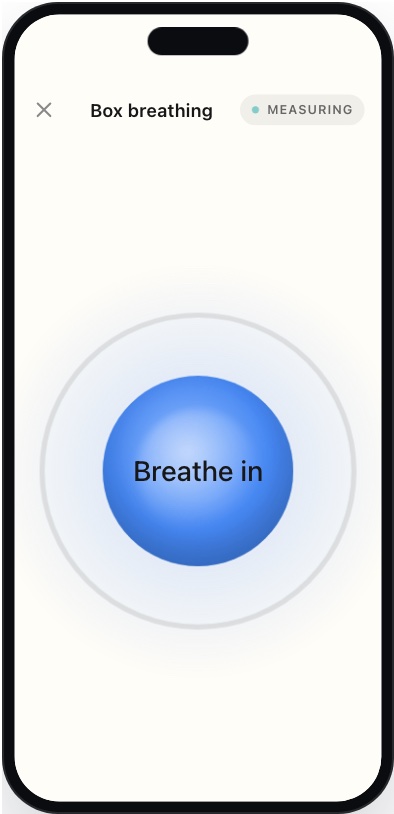
Breathing pacer (builder preview)
#### Read the instructions
Tap the button when you're ready.
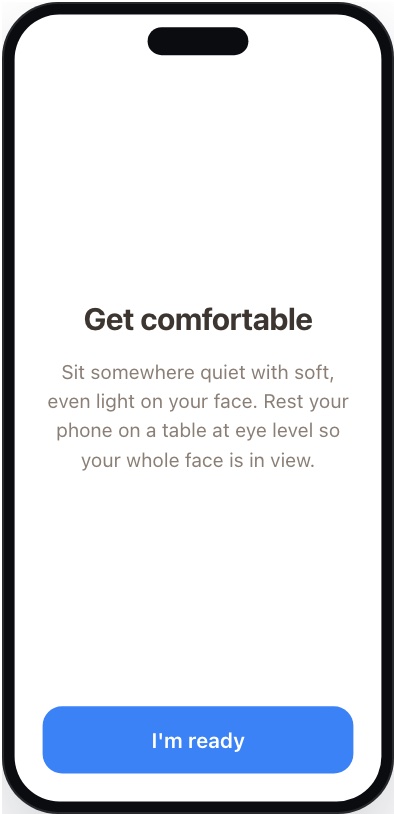
Instructions (builder preview)
#### Hold still for the reading
Keep your face inside the outline. Messages may appear and disappear on their own. Tap Stop if you need to end early.

Reading
#### Answer the questions
Answer the questions shown. Complete any required answers, marked with \*, before continuing.
MORNING CHECK-IN
How rested do you feel this morning?
12345
Not at allVery
Did you sleep more than 7 hours? *
✓ Yes✕ No
Continue
Questions
#### See your results
The summary shows your readings. You may be asked to rate the activity from 1 to 5 stars.
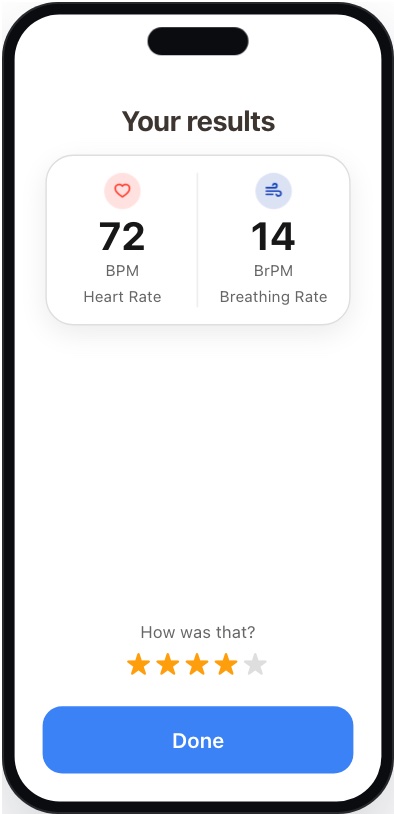
Summary (builder preview)
## Privacy for participants
See [Data, privacy and security](https://presagetech.com/docs/essessment/privacy) for what's collected and who can see it.
## Consent
Source: https://presagetech.com/docs/essessment/consent
---
title: "Consent"
description: "Collect the consent your program needs from participants before they take part."
---
# Consent
Your organization is responsible for collecting the consents it needs to run its protocols in Coherence. Presage's policies cover Presage, not your study.
## Your options
A Question step: put your consent text in a Question step at the start of the activity, with a checkbox set to Must be checked to continue. Participants can't continue until they agree. This isn't a formal e-signature, so check it meets your requirements.
Offline: collect consent with your existing process, such as your IRB-approved e-consent tool, before you invite people.

A required agreement in a Question step
## Recording consent
Coherence asks for recording consent only when an activity includes a Stream step with recording turned on. Participants read the notice, check the agreement box, and tap **Agree and start**, or **Cancel** to decline. **Agree and start** stays disabled until the box is checked.
Participants who have already accepted the current recording notice for that organization won't be asked again unless the notice changes.
## Coherence app overview
Source: https://presagetech.com/docs/essessment/app-overview
---
title: "Coherence app overview"
description: "The free app you use to take part in check-ins and studies: short activities with questions, guided breathing and a camera reading of your pulse and breathing."
---
# Coherence app overview
For participants
Your check-ins and studies, on the phone you already have.
## What is Coherence?
Coherence is Presage's app for iPhone and Android. A research team, coach or wellness program invites you, and their activities show up in the app. You complete them on your own phone, using the front camera instead of a wearable.
#### Get the app
Install Coherence and sign in. See [Get the app and sign in](https://presagetech.com/docs/essessment/app-get-the-app).
#### Join your program
Accept the invitation from your organization. Its programs are added to your Library. See [Join a program](https://presagetech.com/docs/essessment/app-join).
#### Complete your activities
Open an activity from Today or Programs and follow each step. See [Complete an activity](https://presagetech.com/docs/essessment/app-run-activity).
## Get the app and sign in
Source: https://presagetech.com/docs/essessment/app-get-the-app
---
title: "Get the app and sign in"
description: "Download Coherence on your phone and sign in with the email your invitation was sent to."
---
# Get the app and sign in
## Download
| Phone | Where to get it |
| --- | --- |
| iPhone and iPad | [App Store](https://apps.apple.com/us/app/coherence-by-presage-tech/id6758461062): "Coherence by Presage Tech" |
| Android | [Google Play](https://play.google.com/store/apps/details?id=com.presagetech.app) |
For supported devices and camera requirements, see [System requirements](https://presagetech.com/docs/essessment/app-requirements).
## Sign in
#### Open Coherence
The first screen offers three ways in.
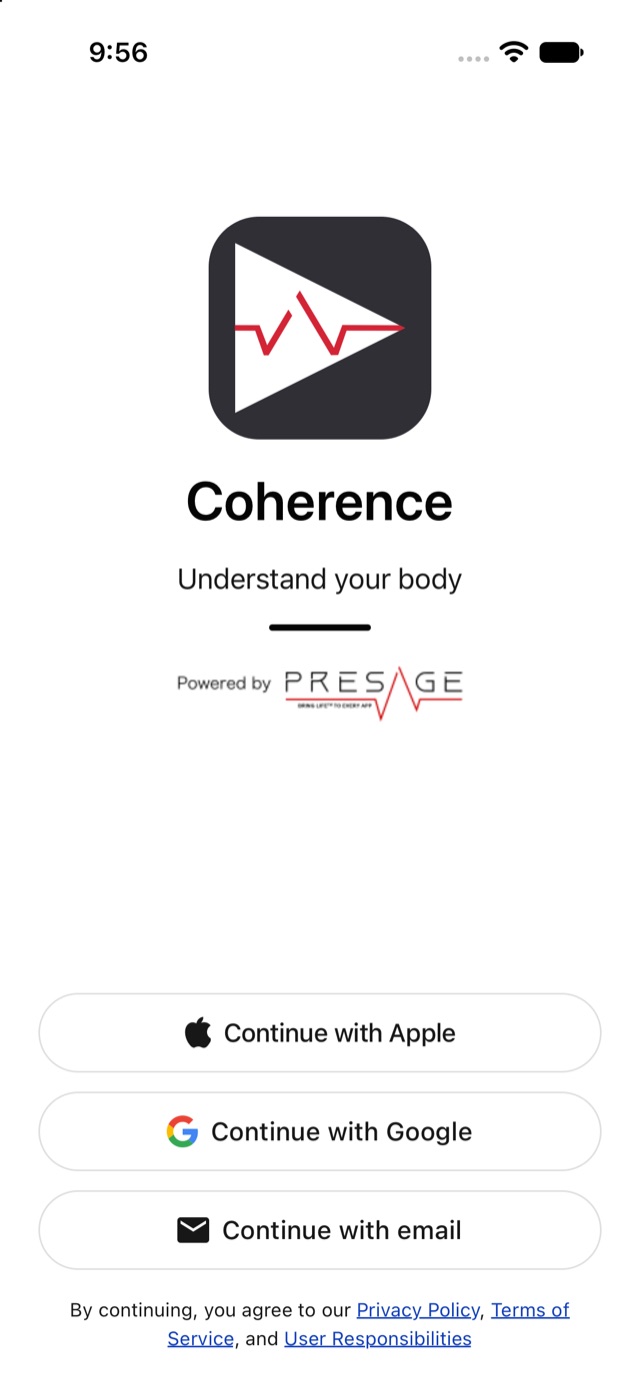
Sign in
#### Choose how to sign in
Tap **Continue with Apple**, **Continue with Google** or **Continue with email**. If you were invited, use the address the invitation was sent to.
With Apple, if Apple offers **Share My Email**, choose it so Coherence can match your invitation.
#### Allow notifications
Coherence asks to send you notifications, so it can remind you when an activity is due. Tap **Allow**. You can change this later in [Settings](https://presagetech.com/docs/essessment/app-settings).
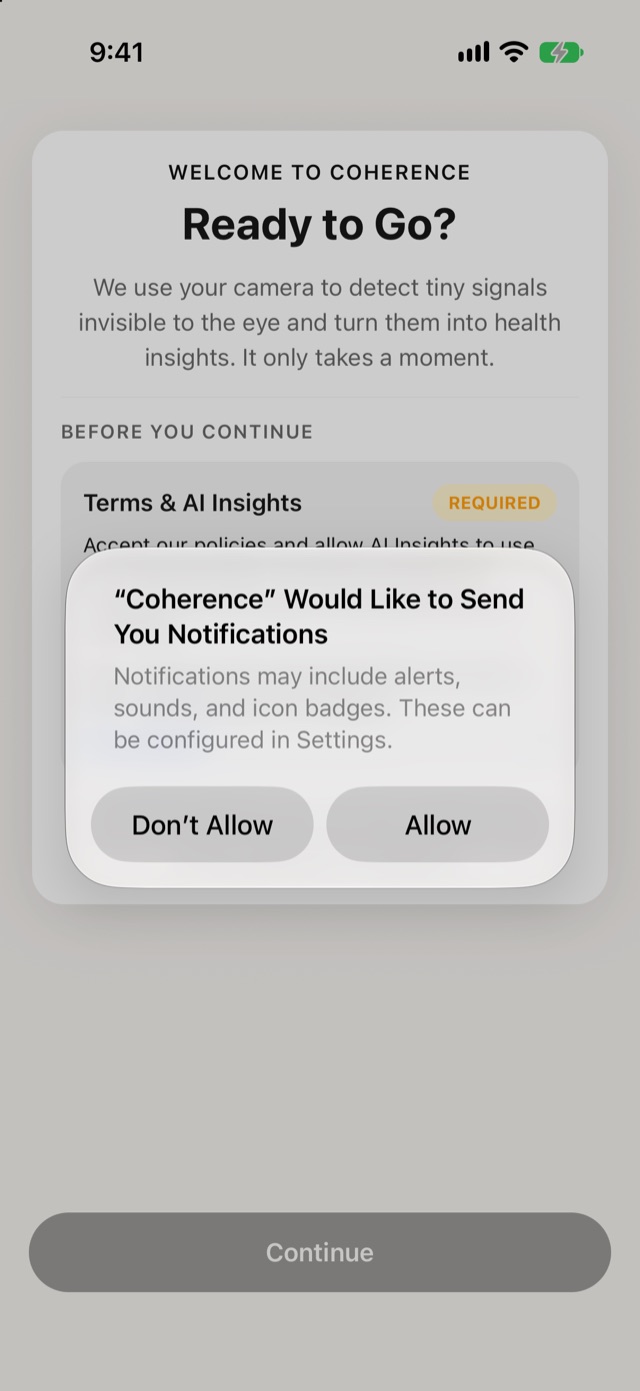
Notifications
Signing in means you agree to Presage's [Privacy Policy](https://coherence.presagetech.com/legal/privacy/2026-11-02/) and [Terms of Service](https://coherence.presagetech.com/legal/tos/2026-11-02/). They're also linked at the bottom of the sign-in screen.
## Set up Coherence
Source: https://presagetech.com/docs/essessment/app-first-run
---
title: "Set up Coherence"
description: "The first time you sign in, accept the policies, allow the camera and take a short first scan."
---
# Set up Coherence
## Guide
#### Read "Ready to Go?"
Coherence explains that it uses your camera to detect tiny signals invisible to the eye and turn them into health insights.
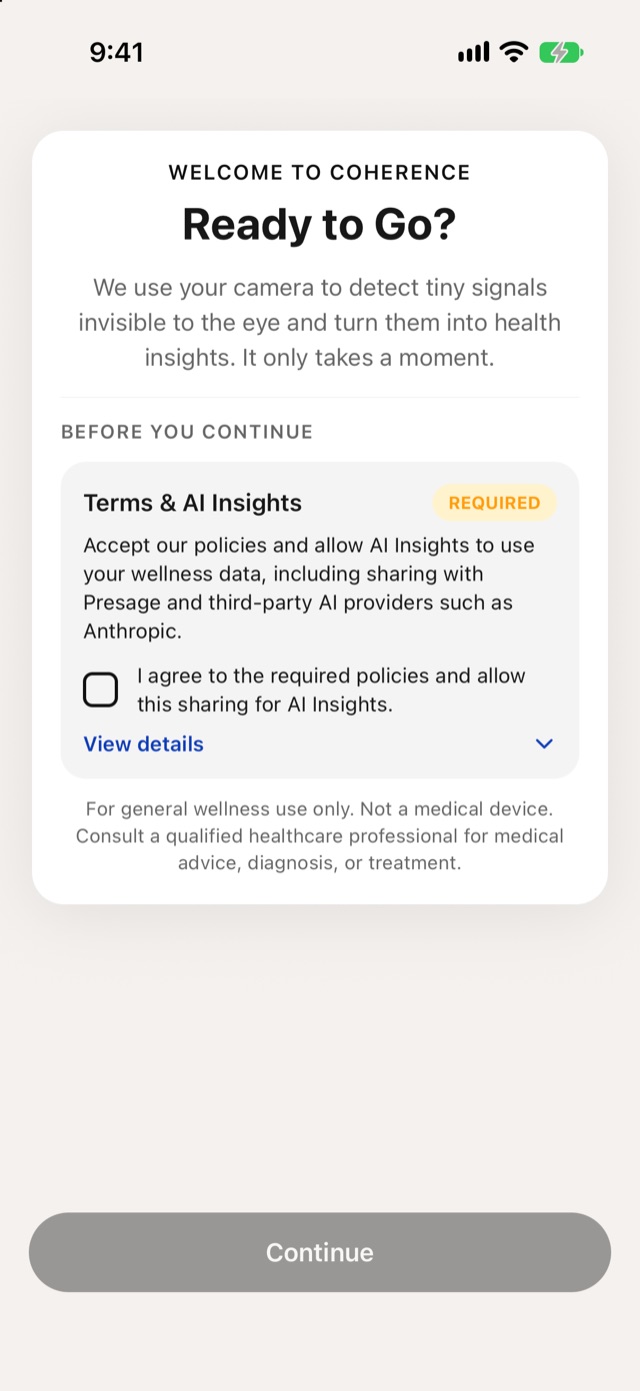
Welcome
#### Read the policies
The **Terms & AI Insights** card covers two things: Presage's policies, which are required, and AI Insights. Read the policies before you agree:
- [Privacy Policy](https://coherence.presagetech.com/legal/privacy/2026-11-02/)
- [Terms of Service](https://coherence.presagetech.com/legal/tos/2026-11-02/)
The same links are in the card when you tap **View details**.
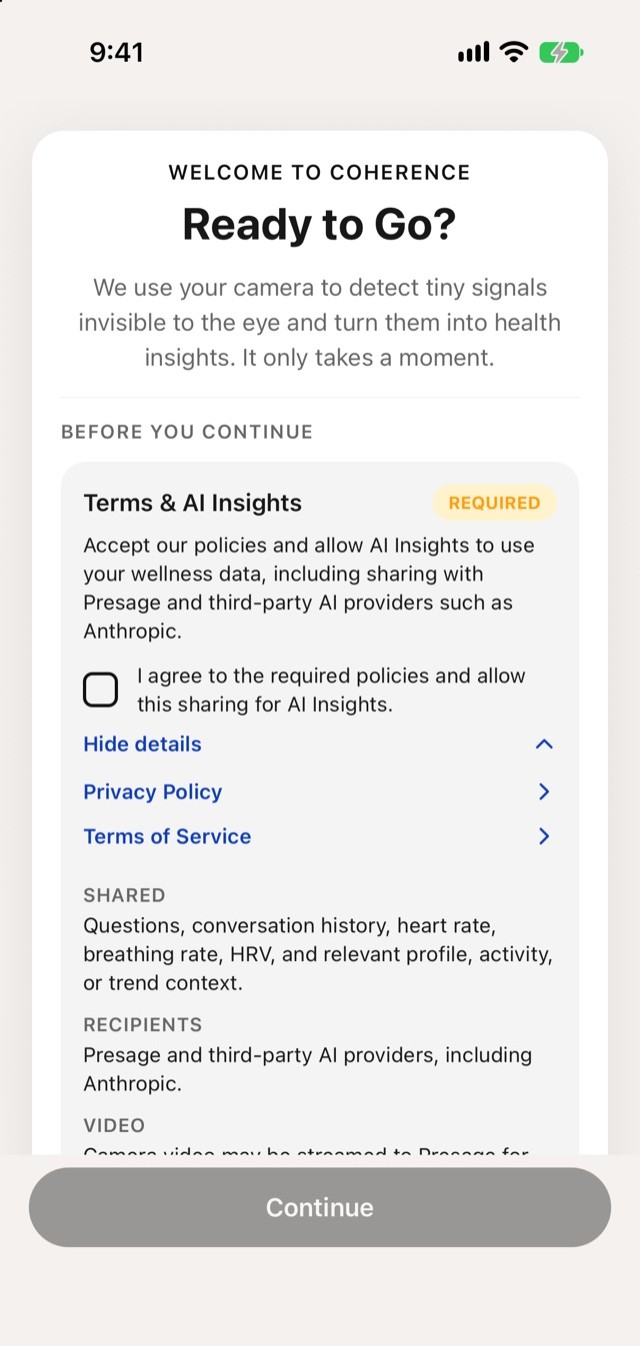
View details
#### Understand AI Insights
AI Insights lets Coherence use your wellness data to answer your questions in [Chat](https://presagetech.com/docs/essessment/app-chat) and explain your results. With it on, Coherence shares:
What: your questions, conversation history, heart rate, breathing rate, HRV, and relevant profile, activity or trend context.
With whom: Presage and third-party AI providers, including Anthropic.
Video: camera video may be streamed to Presage for measurement, but it isn't sent to third-party AI providers.
#### Choose whether to accept
It's your choice whether to accept. One checkbox, **I agree to the required policies and allow this sharing for AI Insights**, covers both the policies and AI Insights.
To accept: check the box and tap Continue.
Not to accept: leave it unchecked. Setup can't continue without it, so you won't be able to use Coherence.
If you accept but would rather not use AI Insights, you can turn it off at any time in **Settings › Privacy**, under **AI Insights**. See [Privacy](https://presagetech.com/docs/essessment/app-privacy).
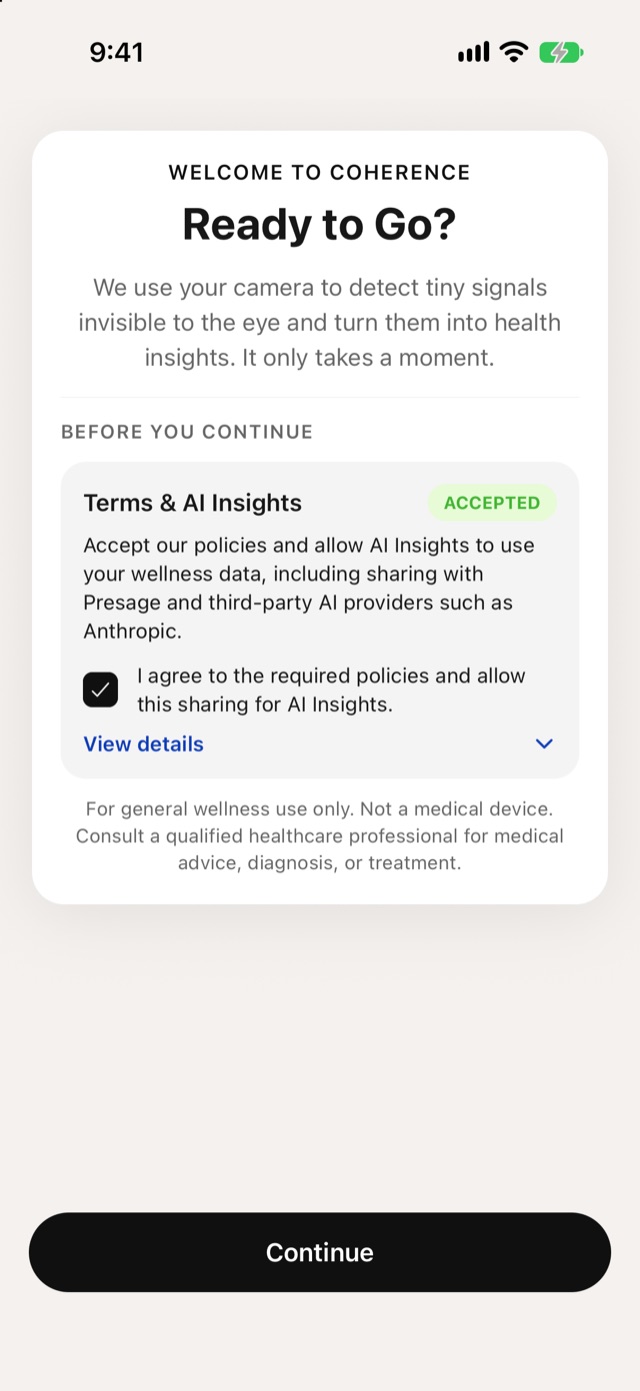
Accepted
#### Get ready for your first scan
Find a comfortable spot where you can pause for about a minute and a half. Tap **I'm Ready**.
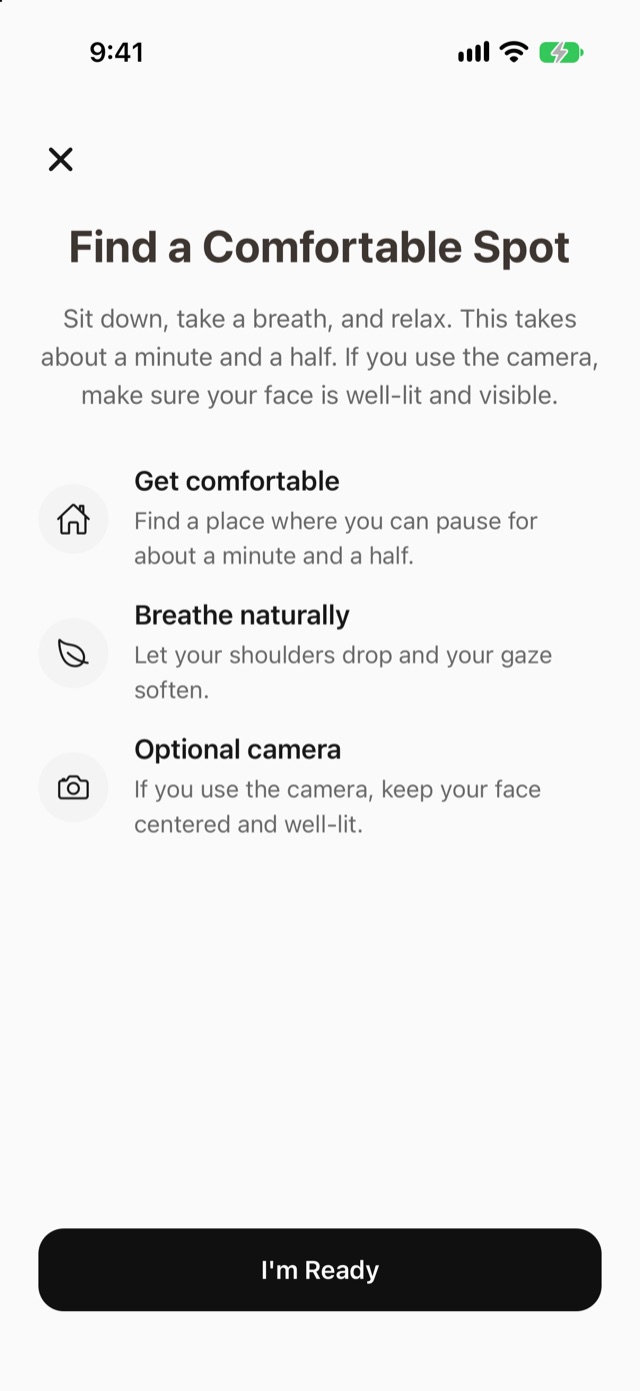
Find a Comfortable Spot
#### Allow the camera
Coherence asks for camera access to measure your vitals by analyzing your face. Tap **Allow**.
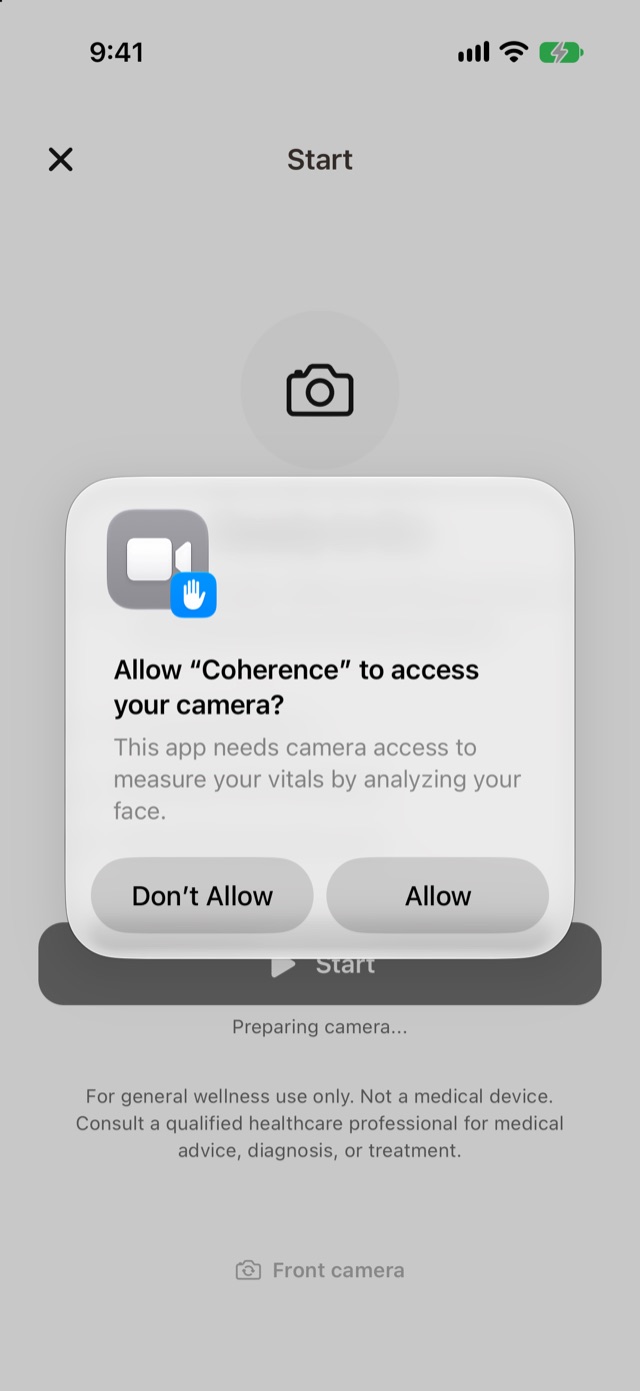
Camera access
#### Take the scan
Hold still with your face in the frame while the scan runs. See [Hold still for the reading](https://presagetech.com/docs/essessment/app-run-activity#hold-still-for-the-reading).
If you tap **Don't Allow** on the camera prompt, scans can't run. Turn the camera on later in your phone's Settings, under Coherence.
## Join a program
Source: https://presagetech.com/docs/essessment/app-join
---
title: "Join a program"
description: "Accept your organization's invitation, then find its programs in your Library."
---
# Join a program
## Accept an invitation
#### Open the invitation
Your organization sends an email: "You're invited to join … on Presage". Tap **View invitation**, then **Open in Coherence**. If you don't have the app yet, tap **Get Coherence** first.
#### Sign in with the invited email
Coherence shows who invited you and reminds you to use the invited email on the next screen.
#### Join
Tap **Join**. Joining also adds the invited programs to your Library. When you see **You're in**, tap **Continue**.
Invitations also appear on the **Programs** tab, with **Join** and **Not now**.
## Your Library
Open the **Programs** tab. **Library** lists your programs from every organization you belong to. Use the organization filter or search to narrow the list.
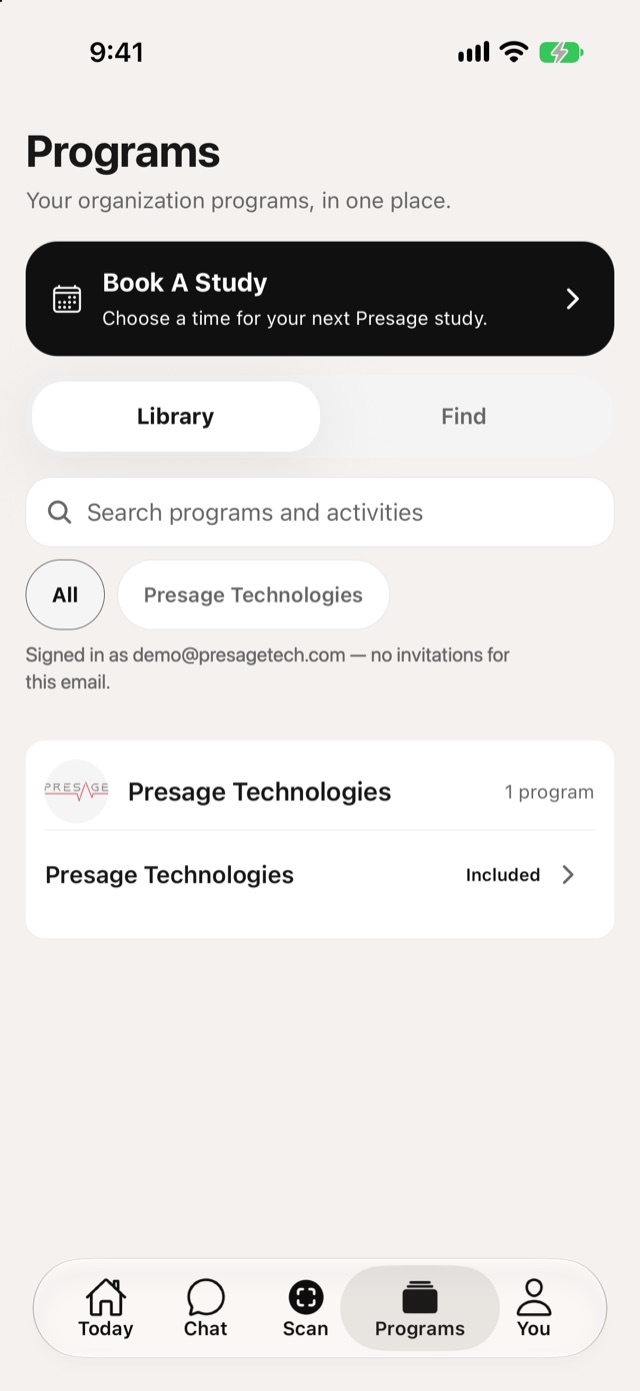
Programs › Library
Included: comes with your account.
Added: you added it yourself.
## Find more programs
Switch to **Find** to browse programs from your organizations. Tap **Add to Library** on one you want to take part in.
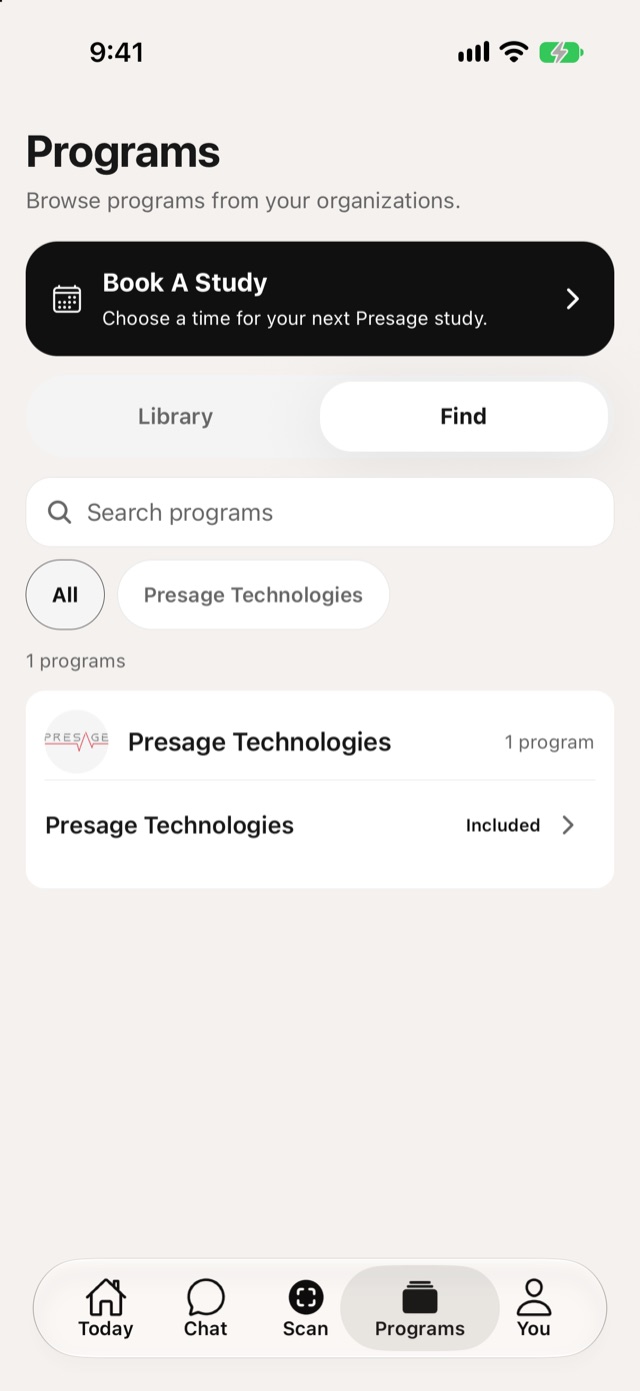
Programs › Find
## Program details
Tap a program to see its description, your access, and its activities. Tap an activity to start it.
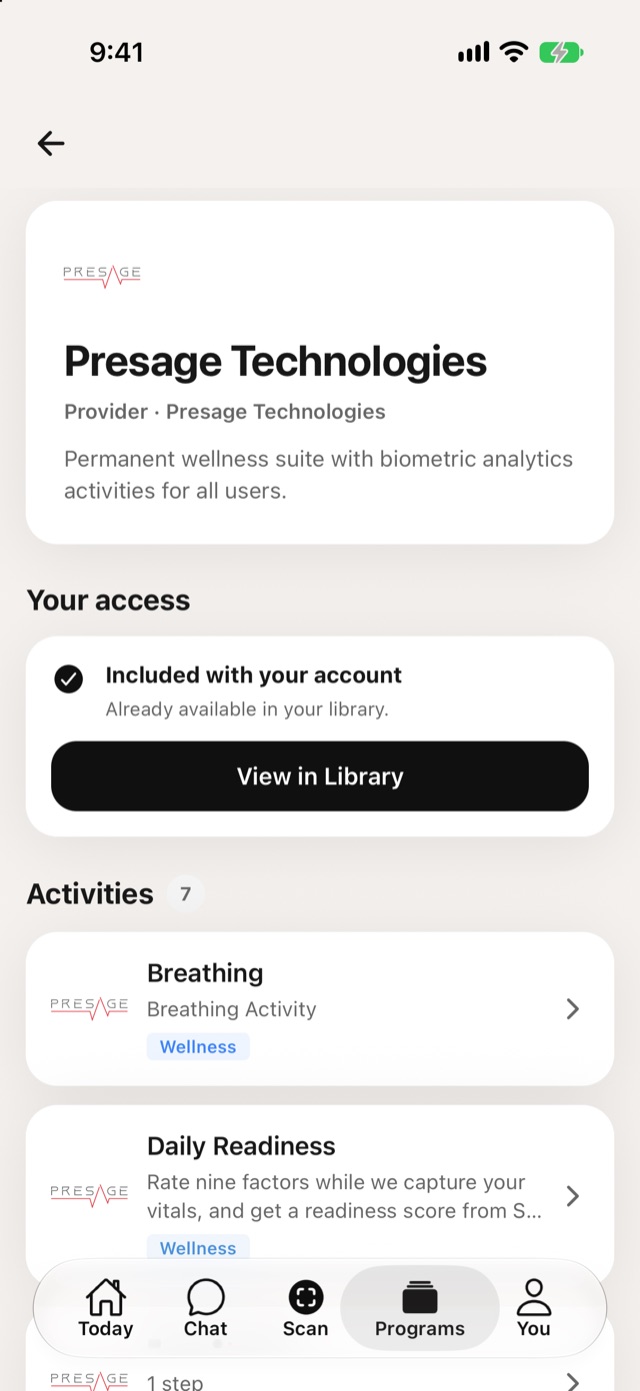
Program details
To leave a program, open it and tap **Unsubscribe from Program**.
## Today
Source: https://presagetech.com/docs/essessment/app-today
---
title: "Today"
description: "Your home screen: a quick scan, what's due today, and your latest results."
---
# Today
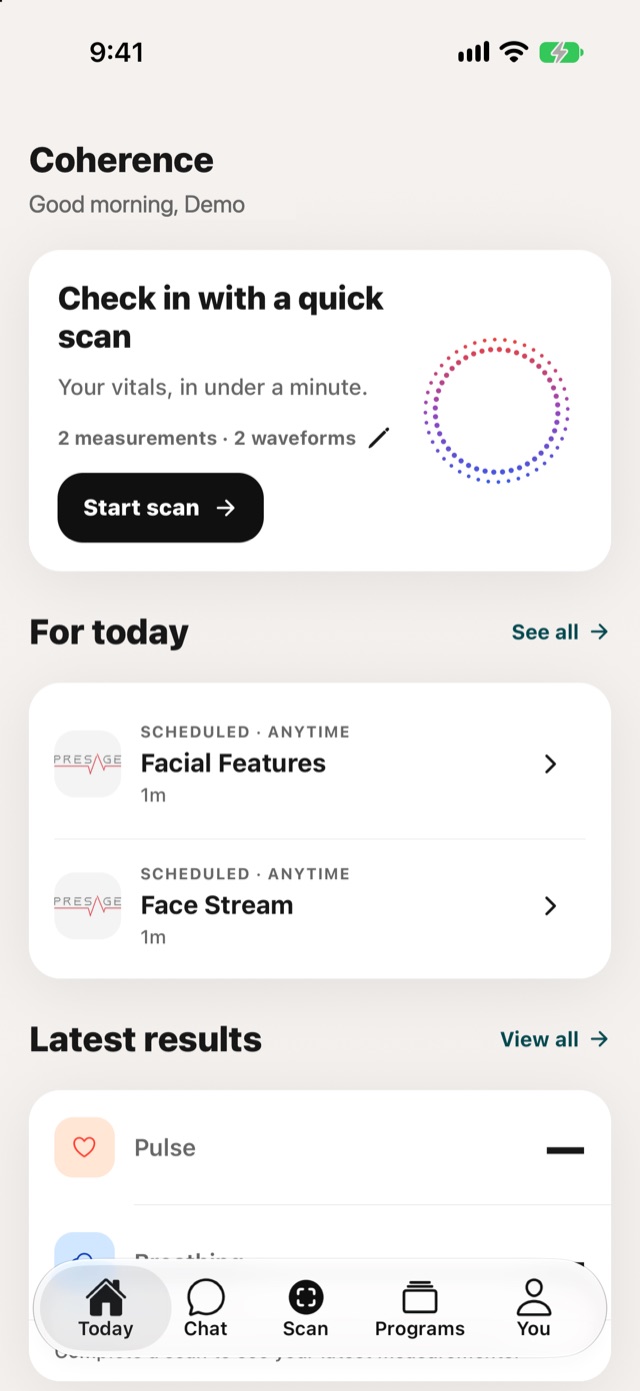
Today
Check in with a quick scan: tap Start scan for a vitals reading in under a minute. The line under it shows which measurements and waveforms the scan displays. Tap it to change them.
For today: activities from your programs, each with when it's due, such as Scheduled · Anytime. Tap See all for the full list.
Latest results: your most recent pulse and breathing. Tap View all for your results history.
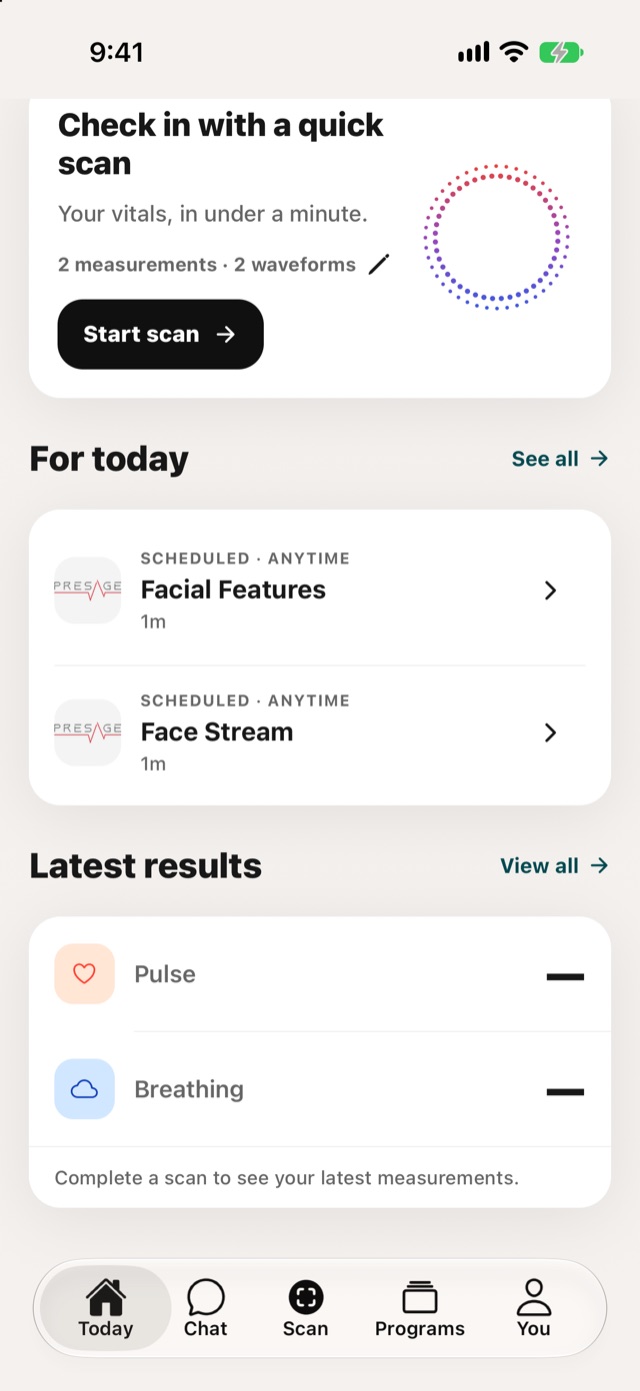
Latest results
Reminders for due activities arrive as push notifications or email. See [Settings](https://presagetech.com/docs/essessment/app-settings).
## Complete an activity
Source: https://presagetech.com/docs/essessment/app-run-activity
---
title: "Complete an activity"
description: "What each step looks like and what to do. Your program decides which steps you see."
---
# Complete an activity
## Start an activity
Tap an activity on [Today](https://presagetech.com/docs/essessment/app-today), in a program on [Programs](https://presagetech.com/docs/essessment/app-join), or from the [Scan](https://presagetech.com/docs/essessment/app-quick-scan) tab. If you leave partway through, Coherence offers **Resume activity** or **Start over** next time.
## Read the overview
The first screen says what's coming and roughly how long it takes. Tap the start button.
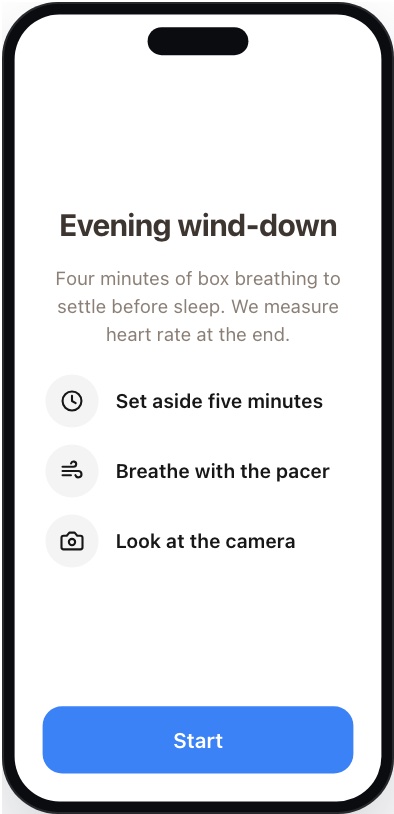
Overview (builder preview)
## Follow the breathing guide
Breathe in and out with the pacer. The front camera measures heart rate and breathing the whole time, and no video is saved. Use the options to show or hide your camera and your vitals. When it ends you'll see **Nicely done**. Tap **Done**.
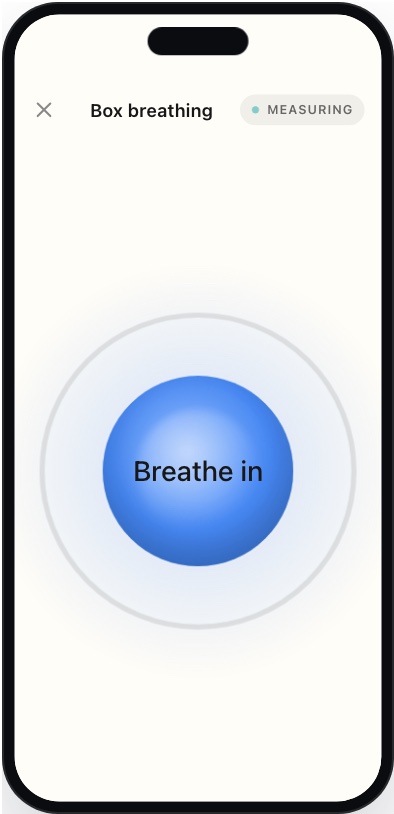
Breathing exercise (builder preview)
## Hold still for the reading
#### Get set
Find good lighting, keep your face centered, and hold still. Tap **Start**.
#### Stay in the frame
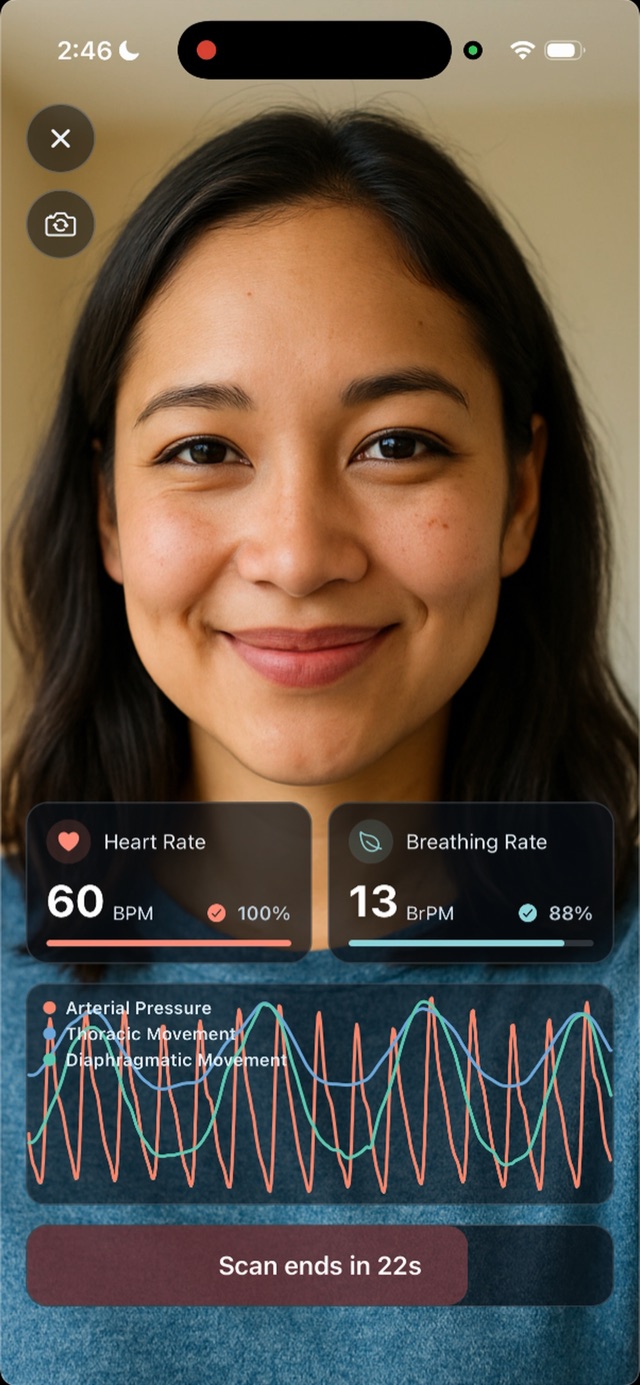
Your heart rate and breathing rate appear as the reading runs, with a confidence percentage. Follow any message on screen, such as **Hold still** or **Center your face**.
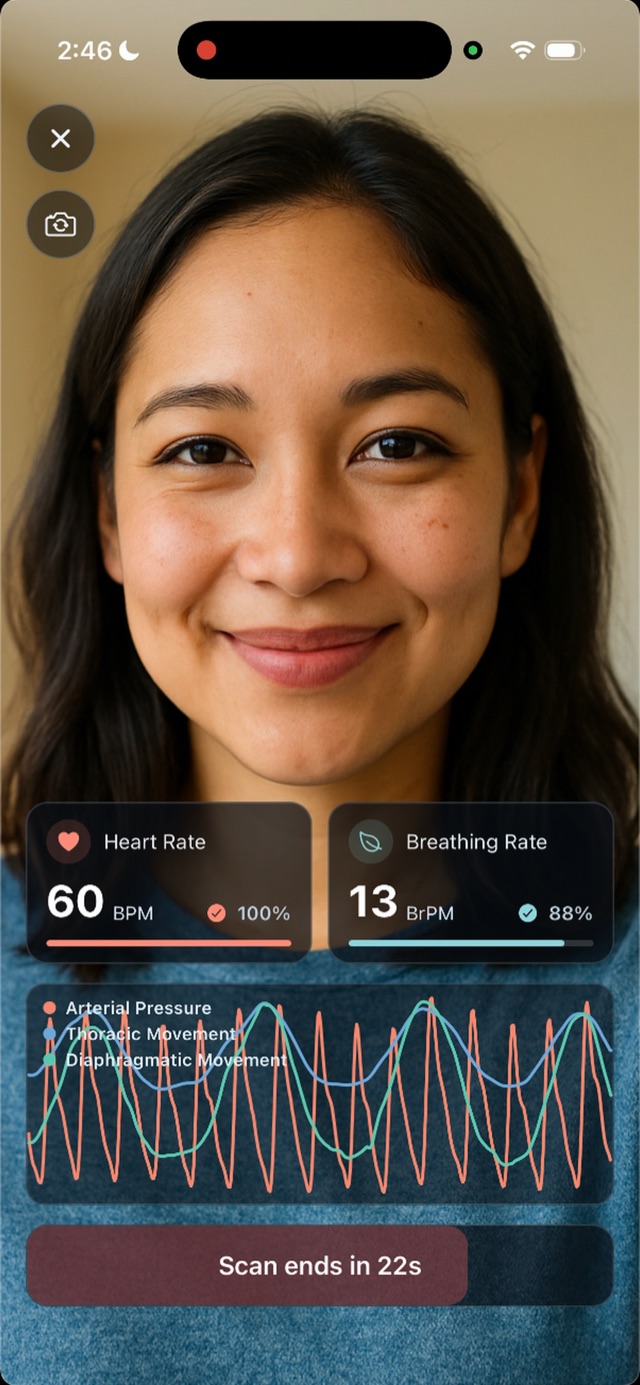
A scan in progress (iPhone)
#### Let it finish
The button counts down, for example **Scan ends in 22s**. Tap **Stop** only if you need to end early.
If the scan is too short, Coherence shows **Scan Too Short** with **Try Again** or **Use Anyway**.
For best results, prop your phone up on a table or stand instead of holding it. A steady phone gives a more reliable reading.
## Answer questions
Some questions appear on their own screen, others pop up during a reading. Answer each one to continue. Required questions must be answered, and some agreements must be checked before you can go on. Tap **Save and continue** when you're done.
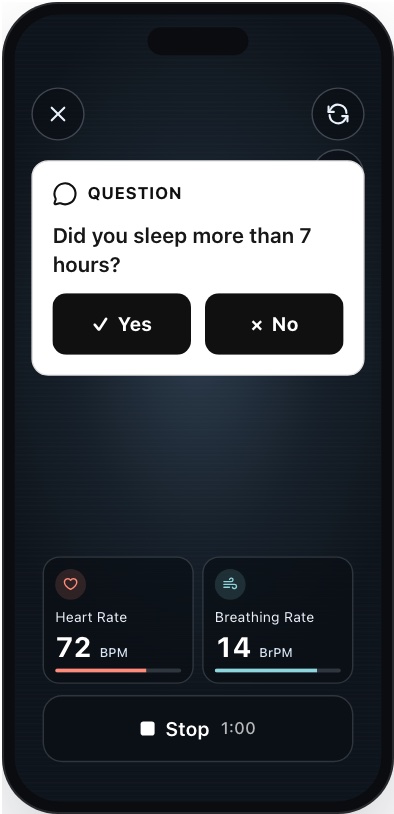
A question during a reading (builder preview)
## See your results
The summary shows the readings from this activity. You may be asked to rate it from 1 to 5 stars. Depending on the program, you then go back to Today, open a chat about your results, or see the results screen.
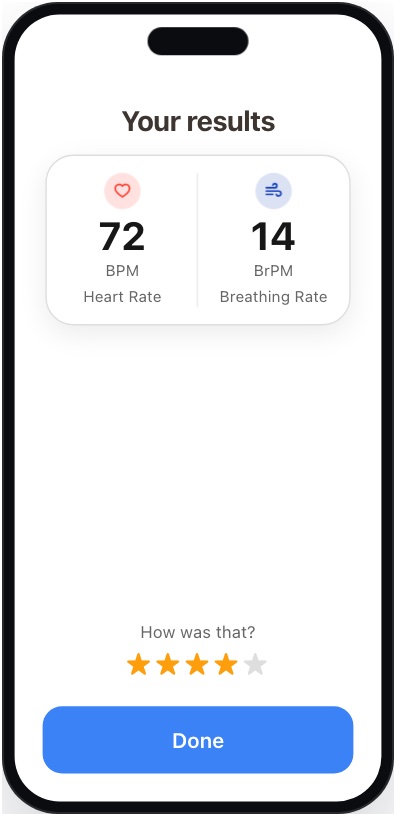
Summary (builder preview)
## Tips for a good reading
- Face a window or lamp, with no strong light behind you.
- Prop your phone up on a table or stand at eye level, rather than holding it, so your whole face is in view.
- Stay still and quiet until the reading ends.
## Scan
Source: https://presagetech.com/docs/essessment/app-quick-scan
---
title: "Scan"
description: "The Scan tab opens a sheet with today's activities, a quick scan, and live sessions."
---
# Scan
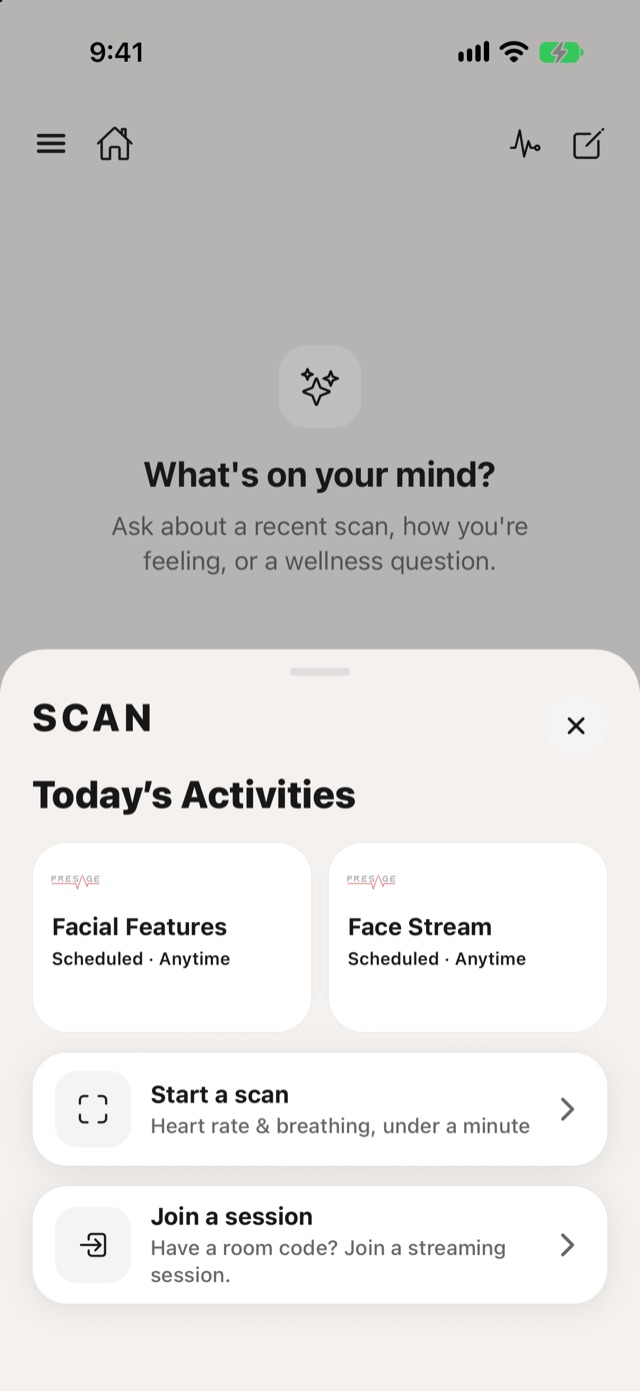
Scan
Today's Activities: tap one to start it.
Start a scan: a quick reading of heart rate and breathing, under a minute.
Join a session: enter a room code to join a live session. See Join a live session.
To choose what a quick scan shows, tap the measurements line on [Today](https://presagetech.com/docs/essessment/app-today). You can show heart rate, breathing rate, heart rate variability, and pulse, breathing and EDA waveforms. At least one has to stay on.
For supported devices and camera requirements, see [System requirements](https://presagetech.com/docs/essessment/app-requirements).
## Join a live session
Source: https://presagetech.com/docs/essessment/app-live-session
---
title: "Join a live session"
description: "Some programs include a live session with a specialist, who sees your video and vitals in real time."
---
# Join a live session
## Guide
#### Get the room code
Your specialist gives you a room code or a link. If the session is part of an activity, Coherence takes you there for you.
#### Join
On the Scan tab, tap **Join a session**. Enter the **Room code or Liveline link**, or scan its QR code, then tap **Join room**.
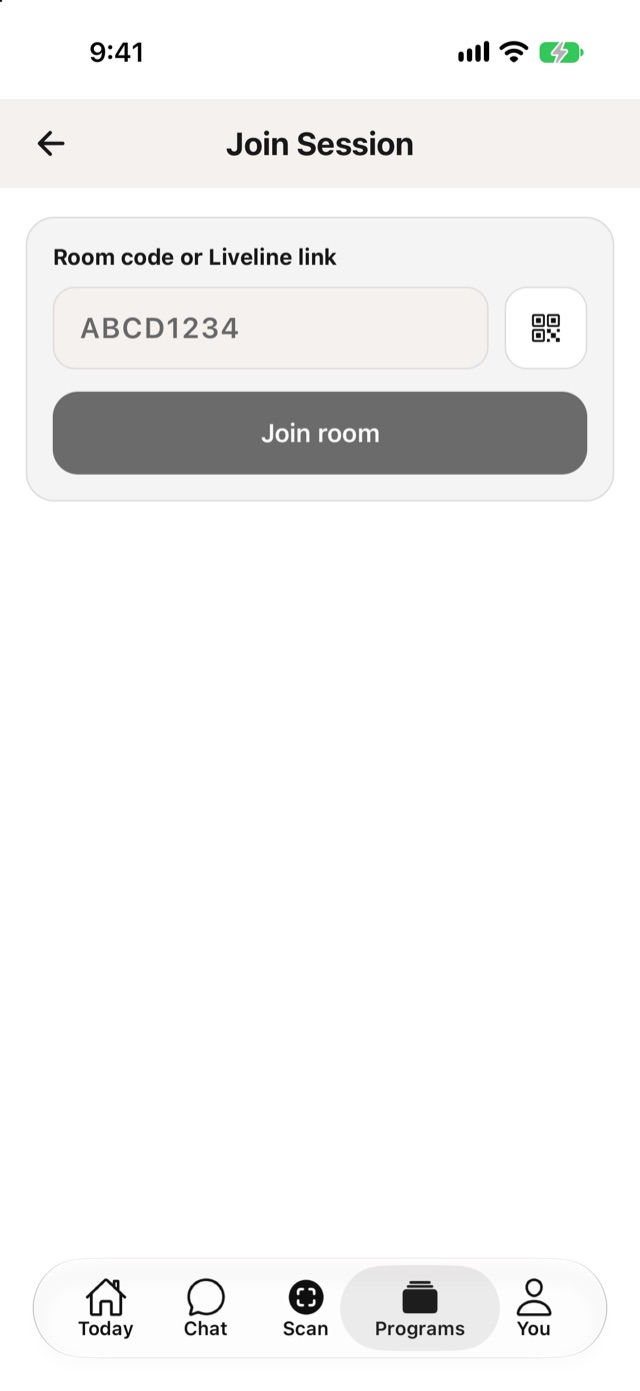
Join Session
#### Agree to recording, if asked
If the session is recorded, Coherence explains what's recorded and who controls it. Tap **Agree and start** to continue, or **Cancel**.
If you see "This session has ended", ask your specialist for a new room code.
For supported devices and camera requirements, see [System requirements](https://presagetech.com/docs/essessment/app-requirements).
## Chat
Source: https://presagetech.com/docs/essessment/app-chat
---
title: "Chat"
description: "Ask Coherence about a recent scan, how you're feeling, or a wellness question."
---
# Chat
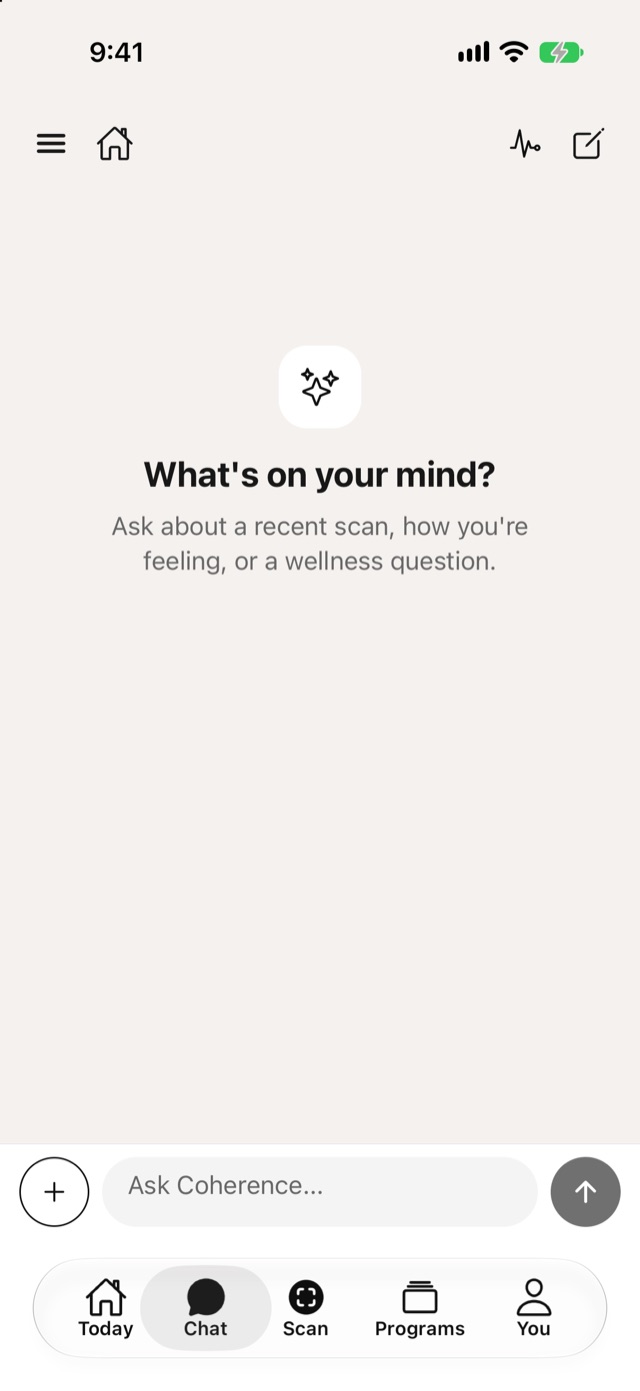
Chat
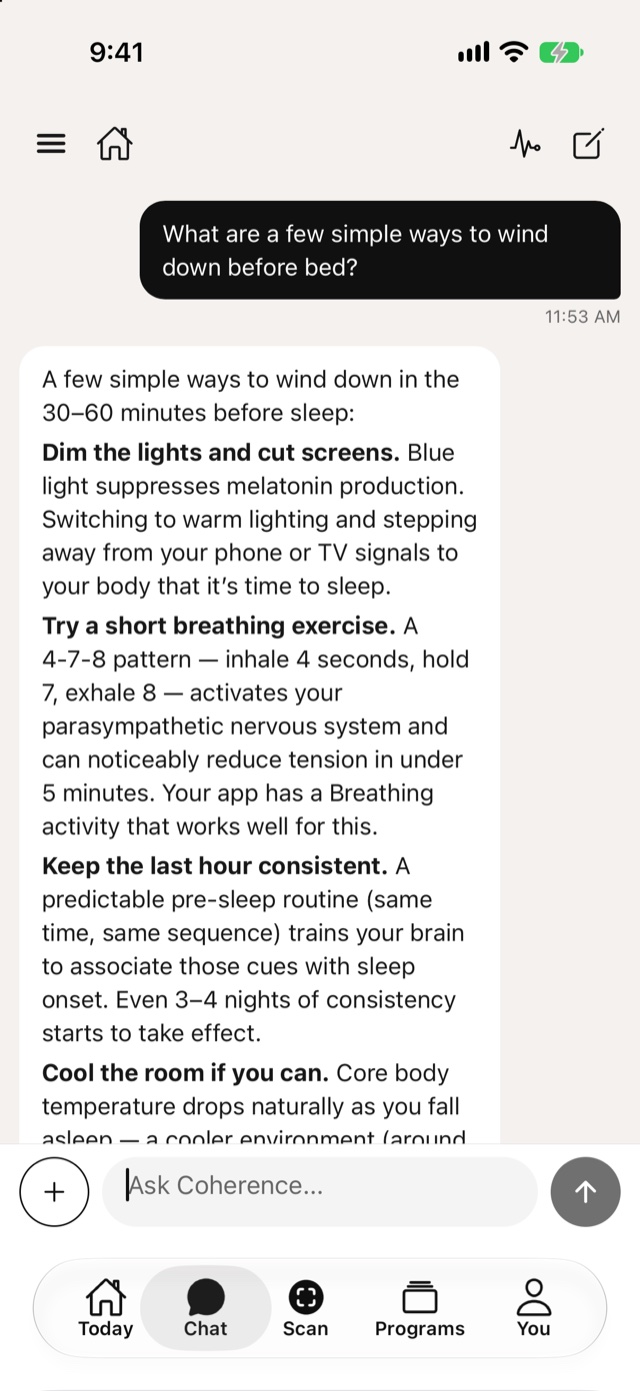
A question and Coherence's reply
Ask: type in Ask Coherence… and send.
History: open your previous chats from the menu at the top left.
New chat: tap the new chat button at the top right.
Live vitals: tap the heartbeat button to watch your vitals while you chat.
Chat uses AI Insights. You can turn AI Insights on or off at any time in [Settings › Privacy](https://presagetech.com/docs/essessment/app-privacy).
Answers are for general wellness only. Coherence isn't a medical device. Consult a qualified healthcare professional for medical advice, diagnosis or treatment.
## You
Source: https://presagetech.com/docs/essessment/app-you
---
title: "You"
description: "Your profile, activity history and subscriptions."
---
# You
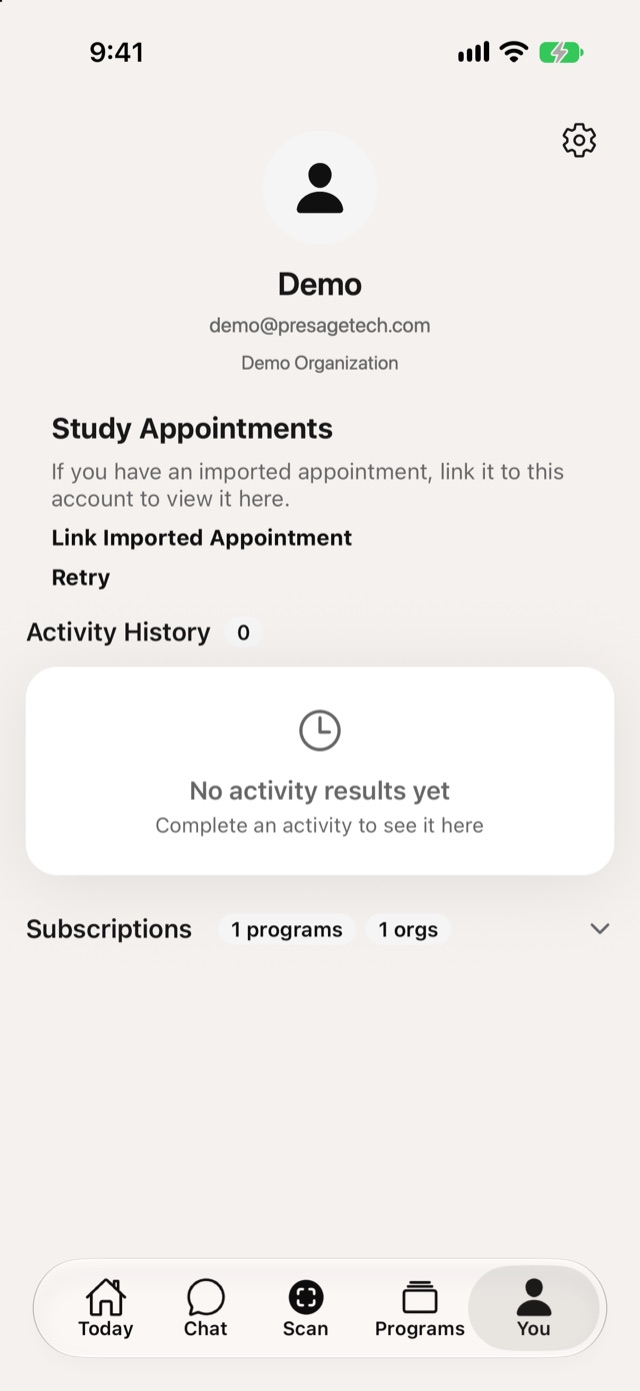
You
Profile: your name, email and organization.
Study Appointments: link an imported appointment to see it here, if your study uses them.
Activity History: every activity you've completed.
Subscriptions: the programs and organizations you belong to.
Tap the gear at the top right to open [Settings](https://presagetech.com/docs/essessment/app-settings).
## Settings
Source: https://presagetech.com/docs/essessment/app-settings
---
title: "Settings"
description: "Appearance, notifications, privacy, security and app information."
---
# Settings
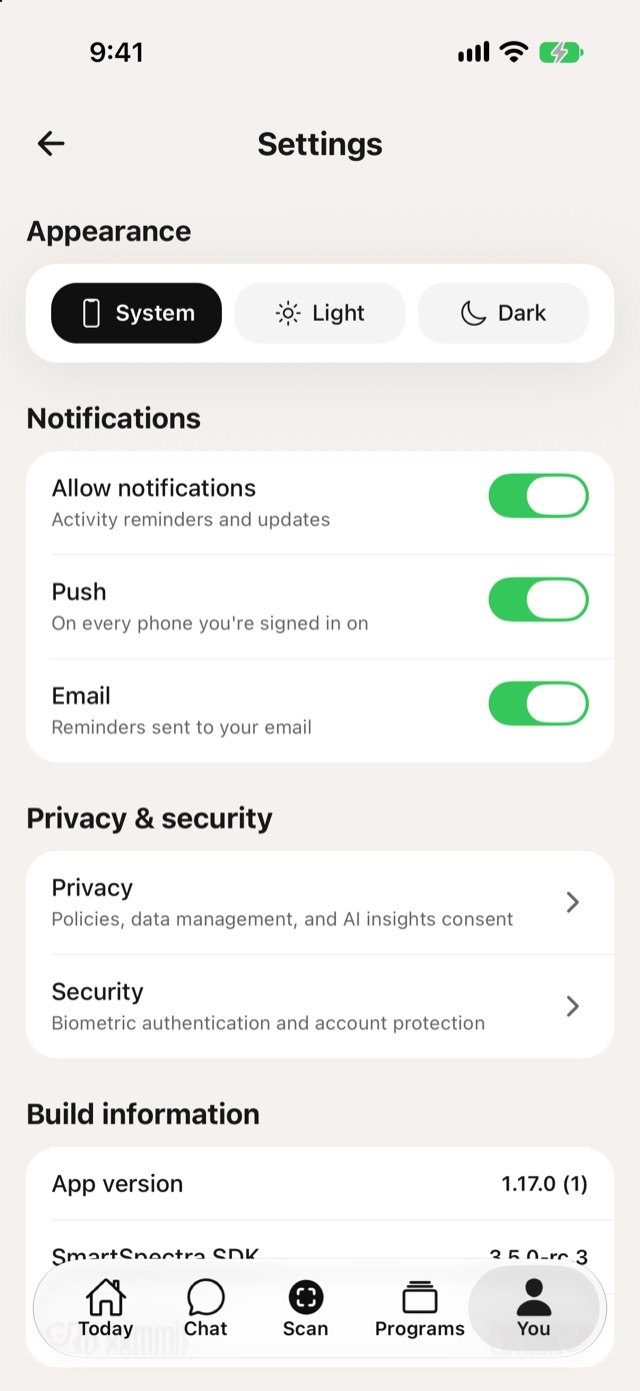
Settings
Appearance:System, Light or Dark.
Notifications:Allow notifications for activity reminders and updates. Choose Push, on every phone you're signed in on, or Email.
Build information: the app version and SmartSpectra SDK version, useful when you contact support.
Sign Out
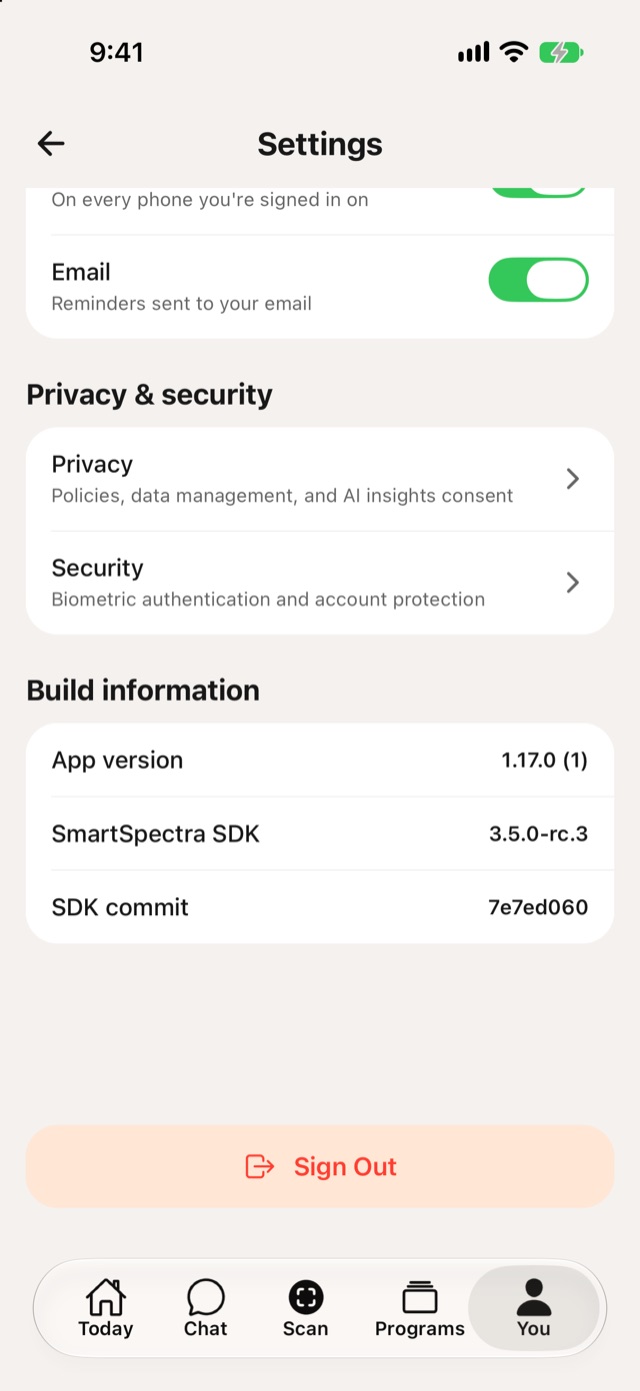
Settings, continued
## Privacy
Source: https://presagetech.com/docs/essessment/app-privacy
---
title: "Privacy"
description: "Policies, data management and your AI Insights consent."
---
# Privacy
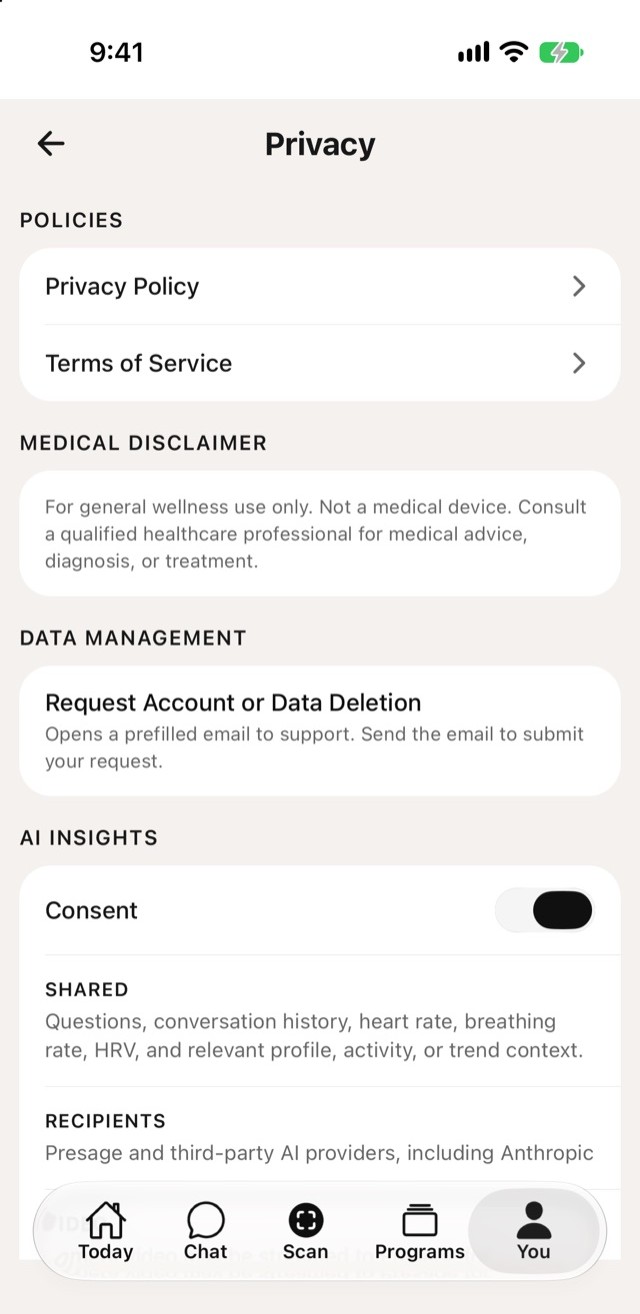
Settings › Privacy
Request Account or Data Deletion: opens a prefilled email to Presage support. Send it to start the request.
AI Insights: turn Consent off to stop sharing your wellness data with AI providers, or back on at any time. The details below it list what's shared, the recipients, and how camera video is handled. See what AI Insights shares.
Questions? Contact [support@presagetech.com](mailto:support@presagetech.com).
## Security
Source: https://presagetech.com/docs/essessment/app-security
---
title: "Security"
description: "Lock Coherence with Face ID or your device passcode."
---
# Security
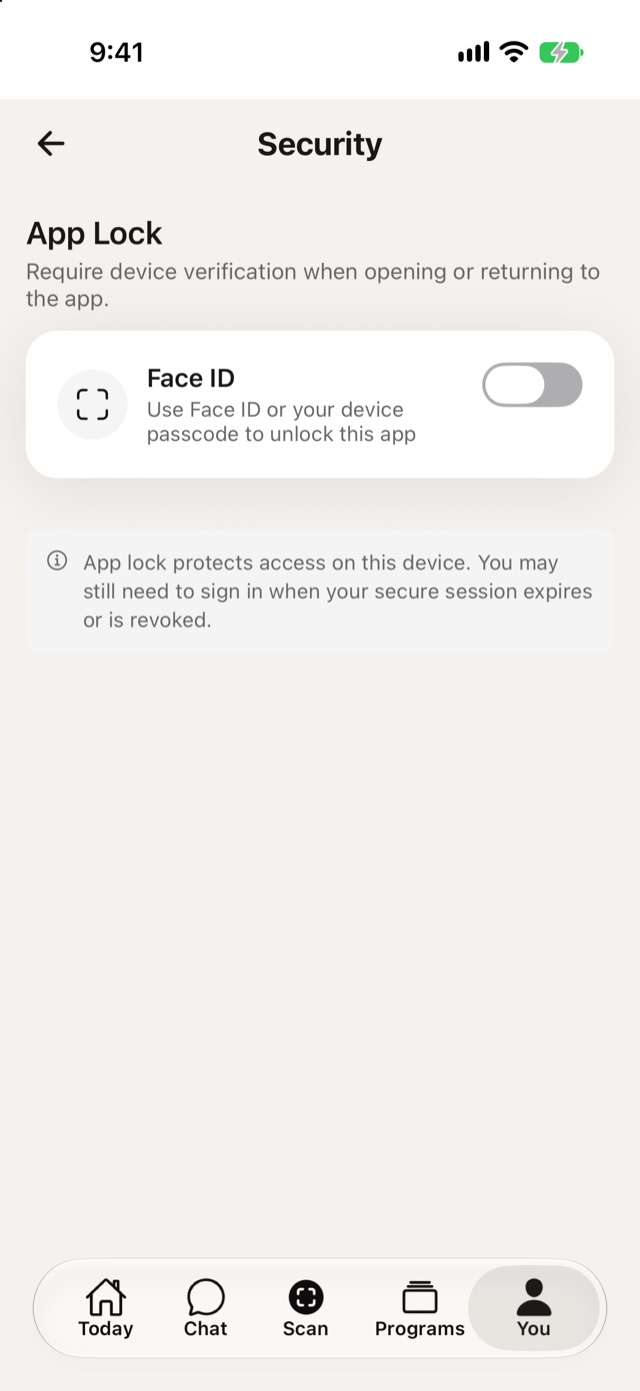
Settings › Security
Turn on **App Lock** to require device verification when you open or return to the app. App Lock protects access on this phone. You may still need to sign in again when your session expires.
## Troubleshooting
Source: https://presagetech.com/docs/essessment/app-troubleshooting
---
title: "Troubleshooting"
description: "What the messages during a scan mean, and how to fix common problems."
---
# Troubleshooting
## Messages during a scan
| Message | What to do |
| --- | --- |
| Center your face | Move to the middle of the frame. |
| Hold still | Stay as still as you can. |
| Too dark | Add light in front of you. |
| Too bright | Reduce direct light on your face. |
| Move closer / Move back | Adjust your distance until the message clears. |
| One person at a time | Make sure only your face is in the frame. |
| Signal lost | Coherence lost track of your face. Keep your face in the frame. |
## Problems
"Camera access is off"
A scan needs your camera. Tap **Open Settings** and turn on Camera for Coherence.
"Scan interrupted"
The scan stopped because the app went to the background or lost the camera. Tap **Restart Scan**.
"Can't reach the measurement service"
Check your internet connection and tap **Try Again**.
I can't see my program
Check that you signed in with the email your invitation was sent to and tapped **Join**. Then look in **Programs › Library**. If you see "Setting up program access", wait a moment and check again.
"This invitation belongs to a different account"
Tap **Sign out and use the invited account**, then sign in with the email the invitation was sent to.
"Invitation no longer valid"
The invitation expired or was revoked. Ask your organization to send a new one.
"Update required"
Update Coherence from the App Store or Google Play. If it says your phone's software needs an update, update it in your phone's Settings, then reopen the app.
## System requirements
Source: https://presagetech.com/docs/essessment/app-requirements
---
title: "System requirements"
description: "The phones and tablets Coherence supports, and what your camera needs for a reliable reading."
---
# System requirements
## Device requirements
To complete camera-based activities in Coherence, use a phone or tablet with a front-facing camera and a supported operating system:
| Platform | Requirement |
| --- | --- |
| iPhone and iPad | iOS or iPadOS 17 or later |
| Android | Android 9 or later. See the [supported devices](https://smartspectra.presagetech.com/docs/android/#supported-platforms). |
| Camera | A front-facing camera |
Reliable measurements also depend on camera performance. Your device should keep about 25 frames per second or higher during a scan, and 30 fps is recommended. A supported operating system alone doesn't ensure a reliable scan.
## Before you begin
Choose a well-lit space, keep your face clearly visible, and follow the on-screen guidance. For breathing measurements, rest your phone on a stable surface with your face and chest in view. For more tips, see [Getting a good measurement](https://smartspectra.presagetech.com/docs/measurement-quality/).
## FAQ
Source: https://presagetech.com/docs/essessment/app-faq
---
title: "FAQ"
description: "Quick answers to common questions."
---
# FAQ
Is Coherence free?
Yes. Coherence is free to download on iPhone and Android.
Do I need a wearable?
No. Coherence reads your pulse and breathing with your phone's front camera.
Is video of my face saved?
Only during live sessions that are recorded. Before recording starts, Coherence shows a recording notice, and recording begins only after you tap **Agree and start**. Scans, breathing exercises and other activities don't save video. Video is never sent to third-party AI providers.
Is Coherence a medical device?
No. It's for general wellness use only and isn't intended to diagnose or treat any condition.
How do I delete my account or data?
Go to **Settings › Privacy** and tap **Request Account or Data Deletion**. It opens a prefilled email to Presage support.
Who do I contact for help?
For questions about your program, contact the organization that invited you. For the app, email [support@presagetech.com](mailto:support@presagetech.com).
## Run a live session
Source: https://presagetech.com/docs/essessment/run-session
---
title: "Run a live session"
description: "Join a participant's live stream, check the setup, and watch video and vitals together."
---
# Run a live session
## Before you start
- A **Specialist** or **Admin** role, which gives Liveline access. See [Roles](https://presagetech.com/docs/essessment/roles).
- An activity with a [Stream step](https://presagetech.com/docs/essessment/step-types), or use **Quick Start** for a session with no setup.
## Liveline at a glance
Open Liveline from Presage Portal. The sidebar has **New Session**, **Quick Start**, **Playback** and **Activities**.
Quick Start: jump straight into a live session without pre-configuration.
Upload Recording: upload a recording for analysis. See Upload a recording.
Playback: review past sessions, scrub vitals and replay video. See Playback.
Activity list: live activities grouped by program. Open Browse Programs to find more.
### Activity row icons
| Icon | Means |
| --- | --- |
| Cloud | **Saves to cloud**: the session recording (video and audio) is saved so you can replay it in [Playback](https://presagetech.com/docs/essessment/playback). A crossed-out cloud means **Not saved to cloud**. |
| Microphone | **Records audio**. A crossed-out microphone means **No audio**. |
| Steps | Hover to see the activity's steps, for example "Overview → Capture → Summary → Live stream". |
## Guide
#### Choose an activity
Click **New Session**. On **Select Activity**, pick a live activity, grouped by program, or **Quick Start**.
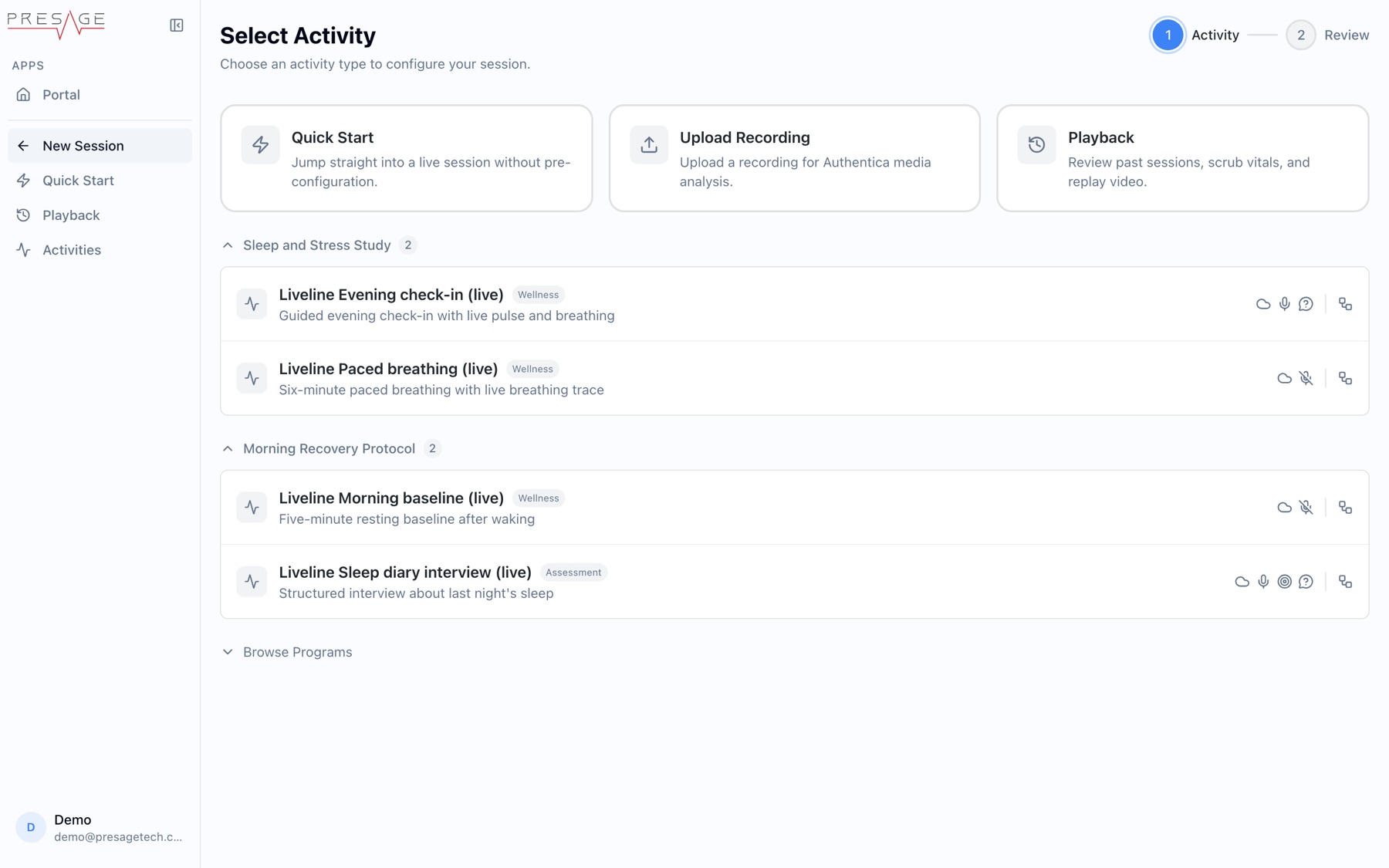
Select Activity
#### Check the setup
**Review & Start** shows a **Before starting** checklist, the activity, and whether questions are on. Work through the checklist with the participant:
Check the lighting: even, front-facing light on the face. Avoid backlight and harsh shadows.
Center the subject: face in the middle of the camera frame.
Frame the upper body: head and chest in view.
Steady the subject: sitting still and facing the camera before the session begins.
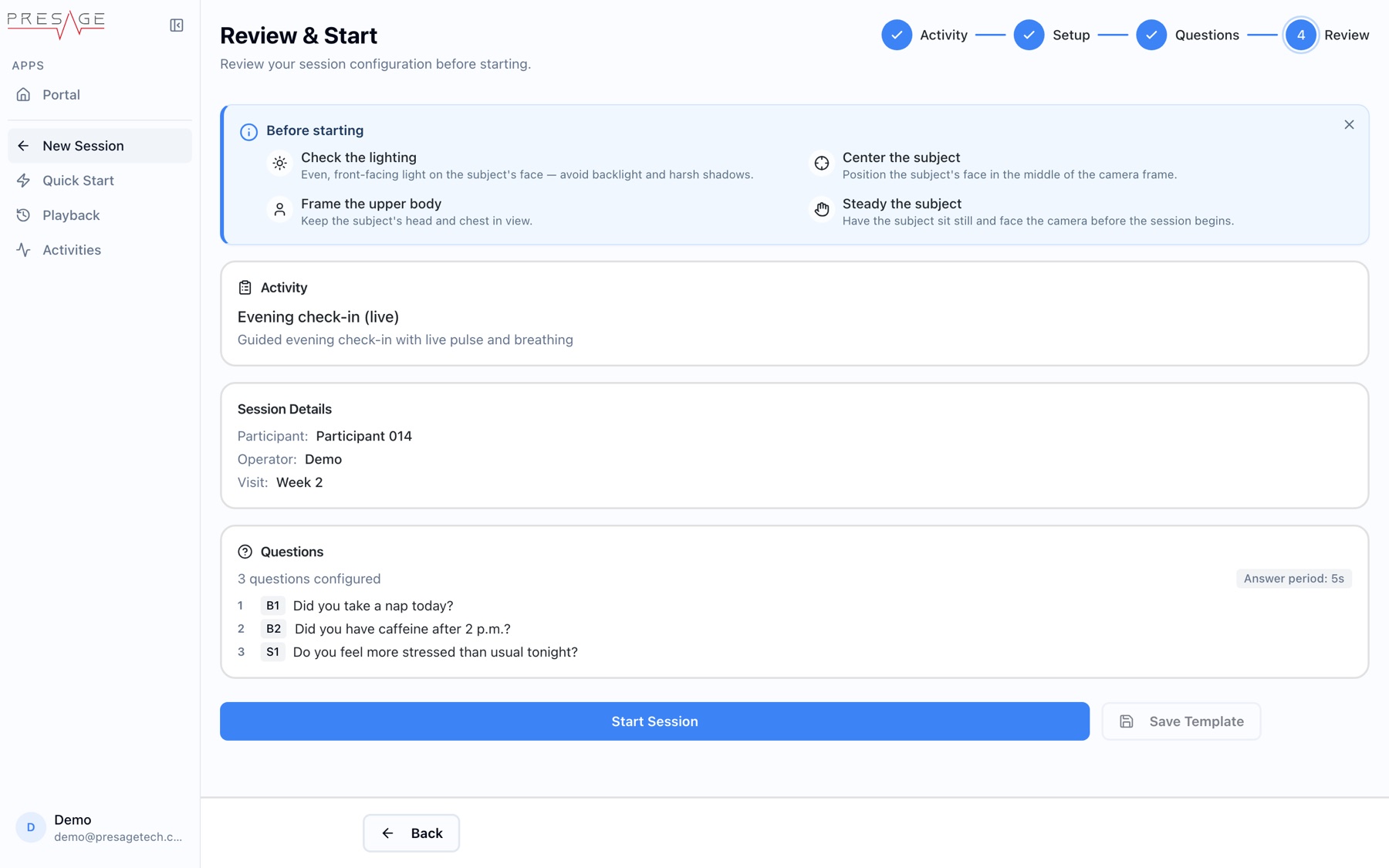
Review & Start
#### Start the session
Click **Start Session**. To reuse this setup later, click **Save Template** first.
#### Connect the participant
When the participant reaches the Stream step in Coherence, they see a room code. Enter it in Liveline, or share a Liveline link, to join their room. In person, the participant can scan the QR code Liveline shows with their phone camera instead, which opens the session in Coherence.
#### Watch and annotate
The live view uses the same panels as [Playback](https://presagetech.com/docs/essessment/playback): the Vitals Timeline, the Camera Feed, live pulse and breathing readouts, and Notes, Scores and Events. To add a note, type it in the **Notes** tab and press `Enter`.
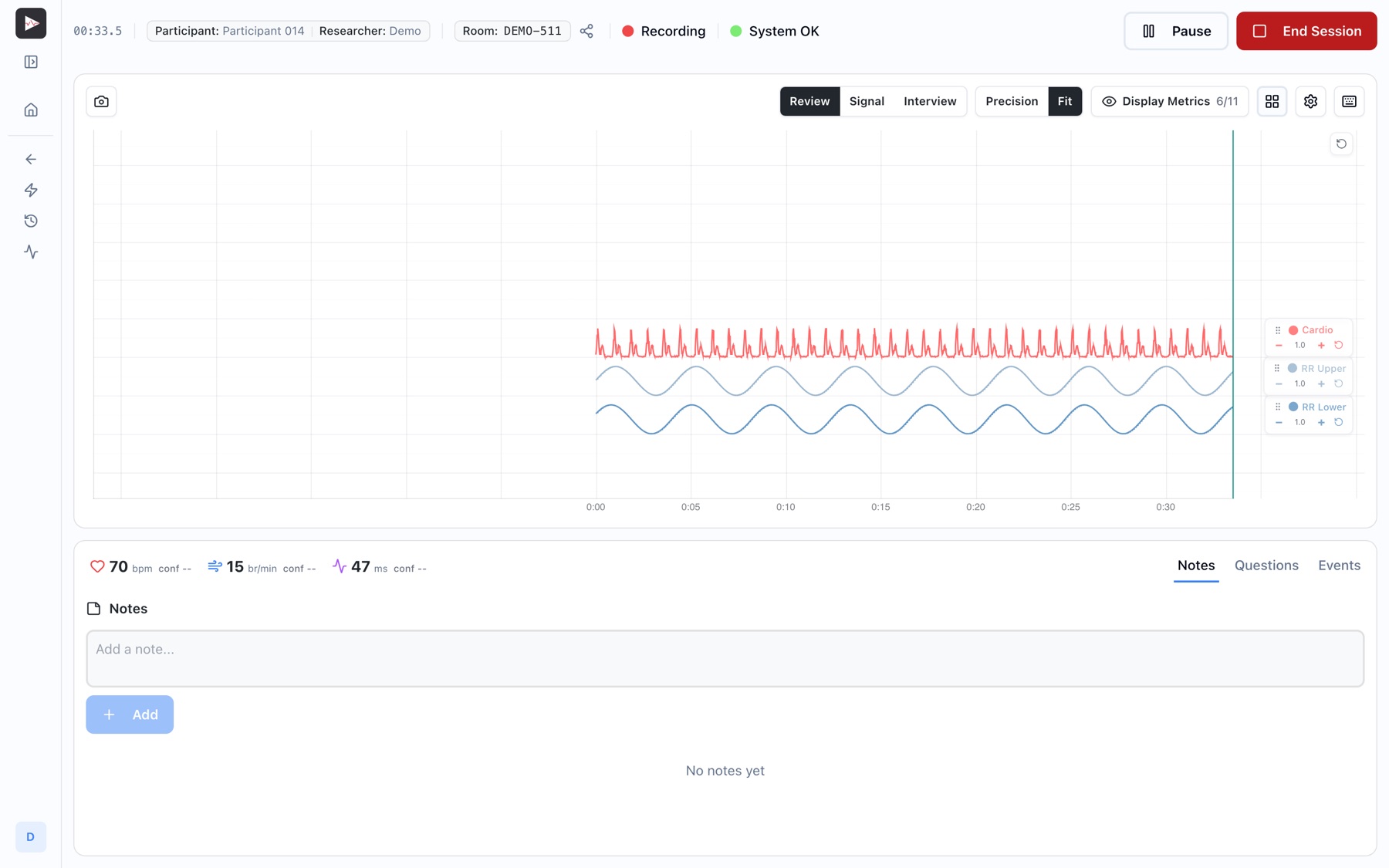
A live session in progress
#### End the session
When you end it, the session appears in **Session History**, ready for Playback.
## Customize the live view
Use the toolbar above the Vitals Timeline to choose what you see during a session. These controls change the display only. Every vital is still recorded.
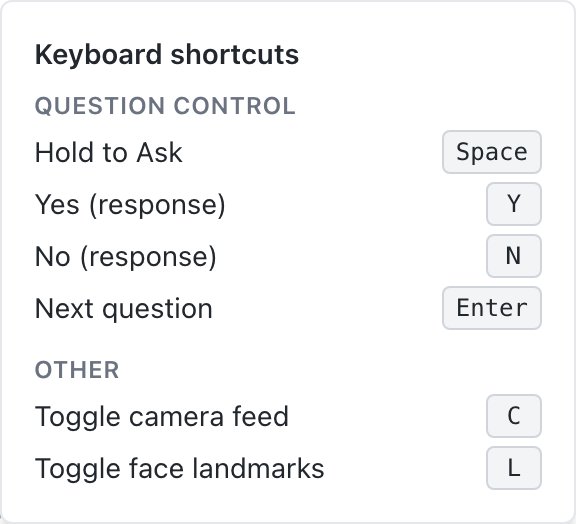
Camera feed: click the camera button at the left of the toolbar, or press C, to show or hide the participant's video.
Display Metrics: choose which channels are plotted, such as Cardio, RR Upper and RR Lower. The count shows how many are on, for example 6/11. Use Show all or Hide all to switch them together.
Face landmarks: press L to show or hide the face mesh on the video.
Views:Review, Signal or Interview change how the channels are drawn, and Precision or Fit set the chart scale.
Layout: click the grid button to choose which panels appear and where.
The same controls work in Playback. See [Display Metrics](https://presagetech.com/docs/essessment/playback#display-metrics) and [Customize the layout](https://presagetech.com/docs/essessment/playback#customize-the-layout).
## Ask and answer questions
If the activity has Capture Questions turned on, the live view shows a **Questions** tab next to **Notes** and **Events**. The tab appears while the session is recording.
You read each question aloud, mark when you start and stop asking, and record the answer. Liveline marks both parts on the Vitals Timeline so you can see how vitals changed while the participant heard the question and while they answered.
#### Open the Questions tab
The tab shows the question set name, a row of question buttons (**B1**, **B2**, **S1** and so on) and the text of the current question. The current question has a blue outline. Hover over a button to see its full text.
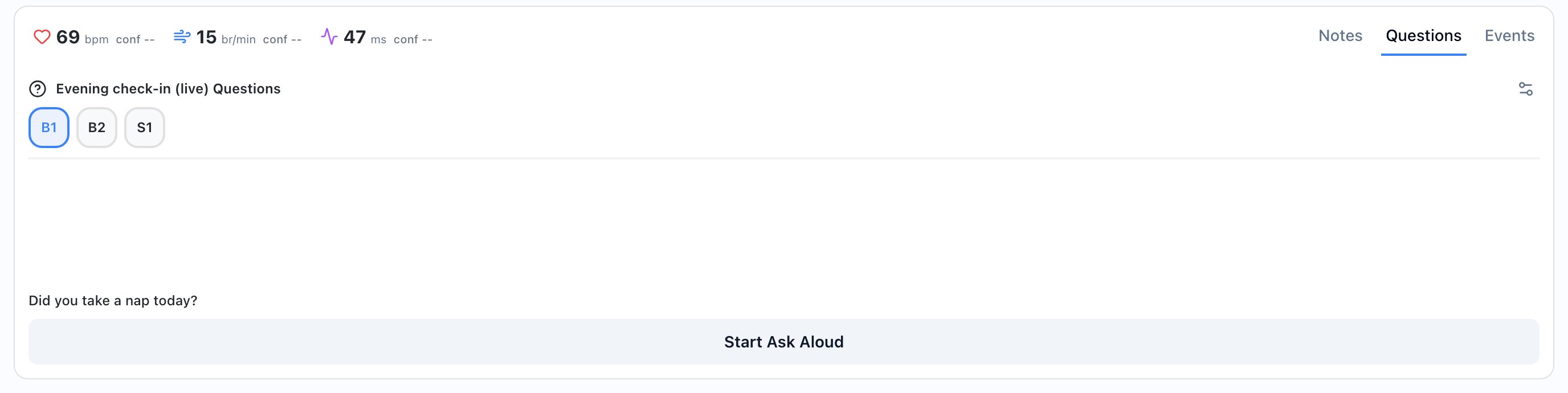
The Questions tab before the first question is asked.
#### Ask the question
Press and hold `Space` while you read the question, then let go when you finish. Or click **Start Ask Aloud**, read the question, and click **Save Ask**. A blue box grows on the Vitals Timeline while you ask.
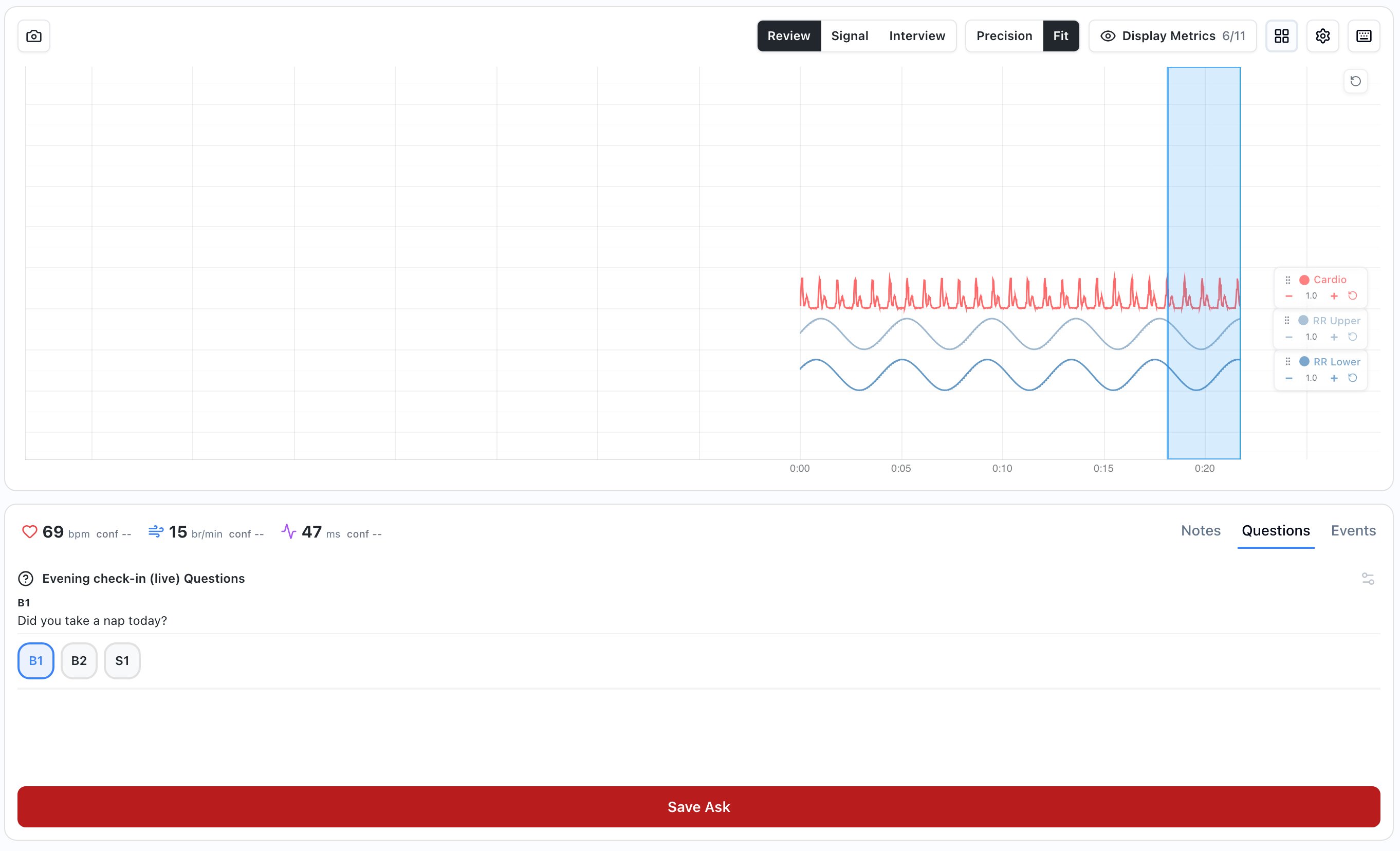
While you ask, the button reads Save Ask and the timeline shows a blue box.
#### Record the answer
When the ask ends, the panel shows **Awaiting response** and a green box starts on the timeline. Record what the participant says:
Yes/No questions: click Yes or No, or press Y or N.
Slider questions: move the slider and click Submit.
Other questions: type the answer in Enter response... and click Submit or press Enter.
The text above the buttons shows which question comes next.
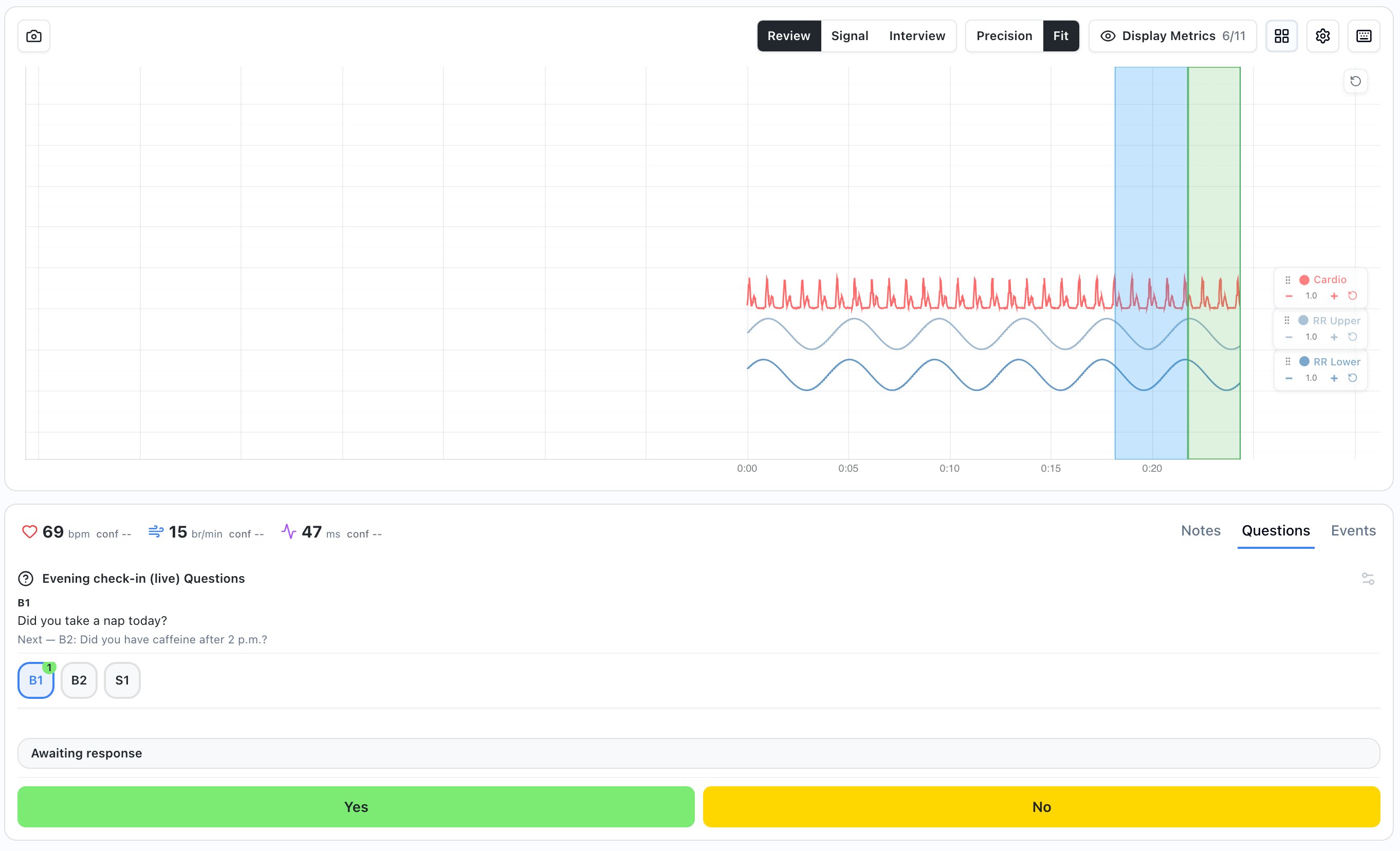
After the ask, record the answer with Yes or No.
#### Go to the next question
After you record the answer, the panel shows **Answer recorded** and **Closing…** for a few seconds. Then it shows **Response recorded** with the answer. Click **Next Question** or press `Enter`.
Each asked question gets a green tint and a small number that counts how many times it was asked.
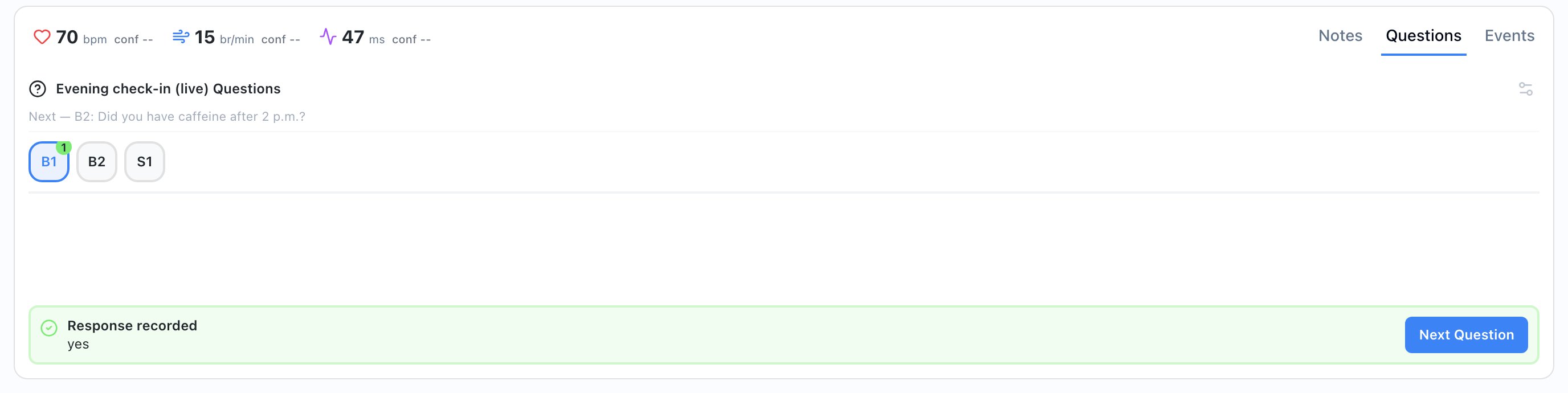
The recorded answer and the Next Question button.
If the participant's device supports it, a **Send to Device** button appears next to **Start Ask Aloud**. It shows the question on the participant's device so they can answer there. The panel then says **Participant answered** when the answer comes in.
### Asking vs answering on the timeline
Every question leaves two boxes on the Vitals Timeline.
| Mark | What it means |
| --- | --- |
| Blue box | Asking. Starts when you press `Space` or click **Start Ask Aloud**. Ends when you let go or click **Save Ask**. |
| Light green box | Answering. Starts when the ask ends and grows until you record the answer. |
| Dashed line | The moment you recorded the answer. |
| Box color after the answer | Green for **Yes**, red for **No**, amber for any other answer (text or slider). |
The answer box keeps going for a short answer period after you record the answer (5 seconds unless the activity sets another value). This captures the participant's reaction right after they answer.
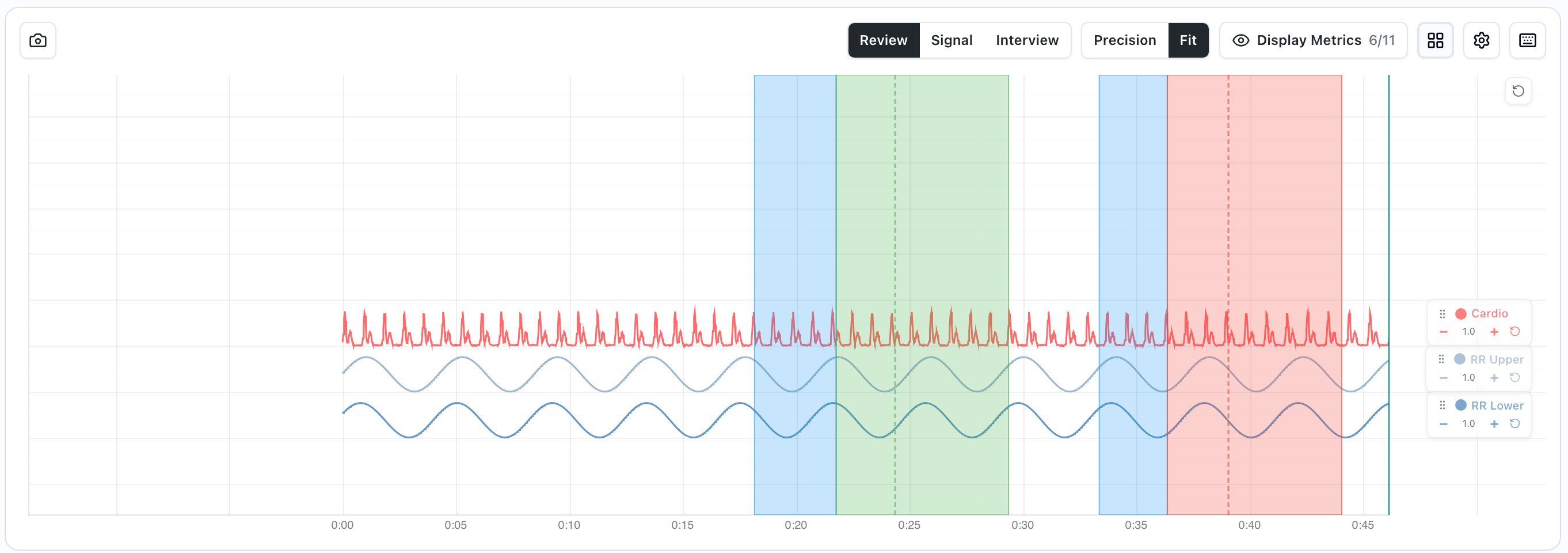
Two asked questions: the first answered Yes (green), the second answered No (red).
### Change, reorder or skip questions
You can change the question list during a session. Changes apply to this session only. They don't change the activity.
Skip a question: click a later question button to make it the current question. The skipped question stays unasked, and you can come back to it later by clicking its button.
Ask a question again: click its button and ask it again. The count on the button goes up.
Reorder questions: drag a question button to a new spot in the row. You can only move questions that are not the current question and have not been asked yet.
Edit, add or remove questions: click the Manage questions icon at the top right of the Questions tab.
You can't switch questions or open **Manage questions** while you are asking or recording an answer. Finish the current question first.
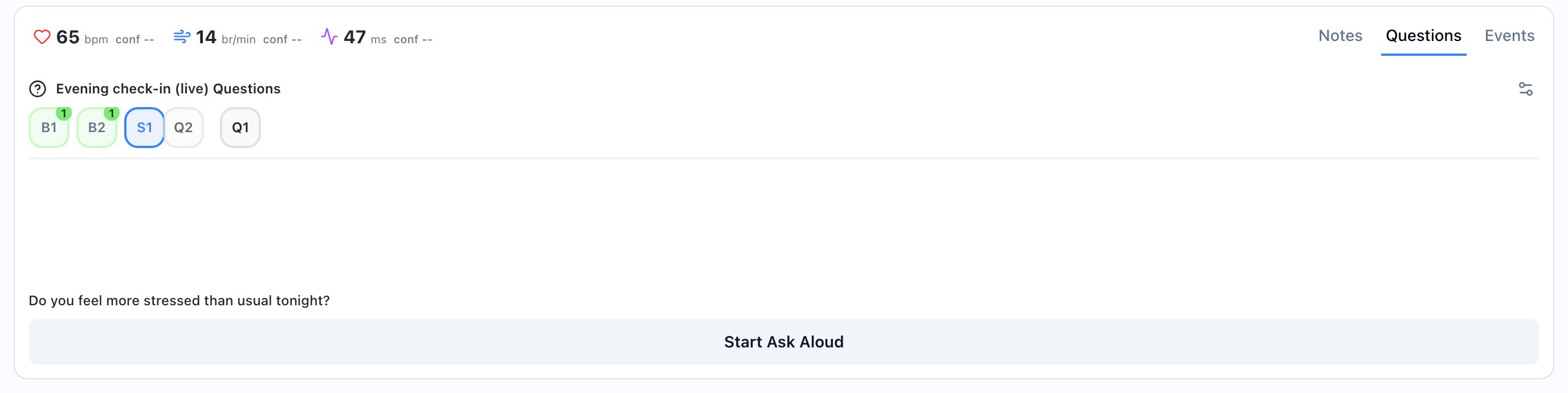
Drag a question that hasn't been asked to change the order.
#### Manage questions
The **Manage Questions** window lists every question in order. Questions that were already asked, and the current question, show a lock and can't be changed.
Edit: click the pencil, change the Label or Question text, and click Save.
Add: click Add Question, enter the question text, and click Add. New questions go to the end of the list.
Remove: click the trash icon, then click Confirm?.
Click **Done** to close the window.
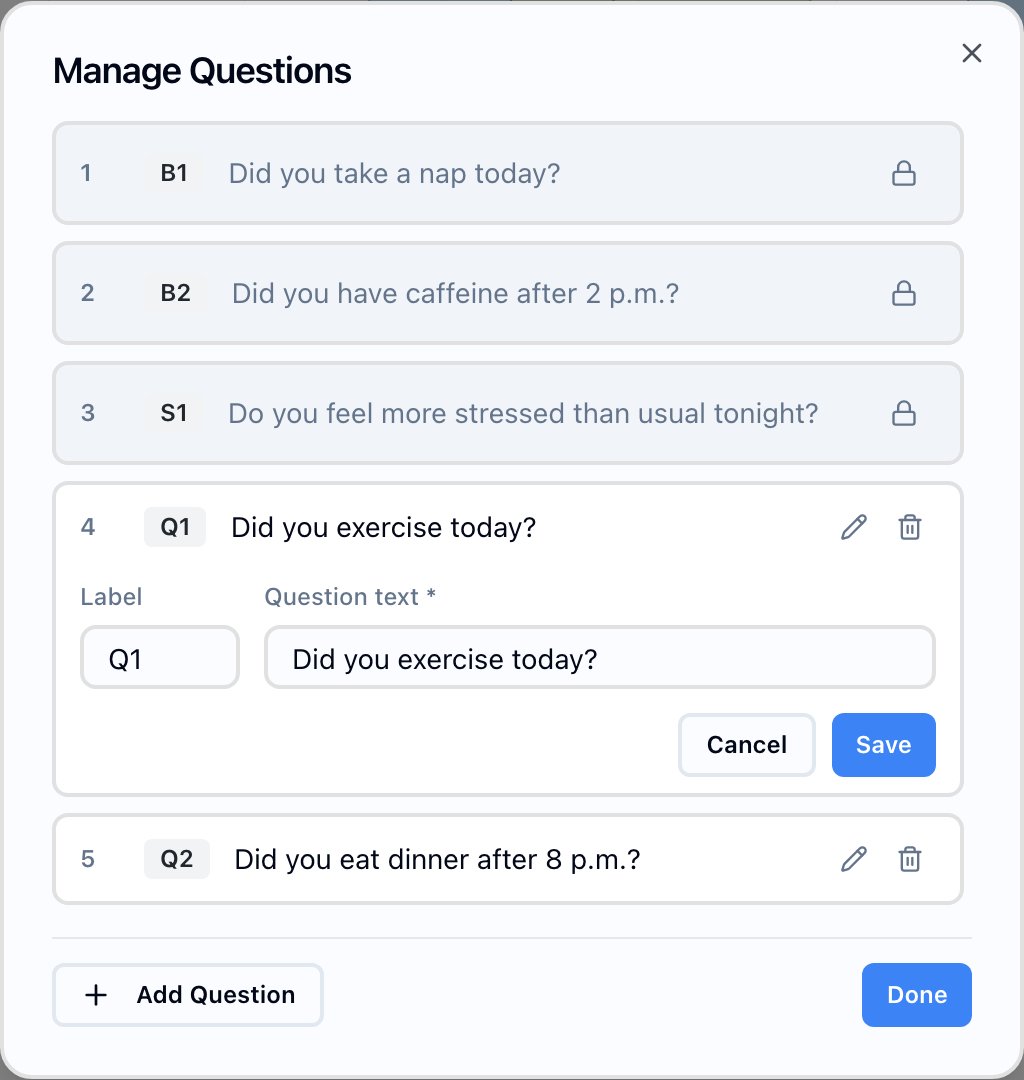
Locked questions can't be changed. Questions that haven't been asked can be edited or removed.
### Keyboard shortcuts
Shortcuts work when the cursor is not in a text field. To see them during a session, click the keyboard icon at the top right of the Vitals Timeline.
| Key | Action |
| --- | --- |
| `Space` | Hold to ask. Press when you start reading the question, let go when you finish. |
| `Y` | Record **Yes** (Yes/No questions, while awaiting a response). |
| `N` | Record **No** (Yes/No questions, while awaiting a response). |
| `Enter` | Next question (after the response is recorded). |
| `C` | Show or hide the Camera Feed. |
| `L` | Show or hide face landmarks. |
| `E` | Show or hide notes and events. |
To change a key, click the gear icon next to the keyboard icon. In **Keyboard shortcuts**, click **Rebind** next to an action and press the new key. Your organization may also set different default keys for an activity.
The keyboard shortcuts list in a live session.
## Playback
Source: https://presagetech.com/docs/essessment/playback
---
title: "Playback"
description: "Find a recorded session and review it: replay the video, scrub through vitals, add notes, and compare sessions side by side."
---
# Playback
## Guide
#### Open Session History
Click **Playback** in the Liveline sidebar.
#### Find the session
Search, or filter by **Activity**, **User** and date range. Once a filter is on, **Clear filters** resets them.
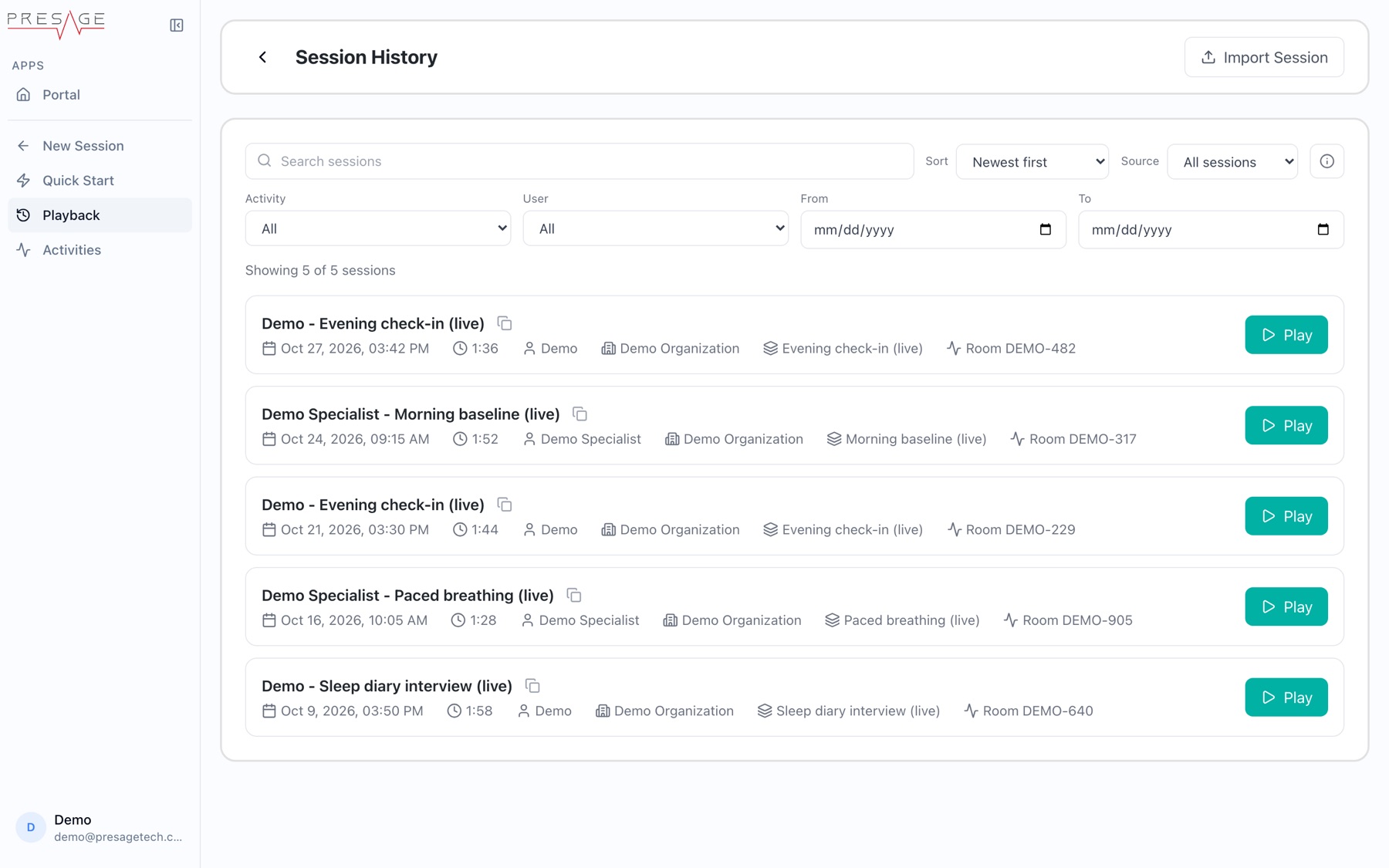
Session History
#### Play it
Click **Play** on a row. The playback screen opens with video and vitals in sync.
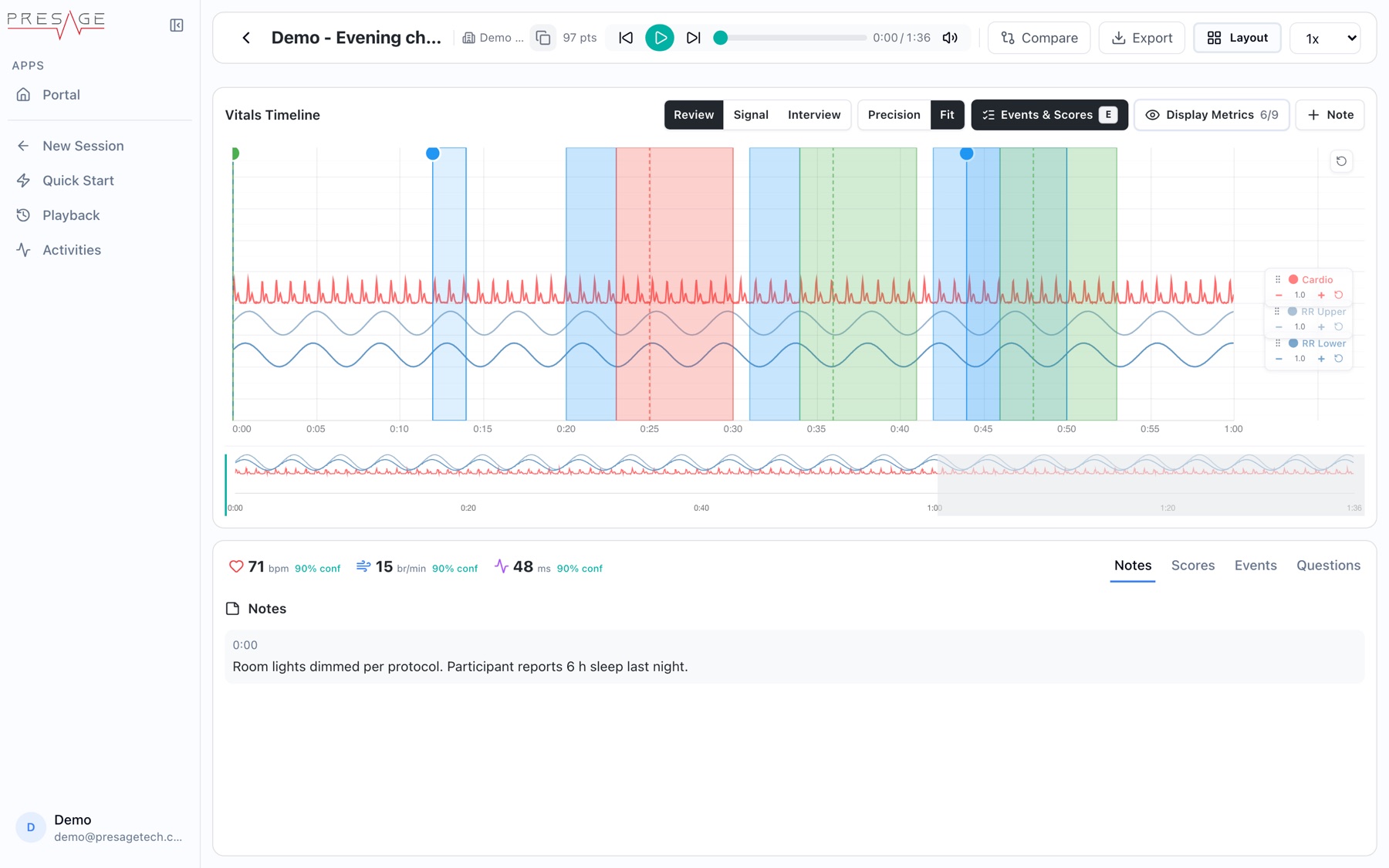
Session playback (camera panel hidden)
#### Move through it
Drag the scrubber at the top, skip 10 seconds back or forward, or click in the overview strip below the chart. Change speed with the **0.5x** to **2x** menu.
#### Mark what matters
Click **Note**, or click anywhere on the chart to comment at that exact time.
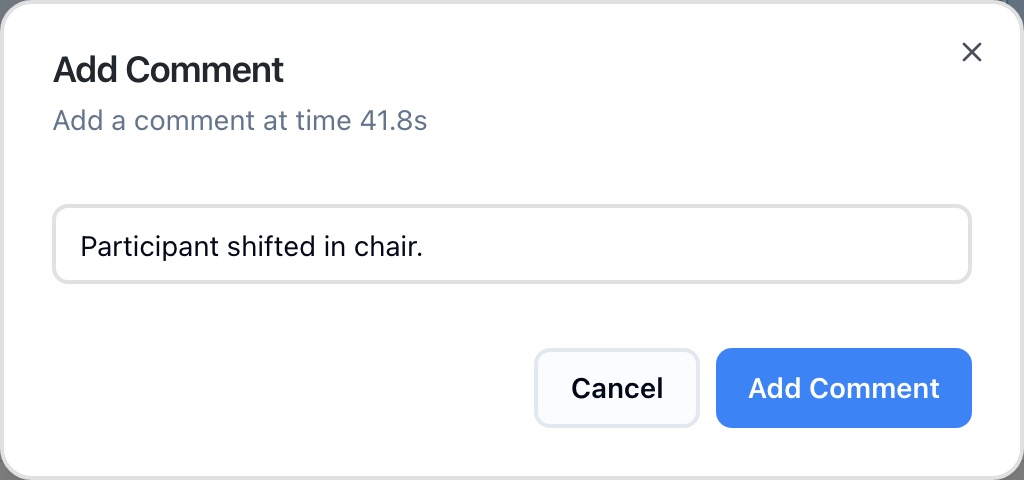
Clicking the chart adds a comment at that time
## Session History
Each row: the specialist and activity, date and start time, duration, organization and room code, with a Play button. The copy icon copies the session ID.
Sort: Newest first, Oldest first, Duration longest or shortest, Person A to Z or Z to A, Activity A to Z or Z to A.
Source: All sessions, Imported only, or Live only.
Import Session: open a session bundle exported earlier. See Export session data.
### Session status
| Status | Means |
| --- | --- |
| Ready | Complete playback data is available. |
| Partial | Some data was captured, but the session may be incomplete. |
| Failed | Recording or processing did not finish. |
## The playback screen
Header: participant, organization, session ID, time range and the number of data points ("pts").
Controls: skip back 10 s, play, skip forward 10 s, scrubber, mute, Compare, Export, Layout and speed.
Start offset: a banner explains when video starts later than vitals. Recording starts once the device is streaming its camera, so the first second or so of vitals has no video. Those vitals are still included in exports.
### Vitals Timeline
Three views change how the channels are drawn:
Review: the default overview of every channel.
Signal: channels scaled up to show waveform detail.
Interview: channels spread for following changes across a conversation.
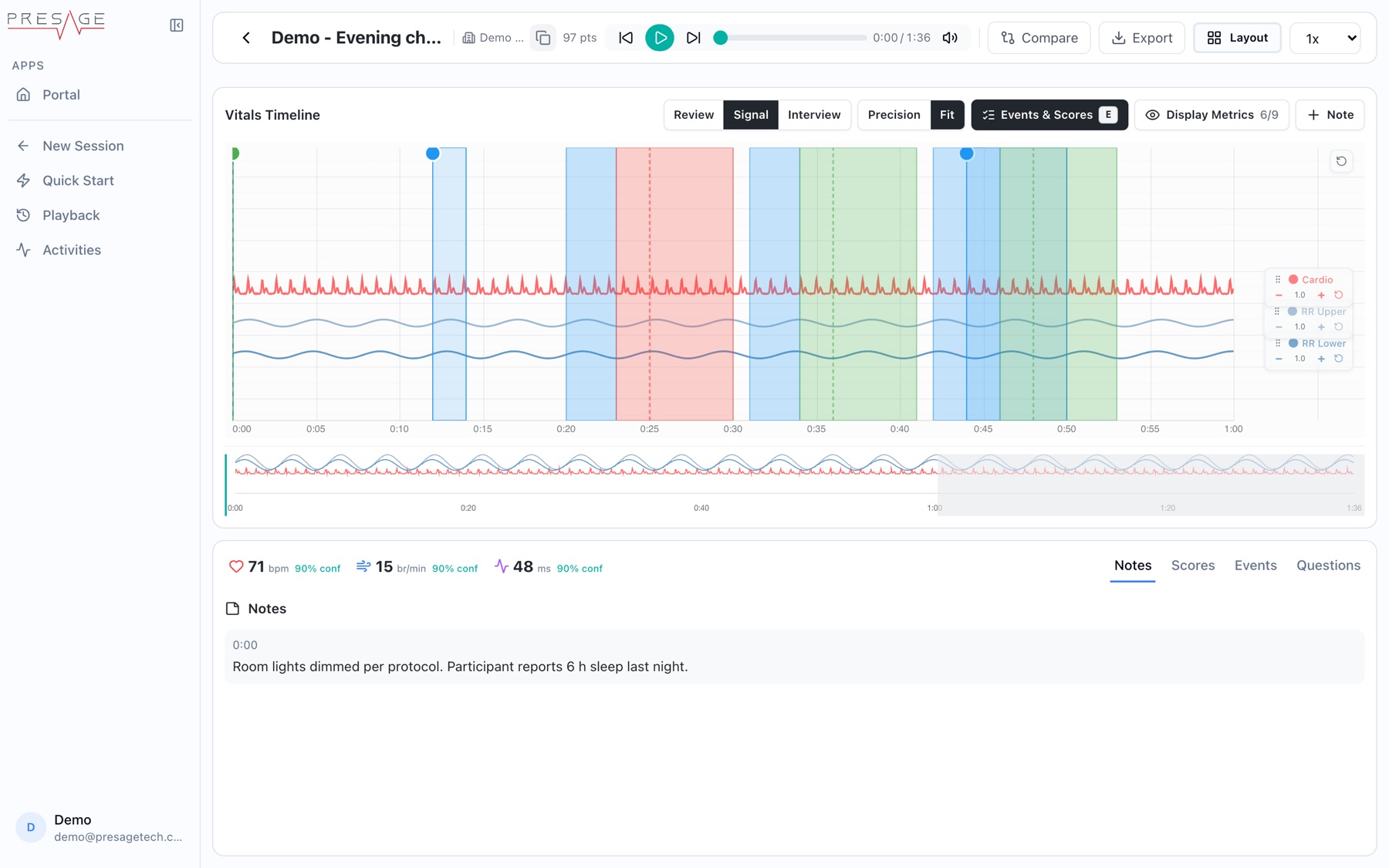
Signal view
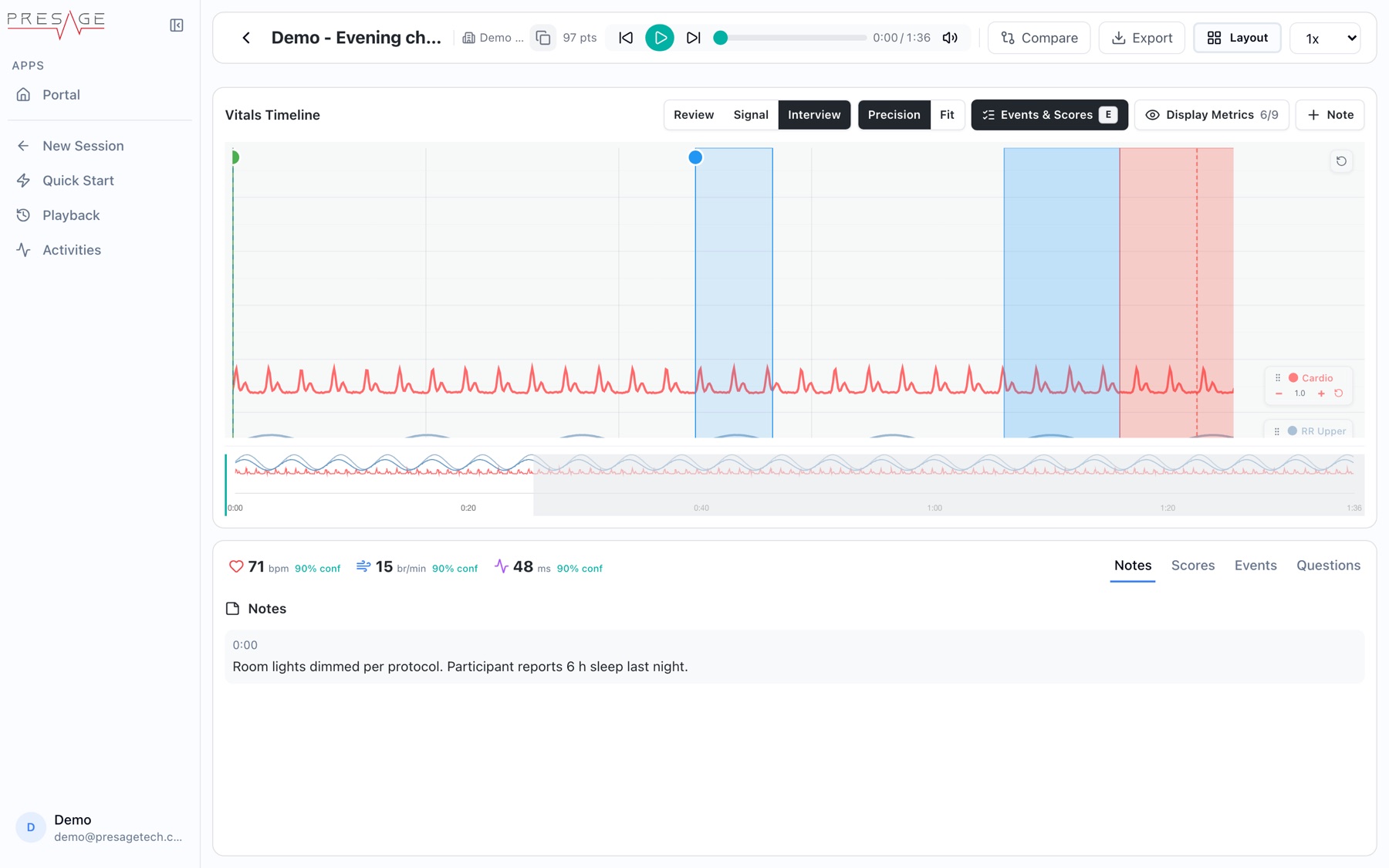
Interview view
Precision: fixed chart speed and band height, so measurements carry over between live and playback. The plot scrolls instead of shrinking.
Fit: scales the plot to fill the panel. Easier to read at a glance, but measurements don't carry over between live and playback.
Events & Scores: shows or hides event and score markers. Shortcut E.
Channel controls: on the right of the chart, use − and + to halve or double a channel's scale, drag to reposition it, and reset one channel or all of them.
Overview strip and Camera Status: below the chart, a full-session overview for jumping around, and a color bar showing camera quality across the session.
### Display Metrics
Click **Display Metrics** to choose which channels are plotted. The count shows how many are on, for example 6/9. Use **Show all** or **Hide all** to switch them together.
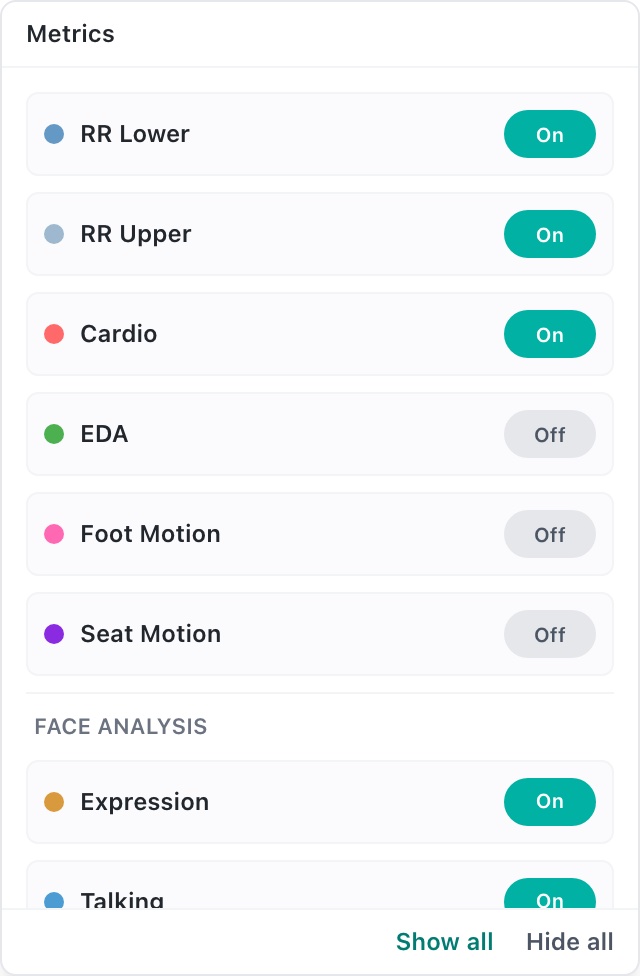
Display Metrics
### Camera Feed and readouts
The Camera Feed plays in sync with the chart. Press `C` to hide or show it. Next to it, live readouts show pulse (bpm), breathing (br/min) and HRV (ms) at the playhead, each with a confidence percentage.
### Notes, Scores and Events
Notes: notes added during or after the session.
Events: a timestamped list of comments, notes, answers and camera events. Filter with the chips at the top, and click an item to jump to that moment.
Questions: the questions asked during the session and their answers.
Scores: click Score Session to run scoring on the session.
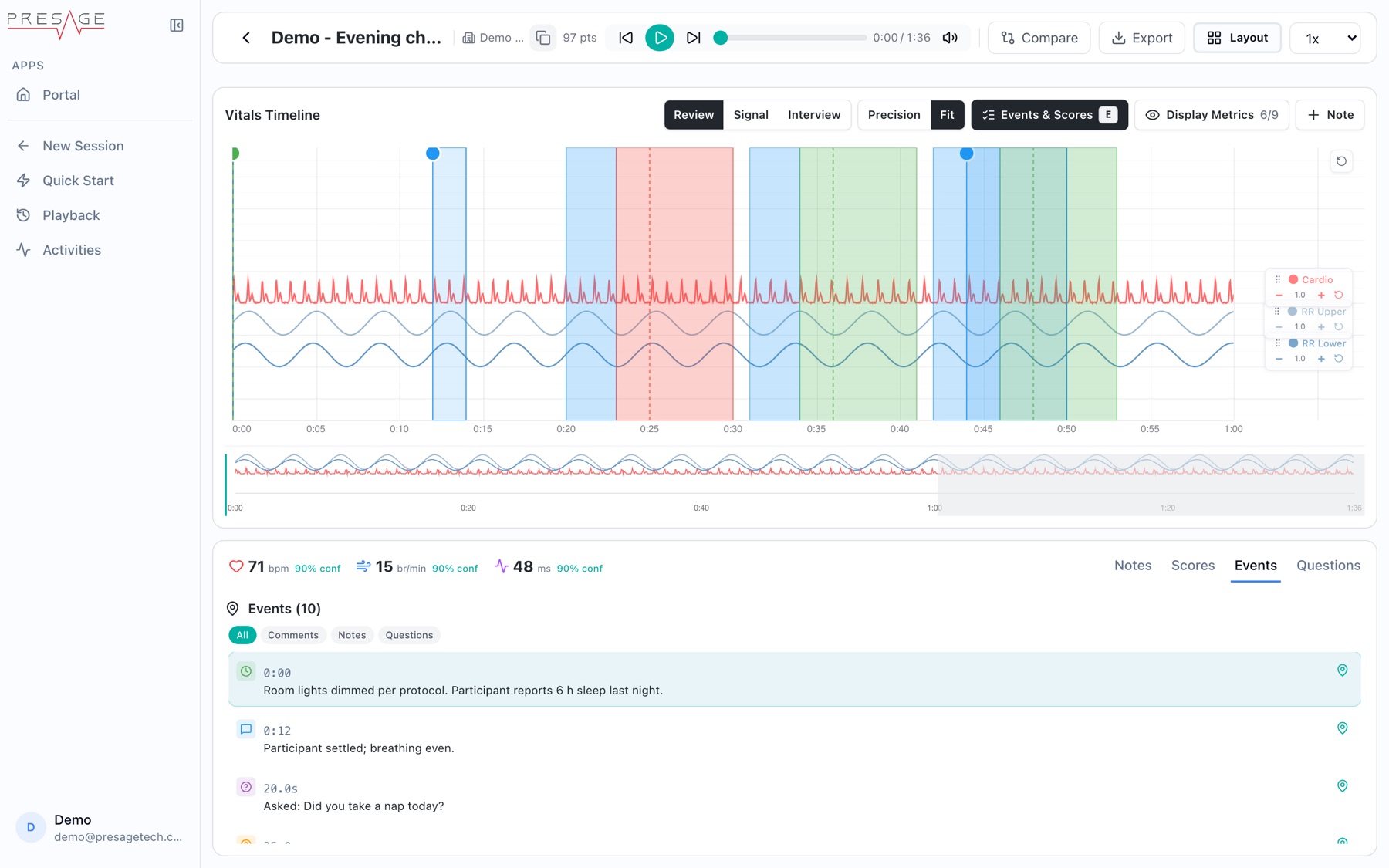
Events
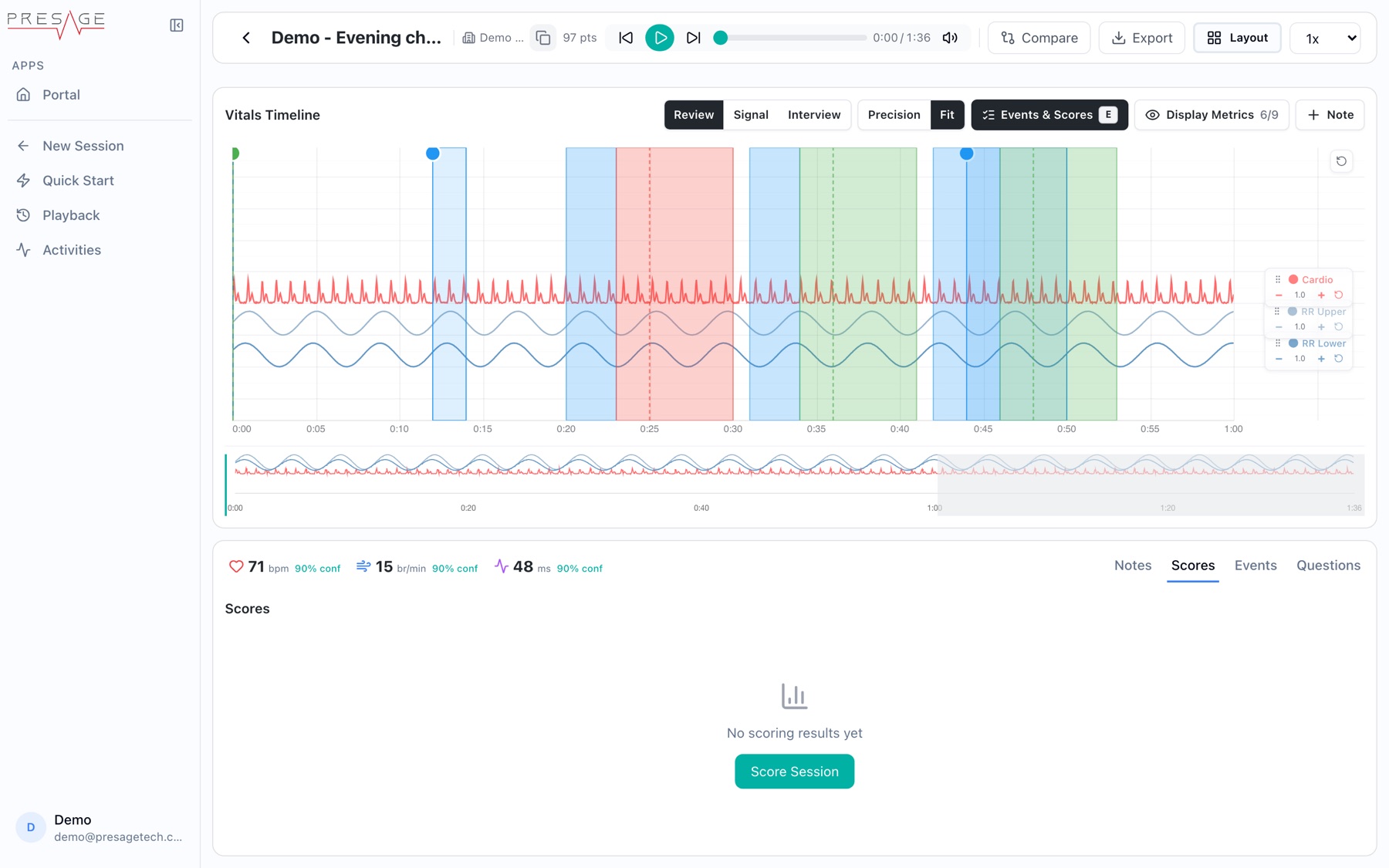
Scores, before scoring
## Compare sessions
#### Click Compare
Select up to 3 sessions to compare, then click **Add Session** (the button counts how many you picked).
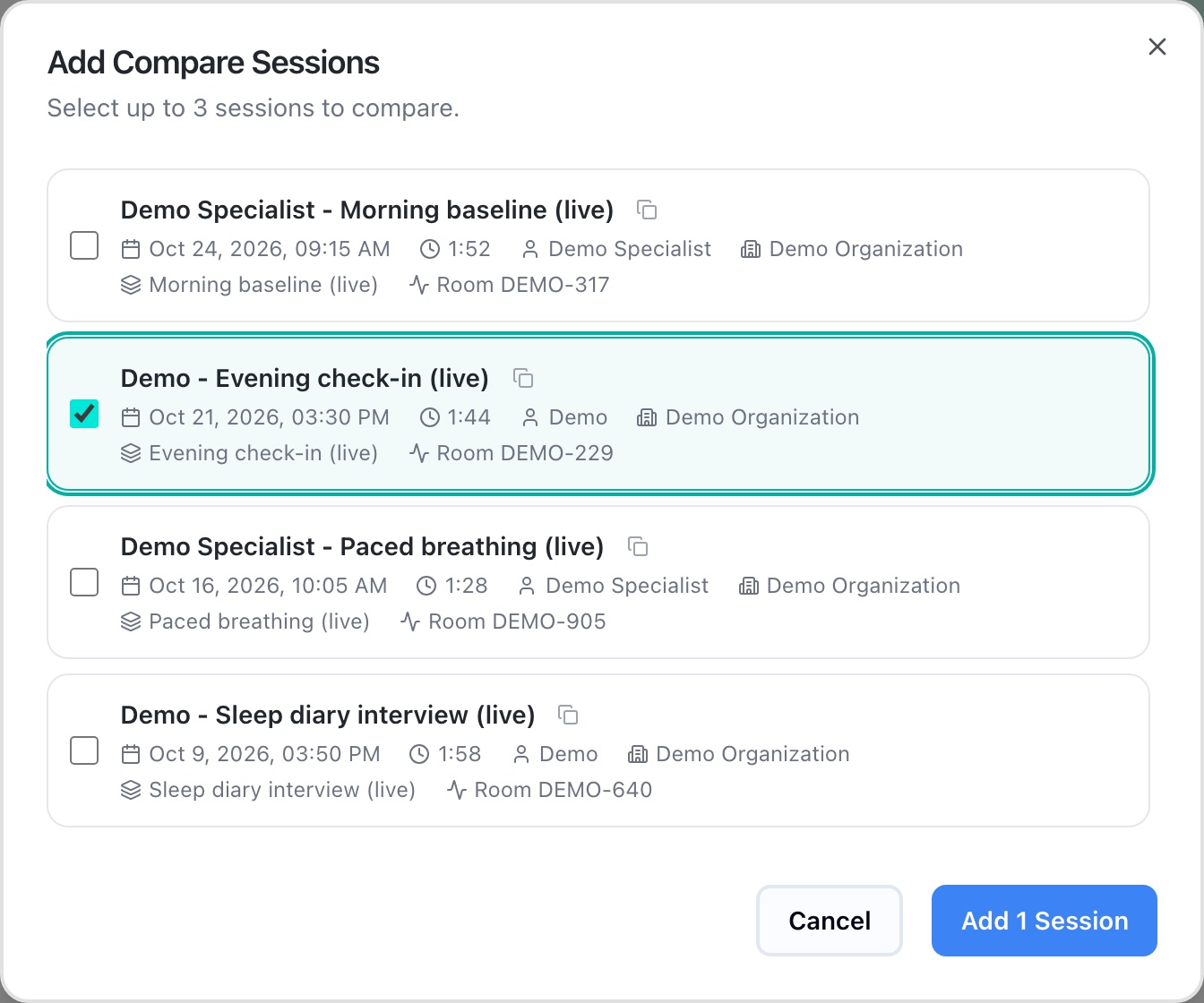
Add Compare Sessions
#### Pick a reference
The **Reference** menu sets which session the others line up against. Each compared session has controls to reorder, hide or remove it.
#### Choose a layout
**Side by Side**, **Stacked**, or **Overlay**, which draws the sessions on one chart.
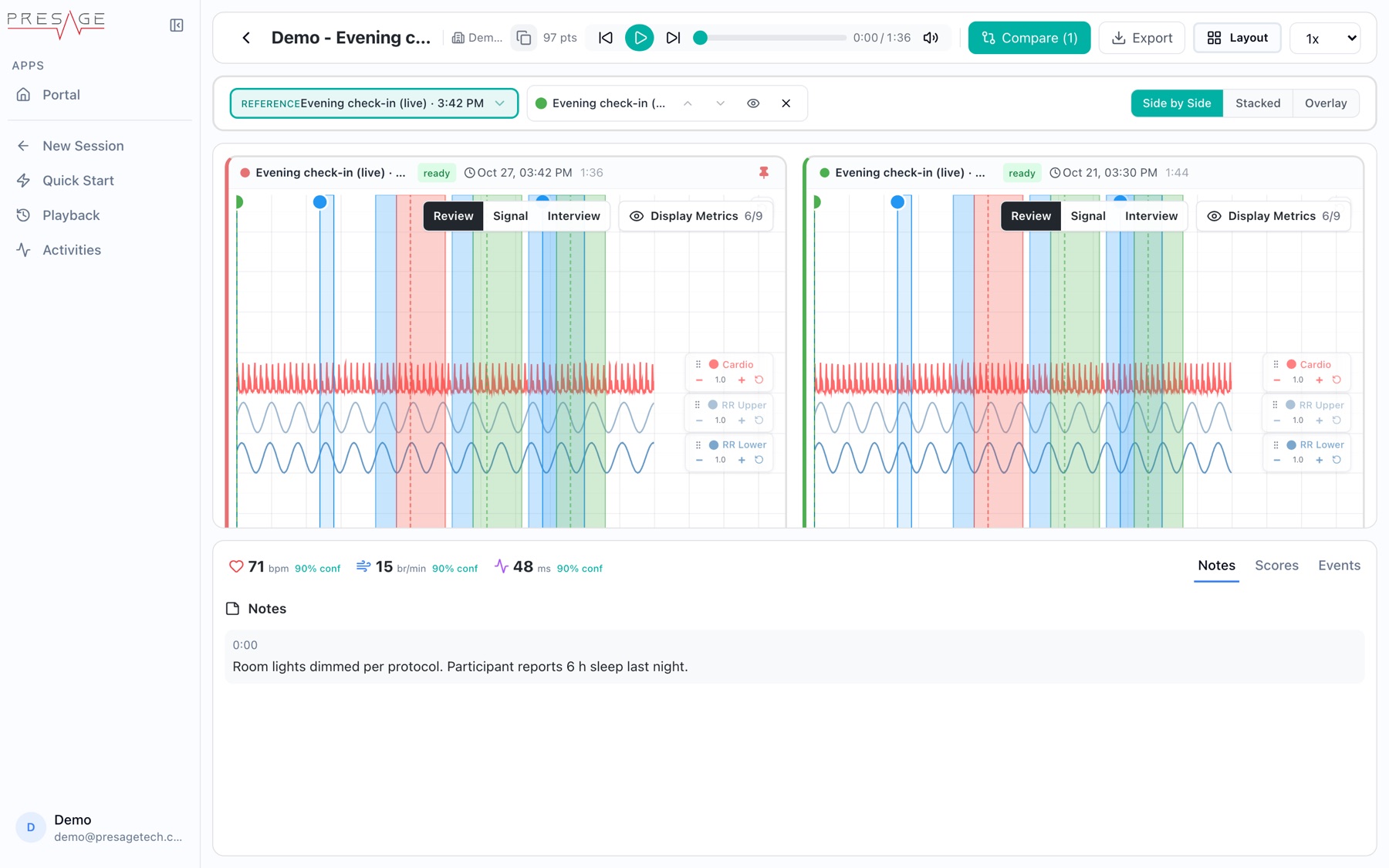
Side by Side
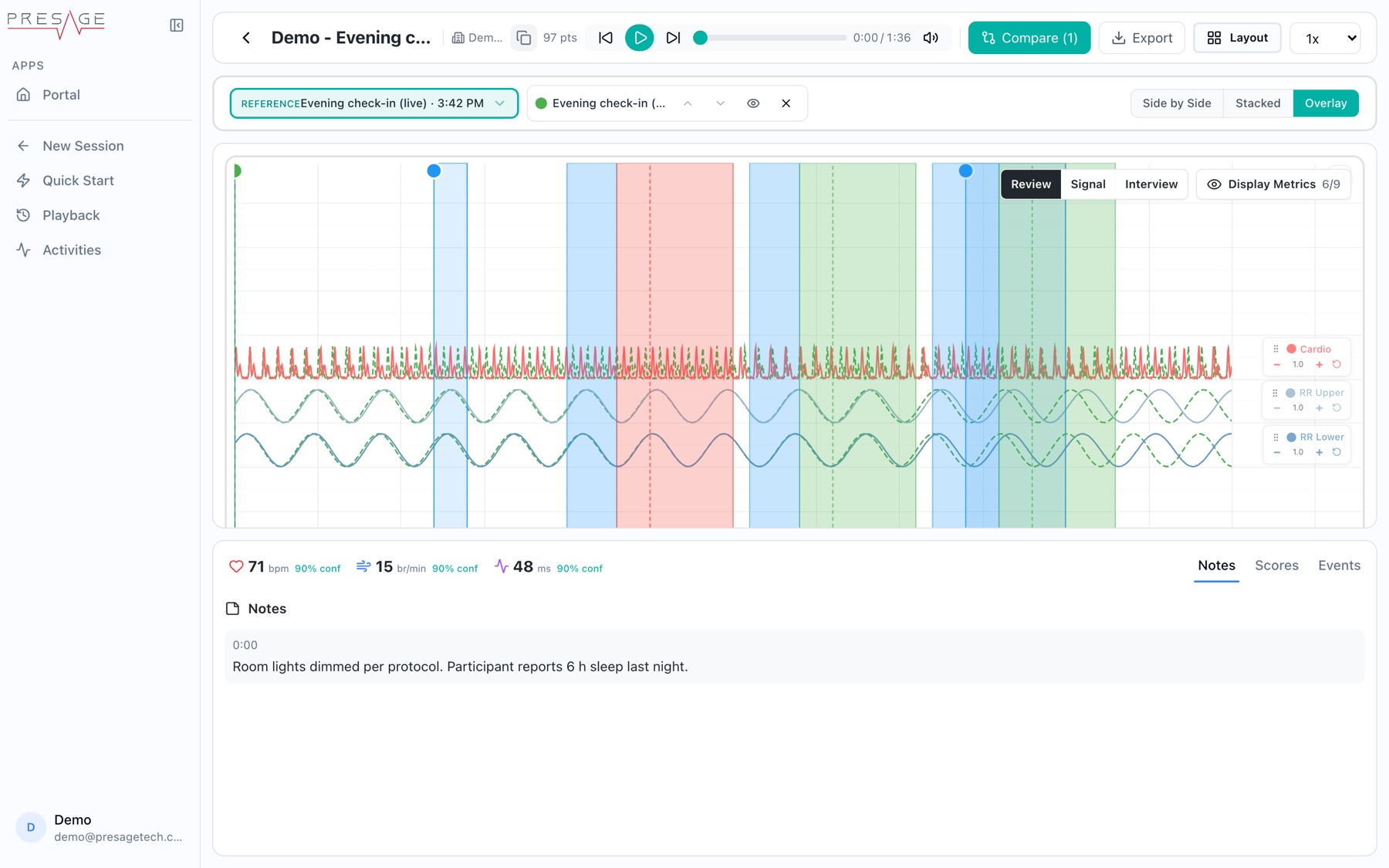
Overlay
## Customize the layout
Click **Layout** to choose which panels appear and where. Check two or more panels in the same area to group them as tabs, side by side, stacked, or an accordion. Your layout syncs across your devices. Click **Reset to System Default** to undo.
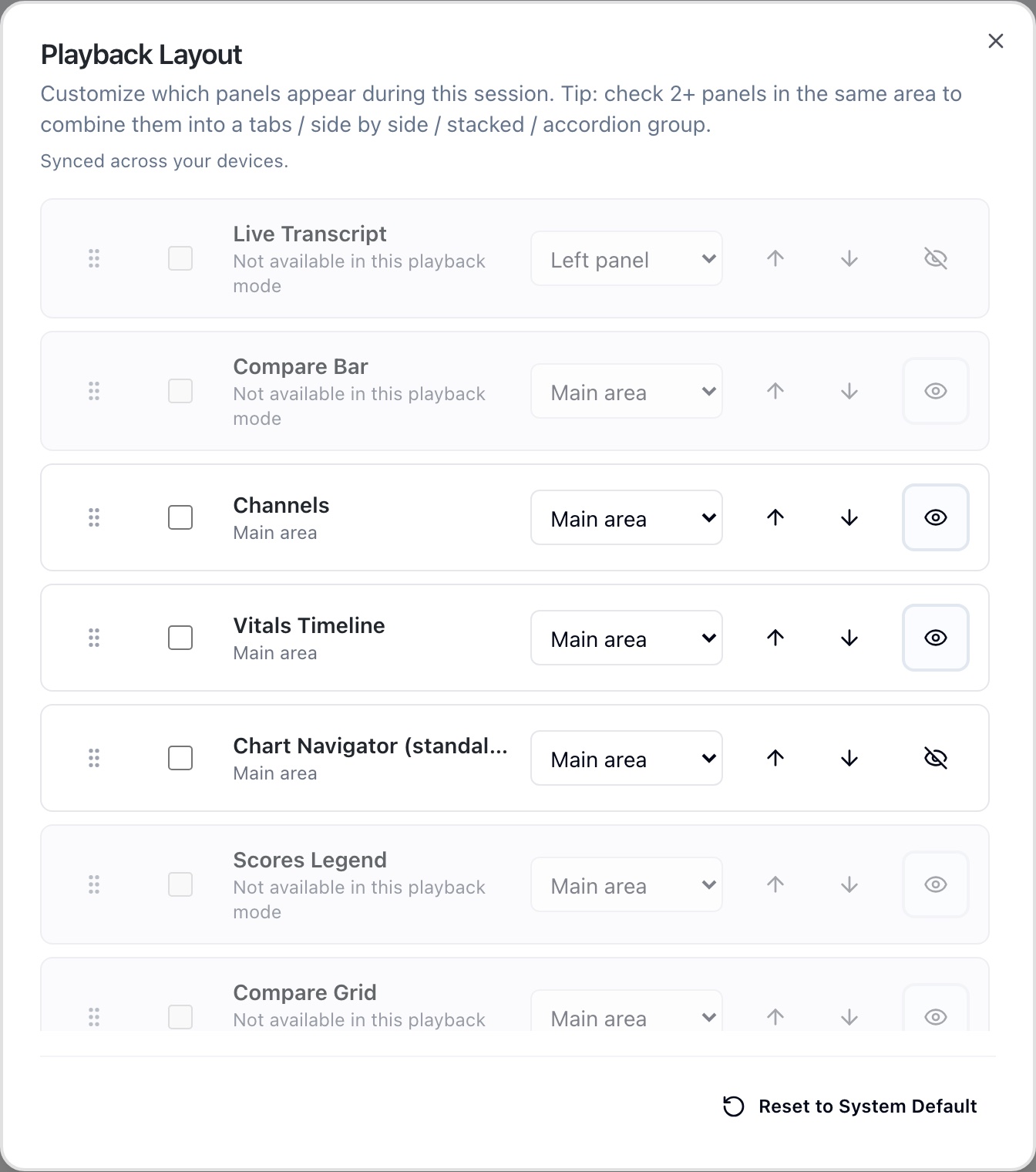
Playback Layout
Panels include Channels, Vitals Timeline, Chart Navigator, Compare Grid, Frame Analysis, Playback Controls, Media, Vitals, Session Info, Face Landmarks, and a bottom group of Notes, Scores, Events and Questions. Some, such as Live Transcript and Compare Bar, only work in certain modes.
## Keyboard shortcuts
| Key | Action |
| --- | --- |
| `E` | Show or hide events and scores |
| `C` | Show or hide the camera feed |
## FAQ
Why does the video start a second after the vitals?
Recording starts once the device is streaming its camera, shortly after the first vitals sample. Playback begins where the video starts, and the earlier vitals are still in exports.
Can I share a session with a colleague?
Copy the session ID from the header or the Session History row.
## Label your data
Source: https://presagetech.com/docs/essessment/label-data
---
title: "Label your data"
description: "Click the timeline to label a moment, Shift+drag to label a span, and write notes, live or after the session. Every label is exported with the vitals."
---
# Label your data
## Add labels during a live session
Everything you add is stamped with the session time, on the same clock as the vitals.
#### Mark a moment
Click the Vitals Timeline at the moment you want to label. **Add Comment** opens at that time. Type your label, such as "participant coughed", and press `Enter`.

Add Comment opens at the time you clicked
#### Mark a span of time
Hold `Shift` and drag across the Vitals Timeline from where the span starts to where it ends. **Add Region Comment** opens for that span. Type your label and press `Enter`.
#### Write a note
Open the **Notes** tab below the chart, type in **Add a note…**, and press `Enter` or click **Add**. The note is stamped with the current time.
#### Label questions and answers
On the **Questions** tab, hold `Space` while you ask a question, then record the answer with `Y`, `N` or the answer buttons. The asking and answering periods become labeled spans with the response. See [Ask and answer questions](https://presagetech.com/docs/essessment/run-session#ask-and-answer-questions).
## Add labels after the session
Open the session in [Playback](https://presagetech.com/docs/essessment/playback). The same labels work there:
Mark a moment: click the chart, or click Note in the toolbar to label the moment at the playhead.
Mark a span of time: hold Shift and drag across the chart.
Write a note: use the Notes tab.
Score the session: on the Scores tab, click Score Session.

Labeled spans on the Vitals Timeline
## Review your labels
In Playback, the **Events** tab lists every comment, note, answer and camera event in time order. Filter with the chips at the top, and click an item to jump to that moment. Press `E` to show or hide markers on the chart.

Events
## Get labels out for analysis
[Export the session](https://presagetech.com/docs/essessment/export). Every export type includes the labels next to the vitals, so you can line them up by time.
| Label | In the export | Times (seconds) |
| --- | --- | --- |
| Question segments | `assessment.questions`: question text, label and response | `askStartTime`, `askEndTime`, `responseStartTime` |
| Timed comments | `assessment.comments`: text and comment type | `timelineStart`, `timelineEnd` for a span |
| Notes | `assessment.notes`: text | `time` |
| Scores | `assessment.scoring` | Whole session |
// assessment.questions, one entry per question asked { "questionText": "Did you take a nap today?", "label": "B1", "askStartTime": 18.2, "askEndTime": 21.6, "responseStartTime": 22.4, "response": "yes" }
In **Data only, compressed** and **Everything**, the labels are in `manifest.json` and the vitals are split into parts under `vitals/`.
## Export session data
Source: https://presagetech.com/docs/essessment/export
---
title: "Export session data"
description: "Export a session as a portable bundle to archive it or hand it off to another system, and import it back later."
---
# Export session data
## Guide
#### Open the session
Find it in [Session History](https://presagetech.com/docs/essessment/playback) and click **Play**.
#### Choose an export type
**Presage assessment export (full fidelity)** is the default. **eSSESSMENT-compatible export (legacy)** is for older eSSESSMENT tools.
#### Choose what to export
See the options below, then click **Export**.
## What to export
| Option | You get | Video on re-import |
| --- | --- | --- |
| Data only | One JSON file. The recording and voice annotations stay on the server. | No |
| Data only, compressed | A zip with vitals split into separate parts. Much smaller than one flat file for a long session. | No |
| Everything, including media | A zip with the session recording and voice-annotation audio embedded. Largest and slowest, and it opens a download tab. | Yes |
## Import a session
In Session History, click **Import Session** and choose a bundle. Set **Source** to **Imported only** to see only imported sessions.
## Upload a recording
Source: https://presagetech.com/docs/essessment/upload-recording
---
title: "Upload a recording"
description: "Analyze a video recorded outside Liveline."
---
# Upload a recording
On **Select Activity**, click **Upload Recording**, or open **Activities** in the Liveline sidebar. **Analysis Activities** lists what you can run. Pick one, then drop a file under **Upload for Analysis**. **Recent Jobs** shows progress and results. Each activity controls which analysis runs and which file types it accepts.
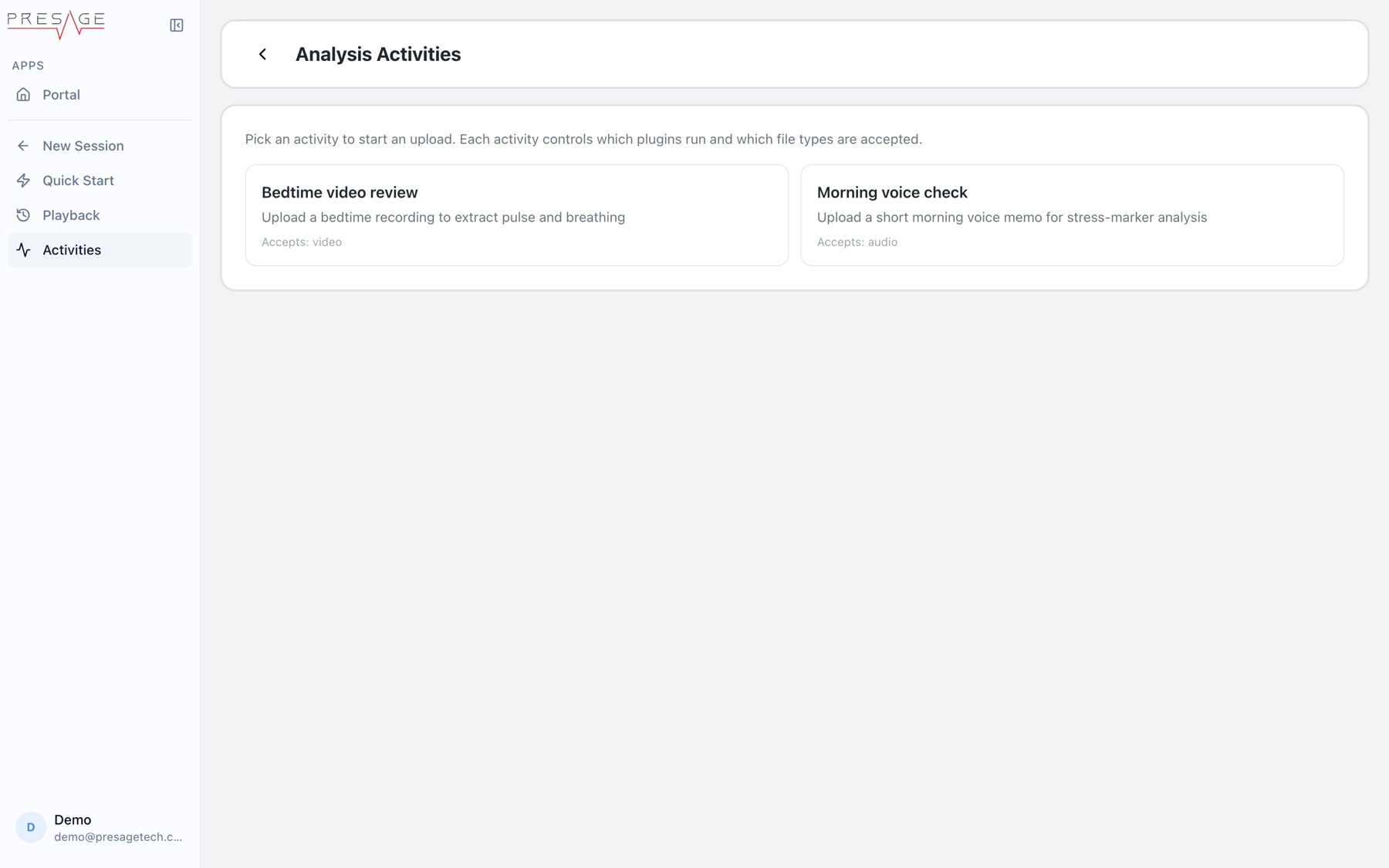
Analysis Activities
## Members
Source: https://presagetech.com/docs/essessment/members
---
title: "Members"
description: "See everyone in your organization, change roles, and manage invitations."
---
# Members
Filters:All, Active and Invited, with a count on each. Search by name or email.
Each row: the person's role and how many programs they're in. Invitations not yet accepted show an Invited badge.

Members
## Organization settings
Source: https://presagetech.com/docs/essessment/org-settings
---
title: "Organization settings"
description: "Your organization's name, contact details and the logo participants see in Coherence. You set the name and contact email when you create the organization."
---
# Organization settings
| Field | Notes |
| --- | --- |
| Organization Name | Shown across the Console and in Coherence. |
| Slug | Created automatically with the organization. Can't be changed. |
| Description | A short description. |
| Contact Email | Main contact for the organization. |
| Support Email | Where people can reach your team for help. |
| Website URL | Your website. |
| Organization Logo | Shown in the mobile app. PNG or JPG, up to 2 MB. |
Click **Save Changes** when you're done.
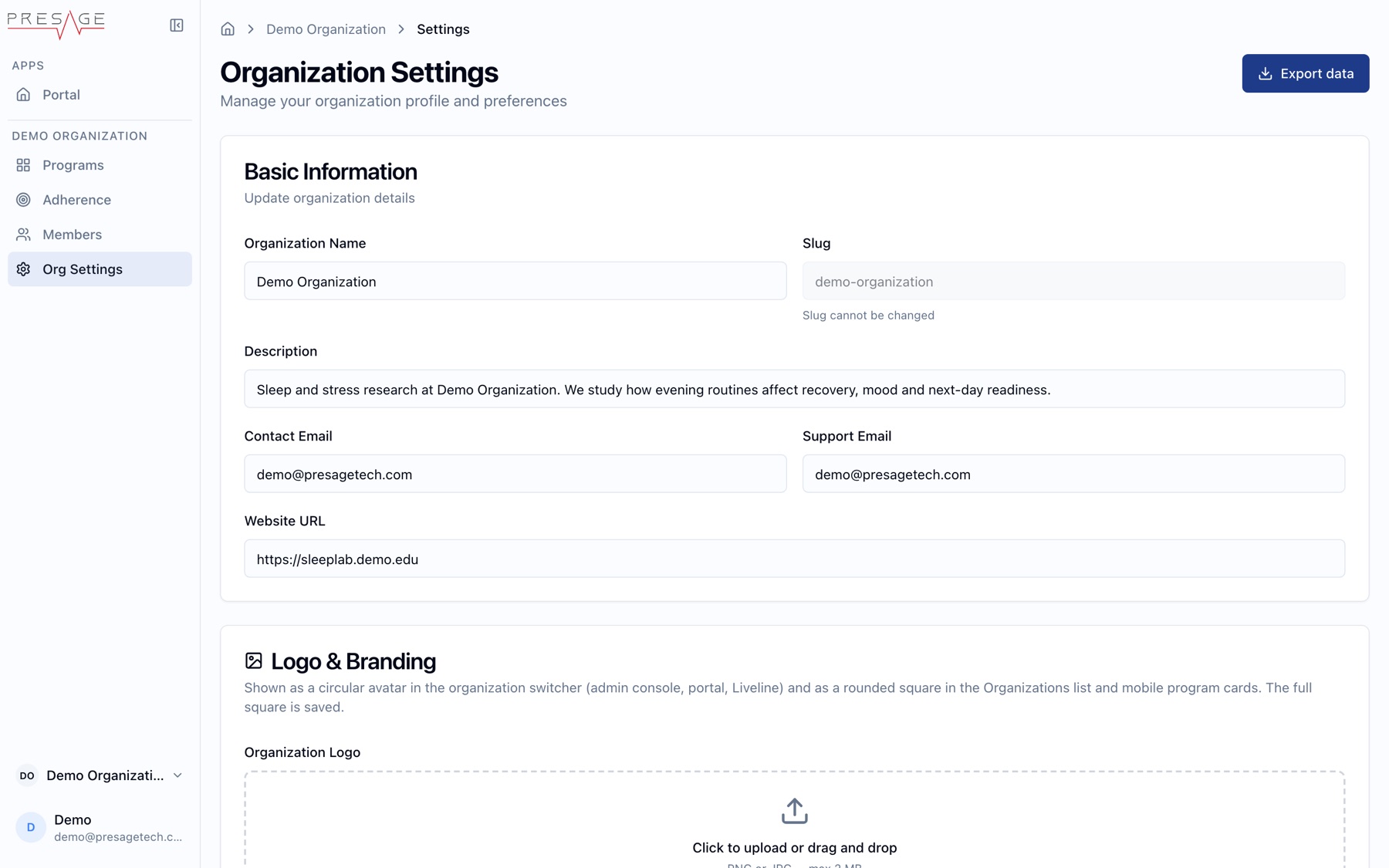
Organization Settings
## Billing
Source: https://presagetech.com/docs/essessment/billing
---
title: "Billing"
description: "Your payment method, invoices, and who counts toward your bill."
---
# Billing
## Pricing
| Item | Price |
| --- | --- |
| First 3 active people each monthly cycle | Included |
| Each additional active person | $10 per person, per monthly cycle |
Who counts: active people. A person is active once they complete at least one activity in Coherence during the cycle, whatever their role. Invited seats that aren't used are free.
Cycle: monthly, starting from when you created the organization (UTC).
Payment method: not needed to get started. Add one before a fourth person starts an activity.
## Add a payment method
#### Open Billing
Go to **Org Settings › Billing**. You also land here right after creating your organization.
#### Add a card
Under **Payment status**, click **Set up payment method**. Enter your details on the secure Stripe checkout page.
#### Check the status
Back on Billing, **Payment status** shows **Current** once your card is verified. Click **Refresh status** if it hasn't updated.
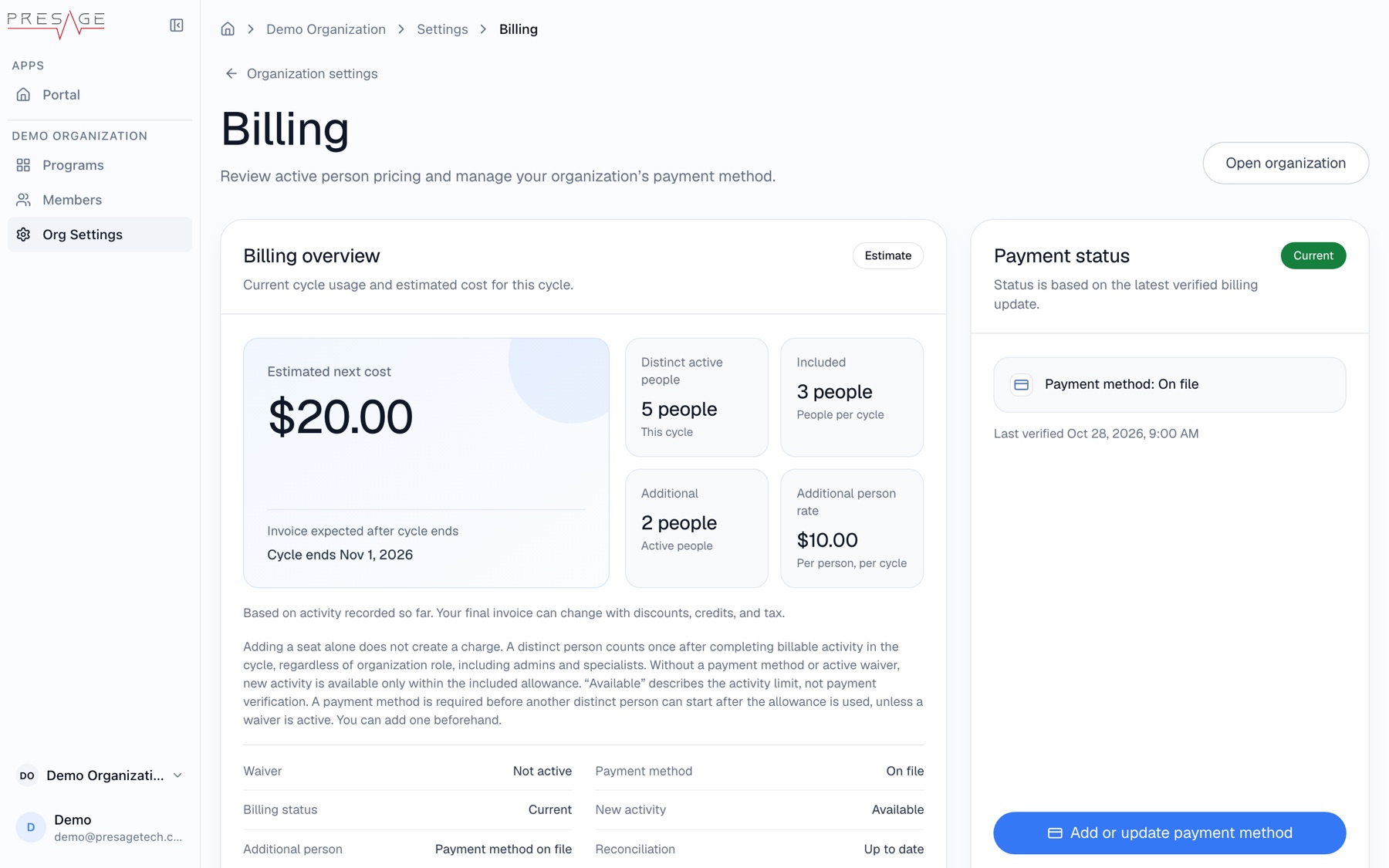
Billing
## Billing overview
Estimated next cost and when the cycle ends.
Distinct active people this cycle, how many are Included, how many are Additional, and the Additional person rate.
Invoice history: recent invoices and receipts.
Manage billing: update your card or billing details in Stripe.
## Account security
Source: https://presagetech.com/docs/essessment/account-security
---
title: "Account security"
description: "Change your password and add a second sign-in factor."
---
# Account security
To open it, click your profile icon, then **Account Security**.
Change Password
Authenticator App (TOTP): a code from an authenticator app at sign-in.
Passkeys: sign in with your device's biometrics or a security key. Click Add passkey.
## Metrics
Source: https://presagetech.com/docs/essessment/metrics
---
title: "Metrics"
description: "What a Capture step records and can show participants."
---
# Metrics
For general wellness only. Not a medical device and not intended to diagnose or treat any condition.
Every metric is recorded during a Capture. **Metrics to Display** only controls which cards participants see.
| Metric | What it is | Unit |
| --- | --- | --- |
| Pulse Rate | Heart rate estimated from the camera | BPM |
| Breathing Rate | Breaths per minute estimated from the camera | BrPM |
| HRV | Heart rate variability: the variation in time between heartbeats | ms |
| EDA | Electrodermal activity signal | |
| Pulse Trace | The pulse waveform over the reading | Waveform |
| Breathing Trace | The breathing waveform over the reading | Waveform |
| Expressions | Facial expression signals | Per-frame signal |
| Talking | Whether the participant is talking | On/off |
| Blinking | Blink detection | Events |
| Confidence | How confident each reading is | Percent |
Accuracy, valid ranges and known limitations for each metric are in the [model cards](https://presagetech.com/model-cards/).
## Data, privacy and security
Source: https://presagetech.com/docs/essessment/privacy
---
title: "Data, privacy and security"
description: "What eSSESSMENT collects, how it's protected, and how long it's kept."
---
# Data, privacy and security
## What's collected
- Answers to questions, with timestamps.
- Camera readings: heart rate, breathing rate, HRV, confidence scores and waveforms.
- Face detected, talking and blinking indicators.
## Off unless you turn it on
- **Location and audio:** off unless the program owner turns them on and the participant opts in.
- **Video:** kept only from Stream steps with **Save recording to cloud** on, after the participant agrees to recording. Capture steps don't save video.
## How it's protected
- Encrypted in transit (TLS 1.2 or later) and at rest (AWS KMS), hosted in the United States.
- Controls modeled on FedRAMP Moderate (NIST SP 800-53), with HIPAA-aligned safeguards.
- Access granted by role at the organization, program and participant level.
- Multi-factor sign-in (authenticator app or passkey) on every account.
- A seven-year, write-once audit log.
## Retention and deletion
- Data is deleted within 30 days of a written request. Backups expire within 90 days.
- Presage keeps a de-identified copy.
- If there's a breach, affected customers are notified within 60 days.
Participants and program builders accept Presage's **Terms of Service**, **Privacy Policy** and **Your Responsibilities** when they sign up. Your organization is responsible for its own participant consent. See [Consent](https://presagetech.com/docs/essessment/consent).
## System requirements
Source: https://presagetech.com/docs/essessment/requirements
---
title: "System requirements"
description: "Devices and browsers for participants, operators and admins."
---
# System requirements
## Device requirements
To complete camera-based activities in Coherence, use a phone or tablet with a front-facing camera and a supported operating system:
| Platform | Requirement |
| --- | --- |
| iPhone and iPad | iOS or iPadOS 17 or later |
| Android | Android 9 (API 28) or later. See the [supported devices](https://smartspectra.presagetech.com/docs/android/#supported-platforms). |
| Camera | A front-facing camera |
Reliable measurements also depend on camera performance. The device should keep about 25 frames per second or higher during a capture, and 30 fps is recommended. A supported operating system alone doesn't ensure reliable capture.
## Before you begin
Choose a well-lit space, keep your face clearly visible, and follow the on-screen guidance. For breathing measurements, rest the device on a stable surface with your face and chest in view. For more tips, see [Getting a good measurement](https://smartspectra.presagetech.com/docs/measurement-quality/).
## Troubleshooting
Source: https://presagetech.com/docs/essessment/troubleshooting
---
title: "Troubleshooting"
description: "Fixes for the most common problems."
---
# Troubleshooting
## Readings
"Face not centered"
Move so your whole face is inside the outline and hold the device at eye level.
"Too dark"
Face a light source, such as a window or lamp. Avoid strong light behind you.
"Excessive motion"
Rest the device on something steady and stay still until the reading ends.
## Programs and access
A participant can't see their program
Check they signed in with the invited email and tapped **Join**. New programs are private, so either add them to the program or turn on **Program Visibility**. Then they add it under **Programs › Find › Add to Library**.
I can't add someone to a program
They need to join your organization first. [Invite them](https://presagetech.com/docs/essessment/invite) to the organization with the program selected.
An admin can see a program but can't run it
Admins need a program role or subscription to launch activities. Add them under the program's Members.
I can't publish my activity
Open Review and fix any red item in the readiness checklist. See [Activity Builder](https://presagetech.com/docs/essessment/activity-builder).
## Sign-in
The sign-in page looks tiny
Zoom in with `Ctrl` or `⌘` and `+`.
"We couldn't load your invitations"
Click Try again.
## Still stuck?
Email [support@presagetech.com](mailto:support@presagetech.com) with what you were doing, the page or step you were on, and a screenshot if you can.
## FAQ
Source: https://presagetech.com/docs/essessment/faq
---
title: "FAQ"
description: "Quick answers to common questions."
---
# FAQ
Do participants need special equipment?
No. Coherence uses the front camera on a phone or tablet.
Do I have to collect vitals?
No. Build the activity from Question, Overview, Instruction and Summary steps. Only Capture, Breathing exercise and Stream use the camera.
Is eSSESSMENT a medical device?
No. It's for general wellness only and isn't intended to diagnose or treat any condition.
Can I ask questions during a reading?
Yes. Turn on Capture Questions in a Capture step. See [Capture step](https://presagetech.com/docs/essessment/capture-step).
Can participants get reminders?
Yes. Turn on **Send reminders** in an activity's schedule and choose push or email. See [Schedules and reminders](https://presagetech.com/docs/essessment/activity-builder#schedules-and-reminders).
How do I get my data out?
Export a session from Liveline.
Can I build activities with AI?
Yes, with the Coherence MCP server. It works with AI tools that support MCP, and is available now as a connector in Claude. See [Build with AI](https://presagetech.com/docs/essessment/mcp).
How much does it cost?
The first 3 people each month are included. After that it's $10 per person who completes an activity, per monthly cycle. See [Billing](https://presagetech.com/docs/essessment/billing).
## Release notes
Source: https://presagetech.com/docs/essessment/release-notes
---
title: "Release notes"
description: "What's new in eSSESSMENT and Coherence."
---
# Release notes
## October 2026
- **Self-service organizations and billing** (late October): anyone can create an account and an organization, with 3 people included each month.
- **Question step:** standalone questions and required agreements, with no camera.
- **New Steps layout:** steps in a single column that expand in place.
- **Tide breathing style:** a rising-wave pacer, alongside Orb and Ripple.
- **Coherence for iOS 1.12.1** (October 7).
- **New Activity Builder:** now the standard builder, with the Basics, Steps and Review stages, a live participant preview, and a readiness checklist.
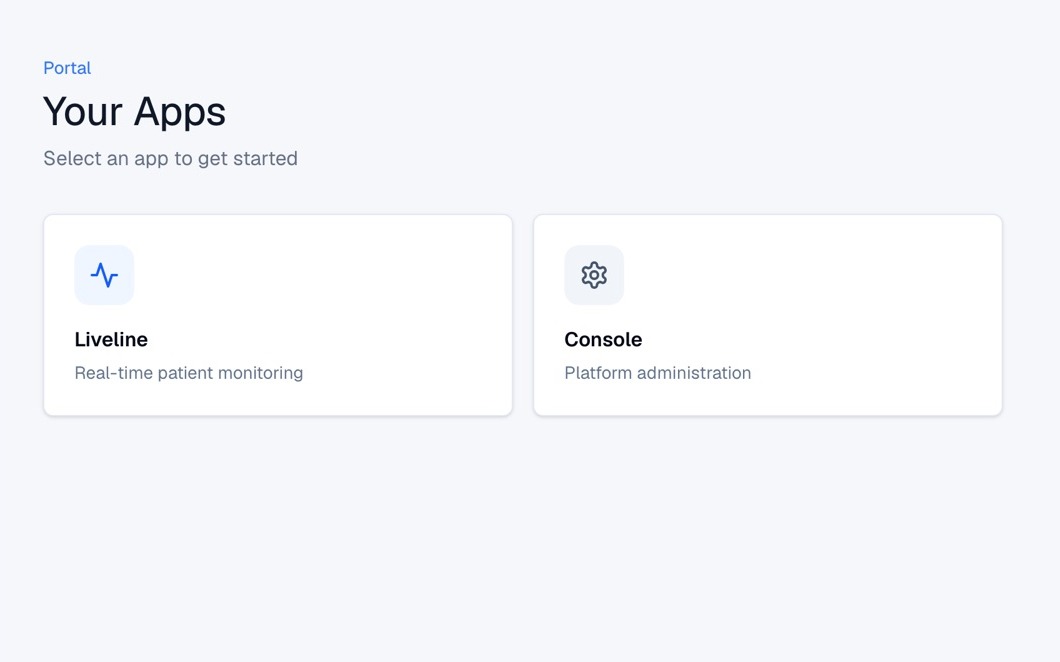 Presage PortalCreate an account, sign in, accept invitations and open your apps.Everyone
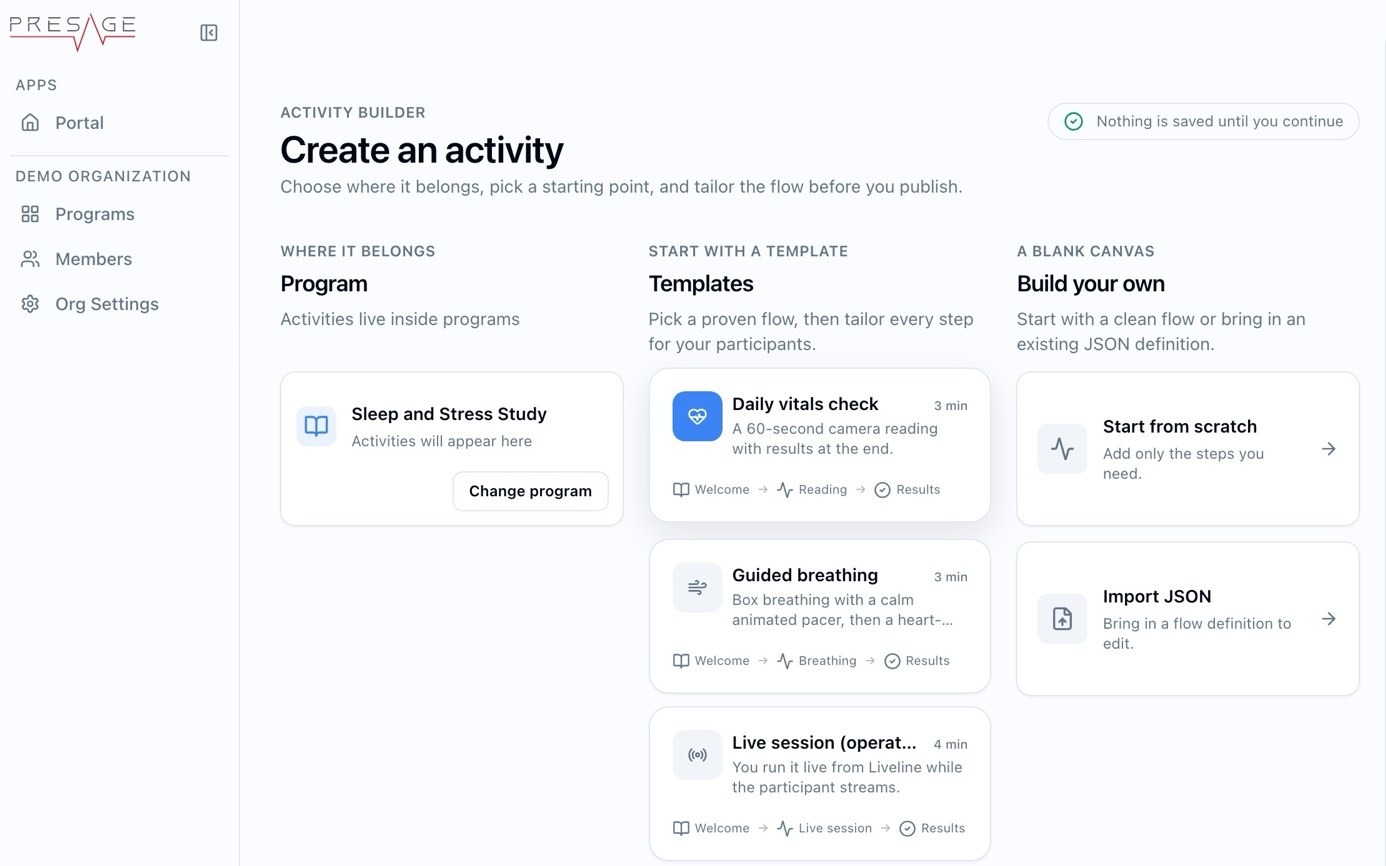 ConsoleBuild programs and activities, invite people, and manage your organization and billing.Owners, admins and program builders


 Coherence appParticipants run their programs on iPhone or Android, using the front camera.Participants
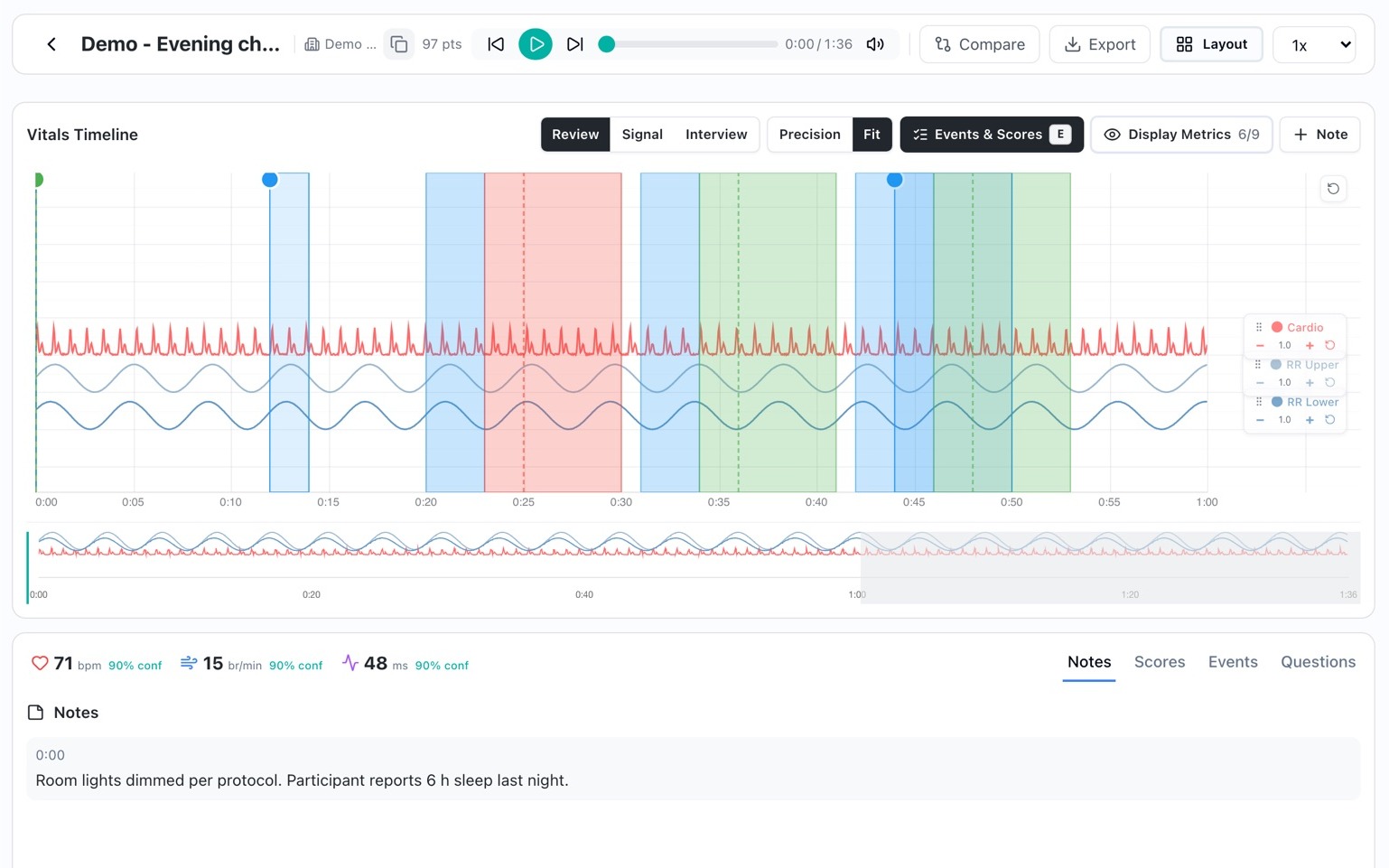 LivelineJoin a participant's live stream, or review the session later in Playback.Specialists and admins Create a 3-minute morning check-in for the Track Team program: box breathing, a 45-second reading, then a summary.Coherence create_activity ✓Done. Morning check-in is in Track Team with Breathing, Capture and Summary steps. It's private until you invite people.Coherence connectorDescribe a program or activity to Claude, or any AI tool that supports MCP, and it's built in your organization.Program builders
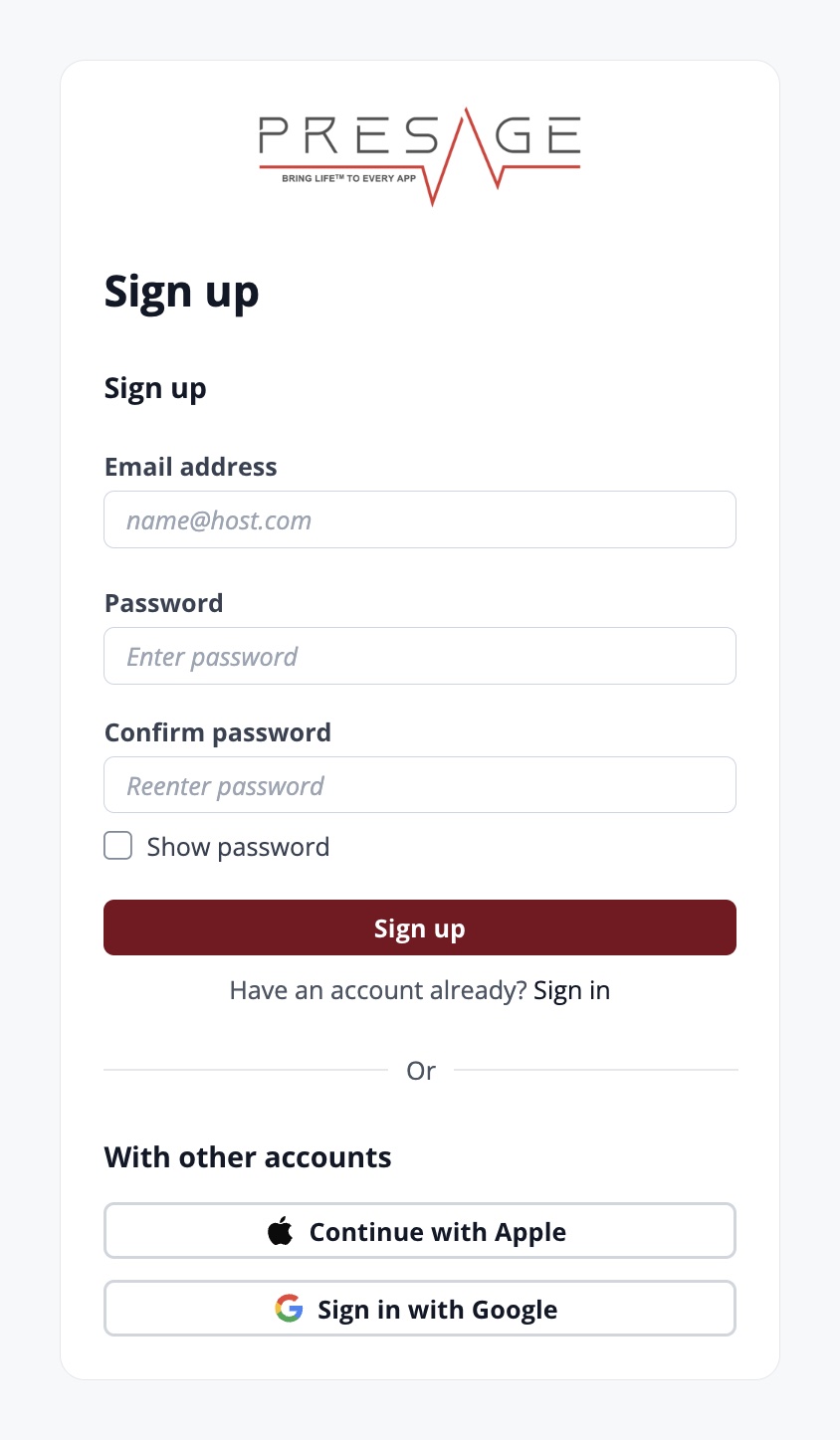

 TodayQuick scan, what's due today, latest results.
 ChatAsk about a scan or a wellness question.
 ScanStart a scan or join a live session.
 ProgramsYour Library, and more to add from Find.
 YouProfile, history and settings.