---
title: "Label your data"
description: "Click the timeline to label a moment, Shift+drag to label a span, and write notes, live or after the session. Every label is exported with the vitals."
---
> eSSESSMENT docs. Web page: https://presagetech.com/docs/essessment/label-data
> Index of all pages: https://presagetech.com/docs/essessment/llms.txt
# Label your data
## Add labels during a live session
Everything you add is stamped with the session time, on the same clock as the vitals.
#### Mark a moment
Click the Vitals Timeline at the moment you want to label. **Add Comment** opens at that time. Type your label, such as "participant coughed", and press `Enter`.
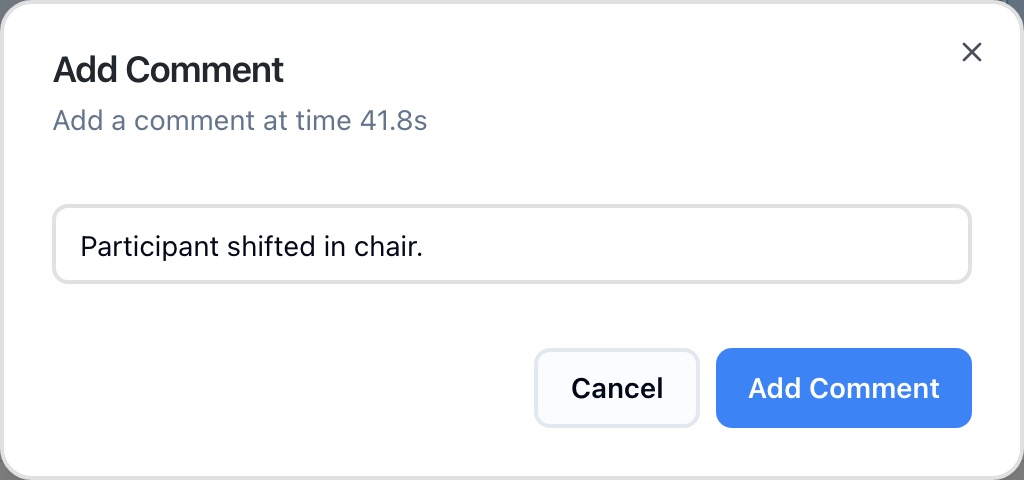
Add Comment opens at the time you clicked
#### Mark a span of time
Hold `Shift` and drag across the Vitals Timeline from where the span starts to where it ends. **Add Region Comment** opens for that span. Type your label and press `Enter`.
#### Write a note
Open the **Notes** tab below the chart, type in **Add a note…**, and press `Enter` or click **Add**. The note is stamped with the current time.
#### Label questions and answers
On the **Questions** tab, hold `Space` while you ask a question, then record the answer with `Y`, `N` or the answer buttons. The asking and answering periods become labeled spans with the response. See [Ask and answer questions](https://presagetech.com/docs/essessment/run-session#ask-and-answer-questions).
## Add labels after the session
Open the session in [Playback](https://presagetech.com/docs/essessment/playback). The same labels work there:
Mark a moment: click the chart, or click Note in the toolbar to label the moment at the playhead.
Mark a span of time: hold Shift and drag across the chart.
Write a note: use the Notes tab.
Score the session: on the Scores tab, click Score Session.
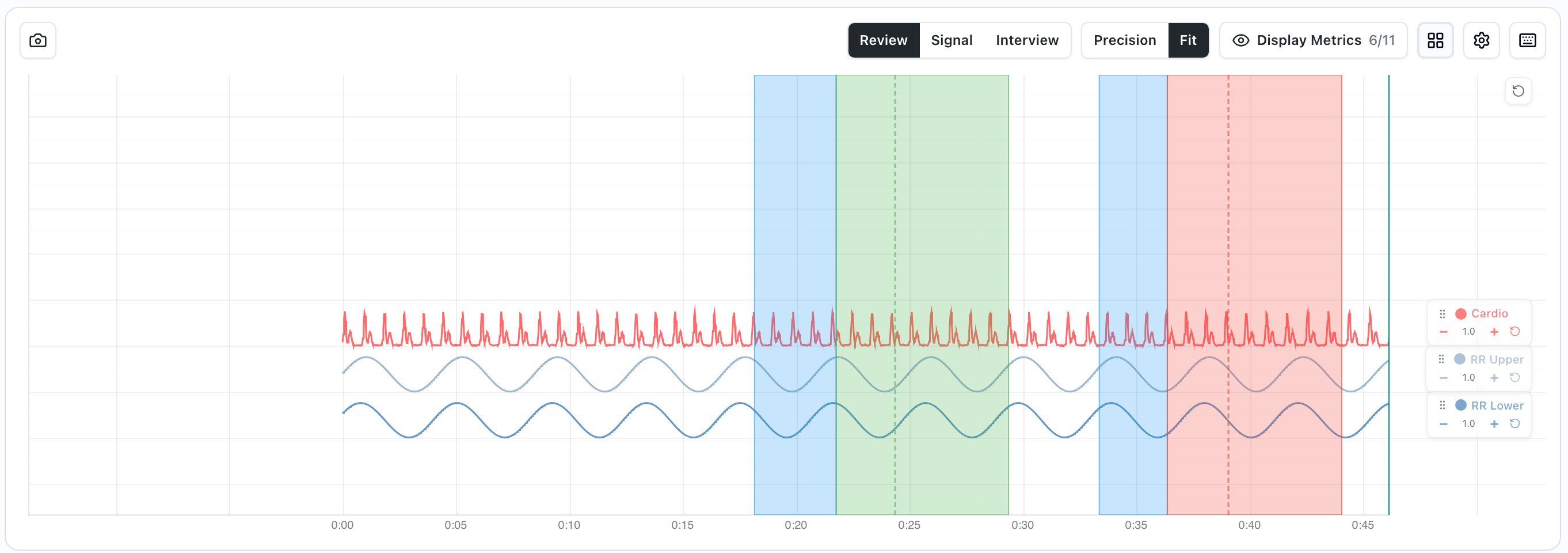
Labeled spans on the Vitals Timeline
## Review your labels
In Playback, the **Events** tab lists every comment, note, answer and camera event in time order. Filter with the chips at the top, and click an item to jump to that moment. Press `E` to show or hide markers on the chart.
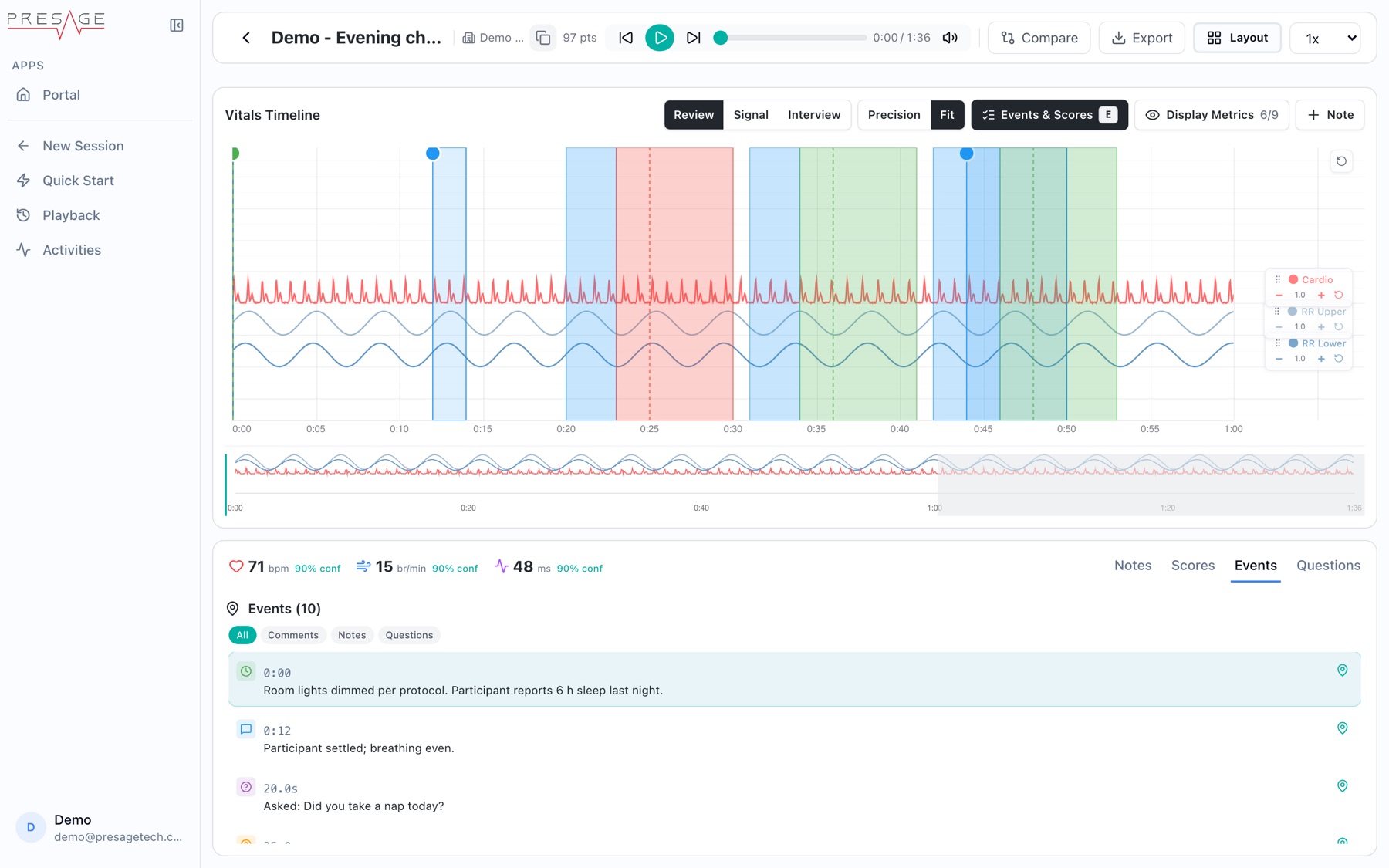
Events
## Get labels out for analysis
[Export the session](https://presagetech.com/docs/essessment/export). Every export type includes the labels next to the vitals, so you can line them up by time.
| Label | In the export | Times (seconds) |
| --- | --- | --- |
| Question segments | `assessment.questions`: question text, label and response | `askStartTime`, `askEndTime`, `responseStartTime` |
| Timed comments | `assessment.comments`: text and comment type | `timelineStart`, `timelineEnd` for a span |
| Notes | `assessment.notes`: text | `time` |
| Scores | `assessment.scoring` | Whole session |
// assessment.questions, one entry per question asked { "questionText": "Did you take a nap today?", "label": "B1", "askStartTime": 18.2, "askEndTime": 21.6, "responseStartTime": 22.4, "response": "yes" }
In **Data only, compressed** and **Everything**, the labels are in `manifest.json` and the vitals are split into parts under `vitals/`.