---
title: "Capture step"
description: "Set up a camera reading of vitals: how long it lasts, what participants see, and what happens during it."
---
> eSSESSMENT docs. Web page: https://presagetech.com/docs/essessment/capture-step
> Index of all pages: https://presagetech.com/docs/essessment/llms.txt
# Capture step
## Overview
A Capture always collects vitals. It uses the device's front camera to read pulse, breathing and related signals, and records every vital no matter which cards you choose to show participants. You can show timed messages, play videos, and ask questions while the reading runs.
A Capture doesn't save video. To keep participants unaware of their readings, for example to protect a study's integrity, turn off every card in **Metrics to Display**.
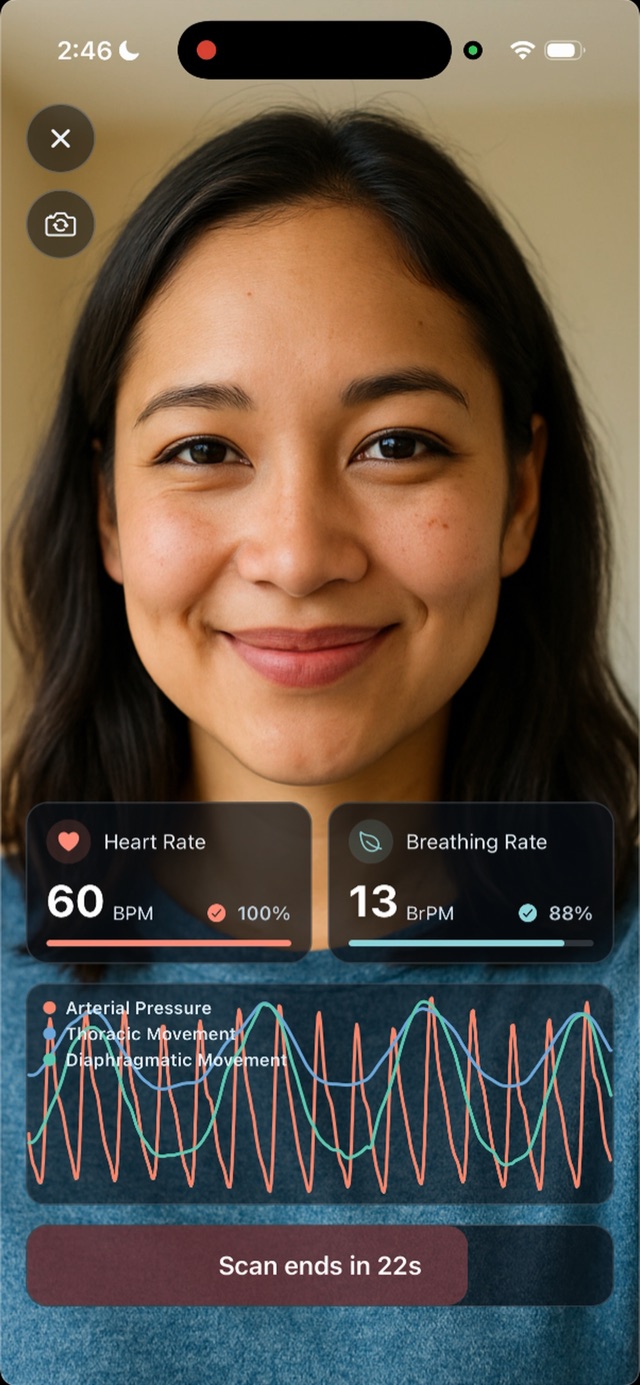
What participants see (iPhone)
## Reading length
Set **How long should the reading last?** in seconds. For best results, use at least 30 seconds. HRV needs a reading of at least 60 seconds.
## Timed Prompts
Short messages shown over the camera view. Each one disappears on its own after its duration, so participants can't keep it on screen or dismiss it early.
Show at: seconds into the reading.
On-screen duration: seconds it stays up. Defaults to 5. Give longer messages more time.
Title (optional) and Message.
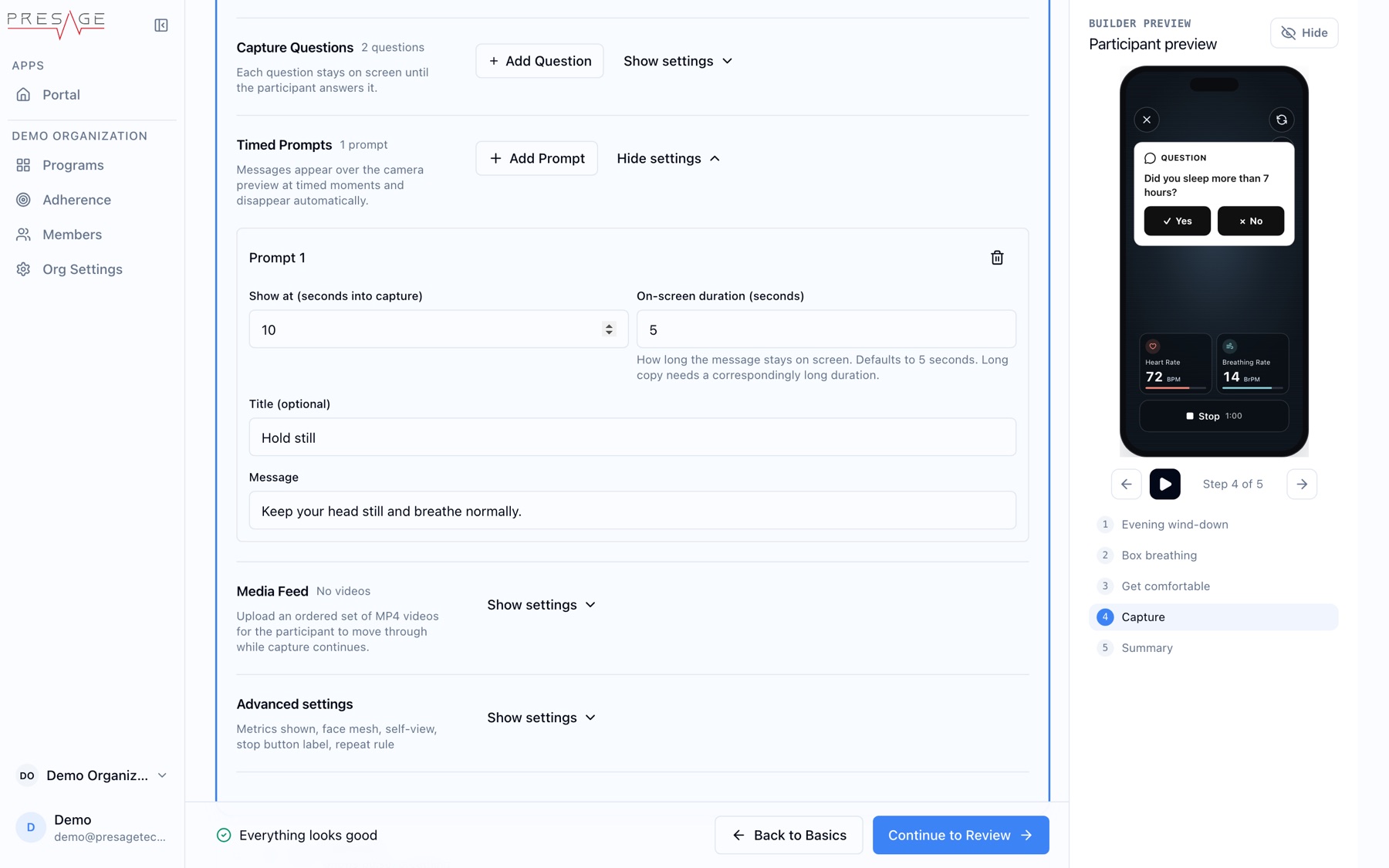
Timed Prompts
## Media Feed
Videos that play in order while the reading continues, for example a stimulus clip.
| Limit | Value |
| --- | --- |
| Files | 1 to 25 MP4 videos |
| Video codec | H.264 |
| Audio | AAC, or no audio |
| Size | Up to 250 MiB each |
| Length | Up to 5 minutes each |
## Capture Questions
Quick questions asked during the reading. Each one stays on screen until the participant answers it, so these settings control when questions appear, not how long they last.
#### Turn it on
Check **Enabled**.
#### Add questions
Choose a type under **New question** and click **Add Question**.
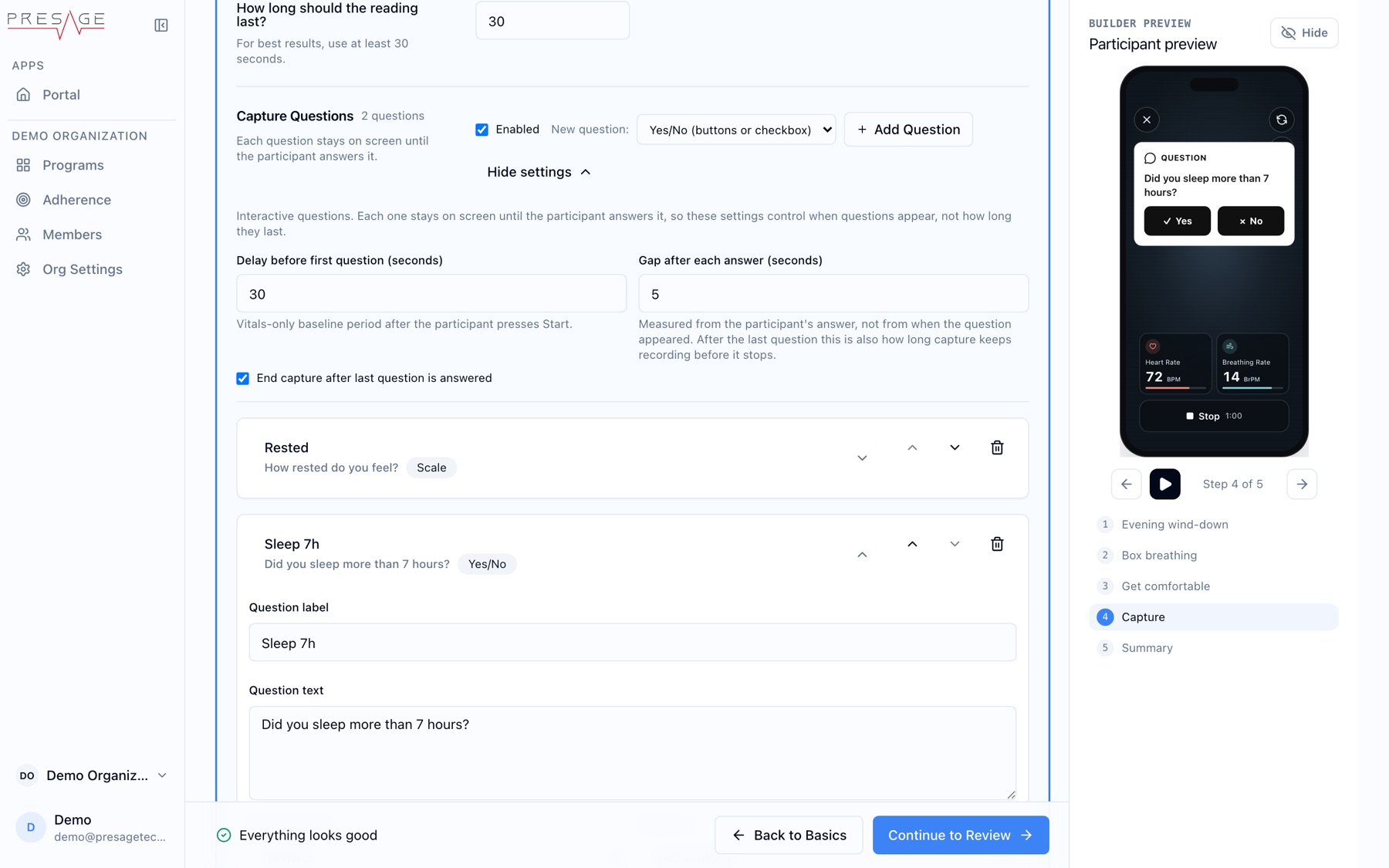
Capture Questions
#### Set timing
**Delay before first question** gives a vitals-only baseline after Start. **Gap after each answer** is measured from the answer.
#### Choose how it ends
**End capture after last question is answered** stops the reading after the final gap.
| Question type | Participant does |
| --- | --- |
| Yes/No | Taps one of two buttons |
| Text | Types an answer |
| Scale | Taps a number |
| Number | Enters a number |
| Choice | Picks from a list |
| Slider | Drags along a track |
## Advanced settings
Metrics to Display: the cards participants see: Pulse Rate, Breathing Rate, HRV, EDA, Pulse Trace, Breathing Trace, Expressions, Talking, Blinking. See Metrics.
Face Mesh Visualization: Combined (dots and lines), Dots, Lines, or Off.
Self-View: let participants hide their own camera feed, or start with it hidden. This only changes the display. The camera keeps running and readings are the same.
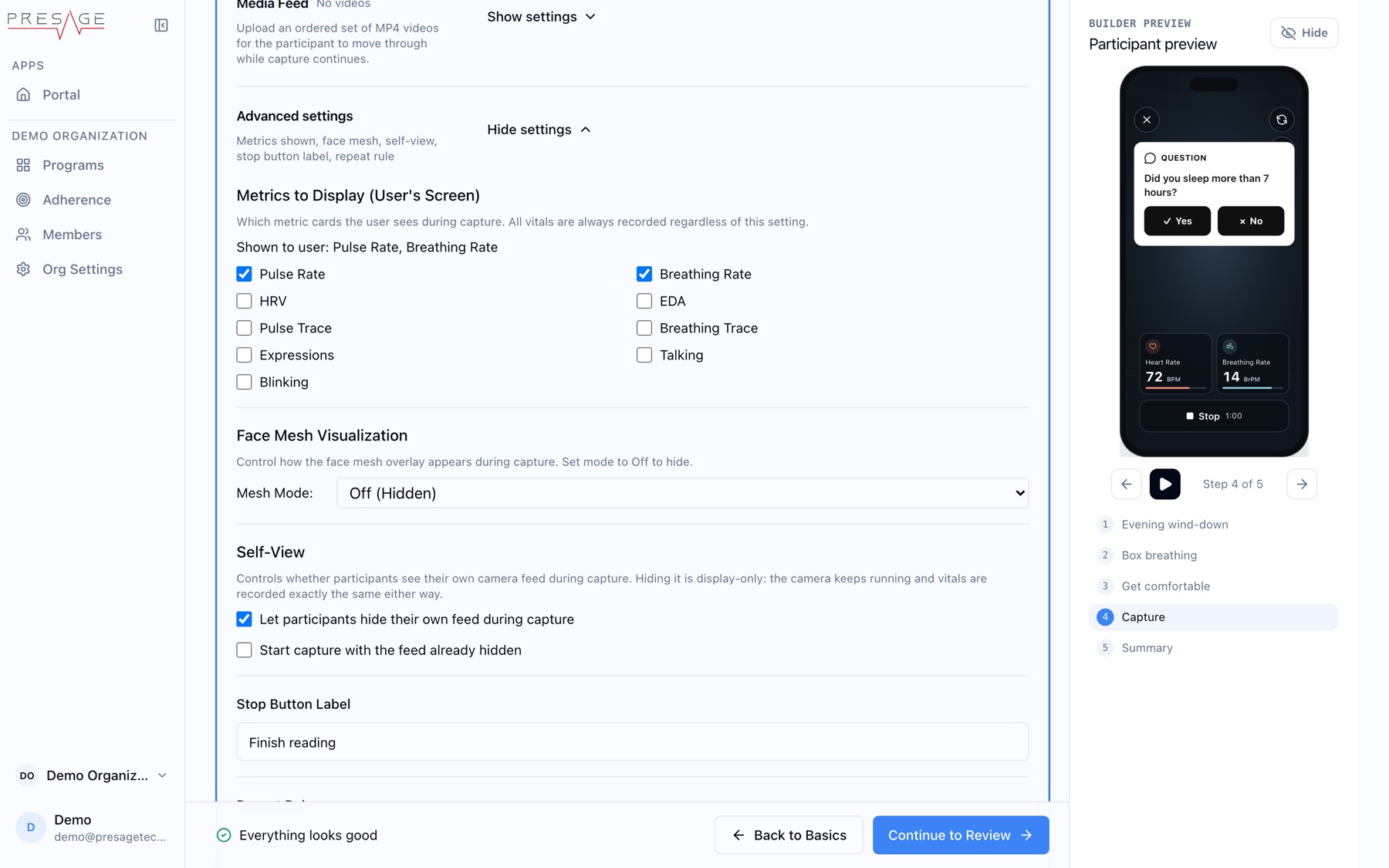
Advanced settings
Cloud recording applies only to [Stream](https://presagetech.com/docs/essessment/step-types) steps. A Capture doesn't save a recording.
## Tips for good readings
- Face the camera in even light, with your face inside the outline.
- Stay still and avoid talking unless the step asks for it.