---
title: "Complete an activity"
description: "What each step looks like and what to do. Your program decides which steps you see."
---
> eSSESSMENT docs. Web page: https://presagetech.com/docs/essessment/app-run-activity
> Index of all pages: https://presagetech.com/docs/essessment/llms.txt
# Complete an activity
## Start an activity
Tap an activity on [Today](https://presagetech.com/docs/essessment/app-today), in a program on [Programs](https://presagetech.com/docs/essessment/app-join), or from the [Scan](https://presagetech.com/docs/essessment/app-quick-scan) tab. If you leave partway through, Coherence offers **Resume activity** or **Start over** next time.
## Read the overview
The first screen says what's coming and roughly how long it takes. Tap the start button.
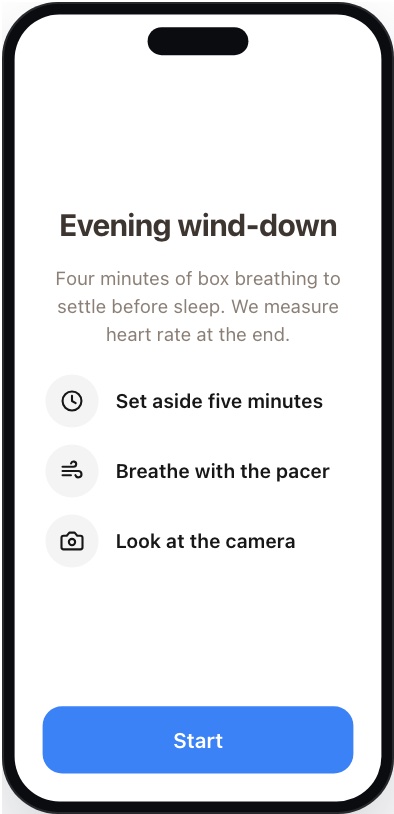
Overview (builder preview)
## Follow the breathing guide
Breathe in and out with the pacer. The front camera measures heart rate and breathing the whole time, and no video is saved. Use the options to show or hide your camera and your vitals. When it ends you'll see **Nicely done**. Tap **Done**.
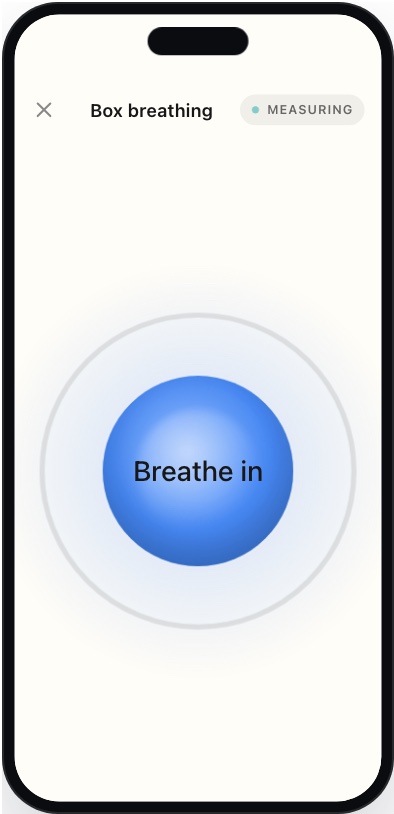
Breathing exercise (builder preview)
## Hold still for the reading
#### Get set
Find good lighting, keep your face centered, and hold still. Tap **Start**.
#### Stay in the frame
Your heart rate and breathing rate appear as the reading runs, with a confidence percentage. Follow any message on screen, such as **Hold still** or **Center your face**.
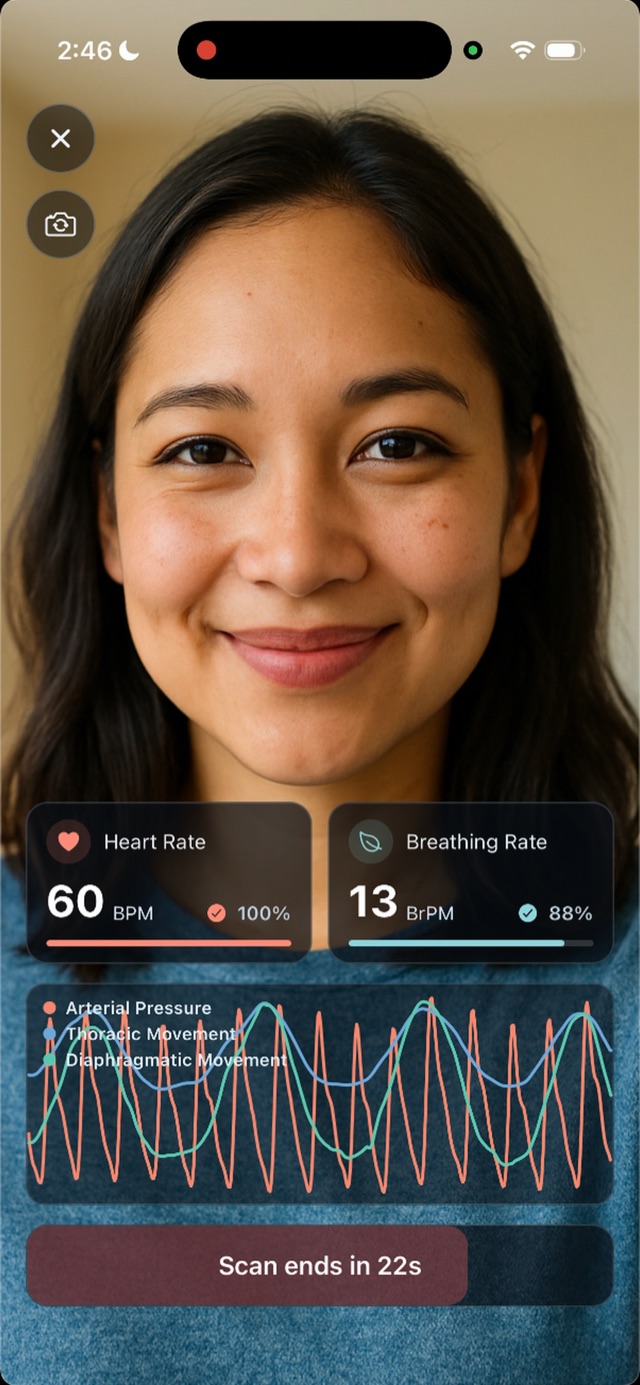
A scan in progress (iPhone)
#### Let it finish
The button counts down, for example **Scan ends in 22s**. Tap **Stop** only if you need to end early.
If the scan is too short, Coherence shows **Scan Too Short** with **Try Again** or **Use Anyway**.
For best results, prop your phone up on a table or stand instead of holding it. A steady phone gives a more reliable reading.
## Answer questions
Some questions appear on their own screen, others pop up during a reading. Answer each one to continue. Required questions must be answered, and some agreements must be checked before you can go on. Tap **Save and continue** when you're done.
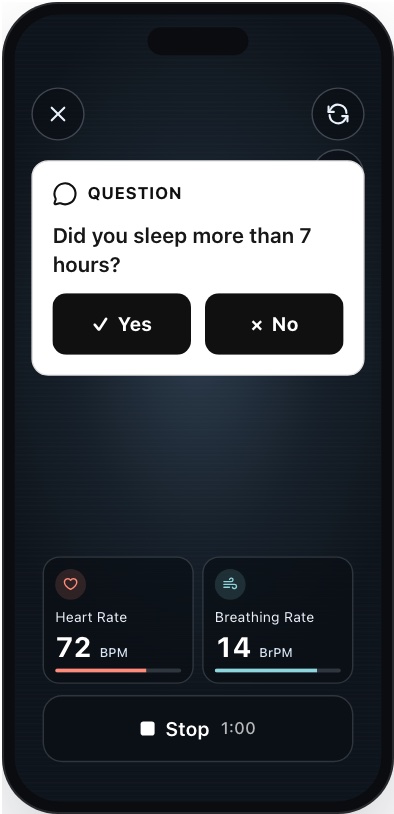
A question during a reading (builder preview)
## See your results
The summary shows the readings from this activity. You may be asked to rate it from 1 to 5 stars. Depending on the program, you then go back to Today, open a chat about your results, or see the results screen.
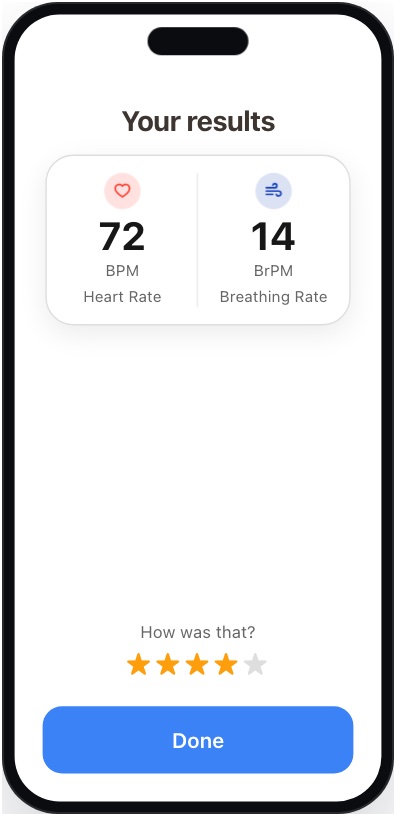
Summary (builder preview)
## Tips for a good reading
- Face a window or lamp, with no strong light behind you.
- Prop your phone up on a table or stand at eye level, rather than holding it, so your whole face is in view.
- Stay still and quiet until the reading ends.